How to Format Unallocated Disk [Step-by-Step Guide]
Formatting an unallocated disk on Windows can be done in three ways. To begin, you can use the built-in Disk Management tool to initialize and format the disk, making it ready for use. Alternatively, you can use a third-party disk formatting software, such as Qiling Partition Master, to format the disk and make it usable. If the disk is corrupted or has issues, you can also use the built-in Check Disk (chkdsk) tool to scan and repair the disk before formatting it. By following these methods, you can successfully format an unallocated disk on your Windows computer.
Why Format Unallocated Disk
An unallocated disk is a section of the hard drive that is not assigned to a specific partition or drive letter. It's essentially a blank space that can be used to store data, but it's not directly accessible through the operating system. The reason we format the unallocated disk is to make it accessible and usable for storing files and data.
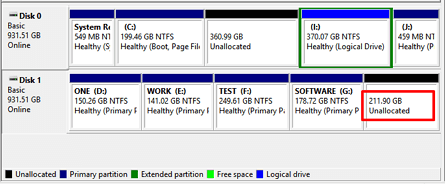
The unallocated space on a disk is an unused area that can be utilized to store files, but it's not accessible for writing files and data due to the absence of partitions. To make the disk usable and improve performance, this space must be formatted.
You may also like to know the following:
How to Format Unallocated Disk [Three Ways]
There are three ways to format unallocated disks on Windows: using built-in tools like Disk Management and Diskpart command, or opting for a professional third-party tool like Qiling Partition Master Free. The best method for you can be determined by comparing the features and suitability of each option in the provided table.
| Comparison | |||
|---|---|---|---|
| Operation Difficulty | Easy to use | Medium difficulty | Hard to use |
| Suitable Users | For beginners | For experienced users | For professionals |
Qiling Partition Master is a tool that allows users to format unallocated disks, making it a useful option for those who are not computer-savvy.
Formatting an unallocated disk on Windows can be done using three methods: using the built-in Disk Management tool, the Command Prompt, or a third-party software. The Disk Management tool can be accessed by right-clicking on the Start menu, selecting Disk Management, and then selecting the unallocated disk.
Method 1. Format Unallocated Disk Using Qiling Partition Master
Qiling Partition Master is a free disk manager that supports Windows 11/10/8.1/8/7 and XP/Vista, allowing users to easily format unallocated disk space to various file systems for compatibility with different operating systems.
To format an unallocated disk, you can create a partition on the unallocated space and choose the desired file system format during the process. This involves selecting the unallocated space in your disk management tool, creating a new partition, and then formatting it with the desired file system, such as NTFS or FAT32. This will give you a new drive letter and make the disk accessible for storing files.
Step 1. Launch Qiling Partition Master. On the main window, right-click on the unallocated space on your hard drive or external storage device, select "Create" to create a new partition.
Step 2. Adjust the partition size, file system, label, etc. for the new partition based on your specific needs.
Step 3. Click on the "Proceed" button to create a new partition.
Watch a video tutorial to learn how to create a partition in various file systems, including NTFS, FAT, and EXT, and gain the necessary skills to manage your computer's storage effectively.
Other Functions of Qiling Partition Master
Qiling Partition Master is a computer partition management tool that offers a range of features, including formatting unallocated disks, among others.
- It can merge unallocated space to a data partition.
- It can recover partitions from unallocated space.
- It can convert MBR to GPT without data loss.
- It can resize/delete/merge/create partitions.
Method 2. Format Unallocated Disk Using Disk Management
To create a new simple volume on an unallocated disk using Disk Management in Windows, follow these steps:
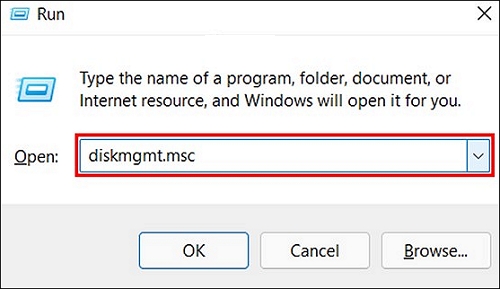
Step 1. To access Disk Management, select it on your computer or press Windows + R, then type "diskmgmt.msc".
Step 2. Find the disk and right-click the unallocated space.
Step 3. Select "New Simple Volume" and click "Next."
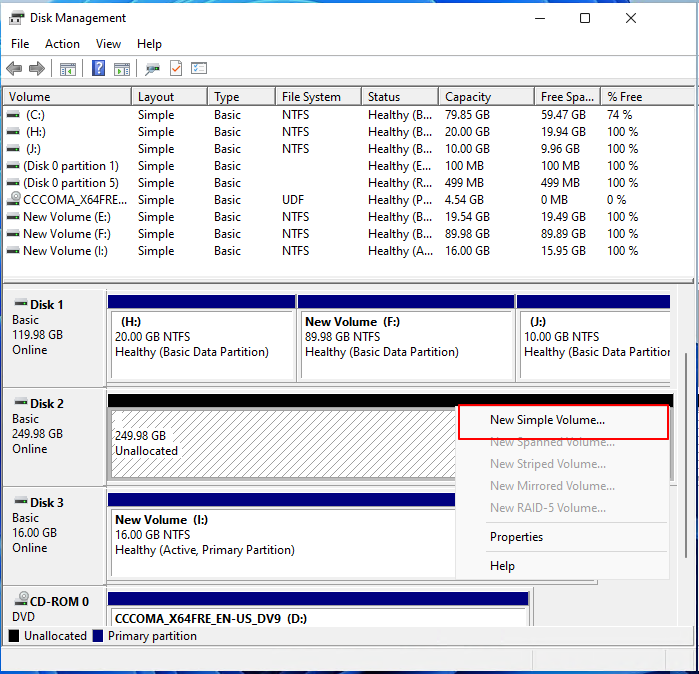
Step 4. Set the new volume's size, choose a letter to assign the drive, and click "Next."
Step 5. Select the appropriate format for your external hard drive, such as FAT32, NTFS, or exFAT, and set the correct parameters, including file system, cluster size, and allocation unit size, depending on your specific needs and the compatibility requirements of the devices that will be using the drive.
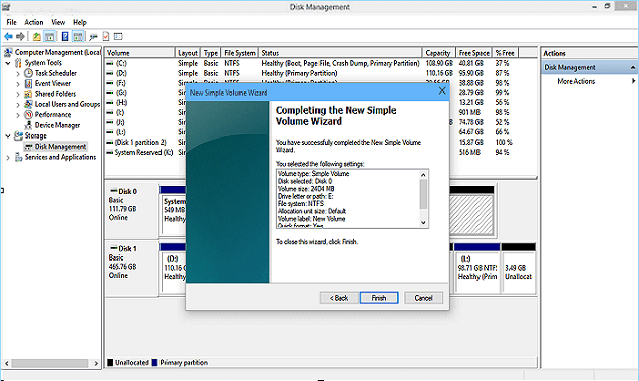
Step 6. After selecting the correct parameters, click "Next" and then click "Finish" to format the unallocated space on the disk.
Method 3. Format Unallocated Disk Using CMD
Diskpart is a free utility on Windows that allows users to manage disk partitions, fix device errors, and format unallocated disks using the command line interface. It provides a range of functions for users to manipulate their disk partitions and troubleshoot device issues. However, users need to exercise caution when typing commands to avoid data loss or other issues.
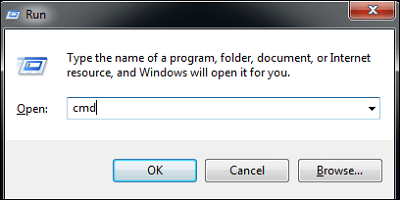
Step 1. Open the run windows and type "cmd."
Step 2. Type "diskpart" and press "Enter" to open this program.
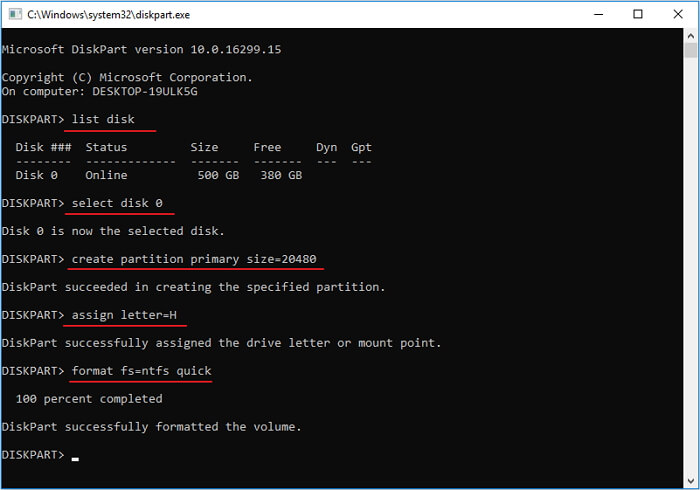
Step 3. Type the following commands in order and press "Enter" after each command to execute the program.
list disk – list all the disks in the system
select disk 0 0 refers to the number of the unallocated disk you want to format.
create partition primary size=20480
assign letter=H – H refers to the number of the partition
format fs=ntfs quickThe file system used in a computer's hard drive is called fat32, which stands for file allocation table 32. It's a widely used format that allows files to be stored and retrieved efficiently. However, you can change the file system to a different format based on your specific needs, such as exFAT or NTFS, depending on the type of files you're working with and the level of security you require.
Step 4. Close the window and finish formatting the unallocated disk.
Conclusion
According to this guide, you can learn how to format an unallocated disk on Windows using three methods. Both Disk Management and Diskpart can be used to format the unallocated disk, but I highly recommend using Qiling Partition Master due to its powerful functions and simple operations, making it a good helper for your computer and meeting different disk needs.
FAQs About How to Format Unallocated Disk
1. How do I format an unallocated drive in Windows 10?
Formatting an unallocated drive in Windows 10 is a straightforward process that can be accomplished using either Qiling Partition Master or the Command Prompt (CMD). Alternatively, using the built-in Disk Management tool, you can format the unallocated drive in a few simple steps. This involves accessing the Disk Management console, selecting the unallocated drive, and then right-clicking on it to choose the format option, specifying the desired file system and volume label. With these methods, you can easily format the unallocated drive and make it ready for use.
Step 1. Input "diskmgmt.msc" in the run window and open Disk Management.
Step 2. Right-click the unallocated disk and choose "New Simple Volume."
Step 3. Set the parameters and format of the unallocated drive, then click "Finish."
2. Why I can't delete unallocated space?
The unallocated space is not part of a partition, so it cannot be used or deleted. To utilize it, you can create a new partition on the unallocated space or extend an existing partition to include it.
3. Can you format unallocated space?
To format the unallocated space on a disk, you can create a new partition on the disk and then choose the appropriate format for the unallocated space. This process allows you to utilize the previously unused area for storing data.
Related Articles
- [2022 Fixes] How to Fix Your Computer Was Unable to Start
- Windows Update Troubleshooter Not Working in Windows 10/11 [Fixed Quickly]
- Wi-Fi not Working on Laptop, but Working on Phone | Solutions
- [Step-by-step Guide] How to Reset Only C Drive in Windows 10 Safely
- How to Find Microsoft Office 2007 Product Key (7 Ways)
If you've lost your Microsoft Office 2007 product key and can't access the software on your computer, you can easily find it using one of the seven practical methods. - Two Ways to Find or Recover Inventory Software Serial Key
Are you looking for finding your lost inventory software keys? Here are two excellent methods to recover your serial keys. Follow the steps here.
Products
Articles & Tutorials
- Data Recovery
- Data Backup
- File Recovery
- File Backup
- System Backup and Restore
- Disk and Partition Clone
- Technical articles
- Mobile articles
- Disk Master Help
- Windows Data Recovery Tutorials
- Windows Secure Delete Tutorials
- Windows Partition Management Tutorials
- Windows File Backup and Restore Tutorials
- Windows System Backup and Restore Tutorials
- Windows Disk Backup and Restore Tutorials
- Windows Clone Tutorials