How to Reset BIOS to Default Settings in 3 Different Ways
If you've forgotten your BIOS password, don't worry - resetting your PC's BIOS to its default settings is a relatively straightforward process. There are several methods to try, and the instructions for doing so are outlined in this article. By following these steps, you can easily reset your BIOS and get your computer up and running again.
What Is BIOS & Why Need to Reset It
The BIOS, or Basic Input/Output System, is the first layer of software loaded onto a computer's main RAM chip, which then loads the rest of the operating system. As a result, BIOS plays a crucial role in nearly all PC issues, making it essential to reset the BIOS.
BIOS allows you to install and configure hard drives, RAM, and sound cards, among other hardware components.
Updating the BIOS is crucial as it enables the operating system to run smoothly. The more frequently you update your BIOS, the better your computer's performance will be.
How to Reset BIOS to Default Settings in Every Possible Way
Resetting BIOS is a solution to various computer problems, including configuring hardware settings and monitoring screen resolution. However, before restarting or installing new hardware, it's essential to update your BIOS with the latest updates to ensure everything works together seamlessly.
Solution 1. Reset BIOS Using BIOS Setup Utility
If your computer malfunctions, check the power supply first. If it's working fine, try resetting the BIOS using the BIOS Setup Utility.
To reset the BIOS using BIOS Setup Utility:
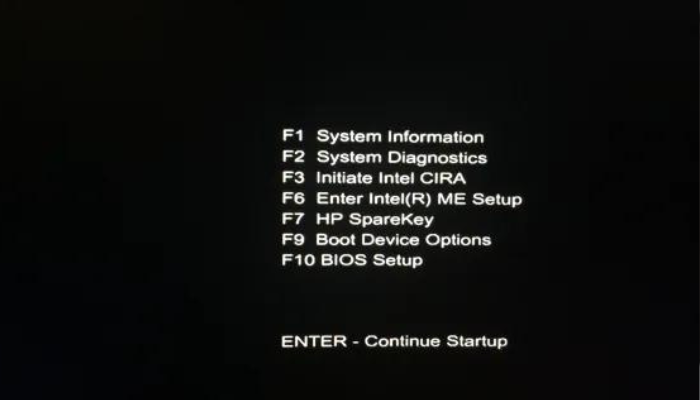
1. Press and hold down the "F2" key during the system boot-up. This will allow you to access the BIOS settings, where you can change the boot order, enable or disable certain features, and configure other settings.
2. Press the "Delete" key on the keyboard or move the cursor to highlight the "Delete" icon in the bottom right corner of the screen.
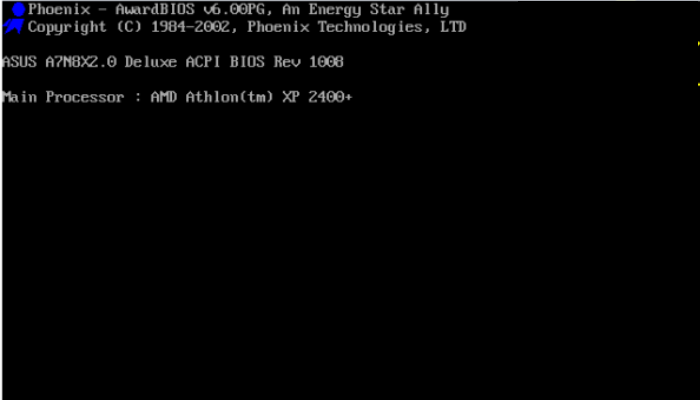
3. Press the key to select the "Advanced Setup" option from the menu.
4. To reset the CMOS configuration, select the "Reset CMOS Configuration" option and press the key.
Solution 2. Reset BIOS by Reseting Configuration Data
If the first method of resetting the BIOS setting to factory default doesn't resolve your issue, you can also try resetting the configuration data.
To reset the BIOS setting on a Windows computer, follow these simple steps. First, shut down your computer completely.
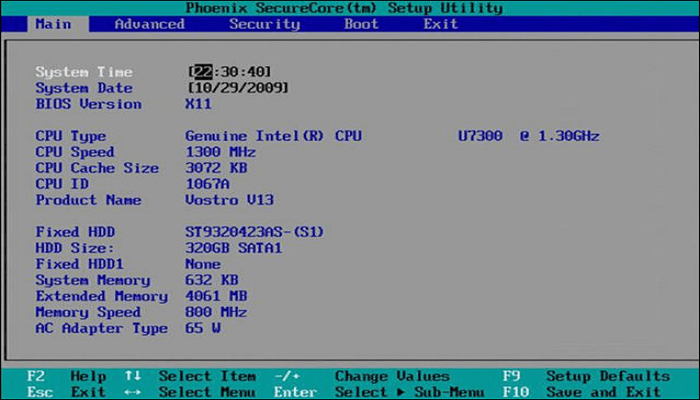
Go to Settings > Advanced, select "Reset Configuration Data", change "Disabled or No" to "Enabled or Yes", press F10, and then save and exit.
Solution 3. Reset BIOS by Removing CMOS Battery
If your computer won't boot, the first thing you should try is to remove the CMOS battery, which can often resolve the issue by resetting the computer's BIOS settings.
To reset the BIOS, you should remove the CMOS battery, which is usually located on the motherboard. This will clear the BIOS settings and allow you to reset them to their default values. Simply locate the CMOS battery, which is usually a small coin-sized battery, and remove it.
Turn off your computer, unplug it from the power outlet, and let it sit for a few minutes to discharge any residual power. This will help prevent any potential electrical shock or damage to the computer's internal components.
Press and hold down the "Delete" key while pressing the "F2" key, then press "Enter" when prompted.
3) Remove the CMOS battery by pressing down on the battery cover and sliding it open.
Additional Guide: How to Protect Data on Windows 10/11 for BIOS Issue
Booting into BIOS can change the boot order and hardware configuration, but it can also be a lifesaver if you experience unexpected data loss due to system installation or hardware failure. Qiling Disk Master can help you recover from such incidents by creating a backup, which can then be quickly restored to your computer, saving you from potential data loss.
Qiling Disk Master Pro is a multi-functional backup software for Windows that allows you to back up the entire system, disk, partition, and automatically back up files, as well as clone a hard drive and create an iso image from your operating system, with options for full, incremental, and differential backups.
Qiling Disk Master allows you to easily back up your computer with just a few clicks, making it a convenient and user-friendly solution for protecting your data.
Step 1. Launch Qiling Disk Master on your computer, click Create Backup on the home screen, and then select backup contents by hitting the big question mark.

Step 2. To back up your Windows operating system, click on "System backup" to start the backup process.

Step 3. You won't need to manually select any system files or partitions, as Windows will automatically include all relevant information and files. Next, you'll need to choose a location to save the system image backup by clicking on the illustrated area.

Step 4. The backup location can be a local drive, external hard drive, network, cloud, or NAS, with an external physical drive or cloud being recommended for preserving system backup files.

Step 5. Customization settings like enabling automatic backup schedules in daily, weekly, monthly, or upon an event are available in the Options button. You can also make differential and incremental backups. To proceed, click "Proceed", and the Windows system backup process will begin. The completed backup task will display on the left side in a card style.

The Bottom Line
Once you've completed the process, the reboot will start automatically and return to its default settings. After resetting the BIOS to its default settings, turn off the PC for a while and let it cool for a few minutes. You can use the setup utility or manually follow the instructions in the specific order. It's also a good idea to use Qiling Disk Master to create a backup of your computer regularly to avoid data loss, and then you'll have your new BIOS password soon.
FAQ
1. What happens if I reset my BIOS to default?
The BIOS (Basic Input/Output System) is the first thing that boots up when you turn on your computer, containing settings for various components like graphics cards and hard drives. Resetting the BIOS to its default settings is like starting over from scratch, and some computers have a dedicated button to do this, while others require navigating software menus to make changes.
2. Will resetting BIOS delete the files?
Resetting the BIOS will not delete any files from your system, as the file systems used by most operating systems are separate from those used by BIOS and firmware applications. This means that updating your BIOS will not affect any files on your system. (self-contained and to the point)
3. What is BIOS recovery?
BIOS recovery allows users to restore an older version of firmware on newer hardware or software, making it possible to update the system without reinstalling everything from scratch or losing data during the process. This feature, available on some motherboards, enables users to "flash back" to a previous version, saving time and money while preserving all data. Some models even permit multiple flashbacks at once.
4. Does updating BIOS delete everything?
Updating your BIOS won't delete everything, even if you're using an SSD. You can update the BIOS on a computer with a hard drive at any time, but it's not necessary for an SSD.
Related Articles
- How to Fix Mac Not Responding on Mac Ventura/Monterey/Big Sur
- How to Install macOS Ventura on Unsupported Mac with OpenCore Legacy Patcher
- Should I Install Steam on SSD? 2023 Full Guide Here!
- NVRAM Reset Not Working on Mac, 3 Steps to Fix!
- How Many Megabytes Are There in a Gigabyte
Want to know how many megabytes are there in a gigabyte? Read this guide thoroughly to learn more about megabytes and gigabytes to know the exact answer. Read to know how many megabytes are there in a Gigabyte. - Solved: How to Activate Protection System in Windows? - Qiling
What is a protection system in Windows? And how to activate protection system or access it? As a windows user, you must be keen on how to open Restore Point to keep the computer safer. This article will guide you through these questions.
Products
Articles & Tutorials
- Data Recovery
- Data Backup
- File Recovery
- File Backup
- System Backup and Restore
- Disk and Partition Clone
- Technical articles
- Mobile articles
- Disk Master Help
- Windows Data Recovery Tutorials
- Windows Secure Delete Tutorials
- Windows Partition Management Tutorials
- Windows File Backup and Restore Tutorials
- Windows System Backup and Restore Tutorials
- Windows Disk Backup and Restore Tutorials
- Windows Clone Tutorials