How to Fix Mac Not Responding on Mac Ventura/Monterey/Big Sur
Mac not responding The term "blue screen of death" can refer to a situation where a Mac's mouse pointer freezes, keyboard isn't working, or in the most severe cases, the screen goes entirely black with no signs of life from the Mac.
| Workable Solutions | Step-by-step Troubleshooting |
|---|---|
| Fix 1. Restart Your Mac | It's time for a reboot if you can't force quit on Mac with an unresponsive...Full steps |
| Fix 2. Boot Mac into Safe Mode | A Safe Boot might work if Restart hasn't been able to stop your computer from freezing...Full steps |
| Fix 3. Force Quit Apps | Some of the most frequent causes of a Mac being slow are apps crashing...Full steps |
| Fix 4. Free up Disk Space | Problems like freezing, crashing, and non-responsive applications on your Mac...Full steps |
| Fix 5. Mac in Recovery Mode | Before reinstalling your operating system, create a complete backup of your files...Full steps |
Here are the common issues that may lead to a Mac not responding:
- Too many running apps affect memory and CPU
- Numerous background processes
- A single app crashing on a Mac can cause significant performance issues due to the operating system's resource-intensive nature, potentially leading to system crashes and slowing down overall system performance.
- Sluggish browser with too many tabs opening
- Overworked email client with too many attachments
- macOS loaded with system junk or needs an update
- Insufficient room on the hard drive
- Hardware issue with your RAM or disc and diagnostics required
- Malware invasion
Here are some suggestions to fix the problem: If you're experiencing issues with your account, you can try resetting your password or contacting customer support. If you're having trouble with a specific feature, you can check the app's documentation or online resources for troubleshooting tips. If you're experiencing performance issues, you can try closing and reopening the app or restarting your device.

Ways to Fix When Mac Not Responding
If the pointers mentioned above are overwhelming, don't worry. We've conducted in-depth research and identified five effective fixes to resolve the Mac not responding issue. Before applying these solutions, ensure your data security to minimize any risk associated with your data.
- Method 1. Restart Your Mac
- Method 2. Boot Mac into Safe Mode
- Method 3. Force Quit Unresponsive Apps
- Method 4. Free up Mac's Disk Space
- Method 5. Reinstall Mac in Recovery Mode
Method 1. Restart Your Mac
If you're having trouble closing an unresponsive application on your Mac, it's a good idea to force quit it. Even if you can move the app to the trash, it's still a good idea to restart your computer. This can help resolve any issues and get your Mac running smoothly again.
Note: Unplug all peripherals except the power cord, and follow these quick guidelines:
- Press the power button and hold for a few seconds.
- Release it after your Mac shuts down.
- Press it again to restart the Mac.
- Or if that doesn't work, hold down the Command and Control keys while pressing the Power button.
To restart your Mac using your keyboard and mouse, follow these steps: Press the power button on your Mac, or press Command (⌘) + Option (⌥) + Esc, or press the power button on your Mac. Then, click on the Apple logo in the top left corner of the screen and select Restart from the dropdown menu.
Step 1. From the menu bar, choose the Apple logo.
Step 2. Tap Restart.
Step 3. To force restart your Mac, hold the power button until the Apple logo appears and the startup chimes sound.
Retest your Mac once it restarts. That is all it needs at times.
Method 2. Boot Mac into Safe Mode
If your Mac is freezing and Restart isn't working, try booting in Safe Mode, which will automatically run troubleshooting scripts and only load essential files, allowing you to troubleshoot the issue.
Step 1. When your Mac restarts, hold down the Shift key when you hear the startup sound to initiate a Safe Boot. This will allow you to troubleshoot and resolve issues without loading any login items or other processes that may be interfering with your system.
Step 2. If your Mac restarts on its own while in Safe Boot, it is likely trying to resolve a startup issue.
Step 3. If your computer isn't freezing while in Safe Boot mode, try restarting it normally to see if the issue is resolved.

Method 3. Force Quit Unresponsive Apps on MacBook
A slow Mac can often be attributed to apps crashing, and identifying the culprit can be a challenge, especially if the app is running in the background. To troubleshoot, try opening or using a specific app and see if the crash occurs. If so, follow the steps to force quit the app on your Mac.
Step 1. To force quit an application on a Mac, press Command (⌘) + Option (⌥) + Esc on your keyboard, which will display the Force Quit Applications window. From there, you can select the application you want to quit and click "Force Quit" to close it.
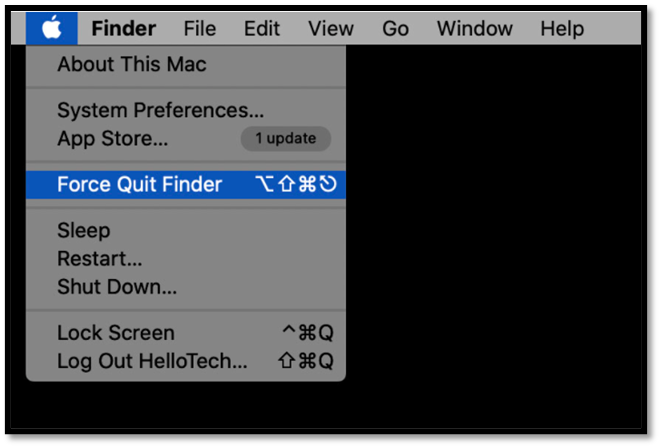
Step 2. To uninstall an app, select the app you want to uninstall and press the Force Quit button.
Step 3. To resolve a Mac freezing issue, you can use the "Quit All" feature to end all processes, including background ones. This can help identify which app is causing the freezing. If you're experiencing a frozen Mac, you can try using this feature to see if it resolves the issue.
Method 4. Free up Mac's Disk Space
Problems like freezing, crashing, and non-responsive applications on your Mac will start to occur if your storage is low.
Here's how to check the space you have available.
Step 1. In earlier versions of macOS, select Apple from the menu bar to access the Storage tab.
Step 2. To view available storage space on a Mac running macOS Ventura, go to System Settings, then click on General and select Storage. Alternatively, click the Apple Menu, select About This Mac, then click More Info and choose Storage Settings.
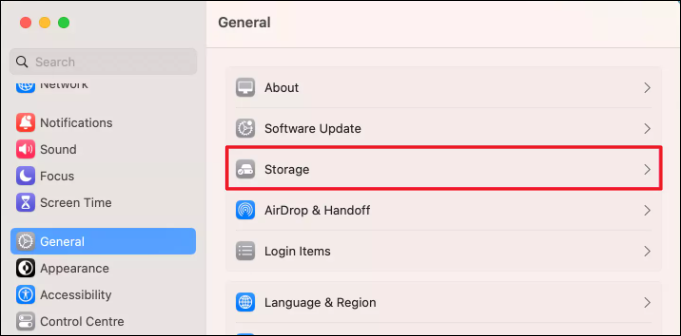
If you discover that you need more storage space, this might be the cause of your Mac not responding.
Method 5. Reinstall Mac in Recovery Mode
Before reinstalling your operating system, create a complete backup of your files.
To reinstall macOS, start by restarting your Mac and immediately hold down the power button until the startup options window appears. Select your startup disk and click on 'Continue' to enter Recovery Mode. From there, click on 'Reinstall macOS' and follow the instructions to download and install the latest version of your operating system.
Step 1. To start your Mac again, you can either hold the power button or select Restart from the Apple menu at the top-left of the screen.
Step 2. Hold the Command + R keys while restarting your computer, and keep them pressed until you see the Apple logo on your screen. Release them when you see the logo.
Step 3. To reinstall macOS, click on Reinstall macOS in the Utilities window, and then click Continue when you are in recovery mode.
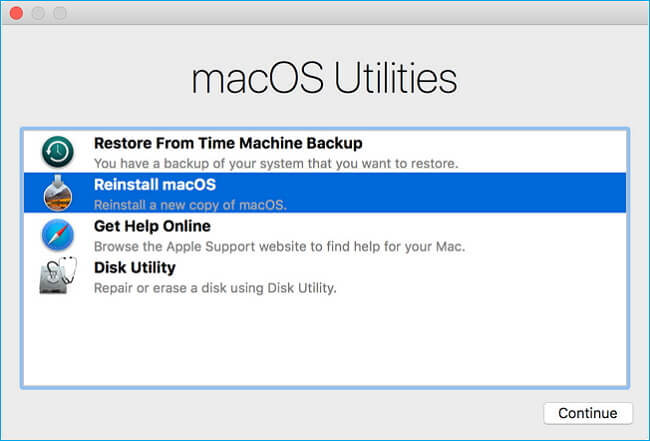
Step 4. To continue with the installation, click on the "Continue" button in the installer window. This will display the terms and conditions for installing the operating system. After reviewing the terms, select your hard drive by clicking "Agree". Finally, click "Install" to initiate the installation process.
Note: To install or update macOS, a stable internet connection is required on the Mac Internet Recovery Mode.
How to Recover Data After Mac Sudden Freezing
Mac users are worried about losing important data when their Mac suddenly stops responding and can't boot. A specialized data recovery tool, Deep Data Recovery Bootable Media, can help boot the Mac and recover lost files.
The software was developed to help recover data from file system errors, crashes, and unintentional file deletions, and features a user-friendly interface that allows even inexperienced users to recover files quickly.
Deep Data Recovery for Mac
- Losing data on a Mac can be devastating, but there are ways to retrieve it, regardless of the cause, such as a sudden system crash or macOS not responding. With the right tools and techniques, you can recover lost data from your Mac, even if it's due to a hardware or software issue.
- If your Mac freezes, you can recover lost data from the Trash, Time Machine backup drives, and fusion drives. The Trash can be accessed from the Dock or Finder, and you can restore files from it.
- Recover data from various Mac-based devices, and recover data from dead MacBooks.
Final Thoughts
Encountering a Mac not responding issue? Don't worry, it's easily understood and resolving it won't cause any data loss. With Qiling Mac Data Recovery Wizard, users can quickly resolve the issue without complications, making it a simple process for both novices and experts.
If your Mac is not responding, try quick fixes like restarting your computer, starting it in safe mode, closing down unresponsive apps, freeing up disc space, or reinstalling your Mac in recovery mode. For a more comprehensive solution, check out our detailed guide to get your Mac running smoothly again.
Frequently Asked Questions
Here are a few more helpful hints. If your Mac is not responding, try pressing the power button to force it to shut down. This will allow you to quickly recover your work and get back to what you were doing.
1. How do you restart an unresponsive Mac?
You can restart your Mac by selecting the Apple menu and choosing "Restart" or by holding the power button for a few seconds to turn it off, then pressing it again to turn it back on.
2. What is Mac's black screen of death?
Your Mac's display will automatically turn off if it's not receiving enough power or if the battery is only partially charged, and it may also experience a power cycle count malfunction.
3. How to fix a Mac that freezes, but the mouse still moves?
Please refer to these steps to resolve this issue:
- To restart your Mac, turn it off, then press and hold the power button until the boot process starts again. Next, immediately hold down the Command, Option, P, and R keys for about 20 seconds.
- You can release the keys when the startup chime plays twice or the Apple logo appears and then disappears twice.
4. Why is my Mac frozen, and I can't click anything?
To fix your frozen Mac, try this fix.
To turn off your device, press and hold the power button until it turns off. Wait for a few seconds, then release the power button.
If your Mac freezes and you can't click anything, it's likely due to a lack of memory in an application, causing your computer to become unresponsive. In this case, your Mac should restart automatically. However, if it doesn't, you may need to take alternative measures to resolve the issue.
Related Articles
- What Are the Benefits of Dynamic Disk [Detailed Elaboration]
- How to Install macOS Monterey | macOS 12 Clean Install
- How to Fix Smart Failure Predicted on Hard Disk 0, 2, 4
- Can't Install macOS Ventura? Here Are the 9 Best Solutions
- Restore Accidentally Cleared Data on Kodi
To recover accidentally cleared or deleted data on Kodi, you can download a Kodi (XBMC) data recovery tool. This tool allows you to recover your favourite movies, videos, TV shows, music, pictures, and all multimedia files on Kodi, even without a backup. - How to Recover Unsaved/Lost Notepad ++ Files with/Without Backups
Lost or deleted your Notepad++ files? Learn 2 effective methods to recover unsaved and deleted Notepad++ files on Windows. Recover from backups or use data recovery software when no backup exists.
Products
Articles & Tutorials
- Data Recovery
- Data Backup
- File Recovery
- File Backup
- System Backup and Restore
- Disk and Partition Clone
- Technical articles
- Mobile articles
- Disk Master Help
- Windows Data Recovery Tutorials
- Windows Secure Delete Tutorials
- Windows Partition Management Tutorials
- Windows File Backup and Restore Tutorials
- Windows System Backup and Restore Tutorials
- Windows Disk Backup and Restore Tutorials
- Windows Clone Tutorials