Can't Install macOS Ventura? Here Are the 9 Best Solutions
If you're experiencing issues with installing macOS Ventura, don't worry, as I've got the solutions to help you fix the "can't install macOS Ventura" problem.
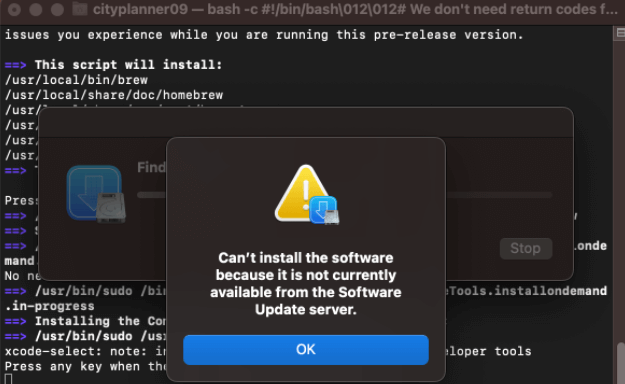
Why Can't Install macOS Ventura - 4 Reasons
If you're encountering an error message while trying to install macOS Ventura on your Mac, you're likely wondering why this is happening. The issue may be caused by a variety of factors. Below mentioned are the causes behind macOS Ventura can't install problem:
Device Compatibility
The Ventura update is not compatible with all Mac models, and older Macs are also not compatible with Ventura, so you should check if your OS version is compatible before updating.
Poor Internet Connectivity
If your Mac has a poor network or WiFi connection, you may need to fix it to download the Ventura update, which requires active internet connectivity.
Low Storage Space
If you use Sierra or a later macOS version, you'll need at least 26 GB of free space on your Mac. If you're using an older version like Yosemite, you'll need around 44 GB of space. Having more space than required is always a good idea.
Apple Server is Down
When Apple servers are down, several of its services may not work. To determine if a server issue is the cause, check Apple's System Status page, which can help identify the problem.
If you're experiencing issues with installing the macOS Ventura upgrade, we can assist you. To resolve the problem, follow these steps: we will help you install the macOS Ventura upgrade. No matter what the cause, we will help you install the macOS Ventura upgrade.
9 Ways to Fix macOS Ventura Won't Install
macOS Ventura won't install issue might be frustrating, but it can be resolved efficiently. Depending on the causes, there are 9 ways to deal with it, making your Mac function optimally again.
- 1. Check Your Mac Device Compatibility
- 2. Check the Storage Space
- 3. Check the Internet Connection
- 4. Restart Mac and Check Again
- 5. Check the Firewall Settings
- 6. Upgrade to Ventura Again
- 7. Install macOS Ventura from App Store
- 8. Delete the Installer App
- 9. Install macOS Ventura from Recovery Mode
Fix 1. Check Your Mac Device Compatibility
The installation of macOS Ventura may be hindered by various reasons, but it's essential to first check if your Mac model is compatible with the update. Despite being a Mac update, it's not compatible with all MacBooks, making compatibility a crucial step before attempting to resolve the issue.
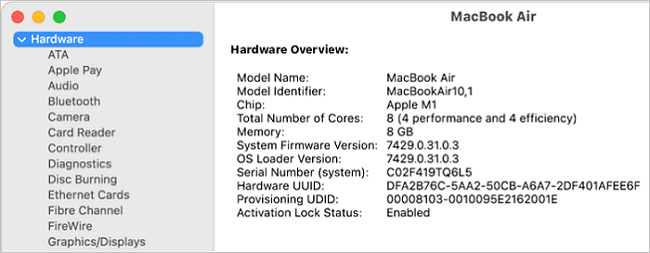
We have mentioned below a list of all the Macs compatible with macOS Ventura:
- iMac 2017 and later
- iMac Pro 2017 and later
- MacBook Pro 2017 and later
- MacBook 2017 and later
- MacBook Air 2018 and later
- Mac Mini 2018 and later
- Mac Pro 2019 and later
- Mac Studio 2022
If your Mac is older than the specified models, you won't be able to install macOS Ventura.
Fix 2. Check the Storage Space to Fix macOS Ventura Issues
To install macOS Ventura, you need at least 26-44GB of free storage space on your device, depending on your current macOS version, with 26GB being sufficient for Sierra or later and 44GB required for Yosemite or earlier.
To avoid running out of storage space on your Mac, you can free up some memory and increase storage. You can check your Mac's storage space by following these steps:
Step 1. To get out of the current app, tap on the Apple logo at the top left of your screen.
Step 2. To access the About This Mac section, click on the Apple logo located in the top left corner of the screen, then select "About This Mac" from the drop-down menu that appears. This will open a new window displaying information about your Mac's operating system, processor, memory, and other hardware details.
Step 3. Navigate to the Storage tab from the pop-up that appears
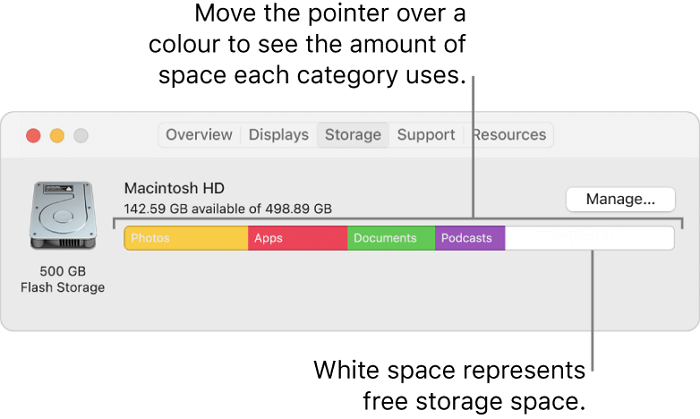
The graph displays which type of files are consuming storage space, categorized into files, systems, apps, and photos, allowing for analysis of which type of files are taking up the most space.
To declutter your Mac, delete unnecessary files and consider moving large files to a cloud drive or secondary storage device. This will free up space and make it easier to access your files. Additionally, newer Mac models have a built-in feature that suggests ways to free up memory.
Fix 3. Check the Internet Connection of Your Mac
A poor internet connection can cause issues with email and web browsing, making it difficult to install software. This can lead to the macOS Ventura Won't Install error message when trying to update amidst a slow or unreliable internet connection.
If your internet connection is unstable, try sitting close to the router or reconnecting the internet. If that doesn't work, enabling and disabling the flight mode can help re-establish the connection.
Fix 4. Restart Mac and Check Again
If you're experiencing issues with installing macOS Ventura, try restarting your Mac. To do this, go to the Apple menu, select Restart, and confirm that you want to restart your Mac. This can help resolve any issues that may be preventing the installation from completing.
Step 1. To access the Apple menu, click on the Apple logo at the top-left corner of the home screen. This will open a dropdown menu containing various options, including System Preferences, Restart, Shut Down, and more.
Step 2. Select the Restart option in the menu that appears
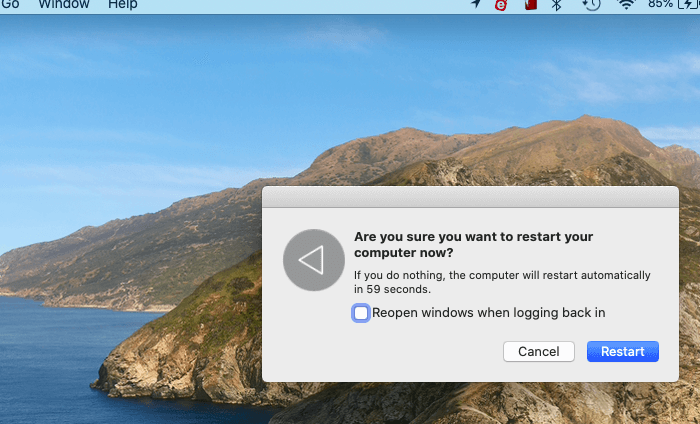
Step 3. Your Mac will now restart. Please wait for it to complete the reboot process. Afterward, head over to download Ventura and check whether the problem persists.
If minor issues like cache are interfering, then it will be resolved. However, if not, there would be an issue with Firewall configurations. The following method will help you with it!
Fix 5. Check the Firewall Settings
If you're experiencing issues installing macOS Ventura, it's likely due to Firewall settings hindering the process, resulting in an error message. To resolve this, you'll need to check your Firewall settings on your Mac. Follow these steps below. By resolving the Firewall settings issue, you should be able to successfully install macOS Ventura.
Step 1. To open the menu, click on the Apple logo located at the top left corner of the screen.
Step 2. Select System Preferences from the drop-down menu
Step 3. Navigate to Security and Privacy
Step 4. Go to Firewall
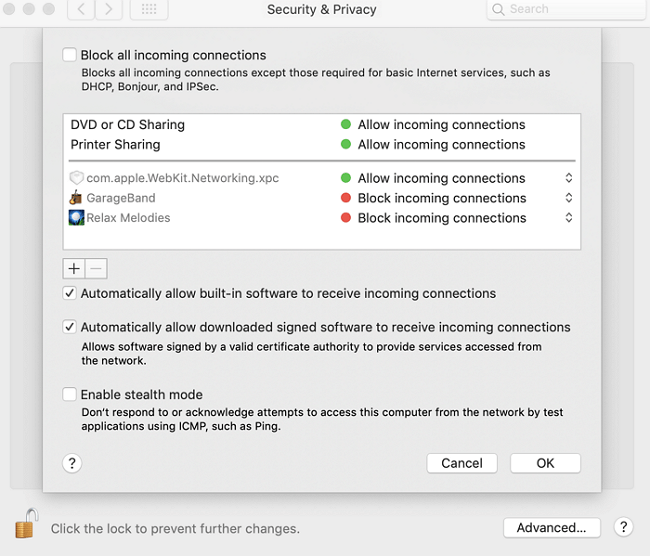
Step 5. Click on the Block Incoming Connections checkbox to uncheck it.
To resolve the issue of the Automatically Allow Embedded Software not receiving incoming connections, enable the option to allow embedded software to receive incoming connections. If the issue persists, check the firewall settings and ensure there are no problems with updates. If the issue still exists, try the following method.
Fix 6. Check for Updates to Upgrade to Ventura Again
If your Mac software is outdated, installing Ventura directly can be problematic, leading to an error message. To resolve this, update your current macOS to the latest version available, and then install Ventura. This ensures your software is compatible with the new operating system.
To get a software update before installing macOS Ventura, follow these steps:
Step 1. Head over to Apple Menu
Step 2. Click on Software Update from the drop-down menu
Step 3. You would then see an update if it's available. Click on the Download and Install option to proceed, letting your Mac complete the update and later install macOS Ventura.
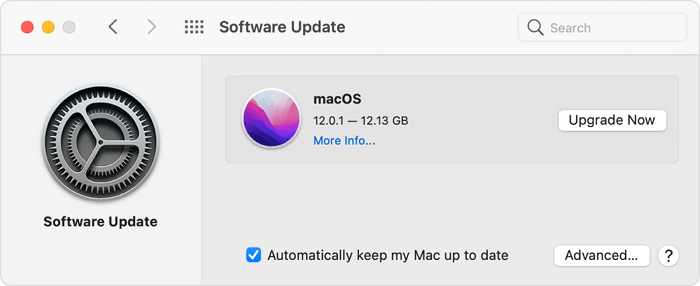
You can download an alternative app from the App Store on your Mac instead of relying on the built-in software feature.
Fix 7. Install macOS Ventura from Mac App Store
Apple has made all its updates and releases available in the App Store, so if you're experiencing issues with installing macOS Ventura, try downloading it from the App Store instead of checking for updates, which may resolve the "Can't Install macOS Ventura" error.
To install macOS Ventura from the Mac App Store, follow these steps: Go to the Mac App Store, click on the "Updates" tab, and click the "Update" button next to macOS Ventura. If you don't see it, click on the "Purchased" tab and click the "Install" button next to macOS Ventura.
Step 1. Go to App Store on your Mac
Step 2. To update to macOS Ventura, start by opening the System Settings app on your Mac. You can find this in the Applications/Utilities folder, or use Spotlight to search for it.
Step 3. Enter your Apple ID credentials, click OK, and wait for the App Store to complete the installation.
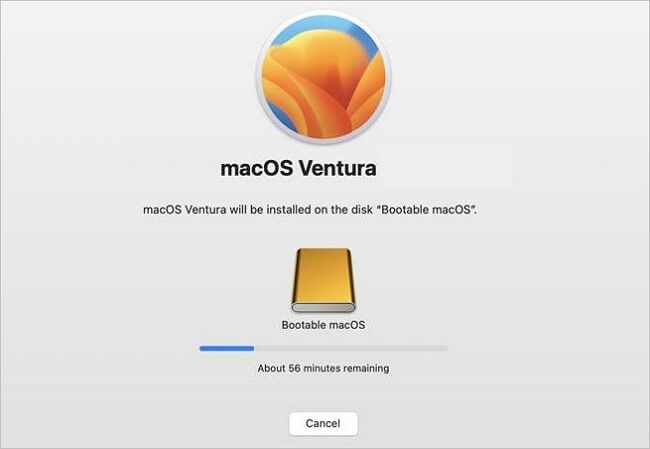
Step 4. You can find the macOS Installer Ventura Application, run it, and follow the procedure to update to Ventura.
If it does not let you resolve the problem, then the following method will help you!
Fix 8. Delete the Installer App and Try Again
If you're unable to download the Ventura Installer app, it's recommended to delete the Installer application and try again. This can be done by uninstalling the app in the same manner as you would any other app.
Here's how you can delete the macOS Ventura Installer app:
Step 1. To access the Applications folder on a Mac, go to the Finder and click on the "Applications" option from the left pane.
Step 2. To uninstall macOS Ventura, navigate to it in the Applications folder, then drag it toward the Trash icon to remove it.
Step 3. Click on the Trash icon and empty it
Step 4. Reboot your device
After emptying the Trash, you can ensure a clean install of macOS Ventura by checking for and installing any available software updates.
You would have installed Ventura by now! If not, then the last fix is the ultimate rescue for you.
Fix 9. Install macOS Ventura from Recovery Mode
Using the Recovery Mode is the ultimate rescue to tackle the Ventura can't install error, allowing you to switch to Recovery mode and install the macOS Ventura, with steps varying for Intel Macs and Apple Silicon Macs.
Install macOS Ventura using Recovery Mode on Apple Silicon (M1/M2 Mac):
Step 1. Turn on your Mac and hold the Power button until you don't see the Startup Window.
Step 2. To access the Continue option, click on the gear-shaped icon located on the screen, which will reveal the Options, and then select the Continue option from the list.
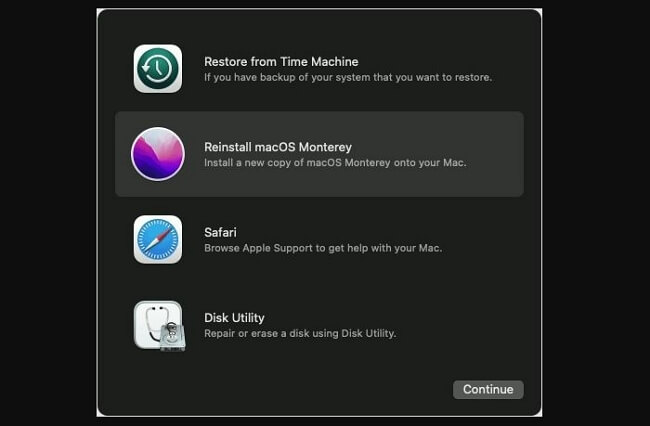
Install macOS Ventura using Recovery Mode on Intel Macs:
Step 1. To force restart your Mac, press and hold the Power and Command (Cmd) keys at the same time, then press and hold the R key. This will initiate a force restart, which can be helpful if your Mac is frozen or unresponsive.
Step 2. Release the keys when the Apple logo comes up
Step 3. After entering Recovery Mode, Mac prompts you to install a release of macOS Ventura. Once selected, your Mac will restart to begin the installation process.
Bonus Tips: How to Recover Data After macOS Ventura Install
If you're experiencing a data loss due to a Ventura installation error, you can recover your files using a reliable tool like Deep Data Recovery for Mac, which can help you restore your data effectively.
The most surprising aspect is that you can recover deleted files, including those accidentally deleted or in the Trash bin, which is a useful feature for those who need to retrieve lost data.
Here's why Apple users love the data recovery solution:
- It restores missing photos after a macOS Ventura update and also supports music, videos, etc.
- To backup your iPhone, you can use the built-in iCloud backup feature, or a third-party app like iTunes or a cloud backup service. This will allow you to restore your iPhone to a previous state in case something goes wrong.
- You can recover permanently deleted files on Mac, MacBook, iMac, etc.
- Robust app with incredible features and easy to use
Using the tool is easy-Issues with Mac can happen unexpectedly, and system failures can lead to data loss. The Deep Data Recovery for Mac can help recover lost data.
Step 1. Select file types and click "Fast Scan" to start
Launch Deep Data Recovery on your Windows computer, select the desired file types, and click "Fast Scan" to initiate the recovery process.

Note: You can choose different search modes based on where and why the data was lost.
Step 2. Search for lost files
To search for lost files on macOS, select the disk location where you want to search and click the "Search for lost files" button.

Step 3. Go through the scanning results
Deep Data Recovery for Mac will immediately scan your selected disk volume and display the scanning results.

Step 4. Select the file(s) and recover
In the scan results, select the files you want to recover and click the "Recover" button to restore them.
The Conclusion
The error "Can't Install macOS Ventura" is caused by compatibility issues with the Mac and Ventura, poor internet, low storage space, or a down Apple Server.
To troubleshoot Ventura's installation issue, check your internet connection, free space (26-44GB), and compatibility. However, be cautious as this process may result in data loss. To prevent this, consider using Deep Data Recovery for Mac, which can help you restore your data in a few clicks.
Mac Won't Update FAQs
If you're experiencing issues with the macOS update, you can find additional help in the FAQs below.
1. What to do if macOS can't be installed?
To resolve the issue, turn off your Mac and restart the installation of macOS. Additionally, ensure your Mac has sufficient storage space available. If storage is a concern, free up some space on your Mac and then try reinstalling macOS. This should resolve the issue and allow you to complete the installation process.
2. Does updating macOS delete everything?
Updating macOS typically does not delete data or erase the hard drive. For more information, you can check out this article: does updating macOS delete everything.
3. Is my Mac too old to update?
If your Mac is more than seven years old, it's likely too old to receive MacOS updates. This is usually the case.
4. How to Install the macOS 13 Ventura?
To install macOS 13 Ventura, go to System Preferences from the Apple Menu, check for Software updates, wait for macOS Ventura to show up, click to download it, or visit the App Store, download and run the macOS Ventura app to install.
Related Articles
- How to Turn On/off Firmware Password on Mac [Fixed]
- How to Fix SD Card Unexpectedly Removed Error on Your Phone
- How to Empty Trash on Mac [macOS Ventura Applicable]
- Fix Error Code 1309 Mac [2023 Guide]
- How to Enable Windows Auto Login without Password
If you're fed up with entering a long password every time you log in to your Windows system, this article shows you how to enable Auto Login without a password in Windows 10, saving you time and hassle. - Windows Backup 0 Bytes | Get the Answer here!
If your Windows backup file is showing 0 bytes, you're likely frustrated and unsure how to proceed. This issue can be caused by various factors, and fortunately, there are solutions to salvage your backup file.
Products
Articles & Tutorials
- Data Recovery
- Data Backup
- File Recovery
- File Backup
- System Backup and Restore
- Disk and Partition Clone
- Technical articles
- Mobile articles
- Disk Master Help
- Windows Data Recovery Tutorials
- Windows Secure Delete Tutorials
- Windows Partition Management Tutorials
- Windows File Backup and Restore Tutorials
- Windows System Backup and Restore Tutorials
- Windows Disk Backup and Restore Tutorials
- Windows Clone Tutorials