Windows Backup 0 Bytes | Get the Answer here!
Files becoming 0 bytes is a common Windows error that can be distressing if it affects your important Windows backup file. This phenomenon can occur due to various reasons, and in this article, we will discuss the causes and provide a solution to fix your Windows Backup 0 Bytes files.
Why Windows Backup Says 0 Bytes
The Windows Backup 0 Bytes file issue can be caused by two main reasons. Firstly, the hard disk where the backup file was stored may have become damaged or corrupted due to factors such as virus attacks, bad sectors, or sudden system failure. This can result in the backup file showing 0 bytes. Alternatively, the hard disk may have been damaged or corrupted when partitioning hard drives, leading to the same issue.
The Windows backup file may show 0 bytes size due to corruption, which can be caused by factors such as sudden interruptions during file transfer or program file creation, corrupted index tables, or long file names.
Two Effective Ways to Fix Windows Backup 0 Bytes Error
Losing essential data can be a nightmare, and it's often due to system failure, hacking, or accidental deletion. To avoid this, creating a backup of your data is a great habit. However, if your backup file is corrupted and shows 0 bytes size, don't panic - there are methods to fix and recover it. You can try using the built-in Windows Backup and Restore tool or a third-party software like Deep Data Recovery Wizard to retrieve your data. These tools can help you recover your files and get back to work quickly.
| Workable Solutions | Step-by-step Troubleshooting |
|---|---|
| Solution 1. Fix Windows Backup 0 Bytes Error Using CHKDSK | The chances are that a corrupt or damaged hard disk is behind your...Full steps |
| Solution 2. Repair Windows Backup 0 Bytes via System File Checker | The other method for repairing your Windows Backup 0 Bytes...Full steps |
Solution 1. Fix Windows Backup 0 Bytes Error Using CHKDSK
To fix the Windows Backup 0 Bytes error, use the Check Disk (CHKDSK) utility to analyze and repair your hard disk, which may be causing the issue due to corruption or damage, and potentially recover your files.
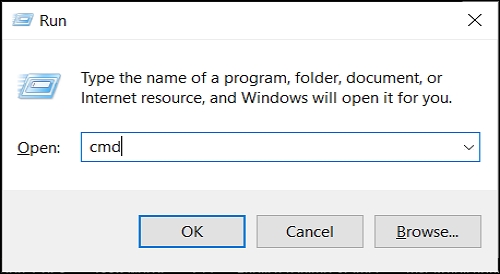
Step 1: To open the Command Prompt, press the "Win + R" keys to open the Run dialogue box, type "cmd" in it, and press Enter. Alternatively, use the search bar to find Command Prompt and run it as Administrator by right-clicking and selecting "Run as administrator". If you're using the Run dialogue box, you can also use "Control + Shift + Enter" to open Command Prompt as admin.
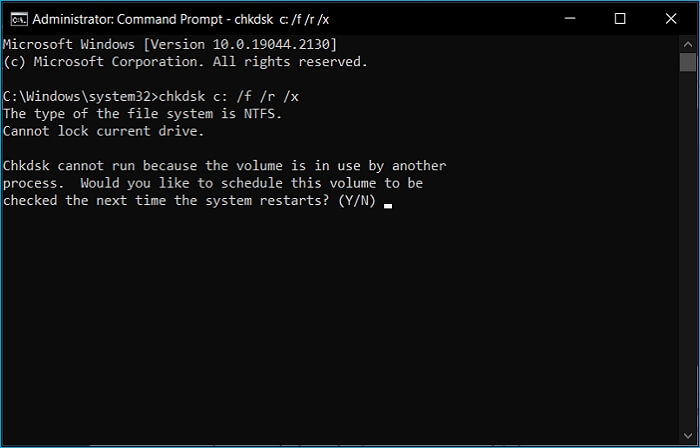
Step 2: Run the "chkdsk c: /f /r /x" command on the Command Prompt to analyze and fix issues with the hard disk, where "c" is the drive letter, and the options "/f", "/r", and "/x" enable fix, read-only mode, and force unmounting, respectively.

Step 3: The Command Prompt will prompt you to confirm running the command on the next reboot. Type "y" and press "Enter". After exiting the Command Prompt, restart your computer. The system will run CHKDSK before loading the OS, fixing and recovering files during the reboot process.
Solution 2. Repair Windows Backup 0 Bytes via System File Checker
To fix a Windows Backup file showing 0 bytes, you can use System File Checker (SFC), which is a built-in tool that scans and repairs corrupted system files, including those used by Windows Backup. This method is straightforward and can be completed in a few steps: run the Command Prompt as an administrator, type "sfc /scannow" and press Enter, and then follow the prompts to complete the scan and repair process. This should help recover your files and restore the correct size to your Windows Backup file.
Step 1: To start the Command Prompt, you can either type "cmd" in the Run dialogue or run it as Administrator from the Search menu.
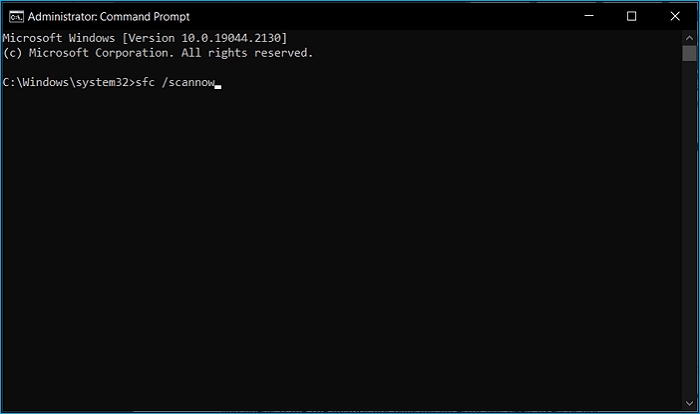
Step 2: Run the "sfc /scannow" command in the Command Prompt and wait for the scan to complete.
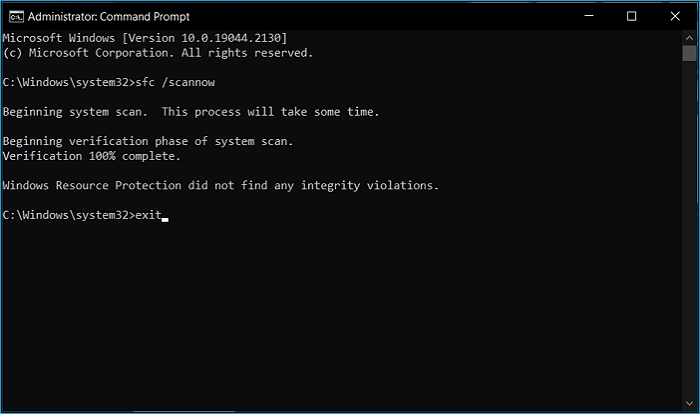
Step 3: Close the Command Prompt by typing "Exit" in it and pressing "Enter." Now restart your system and check whether the file history not backing up error has been fixed.
Better Solution for Windows Backup: Using Professional Backup Software
In Windows, you have two built-in tools for creating backups: File History for file backup and Backup and Restore for creating a system image. However, both of these tools are limited in their features, offering only basic backup options. Fortunately, third-party backup software like Qiling Backup can provide advanced features that native Windows backup tools cannot, making them a more comprehensive solution for backup needs.
Qiling Backup Home is a Windows backup and recovery tool that allows you to create complete system backups, disk/partition backups, and automatic file backups to external hard disks, with cloud backup services and cloning options for operating system migration.
To create a Windows system backup using Qiling Backup, follow these steps: first, open Qiling Backup, then select the backup type and destination, next choose the files and folders you want to include in the backup, and finally, click on "Backup" to start the process. This will ensure that your system and all its associated files are safely backed up, allowing you to restore your system to its previous state in case of any issues or data loss.
Step 1. Launch Qiling Backup on your computer, and click System Backup on the home screen to start the backup process.

Step 3. On this step, Windows will automatically select your operating system information and system-related files and partitions, so you don't need to manually select anything. You'll then need to choose a location to save the system image backup by clicking on the illustrated area.

Step 4. The recommended location for a system backup is an external physical drive or cloud, as it provides an additional layer of security and protection for the backup files.

Step 5. The Windows system backup process allows for customization settings such as enabling an automatic backup schedule in daily, weekly, monthly, or upon an event, and making a differential and incremental backup. This can be accessed through the Options button. Upon clicking Proceed, the backup process begins, and the completed task will be displayed on the left side in a card style.

The Bottom Line
The common occurrence of cyber-Attacks like data hacking and ransomware have increased the importance of creating and maintaining system backups, making it crucial to use a tool like Qiling Backup to create system backups and keep them secure.
FAQs
1. How do I fix a 0 bytes external hard drive?
If your 0-byte external hard drive is not working, you can try running the CHKDSK or SFC commands to fix it. These commands can be run as explained in the previous steps, and following them may resolve the issue with your hard drive.
2. Why are my files 0 bytes?
Files becoming 0 bytes can be caused by various factors, including hard disk damage, bad sectors on the hard drive, sudden system failure, virus attacks, and file corruption.
3. How do I delete a zero-byte folder in Windows 10?
You can delete the zero-To delete a 0-byte folder in Windows 10 using the Command Prompt, open the Command Prompt as Administrator, close the "explorer.exe" in Task Manager, navigate to the folder's location using "cd" and then run the "del" command to delete the file. Replace "0-byte file path" and "file.extension" with the actual folder path and file name, respectively. Finally, restart the "explorer.exe" in Task Manager.
4. Can a virus be 0 bytes?
Viruses can indeed be 0 bytes in size, and they are often a common cause of files showing 0 bytes errors. A 0 bytes file can sometimes be a virus affecting the system, making it a potential issue to investigate and resolve.
Related Articles
- Fixed: How to Recover Files When Windows 10 Desktop Icons Are Missing
- Steam Deck SD Card Format | What's It & How to Format [Ultimate Solution]
- Free PDF Editor - Top 6 Best Free PDF Editors 2020 Update
- How to Use HP USB Format Tool? [2022 Final Guide]
- Fix Error 1327 Invalid Drive When Installing Programs Windows 10
Error 1327 invalid drive is an error pop-up indicating that the drive for program installation is not valid. Check this article to understand the causes and know how to fix error 1327 invalid drive Windows 10. - How to Fix Windows Boot Manager Error Code 0xc0000225
If you receive Error Code - 0xc0000225 when you turn on your Windows PC, this post will help you resolve it using multiple methods. The methods are easy to follow, but ensure you take backup. Once the error code 0xc0000225 is fixed, you can get back to working on your PC.
Products
Articles & Tutorials
- Data Recovery
- Data Backup
- File Recovery
- File Backup
- System Backup and Restore
- Disk and Partition Clone
- Technical articles
- Mobile articles
- Disk Master Help
- Windows Data Recovery Tutorials
- Windows Secure Delete Tutorials
- Windows Partition Management Tutorials
- Windows File Backup and Restore Tutorials
- Windows System Backup and Restore Tutorials
- Windows Disk Backup and Restore Tutorials
- Windows Clone Tutorials