How to Use HP USB Format Tool? [2022 Final Guide]
When installing Windows on a computer, you need to burn a USB drive, which requires formatting it properly first. To achieve this, you can use the HP USB Format Tool, a helpful tool that creates the perfect environment for formatting your USB drive. With this tool, you can effectively format your USB drive and prepare it for the Windows installation process. This article will guide you through the process and provide you with the best options to consider while formatting your USB drive.
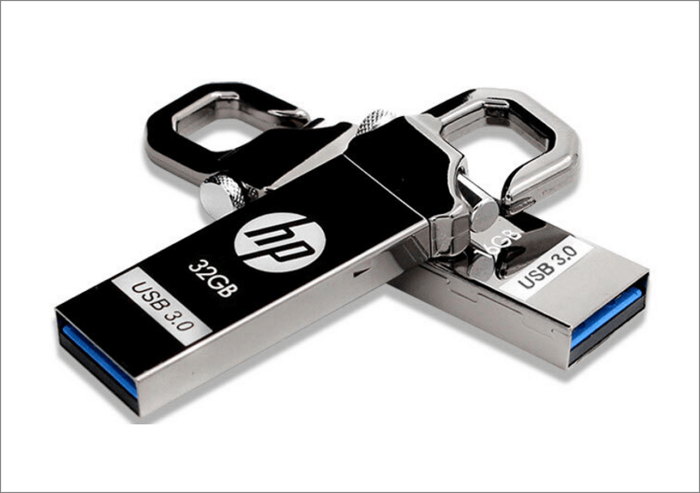
What Is The HP USB Format Tool?
The HP USB Disk Storage Format tool is used to format a USB drive, and its functionality should be understood before proceeding. This tool allows you to format the USB drive using a specific file system format, which is essential for the process. Understanding the tool and its capabilities will guide you through the process of formatting your USB drive.
What Is HP USB Disk Storage Format Tool?
HP USB Format Tool HP USB Format Tool is a utility software developed by HP for Windows computers that allows formatting USB devices to different file systems, including FAT, FAT32, and NTFS. Additionally, the tool can be used to create DOS startup disks for booting Windows devices, making it a versatile tool for managing USB drives and other storage devices.
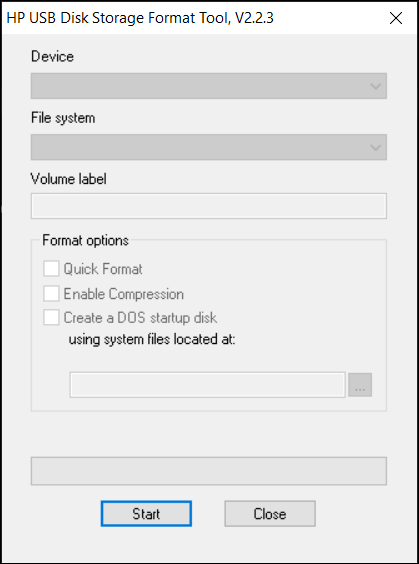
What Is The Best HP USB Format?
USB functions under a specific file system or format that usually defines where the USB is used. As Windows, Mac, and Linux have their defining formats, these formats have their security preferences and functionalities. This is why there is a list of formats that you can go across while selecting an HP USB format for yourselves.
When exploring the formats for your HP USB, you'll find various file systems to consider. To simplify the process, we've categorized them as follows:
- FAT16: FAT16 is a file system developed for hard drives that uses 16-bits to identify each cluster entry within the file allocation table, allowing for a maximum of 65,526 clusters and a total of 2 GB of storage space.
- FAT32: 32-bit file extension system without encryption.
- NTFS: The NT File System is a more efficient way to store, organize, and locate files on a disk, allowing for quicker access and retrieval.
- exFAT: exFAT removed the limitations of file sizes in FAT32, making it more convenient and spacious for users to store and manage their files.
The exFAT file system offers a feasible and optimized set of options for flash drives, removing file size and partition limits, while cutting out overheads like NTFS, making it the best available version for HP USB drives in Windows.
The HP USB Format Tool is a software that can be used to format a USB drive. It is a simple and easy-to-use tool that can be downloaded and installed on a computer.
How to Use HP USB Format Tool?
HP USB Format Tool The software has been referred to as a great tool for formatting flash drives and other drives across the Windows computer. While it has some limitations, it can still be used to execute requirements, and the following steps can be taken to do so:
Step 1: Connect Flash Drive and Launch Tool
Connect your USB drive to the computer, download and launch the HP USB Format Tool, and run it as an administrator to format your USB drive.
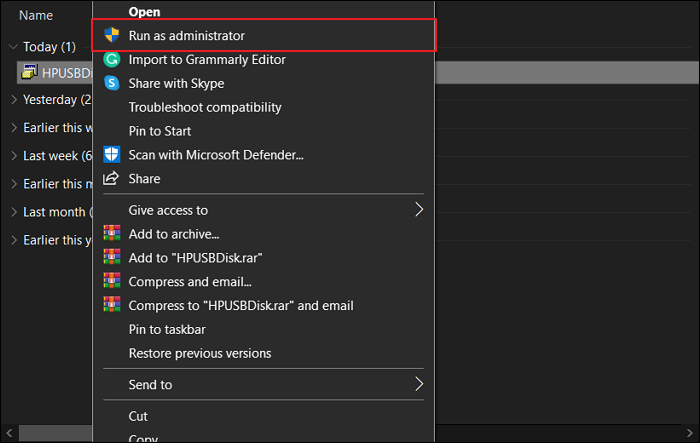
Step 2: Select the Removable Disk
To format a USB drive, first, open the window and navigate to the "Device" tab. There, find the list of all removable disks and select the specific USB drive you want to format. Next, define the file system you wish to use for the drive, and the formatting process will begin.
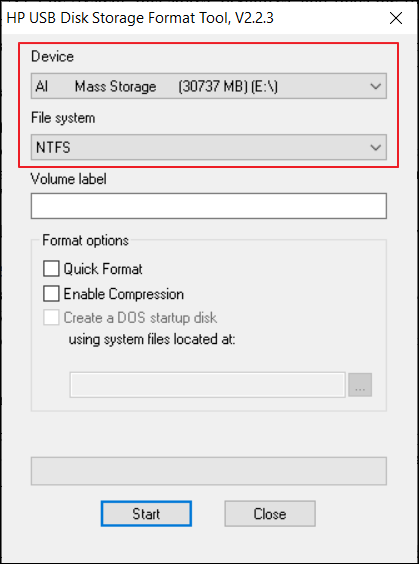
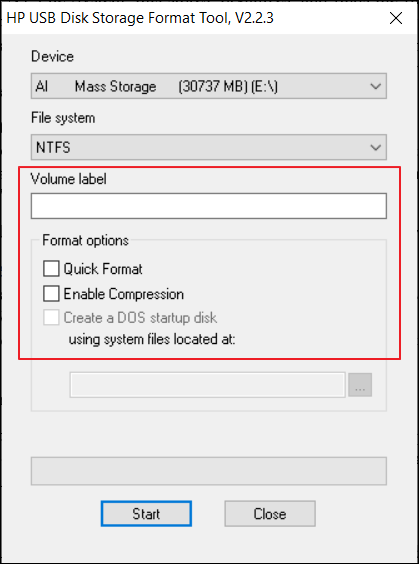
Step 3: Defining Parameters and Starting the Process
Specify the volume label, select format options, and click start to format the drive.
If the HP USB Format Tool doesn't meet your needs, another option is the Rufus tool. It's a free, open-source utility that can format USB drives, including those with bootable operating systems. Rufus is highly customizable and allows you to choose the file system, cluster size, and other options.
Best Alternative of HP USB Format Tool
The HP USB Format Tool is not compatible with Windows 11, so an alternative like Qiling Partition Master Free should be used instead, which offers features such as adjusting disk space, creating a new partition, merging a partition, and setting up a hard drive.
A comparison table has been set up to highlight the differences between Qiling Partition Master Free and HP USB Disk Storage Format tool. This table allows users to see the key distinctions between the two software, providing a clearer understanding of their features and functionalities.
| Comparison | HP USB Format Tool | Qiling Partition Master Free |
|---|---|---|
| OS | Windows 10, Windows 8, Windows 7, Windows Vista, Windows XP | Windows 11, Windows 10, Windows 8.1, Windows 8, Windows 7, Windows Vista, and Windows XP are all operating systems developed by Microsoft. |
| Security | ✖ | ✓ |
| Functions | Only Formatting | Provide All Formatting and Disk Optimizer Functions |
| Supported File Systems | NTFS, FAT, FAT32 | NTFS, EXT2/3/4, FAT12/16/32, ReFS, exFAT |
Compared to HP tool, Qiling Partition Master is a free alternative with more functions, making it a suitable replacement for the HP USB format tool. It allows for easy creation and deletion of partitions, and also provides disk performance control. With Qiling Partition Master Free, you can manage your computer's partitions with ease, including formatting an HP USB drive.
- Right-To format an external drive or USB, click on it to select it, then choose the "Format" option.
- Set the Partition label, File system (NTFS/FAT32/EXT2/EXT3/EXT4/exFAT), and Cluster size.
- Click the "Proceed" button to format the hard drive partition.
- Click "Yes" to continue.
Other Important Features of Qiling Partition Master Free
- This tool allows you to check a disk or drive and features an option to repair any problems found.
- It helps to convert Primary partition to Logical and vice versa.
- Cloning a larger hard drive (HDD) to a smaller solid-state drive (SSD) is a straightforward process that can be completed across the computer with minimal hassle.
- The volume across the drive can be extended across another partition without losing any data.
- You can try to format a hard drive or wipe out the data from it while avoiding the risks of data loss.
- You can use the unallocated space on your computer to extend the system partition on your Windows computer.
Conclusion
We hope you enjoyed our tutorial on using the HP USB Format Tool perfectly. With a clear overview of the HP USB Disk Storage Format Tool, you now understand the guidelines for formatting your required USB. Additionally, we presented a perfect alternative that supports a larger audience, Qiling Partition Master Free, which we hope has provided you with more information about the tool in every way.
FAQ of HP USB Format Tool
If you're still having trouble formatting your HP USB, we've provided some clarification questions to help you understand the process better. To format your drive with ease, consider these parameters: What type of file system do you want to use (FAT32, NTFS, or exFAT)? What is the drive capacity you're working with?
1. How do I format my HP Flash Drive?
The HP USB Format Tool can be used to format a USB drive, as discussed in the article. The tool is available for download and provides detailed instructions on how to use it, including selecting the USB drive, choosing the formatting options, and confirming the format operation.
2. How do I format a RAW Flash Drive to FAT32?
Qiling Partition Master Free allows you to format a RAW flash drive to FAT32.
3. What format does a Windows USB need to be in?
You need to have your Windows USB in the FAT32 format, as it is the most versatile file system across Windows.
Related Articles
- 5 Best Free DVD Backup Software/DVD Ripper[Windows&Mac&Linux]
- Fix System Restore Failed and Did Not Complete Successfully Error in Windows 10
- Best Ways To Fix Windows PowerShell Keeps Popping Up
- What Graphics Card Do I have? Here's How to Check Graphics Card
- MTS File : What Is It and How To Open It [Updated 2023]
An MTS file is a high-definition video format used by camcorders that record in AVCHD. Learn what an MTS file is, how to open it, and the best media players for MTS playback. - Should I Get a NAS or External Hard Drive for Backup?
This page compares NAS and external hard drives in various aspects, including convenience, size, mobility, and portability, to help you make a wise decision on which one to choose.
Products
Articles & Tutorials
- Data Recovery
- Data Backup
- File Recovery
- File Backup
- System Backup and Restore
- Disk and Partition Clone
- Technical articles
- Mobile articles
- Disk Master Help
- Windows Data Recovery Tutorials
- Windows Secure Delete Tutorials
- Windows Partition Management Tutorials
- Windows File Backup and Restore Tutorials
- Windows System Backup and Restore Tutorials
- Windows Disk Backup and Restore Tutorials
- Windows Clone Tutorials