Should I Install Steam on SSD?
As SSDs become increasingly popular among gamers, including the Steam Deck, the question remains whether installing Steam on an SSD can enhance the gaming experience. The answer lies in understanding the benefits of SSDs, which include faster loading times, quicker access to games, and improved overall system performance. By installing Steam on an SSD, users can expect a smoother and more efficient gaming experience, making it a worthwhile investment for those seeking to upgrade their gaming setup.
Should I Install Steam on SSD or Not
You should install Steam on an SSD for faster loading times and smoother navigation, as it's now affordable with a 1TB SATA SSD costing under $100.
Here are some common Steam issues you may like:
Installing Steam on an SSD (Solid-State Drive) provides several benefits, including faster loading times, improved performance, and enhanced overall gaming experience. The SSD's ability to quickly access and read data results in quicker loading times for games, levels, and other content, making it ideal for gamers who value speed and responsiveness.
- Faster load times: Installing Steam on an SSD can significantly improve load times for games, allowing users to access their games quickly and efficiently, saving time and enhancing the overall gaming experience.
- Better performance: SSDs enable fast data reading, leading to improved game performance and a superior gaming experience.
- Fewer bugs: Solid-state drives (SSDs) have fewer moving parts compared to traditional hard disk drives (HDDs), making them less susceptible to mechanical failures and thus providing a smoother gaming experience.
If you have Steam installed on a hard disk drive (HDD), you can move the Steam program and its games to solid-state drives (SSDs) for improved performance. To do this, follow these steps: First, install Steam on your SSD. Then, go to the Steam library and right-click on each game you want to move. Select "Move Game" and choose the SSD as the destination.
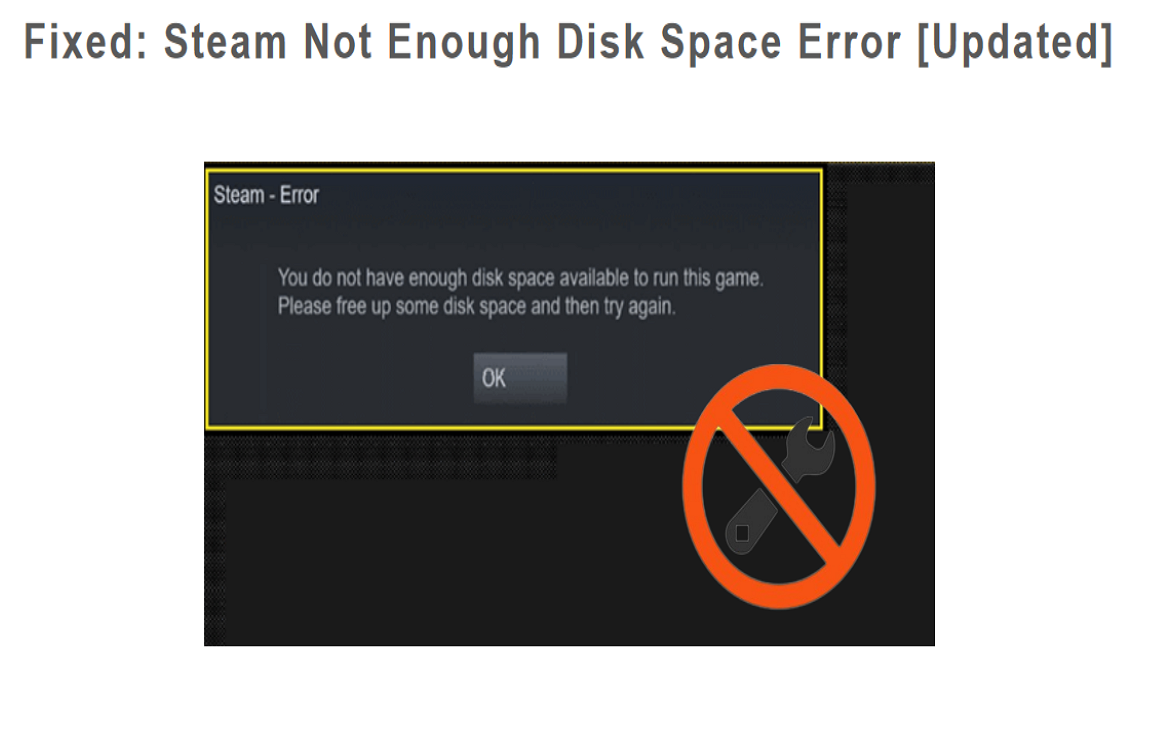
How to Fix Steam Not Enough Disk Space Error [Updated]
To resolve the Steam "not enough disk space" error, free up disk space on Steam by uninstalling unused games, deleting cache files, and removing any unnecessary files. You can also extend your partition directly using third-party free software, such as Qiling Partition Master or MiniTool Partition Wizard, to increase the available disk space and resolve the error. This will allow you to continue using Steam without any issues.
How to Transfer Steam and Games from HDD to SSD
Transferring Steam games from a hard disk drive (HDD) to a solid-state drive (SSD) is necessary for a smoother game experience, as an SSD has enough capacity for games and their data, but can provide faster load times. This guide provides two ways to help you transfer your Steam games from the HDD to the SSD.
- Way 1. Transfer Steam with Games From HDD to SSD via Qiling Disk Master
- Way 2. Transfer Steam with Games From HDD to SSD via Move Install Folder
When it comes to making a decision, it's essential to consider the pros and cons of each option. A table can be a helpful tool in making a wiser choice between two alternatives.
| Qiling Disk Master | Move Install Folder |
|---|---|
|
|
Qiling Disk Master is a better choice for transferring Steam games from HDD to SSD, as it can be done with a few clicks. To use Qiling Disk Master, you can proceed with the process.
Way 1. Transfer Steam with Games From HDD to SSD via Qiling Disk Master
The "partition clone" feature in Qiling Disk Master allows users to clone a whole partition to another disk, making it easy to transfer all Steam games to an SSD by cloning the partition containing them. This feature, along with other capabilities, can improve SSD performance and enhance gaming experiences.
Qiling Disk Master
- 4K Align SSD
- Test SSD read/write speed
- Fix NVMe SSD's slow write speed
- Check SSD temperature while you play games
- To prevent unexpected SSD failures when gaming, it's essential to check the SSD's health condition regularly. This can be done using built-in tools like CrystalDiskInfo or CrystalDiskMark, which can monitor the SSD's temperature, health, and other parameters.
To clone the partition containing all the Steam games to the SSD, select the source partition (containing the Steam games) and choose one SSD partition as the destination.
Step 1. Select the "Clone" option from the left menu, then click on "Clone Partition" and proceed to the next step.
Step 2. Select the source partition and click "Next".
Step 3. Choose your the target partition and click "Next "to continue.
- If you're cloning a partition to an existing partition, make sure to transfer or back up your data first to avoid it being overwritten during the cloning process.
- Check warning message and confirm "Yes".
Step 4. Click Start and wait for the clone to complete.
You can find a video tutorial that explains how to clone a partition or system reserved partition.
If you're using a brand-new SSD for installing Steam and games, Qiling Disk Master can be a helpful tool. It can initialize an SSD, partition an SSD, merge partitions on SSD, and format the SSD to the best file system, making it easier to set up your SSD for gaming. You can download this tool to try it out.
Way 2. Transfer Steam with Games From HDD to SSD via Move Install Folder
Steam also has a built-To help you move your Steam games to an SSD, you can use the Steam client's built-in feature, which allows you to move games one by one. To do this, open the Steam client, go to the "Library" tab, select the game you want to move, right-click on it, and select "Move to SSD". Confirm that you want to move the game to the SSD, wait for it to be moved, and then delete the game files from your old hard drive. Note that this method only works for moving games one by one, so if you have a large number of games, you may want to consider using the "Move to SSD" feature in the Steam client, which allows you to move multiple games at once.
Step 1. To create a new Steam Folder, launch Steam, go to Settings, and select "Downloads". From there, choose "Add Library Folder" and select the target SSD you want to use.
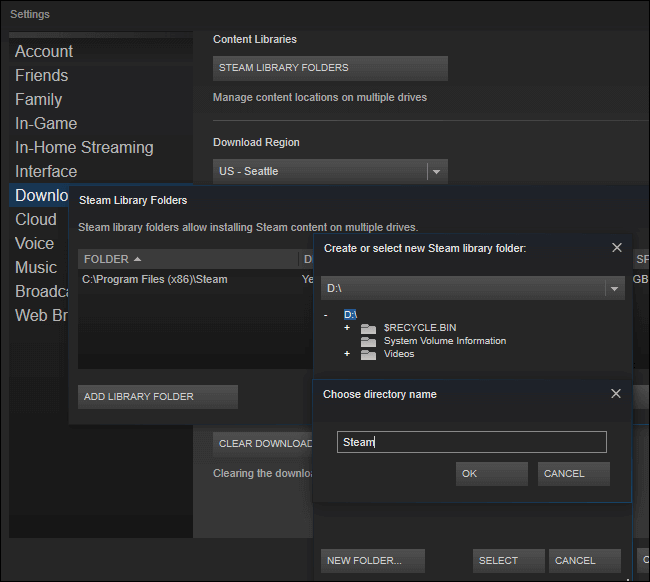
Step 2. In your Steam library, right-click the game you want to transfer and click Properties. From there, select the Local Files tab and click the "Move Install" button to transfer the game files to the new location. This will move the game's files to the new location, but keep the game's registration on the old computer.
Step 3. Under the "Local Files" tab, choose "Move Install Folder."
Step 4. Repeat the process to transfer the Steam games one by one.
To avoid issues like low disk space and Steam taking forever to allocate disk space, ensure there is enough space on the target SSD. If using an SD card on your Steam Deck, run a speed test on the card to check its performance.
To run the Steam Deck SD card speed test efficiently, follow these steps: first, ensure your Steam Deck is fully charged and the device is turned off. Next, insert the SD card you want to test into the Steam Deck's microSD card slot.
If you want to test the SD card speed for your Steam Deck, this article provides a detailed guide on how to do it.

Conclusion
With the price of SSDs continuously decreasing, it's now more affordable to install Steam and games on an SSD for faster loading speed and a better gaming experience. Even on a limited budget, you can buy a larger-capacity SSD. If you've already installed Steam and games on your HDD, this article provides step-by-step guides to help you transfer all your games and game data to your new SSD.
You may also like the following:
Should I Install Steam on SSD FAQs
You're considering moving Steam and its games from a hard drive (HDD) to a solid-state drive (SSD). To help with that, here are some questions and answers to address related issues. What's the process like? How do you transfer Steam and games to an SSD?
1. Should I install Steam on an SSD or HDD?
You should install the Steam program on an SSD for faster performance, but store your Steam library on a larger HDD for more storage space, as games don't typically benefit significantly from an SSD aside from faster load times.
2. How many GB SSD is enough for playing games?
A 1 TB SSD is recommended for storing modern games, but a 512 GB SSD is also sufficient for mid-range gaming. Leave 15-25% free storage space on the SSD to ensure smooth performance, and a 1 TB SSD should provide ample storage for a while.
3. Why doesn't Steam recognize my new SSD?
Unplug and replug the external SSD, then restart Steam and your computer. If it's an internal SSD, initialize it first.
If internal SSD space is limited, see Should I Install Steam Games on an External Hard Drive - Qiling before choosing an external drive for your Steam library.
For gamers weighing an upgrade, compare SSD and HDD durability for gaming alongside loading speed.
Related Articles
- Guide on Image Capture on Mac/MacBook Pro [with Shortcut]
- Reset SMC MacBook Pro | System Management Controller on macOS Ventura/Monterey
- Fix: There Was a Problem Resetting your PC in Windows 10/8.1/8
- Is RAID 0 SSD Worth It for Gaming [Complete Guide in 2023]
- (Answered!) How to Reinstall Windows 10 from BIOS🔥
You are facing software issues or want to upgrade your PC for better performance. A Windows 10 reinstallation does the job for you. In this post, we will see two methods for how to reinstall Windows 10 from BIOS. - How to Reset BIOS to Default Settings in 3 Different Ways
You can easily reset your BIOS to its default settings using the methods outlined in this article, which explains what BIOS is, why you might need to reset it, and how to do so.
Products
Articles & Tutorials
- Data Recovery
- Data Backup
- File Recovery
- File Backup
- System Backup and Restore
- Disk and Partition Clone
- Technical articles
- Mobile articles
- Disk Master Help
- Windows Data Recovery Tutorials
- Windows Secure Delete Tutorials
- Windows Partition Management Tutorials
- Windows File Backup and Restore Tutorials
- Windows System Backup and Restore Tutorials
- Windows Disk Backup and Restore Tutorials
- Windows Clone Tutorials