(Answered!) How to Reinstall Windows 10 from BIOS🔥
You've likely visited numerous websites offering solutions to common computer issues, only to find that the last resort is always to reset or reinstall Windows. When you encounter unresolved problems with Windows 10 or 11, the inevitable solution seems to be to reset or reinstall the operating system. This raises questions like "How do I reinstall Windows 10 or 11?" and "Can I reinstall Windows 10 using the BIOS?" and more.
In this post, we'll explore how to reinstall Windows 10 from BIOS, when it's recommended, and the steps to follow for a smoother process.
Can You Reinstall Windows from BIOS
No, you cannot reinstall Windows from BIOS, To reinstall Windows, you'll first need a way to access the operating system files. This can be achieved through a USB drive, a DVD, a .pxe file, or by connecting your device to a network that has access to the OS files. The BIOS (Basic Input/Output System) plays a crucial role in this process by helping your device boot up based on the boot files.
The BIOS recognizes the bootable device, typically the one with the operating system files, and controls the installation of Windows 10 on the device. This process is initiated after entering the BIOS setup using the provided keys by the manufacturer.
But here are some reasons why you would reinstall Windows 10 or 11.
- System performance issues.
- Virus or malware attacks.
- Software and driver conflicts.
- Upgrading to a new hard drive or SSD.
- Resolving system issues.
What to Do Before Reinstalling Windows 10
While a reinstallation removes all the data on your device, you need to be careful because it may involve data loss. So, here are some things you need to do before starting this process.
- Data Backup: To minimize data loss during a reinstallation, it's essential to back up all important files, photos, and documents before proceeding with the reinstallation. This will ensure that your valuable data is safe and can be easily restored once the reinstallation is complete.
- Make a list of installed software and product keys.
- Download the latest driver components.
- Check system requirements.
- Create Windows 10 installation media.
A reinstallation might erase all your data, so it's essential to have a tool with excellent backup options to safeguard your data. Qiling Disk Master Pro is a proven data backup software with ideal and excellent backup programs.
Qiling Disk Master Pro provides a comprehensive set of functions for Windows computers, allowing for cloud backups, clone and image creation, and incremental and differential backups, making the backup and recovery process easier.
Before reinstalling Windows 10, back up your computer data by following these steps: ensure your files are safely stored on an external hard drive, cloud storage, or both; create a system image to restore your computer to its current state; and save any important documents, photos, and other files to a secure location. This will help prevent data loss and ensure you can easily recover your files and settings after the reinstall.
Step 1. Launch Qiling Disk Master on your computer, click "Create Backup" on the home screen, and select the backup contents by clicking the big question mark.

Step 2. To back up your Windows operating system, click on "System backup" to initiate the backup process.

Step 3. In Windows, all system-related files and partitions will be automatically selected, so no manual selection is required. Next, choose a location to save the system image backup by clicking the designated area.

Step 4. The backup location can be another local drive, external hard drive, network, cloud, or NAS, with external physical drives or cloud storage being recommended for preserving system backup files.

Step 5. Customization settings such as enabling an automatic backup schedule in daily, weekly, monthly, or upon an event, and making a differential and incremental backup are available in the Options button. Clicking Proceed starts the Windows system backup process, which displays the completed backup task in a card style on the left side.

How to Reinstall Windows 10 in 2 Different Ways
To reinstall Windows 10 on your computer, you'll need a USB drive with a minimum of 8GB of free space, a valid Windows 10 product key, and a computer with a BIOS interface. Once you have these requirements met, you can use one of two methods to install Windows 10: either by creating a bootable USB drive using the Media Creation Tool and following the on-screen instructions, or by using a Windows 10 installation media to reinstall the operating system.
- Way 1: Reinstall Windows Using the Windows Media Creation Tool
- Way 2: Reinstall Windows 10 from Setting
Way 1. Reinstall Windows Using the Windows Media Creation Tool
To reinstall Windows 10 using the Microsoft Media Creation Tool, download and run the tool, select the "Create installation media for another PC" option, choose the correct language, architecture, and edition of Windows 10, and then follow the prompts to create a bootable USB drive or CD/DVD. Once created, insert the drive into the PC you want to reinstall Windows 10 on, boot from the drive, and follow the on-screen instructions to complete the installation. This process will erase all data on the PC, so be sure to back up any important files before proceeding.
Before you download the tool, you need to have:
- A strong Internet connection.
- A portable storage device, such as a USB flash drive or DVD, with at least 8 GB of free space, is required.
Step 1: Visit Microsoft's website and download the Windows 10 Media Creation Tool.
Step 2: To get started, simply double-click on the files to download them. Once installed, locate the tool and run it as an administrator to begin using it.
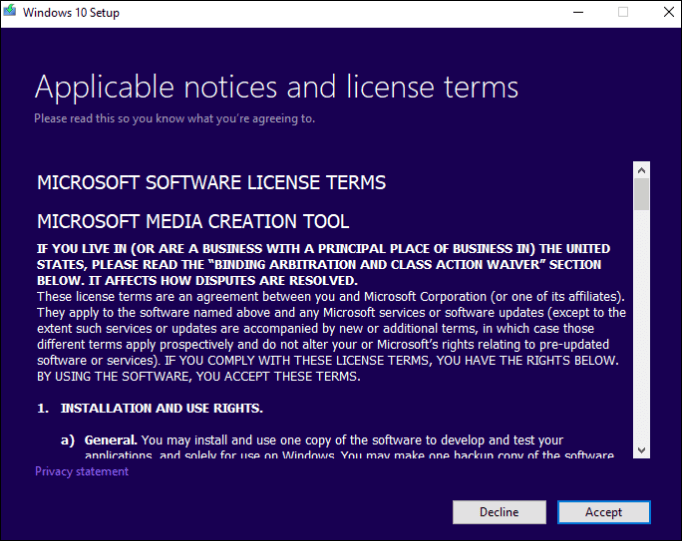
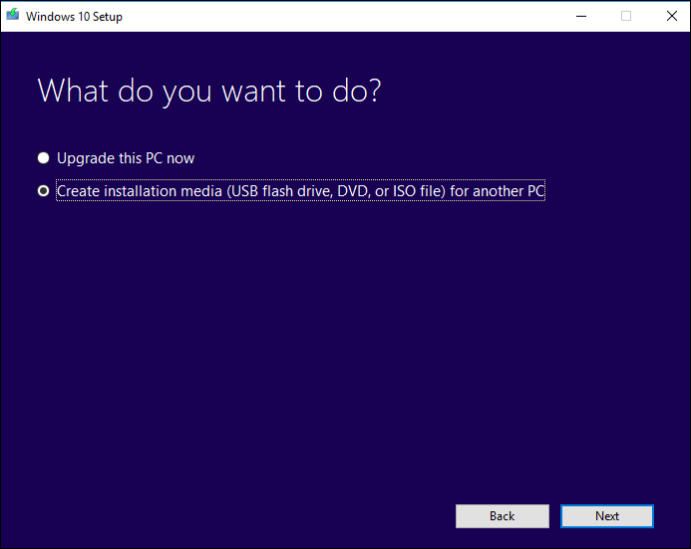
Step 3: After completing the installation and accepting the terms and conditions, you will be taken to a page where you will be prompted to choose what you want to do next. This page typically presents two main options.
Go to the Windows 10 download page, click on "Create installation media (USB flash drive, DVD, or ISO file) for another PC", and then click on "Next".
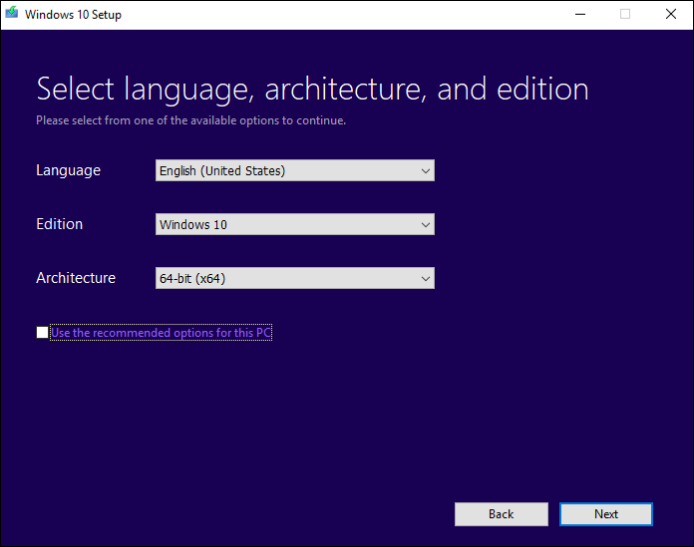
Step 4: Select the required language, architecture, and Windows edition for creating the installation media, or use the recommended options for your PC's current settings.
Step 5: Choose which media to use: USB flash Drive or ISO file.
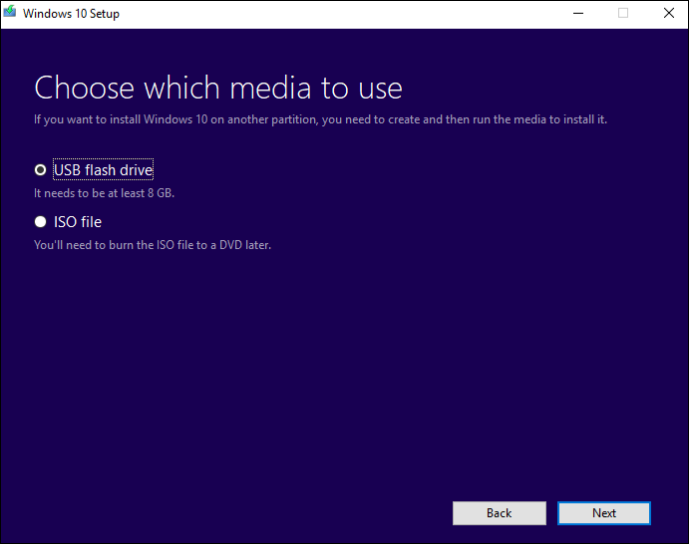
Step 6: Select the USB drive you want to use for reinstalling Windows 10 and click Next.
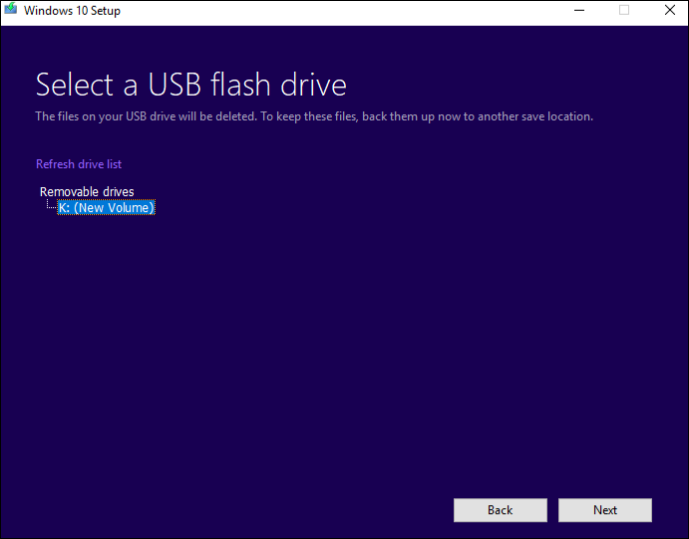
Step 7: The Media Creation Tool downloads the latest Windows 10 version installation files onto the USB flash drive on your PC.
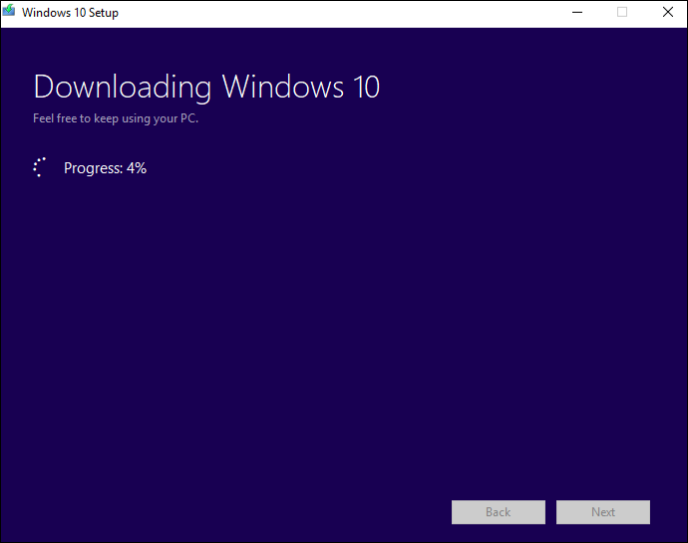
Step 8: The process of creating Windows 10 media involves downloading the USB installation files to a drive, which then initiates the creation of the Windows 10 media.
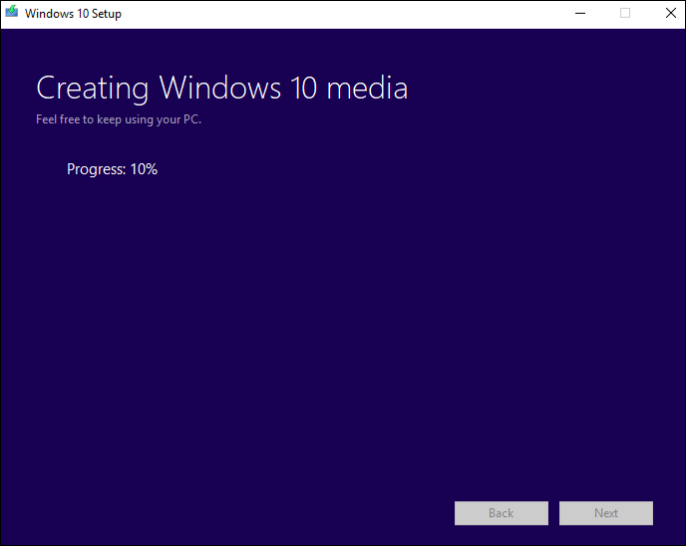
Step 9: After the process is complete, the tool displays a message saying "Your USB flash drive is ready" to confirm it's ready to use. You can now use this drive to boot up your computer and reinstall Windows 10.
Tip: Microsoft's OS files and installation files are preset on the C drive, which is marked active by the BIOS, allowing the device to boot. To optimize this, it's recommended to back up the C drive and use it for reinstallation.
You successfully reinstalled Windows 10 from BIOS by following the guide, which is a great accomplishment! If you found this guide helpful, consider sharing it with others who might benefit from it.
Way 2. Reinstall Windows 10 from Settings
Reinstalling the OS was once a complex process, but Microsoft introduced the "Reset this PC" feature in Windows 8, making it easier for users. Now, you can reinstall Windows 10 or 11 on your computer using this feature. To do so, ensure your laptop is plugged in to avoid power loss during the process. This feature allows you to reinstall the OS without requiring advanced technical knowledge, making it accessible to normal users.
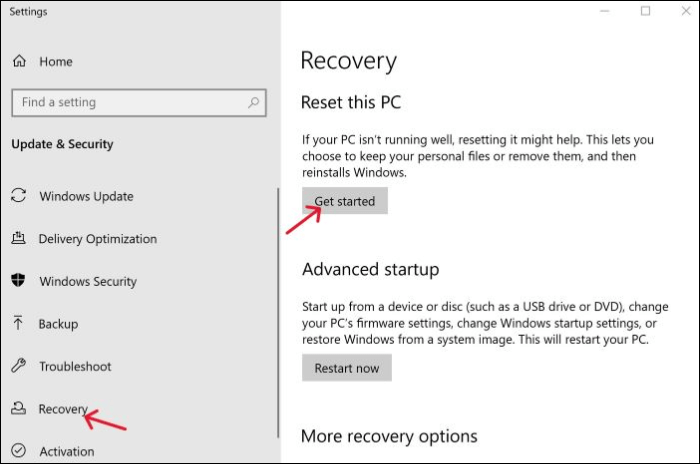
Step 1: To reset your computer, open the Settings app, go to Update & Security, then Recovery, click on Reset this PC, and select Get Started to start the process.
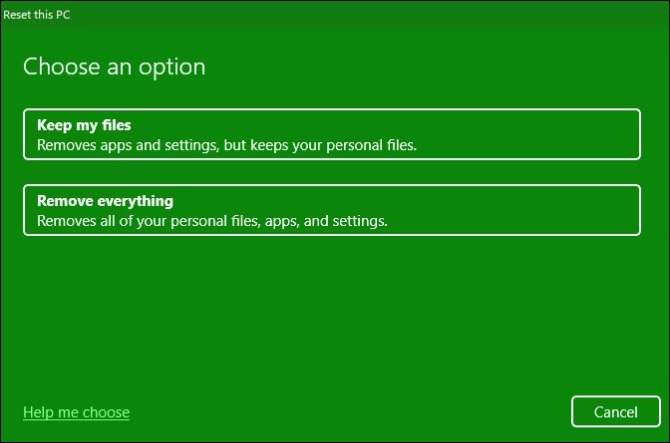
Step 2: You can choose from two options for reinstalling Windows 10: Keep my files or Remove Everything.
Remove everything The two options for resetting your PC are: "Reset your PC" which will reset your PC to factory settings with the latest Windows 10 version, and "Keep my files" which sets the OS options back to default and keeps your files like documents, music, etc.
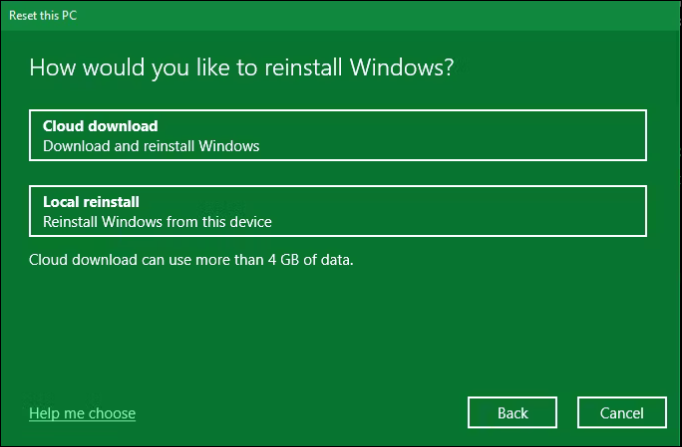
Step 3: In the next window, choose how you would like to reinstall Windows, selecting either Cloud download or Local reinstall.
Cloud download The Local reinstall downloads a fresh copy of all the files from Microsoft on the internet but uses the current system files to build a fresh copy of Windows 10, performing a clean install.
Step 4: After selecting the options, you will see a window displaying the summary of your choices. This window, titled Additional Settings, provides a recap of what has been selected so far. If you need to revise the criteria for Windows Setup reinstallation, you can access the Change Settings options available in this window.
Step 5: If you choose to "Remove everything", you will see some additional settings like Clean data, Delete files from all drives, and Download Windows.
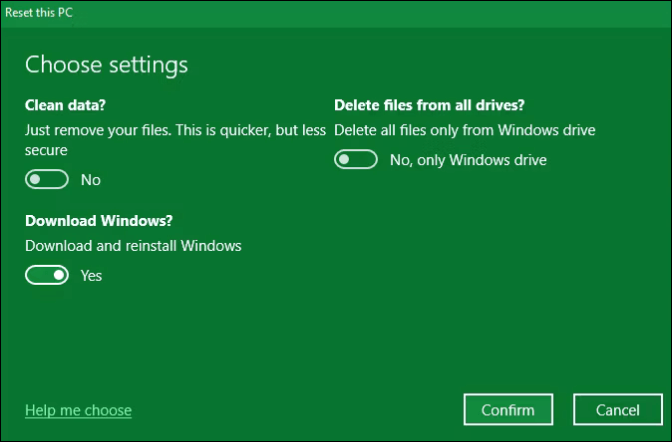
To download Windows, toggle the options based on your needs and ensure the "Download Windows" button is toggled on, then click "Confirm".
Step 6: This window displays the list of processes you have selected. To cross-check the apps you delete, click on the "List of apps to be removed".
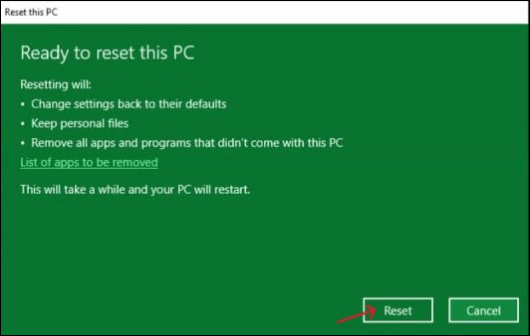
Step 7: Once you confirm your options, click "Reset" in the "Ready to reset this PC" window, and wait for the process to complete.
After solving this problem, you may be interested in:
To Wrap Things Up
Reinstalling Windows OS is a common practice to fix software issues, upgrade the OS, and improve system performance. This post provides two methods on how to reinstall Windows 10 from BIOS, along with some helpful tips to make the process smoother.
Reinstalling Windows can be a complex process, posing a risk of data loss if anything goes wrong. To protect your data, consider using a professional backup tool like Qiling Disk Master, which offers a one-stop solution for complete backup and recovery in case of emergencies.
FAQs on How to Reinstall Windows from BIOS
Here are some common FAQs about how to reinstall Windows 10 from BIOS:
1. How can I reinstall Windows 10 from a USB in BIOS?
To reinstall Windows 10, connect the USB flash drive to your device. Then, press the power button and the key that opens the BIOS settings, usually F2, F12, or Del. In the BIOS settings, select the option to boot the device using the flash drive. This will initiate the Windows 10 reinstallation process.
2. How do I reinstall Windows 10 without losing programs and data?
You can reinstall Windows 10 without losing data by using installation media like a USB flash drive or DVD. After selecting the installation media, on the next window, select "Keep personal files" to preserve your personal documents and files during reinstallation.
3. How do I reset my computer from BIOS?
- To enter the BIOS setup on your PC, you'll need to press a specific key combination during startup, and the key to press varies depending on your PC's manufacturer. Some common keys to press include F2, F12, Del, or Esc.
- Switch to the Exit section and select Load Setup Defaults.
- To confirm the changes, click Yes and then select Yes in the Exit Saving Changes popup to complete the process.
4. Does BIOS Reset remove Windows?
A BIOS Reset will remove the data and load the system defaults on your PC, restoring it to factory settings, and this has no relation to the Windows OS.
Related Articles
- How to Fix macOS 13 Ventura Installation Failed/Stuck/Frozen (2023 Tips)
- 2 Ways to Reinstall Windows 10 [Full Guide]
- How to Remove Bing from Chrome
- Clean C Drive without Formatting in Windows 10/8/7 [Tested & Worked]
- How Does an SSD Work | SSD VS HDD 2023 - Qiling
How does an SSD work? Learn about solid-state drive technology, NAND flash memory, and how SSDs differ from HDDs in speed, durability, and data storage methods. - How Long Do Laptops Last and How to Extend the Life of Your Laptop
Want to learn how long laptops last? Check out our comprehensive guide on laptop lifespan and how you can extend it.
Products
Articles & Tutorials
- Data Recovery
- Data Backup
- File Recovery
- File Backup
- System Backup and Restore
- Disk and Partition Clone
- Technical articles
- Mobile articles
- Disk Master Help
- Windows Data Recovery Tutorials
- Windows Secure Delete Tutorials
- Windows Partition Management Tutorials
- Windows File Backup and Restore Tutorials
- Windows System Backup and Restore Tutorials
- Windows Disk Backup and Restore Tutorials
- Windows Clone Tutorials