How to Remove Bing from Chrome
Google redirecting to Bing can be caused by malware or malicious bugs infiltrating your Chrome browser, and can be fixed by removing Bing as the default search engine.
| Workable Solutions | Step-by-step Troubleshooting |
|---|---|
| 1. Remove Bing from Search Engine | Click on the three dots at the top-right corner, and select 'Settings' from the drop-down menu...Full steps |
| 2. Uninstall Suspicious Extensions | Click on the three dots, select 'More tools' from the drop-down menu, and select 'Extensions'...Full steps |
| 3. Reset Google Chrome | Type chrome://settings/resetProfileSettings and press Enter on your Chrome address bar...Full steps |
| 4. Uninstall Suspicious Apps | Uninstall the suspicious or foreign apps on your device for which you are unsure of the source...Full steps |
You should be able to choose the search engine you use, whether it's your preferred one or not. To get rid of Bing from Chrome, follow these easy-to-understand steps.
Why is Bing my Search Engine in Chrome
When trying to set Google as the default search engine, but mistakenly set it to Bing, or if there are other reasons such as fraudulent developers altering browser settings.
Google keeps redirecting you to Bing because you may have downloaded a program that generates revenue from sites you visit, or your Chrome settings were altered to set Bing as your default browser. This can happen unintentionally, and if it continues, it's likely due to a change in your Chrome settings.
 TOTALAV
TotalAV is an award-winning antivirus and security software that provides real-time protection against viruses, malware, and online threats.
Antivirus Protection Enabled
How to Remove Bing from Chrome
Here are four methods to remove Microsoft Bing from Chrome: you can reset Chrome settings, remove Bing from search engines, use a browser extension to block Bing, or uninstall Bing from your computer.
Method 1: Remove Bing from Search Engine List
A practical method to stop Bing from redirecting your browser is to remove it from your search engine list. If the search engine isn't on your list, you won't be bothered by the redirect. To do this, follow these steps: 1. 2.
Step 1. Open Chrome and click on the three dots at the top-right corner.
Step 2. From the drop-down menu, select 'Settings'.
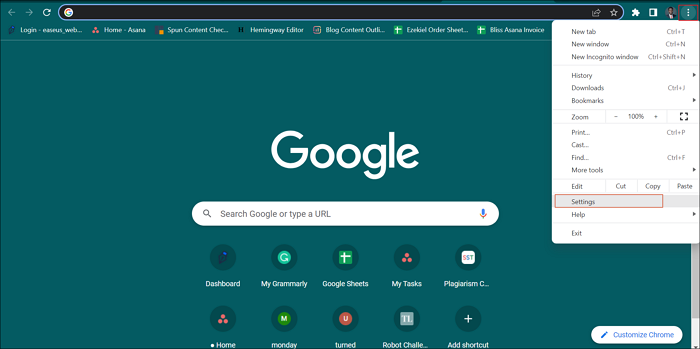
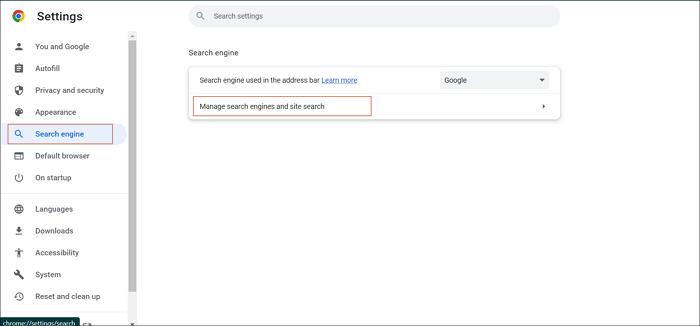
Step 3. Select the 'Search engine' option,
Step 4. Select 'Manage search engines and site search'.
Step 5. Select 'Bing' as the search engine, and click the three dots next to it.
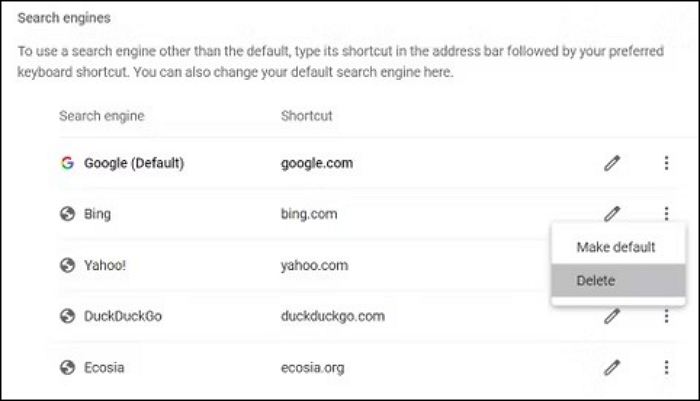
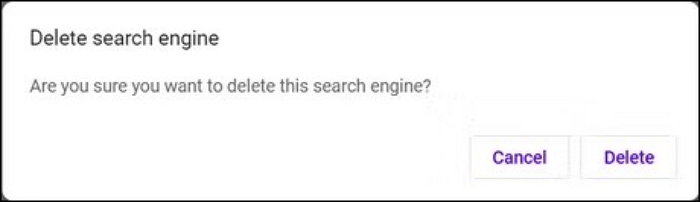
Step 6. Select 'Delete'.
If the article is helpful to you, please share it on social media platforms so that you can access it anytime.
Method 2: Uninstall Suspicious Extensions
To deactivate any suspicious browser extensions that may be altering your browser settings, follow these steps:
Step 1. Open Chrome, and click on the three dots at the top right corner.
Step 2. Select 'More tools' from the drop-down menu and select 'Extensions'.
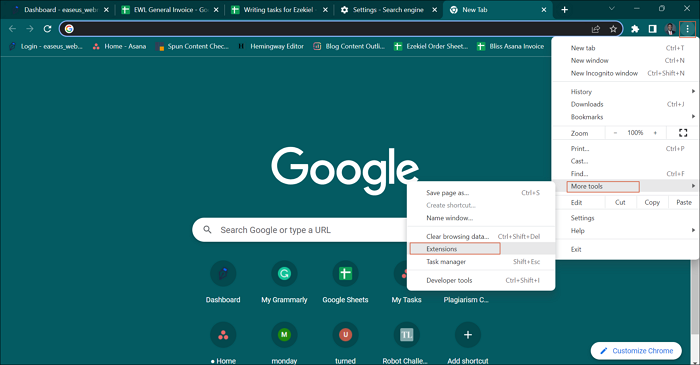
Step 3. To remove any unwanted or suspicious extensions, navigate to the extensions page, identify any unfamiliar or potentially malicious extensions, and click the "Remove" or "Uninstall" button next to them to delete them from your browser.
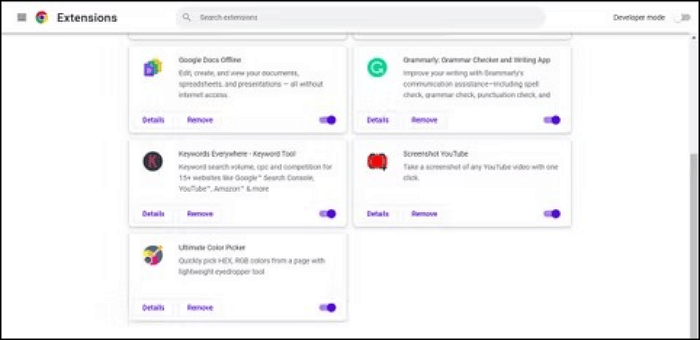
Step 4. If you're unsure of the function and not ready to delete, you can temporarily disable it until you're sure.
TOTALAVTotalAV is an award-winning antivirus and security software that provides real-time protection against viruses, malware, and online threats.
Antivirus Protection Enabled
Method 3: Reset Google Chrome
To reset Chrome to its default settings, follow these steps:
Step 1. On your Chrome address bar, type chrome://settings/resetProfileSettings and press Enter.
Step 2. The system displays a warning message prompting the user to confirm a reset on the "Reset Settings" window.
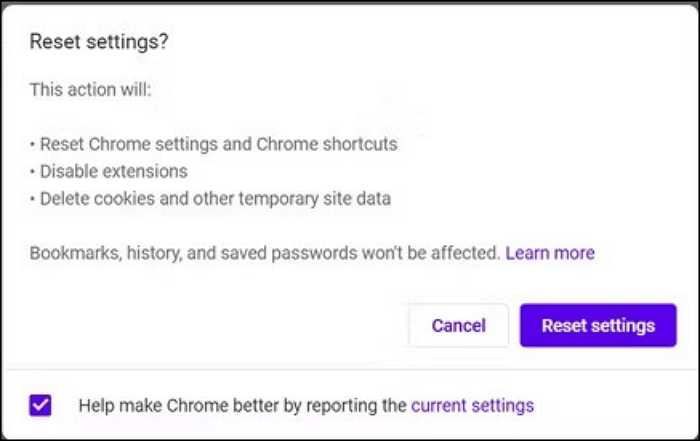
Step 3. Restart your browser to confirm your problem is solved.
Method 4: Uninstall Suspicious Apps
If you spot a suspicious app on your device, it's best to uninstall it, as it could be from an insecure site or potentially be malware. Uninstalling it will help prevent your browser from being hijacked.
Conclusion
Careful as you may be, mistakes on the internet can still happen, putting your browser at risk. To solve this problem, you can reset your Chrome browser, uninstall malicious apps, and delete Bing from your search engines, which are proven methods to stop Google from redirecting you to Bing. By following these steps, you can effectively resolve the issue and stay safe online.
Related Articles
- How to Stop Windows 10 Update in Progress in 3 Ways
- Thunderbird Profile Missing? Solutions to Restore Quickly
- Fix Delete Volume Greyed Out in Disk Management on Windows 7/8/10/11
- What Happens If an SD Card Is Corrupted [Full Guide on 10 Fixes]
- How to Fix Dynamic Mirror Showing Failed [Three Working Solutions]
This guide is designed to help users understand and resolve the dynamic mirror showing failed error. The error typically occurs due to various reasons. - eMMC VS HDD: Which Is Better & What's The Difference
Compare eMMC and HDD storage by speed, capacity, durability, price, and best use cases. Learn which option is better for your device.
Products
Articles & Tutorials
- Data Recovery
- Data Backup
- File Recovery
- File Backup
- System Backup and Restore
- Disk and Partition Clone
- Technical articles
- Mobile articles
- Disk Master Help
- Windows Data Recovery Tutorials
- Windows Secure Delete Tutorials
- Windows Partition Management Tutorials
- Windows File Backup and Restore Tutorials
- Windows System Backup and Restore Tutorials
- Windows Disk Backup and Restore Tutorials
- Windows Clone Tutorials