eMMC VS HDD: Which Is Better & What's The Difference
The type of hard drive in your laptop can significantly impact its performance and speed. You have several options, including HDD, SSD, and eMMC, all of which have different characteristics. While HDD and eMMC are types of non-flash and flash storage, respectively, they also differ from each other. Choosing the right hard drive depends on your specific needs, with HDD and eMMC suited for different situations, and eMMC offering some advantages over HDD.
Don't worry if you have questions about eMMC and HDD, Qiling will guide you through the differences between them, helping you make a more informed choice for your laptop hard drive after reading this article.
eMMC vs. HDD: What's the Definition
The eMMC (embedded MultiMediaCard) and HDD (Hard Disk Drive) are both storage devices used in electronic devices, but they differ in their design, functionality, and usage. eMMC is a type of flash storage that is integrated directly into the device's motherboard, providing a compact and low-power storage solution.
What Is eMMC?
eMMC is a type of memory card that uses an integrated circuit with a silicon chip soldered to the motherboard, making it resistant to damage from bumps and drops. It performs tasks through an integrated flash controller, freeing up the CPU and allowing for faster system speeds.
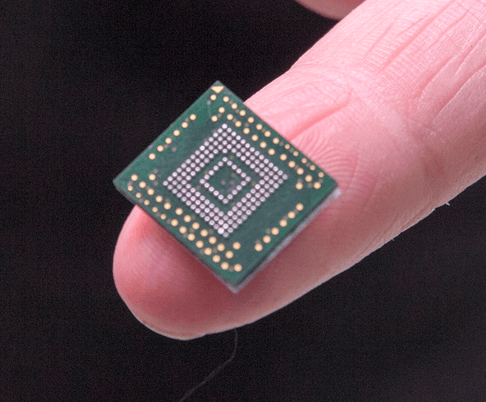
eMMC is generally faster than HDDs, but the speed varies by model. Unlike HDDs and SSDs, eMMC is embedded into the motherboard, with a smaller capacity ranging from 32GB-64GB and 128GB-256GB.
What Is HDD?
A hard disk drive (HDD) is a non-volatile digital storage device that retains data even when turned off. It consists of a spinning disk and a read head, which work together to read data. However, the HDD is prone to damage from physical shocks or drops, which can affect the spinning disk and read arm, potentially causing data loss.

HDDs use a SATA interface to connect to the CPU and read/write to memory through the CPU, and were the most popular form of storage with options like 500GB, 1TB, and 2TB.
Understanding the basics of eMMC and HDD is essential. eMMC (embedded MultiMediaCard) is a type of flash storage used in mobile devices, offering faster speeds and lower power consumption than traditional HDDs (Hard Disk Drives). While HDDs are still widely used in laptops and desktops, eMMC's advantages make it a popular choice for smartphones and tablets.
eMMC VS HDD: Which Is Better
The choice between a Hard Disk Drive (HDD) and an Embedded MultiMediaCard (eMMC) ultimately depends on several factors, including features, security, speed, capacity, and price. While eMMC offers faster data transfer rates and lower power consumption, HDD provides higher storage capacity and can be more cost-effective. A comparison table highlighting the key differences between the two storage devices can help facilitate a quicker decision-making process.
Follow the table to decide which is better for eMMC VS HDD:
| Comparison | eMMC | HDD |
|---|---|---|
| Storage type | Flash memory | Magnetic storage |
| Technology | Integrated circuit, not easily damaged | Contains multiple moving parts, easily broken |
| Large file storage | Inefficient | Efficient storage of large files |
| Transfer rate | Maximum speed of 400 MB/s | Standard speed of 300 MB/s |
| Capacity | 16GB, 32GB, 64GB, 128GB and 256GB | 500GB, 1TB and 2TB |
| Price | Approximately $0.20 per GB | 1 TB may cost $35 |
| Function | Temporary storage media for portable devices | Permanent storage media |
| Lifespan | Average lifespan is about 5 years | The average is 10 years |
| Suitable for | Portable electronics, such as cell phones, cameras, and tablets, have become an integral part of modern life. These devices are designed to be compact, lightweight, and easy to carry, making them perfect for on-the-go use. | Computers and laptops |
Information source: Wikipedia: eMMC and HDD
While HDDs have an advantage in terms of price, capacity, and permanent storage, eMMC excels in speed, security, and technology, making it a better choice in those areas. Additionally, eMMC is more widely used than HDDs.
Here are the Qiling editors' recommendations for the best drives for different needs:
- eMMC: Small files and portable consumer electronics, such as smartphones and cameras, are ideal for basic home or office tasks.
- HDD: External hard drives are ideal for storing large files, running games, and serving as a backup storage drive.
- SSDs High-end gaming laptops are a great choice if you have the budget, as they offer durability, reliability, and super-fast data transfer speeds.
You can run a speed test through the HDD benchmark to find out the exact speed of your drive.

Full Guide on HDD Benchmark on Windows [2023 Newest]
Benchmarking your hard drive disk (HDD) is crucial to check its health status. This article will guide you through the process of HDD benchmark testing and recommend a professional tool to complete the hard drive speed test.
Bonus Tip: How to Replace an eMMC Hard Drive on Laptop
The article compares eMMC and HDD in detail, also mentioning SSDs. SSDs are the top choice among various hard drive types, while eMMCs are a low-capacity, affordable alternative to SSDs. Due to their limited capacity, many users are seeking a viable solution, as shown in a typical forum demand.
Yes, you can add an internal storage/hard drive to your laptop, but you'll need to check if your laptop model supports it. Some laptops have a dedicated slot for a hard drive, while others may require a bit more work to add one. You can check your laptop's manual or manufacturer's website for more information. Additionally, you'll need to consider the compatibility of the new hard drive with your laptop's hardware and software.
If you want to replace your hard drive with an HDD/SSD/eMMC without losing data, Qiling Disk Master can help you easily migrate everything, including your operating system, from the old hard drive to the new one.
You can easily use this tool, even if you're not a computer professional, as it provides a simple and fast solution. To get started, simply download the tool and use it on your computer.
Step 1. Select the source disk.
- To clone your system or disk, follow these steps: click on the "Tools and utilities" tab page and select either the "System Clone" or "Disk Clone" option.
- Choose the source disk and click "Next".
Step 2. Select the target disk.
- Select the desired storage device, such as a hard disk drive (HDD) or solid-state drive (SSD), as the target for the installation. Click the "Next" button to proceed.
Step 3. The disk layout can be viewed and edited to change the target disk partition size. This allows for adjustments to be made to the disk configuration, ensuring optimal use of space and meeting specific requirements.
1. Open the Disk Cleanup tool. 2. Select the target disk.
To customize your disk layout, you can choose from three options: Autofit the disk, Clone as the source, or Edit disk layout. The last option is recommended if you want to reserve more space for the C drive.
Step 4. Click "Proceed" to start the disk cloning process.
US Partition Master is a powerful tool for disk and partition management. If you have any needs for hard drives, you can download this tool and enjoy the conveniences it brings to you.
Conclusion
The article explores the meanings of eMMC and HDD, two types of storage devices, and highlights the differences between them. For those still unsure about choosing between HDD and other options, this article provides a clear explanation.
- eMMC is good for small files and portable electronics.
- HDDs are good for large file storage.
If you have a hard drive (HDD) or embedded multi-media controller (eMMC) and want to upgrade or replace it, this article provides a method to migrate your operating system to another drive without losing your data using Qiling Disk Master.
FAQs About eMMC VS HDD
Choosing between eMMC and HDD depends largely on your needs. To help with this decision, here are some frequently asked questions:
1. Is eMMC faster than HDD?
eMMC is significantly better than HDD in terms of transfer speed, with a maximum transfer rate of 400 MB/s compared to HDD's 300 MB/s.
2. Should I use eMMC for my laptop?
eMMC storage is a middle-ground option between HDD and SSD, offering a balance of price, performance, and speed. It's suitable for casual users who only need to browse the internet and stream media, but may not be ideal for those requiring more storage or demanding applications.
3. Can I replace eMMC with SSD?
Upgrading eMMC to M.2 SSD is possible, and you can do it using professional cloning tools like Qiling Disk Master, which allows you to replace your eMMC with SSD without losing any data.
4. Which is better, eMMC or SSD, or HDD?
Hard drives have their pros and cons, with HDD being the slowest but having the largest capacity, eMMC being slower than SSD, and SSD having more complex firmware and features, including 20 NAND flash chips to distribute read/write tasks.
Related Articles
- Fix: Blue Yeti Not Recognized on Windows 10/11 [Step by Step]
- Frustration and Loss: The Sandisk Extreme Pro Portable SSD Not Working
- Guide on Best Allocation Unit Size for Gaming [2023 New]
- PowerShell Get Disk Space on Windows 10/11 [Full Tutorial]
- How to Turn on Bluetooth on Windows 10
Using the Bluetooth connection is the easiest without requiring an additional accessory for the transfer to be successful. Learn how to turn on Bluetooth on Windows 10 using your keyboard, Action Center, or through Settings. - How to Unzip Files on Windows 10 and 11
Zipping files is a common method for transferring heavy files, allowing you to compress large files into a single Zip file that can be easily transferred, reducing the risk of file loss. Here, we'll learn how to Unzip files on Windows 10 and 11.
Products
Articles & Tutorials
- Data Recovery
- Data Backup
- File Recovery
- File Backup
- System Backup and Restore
- Disk and Partition Clone
- Technical articles
- Mobile articles
- Disk Master Help
- Windows Data Recovery Tutorials
- Windows Secure Delete Tutorials
- Windows Partition Management Tutorials
- Windows File Backup and Restore Tutorials
- Windows System Backup and Restore Tutorials
- Windows Disk Backup and Restore Tutorials
- Windows Clone Tutorials