How to Format An External Hard Drive That Is Not Visible [Efficient Ways]
Key Takeaways:
- An external hard drive may not be visible due to issues with the hard drive itself or problems with the connection, leading to formatting issues.
- To fix the issue of a device being invisible, you can try updating the driver, checking the connection, and allowing troubleshooting.
- To resolve the issue, use a professional formatting tool, specifically Qiling Disk Master, to format the external hard drive that is not visible, which should make it accessible again.
To format an external hard drive that is not visible, start by checking the drive's power source and ensuring it's properly connected to the computer. Next, open the Disk Management tool on your Windows PC by pressing the Windows key + R, typing 'diskmgmt.msc', and pressing Enter. In the Disk Management tool, look for the external hard drive's partition, right-click on it, and select 'Delete Partition' or 'Delete Volume'. This will erase any existing data on the drive. Then, right-click on the unallocated space and select 'New Simple Volume' to create a new partition.
| ⏱️Duration | 3-5 minutes |
| 🧑💻Difficulty | Easy, suitable for newcomers |
| ⚒️Software Required | Qiling Disk Master |
| 👣Steps |
To format an external hard drive that is not visible, start by plugging it into your computer and opening the Disk Management tool. If the drive is not listed, try using the built-in disk management tool in Windows or the Disk Utility app on a Mac.
How to Format An External Hard Drive That Is Not Visible
It's normal for an external hard drive to be invisible or undetectable in a PC, as many users have experienced and discussed on forums like Tom's Hardware.
To format your WD 500GB External Hard Drive that's not visible on your computer, try the following: First, check if the drive is recognized by your computer's BIOS. If it's not, restart your computer and enter the BIOS settings by pressing the corresponding key (usually F2, F12, or Del). Save the changes and exit the BIOS. Next, open Disk Management (Press Win + R, type 'diskmgmt.msc', and press Enter). Look for the unallocated disk space and right-click on it to format. If it's still not visible, try using the WD Discovery software to identify and format the drive.
If you're having trouble formatting an external hard drive that's not visible, this tutorial can be a helpful guide. We'll show you solutions to help you format the drive, even if it's not visible. Let's get started.
Stage 1. Make the External Drive Visible
1. Quick Method
You can try some quick fixes before applying advanced troubleshooting methods. These may include checking for loose connections, cleaning dust from the device, restarting the device, or updating software.
- Reboot your PC and connect the external hard drive to troubleshoot temporary failures or reasons that prevent the hard drive from being detected.
- If you're experiencing issues with your external hard drive, try plugging it into a different USB port on the same computer or using it on a different computer altogether. This can help determine if the problem lies with the hard drive itself or the specific USB port it's currently connected to.
- If your external hard drive has a dedicated power cable, try plugging it into a different power outlet or replacing the power cable if it's faulty. This can help resolve the issue.
If none of these fail, then keep reading to try other fixes.
2. Check and Update the Windows Driver
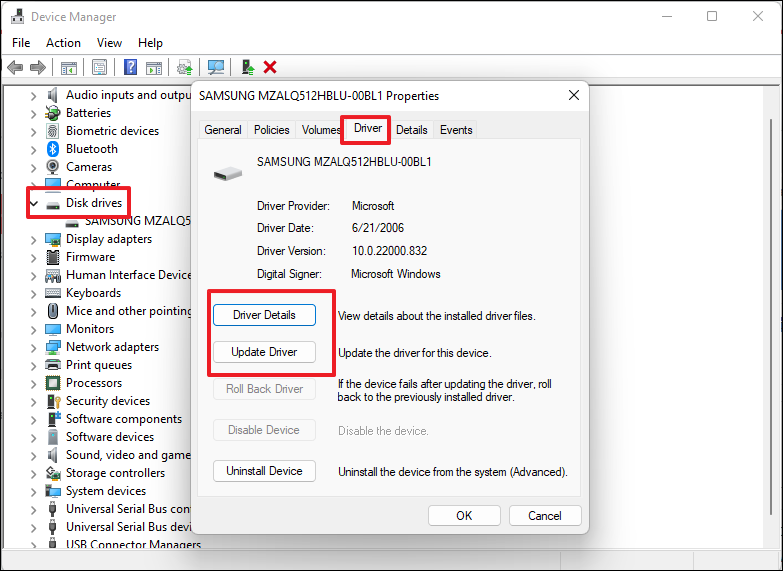
If Windows Disk Management doesn't list external drives, check for drive issues in Device Manager. If the drive is outdated or corrupted, install a new driver or uninstall the driver and restart your computer.
Step 1. To open the Device Manager, press the Windows key + R to open the Run dialog, then type "devmgmt.msc" and press Enter.
Step 2. Check if the external hard drive has a yellow exclamation mark in the Select Disk drivers, indicating any issues with the drive. If it appears, it may have a problem.
Step 3. Right-click on the problem drive and select "Properties."
Step 4. Choose to update or uninstall the driver as needed.
3. Run the Troubleshooter
Running Troubleshooting allows you to identify and resolve hardware and device failures, ensuring smooth system operation.
Step 1. To open the Run window, you can press the Windows key + R on your keyboard or right-click on the Windows icon in the bottom left corner of the screen and select "Run" from the context menu. This will open a small window where you can type a command or program name to execute.
Step 2. You can open the Hardware and Device Troubleshooter by typing msdt.exe -id DeviceDiagnostic in the Command Prompt.
Step 3. To begin troubleshooting, click Next and follow the on-screen instructions.
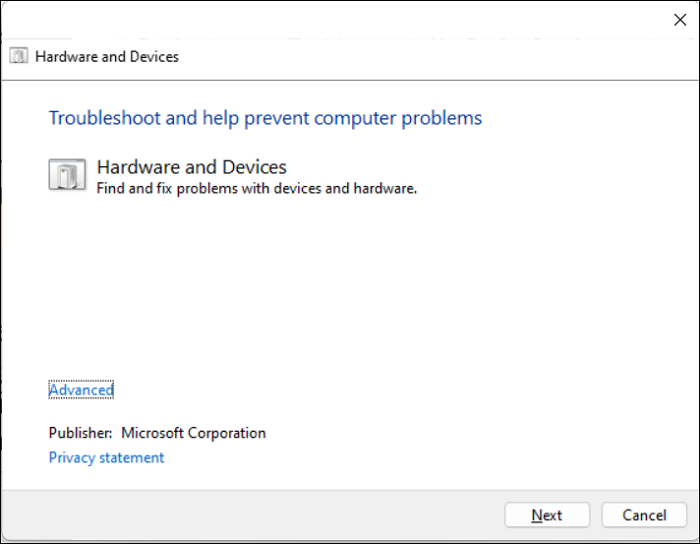
After troubleshooting, you can see if the external hard drive is displayed. If it is, you can proceed with formatting it.
Stage 2. Format an External Hard Drive
Once the external hard drive becomes visible, you can format it using Windows built-in tools, such as Disk Management or the command line (CMD), by right-clicking on the target disk and selecting "Format". However, formatting via command line requires familiarity with computer commands, and Disk Management has a 32GB limit for formatting external drives.
Here, I recommend using a professional formatting tool like Qiling Disk Master Free, which can format external hard drives to various formats, including NTFS, FAT32, and exFAT, and is more user-friendly than Windows built-in tools.
After downloading the tool for free, you can follow the process to format an external hard drive that is not visible.
Step 1. Launch Qiling Disk Master, right-click the partition on your external hard drive/USB/SD card which you want to format and choose the "Format" option.

Step 2. Assign a new partition label, file system, and cluster size to the selected partition.

Step 3. To start formatting your external hard drive/USB/SD card, click the "Proceed" button. This will initiate the formatting process, which will erase all data on the drive.

Step 4. In the Warning window, click "Yes" to continue.
Qiling Disk Master provides functions such as converting NTFS to FAT32, resizing, and merging partitions, making it a powerful tool for disk management needs.
You May Also Like:
Why External Hard Drive Is Not Visible
External hard drives may not show up on a Windows computer due to various reasons, including outdated drivers, loose connections, or hardware issues. Other common problems include corrupted file systems, incorrect drive letters, and conflicts with other devices or software.
- Connection problems due to port failure
- Outdated or corrupted drivers
- The external hard drive is not powered on
- Corrupted system drive
- Partitioning problems with the external drive
The external drive may not appear on the PC due to various issues, but it can be made visible using the solution provided, and then formatted using Qiling Disk Master.
Conclusion
If your external drive is not visible, you'll need to troubleshoot the issue first. If it still can't be formatted, you can try using Qiling Disk Master, which may directly detect the drive and provide a quick formatting solution. Additionally, we've identified possible reasons why an external hard drive may not be visible, so you can be prepared for such issues in the future.
Thanks for reading! I hope this guide has been helpful to you. If you found this tutorial useful, please click the social buttons to share it with others who may need it.
FAQs About How to Format An External Hard Drive That Is Not Visible
If your external hard drive is not visible, you can try formatting it to make it visible again. To do this, you'll need to connect the drive to your computer and open the Disk Management tool. From there, you can delete the existing partition and create a new one, which will make the drive visible again.
1. How to repair an external hard drive not detected?
If your external hard drive isn't being detected, there are several potential reasons, including file system errors, faulty USB ports, issues with the drive itself, or connection problems. A quick fix is to try plugging the drive into a different USB port, checking the file system for errors, or running a diagnostic test on the drive to identify the issue.
- Make sure it is plugged in and powered on
- Reboot the computer
- Try another cable, port, or PC
- Format the drive
- Update the drivers
- Clean up the disk
2. Why is the external hard drive not showing up in Disk Management?
The external hard drive may not show up in Disk Management due to several reasons. Your Windows computer may not be able to detect an attached external hard drive, which could be caused by various factors.
- Unstable or poor connection
- A damaged hard drive
- Wrong drive letter
- Hidden hard drive
- Outdated driver
3. Can I format the external hard drive when not recognized?
If your external hard drive is not recognized, you can try to repair it by running a disk check or disk error check. If that doesn't work, you can try to format it. However, formatting will erase all data on the drive, so make sure you have backed up any important files before proceeding.
If your external hard drive isn't being recognized, it's likely due to a connection issue. You can troubleshoot this by trying a different USB port or swapping the cable to see if that resolves the issue.
Then use Windows built-To format a disk in Windows, you can use the built-in Disk Management tool. First, open Disk Management by searching for it in the Start menu or by typing "diskmgmt.
Related Articles
- Wyze Cam SD card Format: How to Format SD Card for Wyze Cam?
- How to Wipe SSD for Reuse in Windows 11/10/8/7
- Fix 'Invalid Partition Table' Error Dell Computers [100% Working]
- How to Fix USB Flash Drive Not Showing Up in Windows 11🔥
- Solved: Unlock Bitlocker Without Recovery Key and Password
How do you unlock BitLocker drive Without a Recovery Key and Password? How can you access these data stored on a BitLocker drive? Dive into this guide and learn more. - How to Unlock Computer Without Password | 2024 Top Ways💡
Learn how to unlock your Windows 10/11 computer or laptop without a password quickly and easily with our straightforward guide. You can regain access to your PC hassle-free in just a few simple steps.
Products
Articles & Tutorials
- Data Recovery
- Data Backup
- File Recovery
- File Backup
- System Backup and Restore
- Disk and Partition Clone
- Technical articles
- Mobile articles
- Disk Master Help
- Windows Data Recovery Tutorials
- Windows Secure Delete Tutorials
- Windows Partition Management Tutorials
- Windows File Backup and Restore Tutorials
- Windows System Backup and Restore Tutorials
- Windows Disk Backup and Restore Tutorials
- Windows Clone Tutorials