Fix 'Invalid Partition Table' Error on Dell Computers
If you're a Dell computer user who's encountered the frustrating "Invalid Partition Table" error, don't panic! This error notification might suddenly appear, but it's not a reason to freak out or rush to a computer repair facility.
Dell users can resolve the "Invalid Partition Table" problem on their PC by following the steps outlined in this article, which will guide them through the process and help them regain control of their computer.

#1. Fix 'Invalid Partition Table' on Dell by Rebuilding MBR
- ⏱Duration: 15-25 minutes
- 🧰Preparation: To fix a corrupted Master Boot Record (MBR) using Qiling Disk Master, start by inserting the empty USB drive into your computer and booting from it. Then, download and install Qiling Disk Master on the USB drive.
The 'Invalid partition table' error is usually caused by a corrupted MBR partition table, and the most effective solution is to use a MBR table repair tool to fix it.
Qiling Disk Master, with its Bootable Media feature, allows for the efficient and user-friendly resolution of the "Invalid Partition Table" error on Dell computers. By using the software and following the provided steps, users can easily fix the issue and get their Dell system up and running again.
Utilizing Qiling Disk Master's Bootable Media feature and following the tutorial guide can help fix the "Invalid Partition Table" error on your Dell computer promptly.
Step 1. Create a WinPE bootable disk
- Launch Qiling Disk Master, click "Tools" tab page, and select "Create bootable media".
- Click "Proceed" to finish the process.

Step 2. Boot Qiling Disk Master Bootable USB
- Connect the bootable USB or CD/DVD to your PC.
- To enter the BIOS screen, press F2 or Del when restarting the computer. From there, set your computer to boot from a removable device or CD-ROM drive. Once set, Qiling Disk Master will automatically run.
Step 3. Rebuild MBR
- Right-click the disk and choose "Rebuild MBR".

- Select the disk and the type of MBR. Then, click "Proceed".

- After running the command, you'll see a message indicating that the MBR has been successfully rebuilt on the specified disk, such as "MBR has been successfully rebuilt on Disk X".
#2. Fix 'Invalid Partition Table' on Dell by Activating Partition
- ⏱Duration: 15-30 mins
- 🧰Preparation: Windows installation media, Dell computer
When a computer can't determine which partition to boot from or mistakenly activates the wrong boot partition, it may display an "invalid partition table" error.
Step-by-step guide to fix 'invalid partition table' on Dell by activating partition:
- Insert the Windows installation media into your Dell computer.
- To access the BIOS settings on your Dell computer, restart the computer and immediately start pressing the F2 key. This will take you to the BIOS settings, where you can make any necessary changes or adjustments.
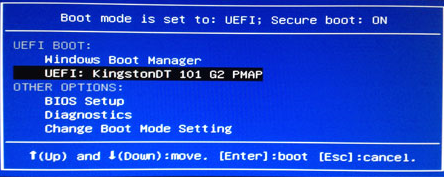
- To prioritize the Windows installation media, go to the BIOS settings, adjust the boot order to place the installation media first, and save the changes. This will allow your computer to boot from the installation media.
- Follow the on-To access the Windows installation screen, follow these steps: select the language and region settings, and then proceed with the installation.
- Instead of proceeding with the installation, click on "Repair your computer", which will take you to the Advanced Startup Options.
- From the Advanced Startup Options, choose "Troubleshoot" and then select "Command Prompt." Type the command bootrec /fixboot and press Enter.
- The command `bootrec /fixboot` will repair the boot partition and activate the correct partition for booting the system.
#3. Change Boot Drive to Fix 'Invalid Partition Table' Error in Dell PCs
- ⏱Duration: Approximately 10 minutes
- 🧰Preparation: Access to the BIOS settings
When your Dell computer can't decide which partition to boot from or mistakenly activates the wrong boot partition, it might display an 'invalid partition table' error. To resolve this issue, follow these steps:
Step-by-step Guide to Change Boot Drive To Fix 'Invalid Partition Table' Error in Dell PCs:
- To restart your Dell computer, press the power button until it shuts down, then press it again to turn it back on. As the computer boots up, you'll see a prompt to enter the BIOS setup.
- Once inside the BIOS setup, you can navigate using the arrow keys on your keyboard.
- To access the Boot or Boot Sequence menu in the BIOS settings, navigate to the BIOS menu, locate the "Boot" or "Boot Sequence" option, highlight it, and press Enter to select it.
- Find the "Invalid Partition Table" boot drive entry.
- Move the selected boot drive to the top of the list to set it as the primary boot drive.
- Save the changes by pressing the designated key, usually F10, and confirm when prompted.
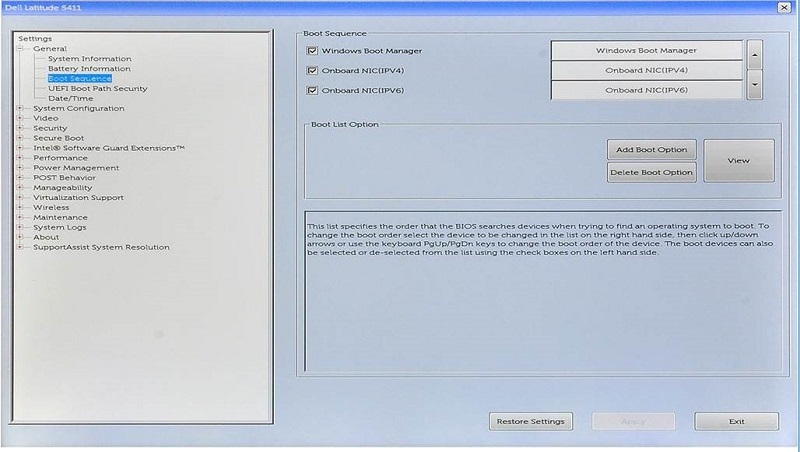
After exiting the BIOS setup, the computer will automatically restart. Once it restarts, the boot drive you selected should be recognized as the primary OS drive, which should resolve the "Invalid Partition Table" error.
#4. Update BIOS Versions in Dell Computers to Fix Invalid Partition Table
- ⏱Duration: Approximately 20-30 minutes
- 🧰Preparation: To access the BIOS settings and install Windows from a USB drive, follow these steps:
Step-by-step Guide To Update BIOS Versions in Dell Computers to Fix Invalid Partition Table:
- Connect a USB drive to an internet-connected computer and locate the BIOS updates for your specific Dell model on Dell's official support website.
- Save the most recent BIOS update file to the USB drive.
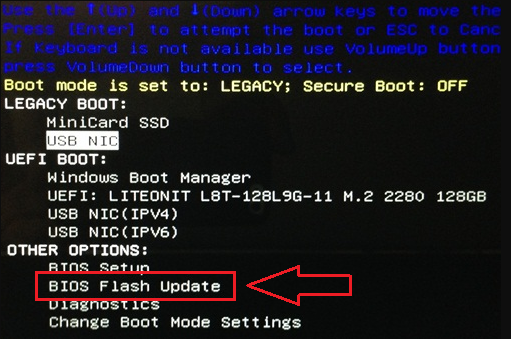
- Restart the computer and look for the "BIOS Update" or "Flash BIOS" option, then select it.
- Follow any on-screen prompts to initiate the BIOS update utility.
- The option to update the BIOS from the USB drive in the BIOS update software is selected.
- Choose and accept the BIOS update file that you downloaded.
- To upgrade the BIOS, follow the on-screen instructions.
- Restart your Dell computer after the update is complete.
Causes and Symptoms of Invalid Partition Table on Dell
The "Invalid Partition Table" error on Dell laptops can be caused by various factors such as corrupt or missing partition table, incorrect BIOS settings, or malware infections. Symptoms include inability to access data, boot issues, and error messages.
1. Causes of Invalid Partition Table error on Dell computers
- Corrupted Master Boot Record (MBR) partition table.
- Activation of the wrong boot volume.
- Incorrect boot sequence settings in the BIOS.
- Disk errors or bad sectors.
- Improper installation or removal of operating systems.
- Software or hardware conflicts.
- Virus or malware.
2. Symptoms of Invalid Partition Table error on Dell computers
- Dell computer fails to boot or starts up very slowly.
- Error messages indicating an invalid partition table.
- A Blue Screen of Death (BSOD) error with the "Invalid Partition Table" message typically occurs when the operating system is unable to read or interpret the partition table on a hard drive or solid-state drive, which is responsible for organizing and storing data on the device. This error can be caused by a variety of factors, including a corrupted or damaged partition table, a faulty disk controller, or a software issue.
- Inability to access or load the operating system.
- Unexpected system crashes or freezes.
3. Tips to Prevent Invalid Partition Table Issue on Dell Computers
- Set the correct OS drive as the priority boot disk in the BIOS settings.
- Ensure the C drive (system drive) is properly activated and marked as active.
- Use reliable partition management tools like Qiling Disk Master to repair disk errors and maintain partition integrity.
- Regularly update and maintain your computer's antivirus software to prevent virus or malware infections.
- Safely shut down your Dell computer and avoid sudden power outages or system shutdowns.
- To avoid software or hardware conflicts, keep your computer's hardware and drivers up to date.
By considering the precautions mentioned, the likelihood of encountering the error will be minimized, thereby ensuring the stability and reliability of your computer.
Conclusion
If your Dell computer is experiencing issues like failing to boot, displaying error messages, or encountering the Blue Screen of Death with the "Invalid Partition Table" error, don't worry. You can try the methods outlined in this guide, but for a more reliable solution, consider using Qiling Disk Master to fix the problem.
With its user-Qiling Disk Master offers a user-friendly interface and powerful features to assist you in resolving partition-related issues efficiently. By following the provided steps and leveraging the suggested tools, you can successfully address your Dell computer's "Invalid Partition Table" error and restore its proper functionality.
FAQs About Invalid Partition Table on Dell
If you have any further questions, you can refer to the following FAQs to resolve these issues:
1. Why does my Dell laptop say invalid partition table?
The "Invalid Partition Table" error on your Dell laptop usually occurs when there are issues with the partition structure, boot sequence settings, or disk errors, making it difficult for the system to identify the correct partition to boot the operating system.
2. Can I fix the invalid partition table in BIOS?
The "Invalid Partition Table" error in the BIOS can't be resolved directly. It's often related to the hard disk configuration, not the BIOS settings. To fix it, you may need to change the boot disk or update the BIOS version.
3. If my Dell reports an invalid partition table, how can I fix it on my own?
If your Dell computer displays an "Invalid Partition Table" issue, you can resolve it on your own by following these steps: You can try booting from a live USB or CD, then run a disk check and repair the partition table using tools like Qiling Disk Master. Alternatively, you can also try running a System File Checker (SFC) scan to identify and replace any corrupted system files that might be causing the issue.
- 1. Restart your Dell computer and enter the BIOS setup
- 2. In the BIOS setup, navigate to the boot options or boot sequence settings to make changes to how your computer boots.
- 3. To ensure the correct OS drive is set as the primary boot disk, adjust the boot sequence in the BIOS settings or UEFI firmware settings. This typically involves entering the BIOS settings by pressing a specific key (such as F2, F12, or Del) when the system boots, navigating to the Boot Order or Priority settings, and selecting the correct OS drive as the primary boot device.
- 4. Save the changes and exit the BIOS setup.
- 5. Restart your Dell computer and check if the "Invalid Partition Table" error is resolved.
If the error persists, you can try updating the BIOS version or using partition management tools like Qiling Disk Master to repair any disk-related issues.
Related Articles
- [Easy to Go] How to Change Partition Type ID in Windows 10/8/7 Computer and Laptop
- How to Stop Disk Check (CHKDSK) on Startup Windows 10
- Extend C Drive or Increase Partition Size on Windows Server 2008
- How to Remove/Delete Hidden Partition on USB Drive in Windows 11/10/8?
Plan to delete hidden partition on USB drive to get more space for further use? Here come the effective methods! - 4TB Drive Only Shows 2TB: Why and How to Solve It Easily?
4Tb drive only shows 2TB? This article will tell you how to restore the full capacity. - [Tutorial] 2 Ways to Breaking 2TB File System Limit
In this post, you are going to learn how to break 2TB file system limit, including using Disk Management and a powerful third-party tool.
Products
Articles & Tutorials
- Data Recovery
- Data Backup
- File Recovery
- File Backup
- System Backup and Restore
- Disk and Partition Clone
- Technical articles
- Mobile articles
- Disk Master Help
- Windows Data Recovery Tutorials
- Windows Secure Delete Tutorials
- Windows Partition Management Tutorials
- Windows File Backup and Restore Tutorials
- Windows System Backup and Restore Tutorials
- Windows Disk Backup and Restore Tutorials
- Windows Clone Tutorials