How to Wipe SSD for Reuse in Windows 11/10/8/7
SSD is a solid-A solid-state drive (SSD) is used for storage and offers faster speeds and better performance than a hard disk drive (HDD). To get the best value out of an SSD, you may want to wipe the SSD for reuse, which typically involves a specific set of requirements.
If you're looking to reuse your SSD, you'll want to wipe it clean instead of just deleting the partition. This article will guide you through the process of wiping your SSD for reuse, but first, let's quickly understand why wiping is necessary. By wiping your SSD, you can ensure that all data is completely erased and the drive is ready for new use. We'll explore the steps involved in wiping your SSD, providing you with a comprehensive solution for reusing your drive.
Why Do I Need to Wipe SSD for Reuse
Deleting a partition on an SSD allows data recovery with professional software, but wiping the SSD makes data irrecoverable. When reusing an SSD, it's essential to wipe it to ensure data security and prevent unauthorized access. This is because wiping the SSD completely erases all data, making it impossible to recover. In contrast, deleting a partition only removes the logical structure, leaving the physical storage intact, and thus recoverable.
- Wipe files on the SSD are outdated
- Clean the unwanted files on a used SSD
- Protect privacy and send SSD data to others for reuse
- To fix an SSD affected by viruses and malware, start by disconnecting it from the computer and connecting it to another device, such as a different computer or a USB reader, to scan for malware using an antivirus software. If the SSD is still connected to the original computer, boot it in safe mode and run a full system scan.
Wiping your SSD for reuse requires a safe approach to avoid damaging the drive. This article will outline two methods to securely erase your SSD, ensuring it's ready for reuse without compromising its integrity.
How to Wipe SSD for Reuse – Two Efficient Ways
To reuse a Solid-State Drive (SSD) in Windows 11/10, you can wipe it using one of two methods. The first method involves using the built-in Disk Management tool to delete the existing partition and initialize the disk, effectively wiping the SSD clean.
1. Professional disk management software - Qiling Disk Master
Works to: Windows 11/10/8/7 and Windows XP/Vista
Suitable for: All users, including beginners
2. Windows built-in tool - Diskpart
Works to: Windows 10/8/7 and Windows Server
Suitable for: For advanced users
If you're not tech-savvy, Qiling Disk Master is a secure and easy-to-use option for wiping an SSD. It's compatible with all Windows systems and can efficiently erase data from your SSD.
- Notice:
- Before wiping the SSD, make sure to back up any important data, as it will be unrecoverable once the drive is erased.
Way 1. Wipe SSD for Reuse – Qiling Disk Master
Qiling Disk Master is a tool that securely wipes data on SSDs, allowing users to wipe the entire SSD or select a specific partition. It effectively wipes data without destroying the SSD, and has an intuitive interface for easy use. Users can download and learn how to utilize its features.
We've set two options for you to wipe data. Choose the one you need.
Option 1. Wipe Partition
- Right-To erase data from a partition, click on the partition you want to erase data from, and then select the "Wipe" option.
- In the new window, set the time for which you want to wipe your partition.
- Click the "Proceed" button in the lower right corner after checking the changes.
Option 2. Wipe Disk
- Select the HDD/SSD. And right-click to choose "Wipe Disk".
- Set the number of times to wipe data, which can be set to 10 at most.
- Click "Proceed" to start the operation.
You can use Qiling Disk Master to wipe your hard drive before selling to protect your data from malicious recovery, and it's a reliable tool to erase or wipe free space on an SSD safely.
Download it to enjoy the benefit it brings to you.
Way 2. Wipe SSD for Reuse – Diskpart Command
The Diskpart command is a built-in Windows tool that can also be used to wipe a Solid-State Drive (SSD) for reuse. However, when using Diskpart to wipe an SSD, it's essential to be cautious when inputting commands to avoid unnecessary data loss. To wipe an SSD for reuse using Diskpart, follow the step-by-step guide.
Step 1. Right-click the Windows button and choose "Run."
Step 2. Type "diskpart" to run the command window.
Step 3. Type the following commands in order and hit Enter after each command.
list disk
select disk 1
clean all
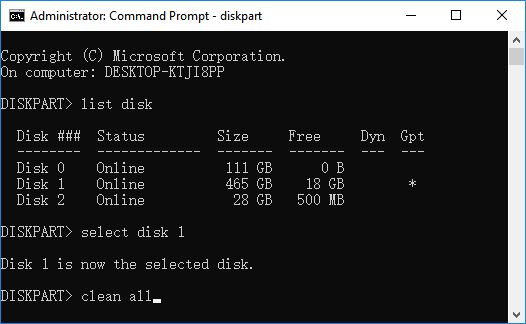
Step 4. Type "exit" to close the window.
If you've wiped your SSD, you can use it again. However, if the Diskpart clean command isn't working, you can seek help from Qiling Disk Master.
Conclusion
To wipe an SSD for reuse, you can use either Qiling Disk Master or Diskpart on your Windows 11/10/8/7 device. Qiling Disk Master is a more comprehensive tool that can help maintain your SSD's performance and offers features such as creating, moving, and merging partitions. Alternatively, you can use Diskpart, which is a built-in Windows utility. Both methods can effectively wipe the SSD for reuse.
If you're looking to reuse your SSD, don't hesitate to try downloading Qiling Disk Master to wipe it clean.
FAQs About How to Wipe SSD for Reuse
Here are some more frequently asked questions about SSD. Please read on if you are interested.
1. How do I wipe my old SSD for reuse?
You can wipe your old SSD for reuse using either Qiling Disk Master or the Diskpart command. To use Diskpart, simply follow the simple command to wipe your SSD.
Step 1. Open the run window by pressing the button "Windows+R."
Step 2. Type "diskpart."
Step 3. Type the following commands and hit "Enter" after each command.
- list disk
- select disk 1
- clean all
- exit
2. Can you completely wipe an SSD?
The data on an SSD can be completely wiped by formatting the drive, which removes all data and makes it unrecoverable. This process is irreversible and cannot be undone.
3. Does factory reset delete SSD?
Factory resetting a device will completely erase all data, including files and programs, from the SSD (solid-state drive), making it necessary to be cautious when performing this action.
Related Articles
- How to Fix 'Can't Extend Volume' in Windows Server [2024 Guide]
- How to Remove Write Protection from SD Card and Format It
- PS4 Storage Full? Learn How to Get More Storage on PS4
- How to Format Corrupted SD Card [Hard Format SD Card]
- 4 Easy Solutions to Fix 'Unable to Extend C Drive' in Windows 11
Are you Unable to Extend C Drive in Windows 11 and looking to fix your problem? Consider yourself lucky! Here, we have four excellent solutions that can help you do so. Read more. - How to Fix USB Drive Incorrect Size Problem
To fix a USB drive with an incorrect size issue, you can try reformatting it using a third-party USB formatting tool or the Diskpart command. This process can help restore the drive to its full capacity and correct the size problem.
Products
Articles & Tutorials
- Data Recovery
- Data Backup
- File Recovery
- File Backup
- System Backup and Restore
- Disk and Partition Clone
- Technical articles
- Mobile articles
- Disk Master Help
- Windows Data Recovery Tutorials
- Windows Secure Delete Tutorials
- Windows Partition Management Tutorials
- Windows File Backup and Restore Tutorials
- Windows System Backup and Restore Tutorials
- Windows Disk Backup and Restore Tutorials
- Windows Clone Tutorials