How to Fix 'Can't Extend Volume' in Windows Server
In Windows, if there's no allocated space available, you can't extend the volume, which can slow down your computer's performance and running speed.
If you're experiencing issues with enabling volume on your disk partition, this article provides practical solutions to help you extend the partition in Windows without any hassle.
| Workable Solutions | Step-by-step Troubleshooting |
|---|---|
| Fix 1. Fix Can't Extend Volume on Server without Adjacent Unallocated Space | To start extending partition, you should first locate the target partition and select "Resize/Move"...Full steps |
| Fix 2. Convert FAT32 to NTFS Format Without Data Loss | Select a FAT32 partition, right-click on it and select "Convert to NTFS"...Full steps |
| Fix 3. Fix "No Unallocated Space on Your Drive" | Step 1. In the search tab, type diskmgmt.msc to open Disk Management...Full steps |
| Fix 4. Fix "MBR 2TB Partition" Limit | To save your partitions and extend their space, you can run the "Convert MBR to GPT" feature...Full steps |
Read the guideline and find the best solutions to enable extended volume in all your hard drive partitions.
Why Am I Not Getting an Extend Volume Option on Windows Server?
The extended volume feature may be greyed out due to various reasons. It could be because of compatibility issues with certain audio devices, outdated audio drivers, or hardware limitations. Additionally, some operating systems or software updates might have disabled the feature by default.
1. No adjacent unallocated Space
If there's unallocated space on one disk but not the adjacent one, it might cause the extended volume to be greyed out.
2. FAT32, exFAT, EXT partitions are not supported by Disk Management
If your partition has available space, but it's not NTFS or RAW formatted, you may not be able to extend your volume. This is because Windows server volumes don't support FAT32, exFAT, or EXT partitions.
3. No unallocated space on your drive
If you don't have unallocated space available on the same partition you're trying to extend, you might encounter problems extending the volume into the available blank space.
4. The partition capacity has reached the 2TB limit on the MBR disk.
If your disk space is already full and has reached its total capacity, you may face issues while extending your volume on your Windows server.
Extend a Windows Server Partition? Download A Tool
If you're having trouble extending your volume to unallocated space, you can try using a professional and free-to-use partition manager called Qiling Partition Master.
To overcome extended volume errors and increase partition size safely, use Qiling Partition Master, a user-friendly tool that saves time and effort.
You can free download this tool and enjoy some amazing features such as:
- Clone/copy your disks without the fear of data loss.
- You can easily transfer Windows to a new SSD with just a few clicks, making the process quick and hassle-free.
- Easily lets you combine or extend your partitions.
- It has a special resize or allocate feature that lets you effectively extend volume.
This tool is designed for delivering the best disk management on Windows servers and can help resolve extended volume issues by utilizing the following methods.
Method 1. Fix Can't Extend Volume on Server without Adjacent Unallocated Space
If your hard drive doesn't have enough unallocated space, you can't extend your volume. To make it easier, you can use Qiling Partition Master to extend your partition, even if the unallocated space is not next to your partition.
Qiling Partition Master Enterprise
Your trustworthy Windows Server disk manager.
- Extend System drive, combine/split partitions.
- Clone disk, migrate OS to HDD/SSD.
- Convert MBR to GPT, GPT to MBR, no data loss.
- 1-click adjust disk layout, create volumes at one time.
With Qiling Partition Master, you can easily free up space by dragging partitions, which ensures that the allocated space is correct.
Step 1. Locate the Target Partition.
To extend a partition, first locate the target partition and select "Resize/Move".

Step 2. Extend the Target Partition.
Add unallocated space to your current partition by dragging the partition panel to the right or left, then click "Proceed" to confirm.

Extra Option: Get Space from Another Drive
If there's not enough unallocated space on your disk, select a larger partition with sufficient free space and choose "Resize/Move".
To extend a target partition, select the partition you want to extend at the allocate space to column.
To resize the target partition, drag the dots on the target partition into the unallocated space. Click "Proceed" to confirm the changes.
Method 2. Convert FAT32 to NTFS Format Without Data Loss
Windows has a specific limitation in disk management for FAT32, exFAT, and EXT formats, preventing the extension of volumes in these file systems.
Qiling Partition Master does not have a limit on converting FAT to NTFS, and it provides users with two options to resolve the issue.
- Extend your any other formatted partition using Qiling Partition Master.
- To extend a disk partition in Disk Management, you must first convert the existing FAT32 format to NTFS. This allows you to resize the partition without losing any data.
You can choose between Method 1, which involves directly partitioning, or Method 2, which uses a partition converter.
First, Convert FAT32 to NTFS
Step 1. Install and launch Qiling Partition Master on your computer.
Step 2.To convert a FAT32 partition to NTFS, select the partition, right-click and choose "Convert to NTFS". This can be done on a hard drive partition or on a removable storage device like an SD card or USB drive, after it's been inserted into your PC.
Step 3. Click "OK" on the pop-up dialog box to continue.
Step 4.The conversion process will begin automatically. Please wait for the operation to complete.
Next, Extend Partition in Disk Management
You can move to Method 3 and learn the detailed steps to extend the partition using Disk Management.
Method 3. Fix "No Unallocated Space on Your Drive"
If you don't have any unallocated space on your drive, you can manually create some by either deleting or shrinking partitions on the target disk. Select the disk you want to make space for and choose one of these options to free up some space for allocation.
You can fix the No Unallocated space on your device either by shrinking the partition and after that, you can extend volume. The steps are listed below:
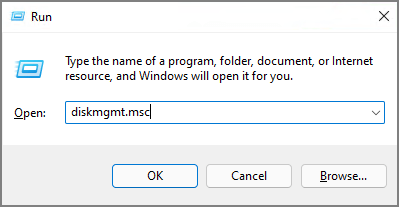
Step 1. In the search tab, type diskmgmt.msc to open Disk Management.
Step 2. Select the disk you want to shrink, then right-click and choose the option to shrink the volume.
Step 3. Here you will enter the size of the unallocated space. This is the amount of free space available on the disk that you want to partition. You will need to enter a value in megabytes (MB) or gigabytes (GB) for this field.
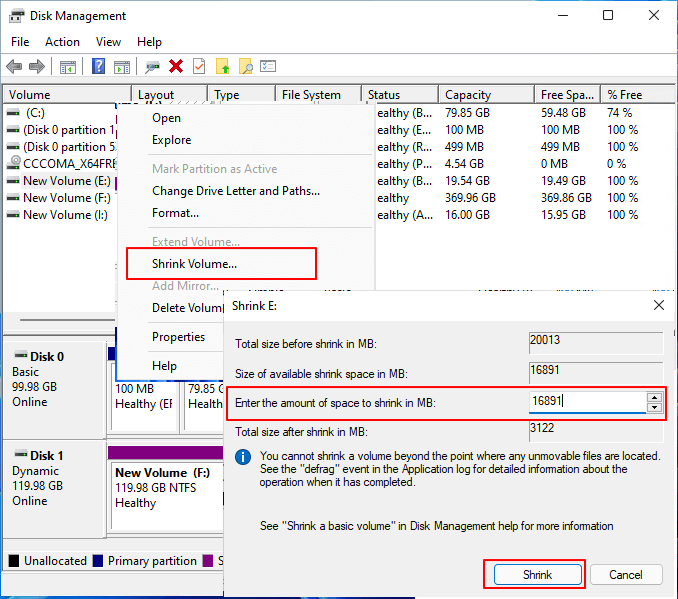
It will correctly allocate the space.
Step 4. Here, you will select the disk you want to extend volume on. To extend the size you want on your target volume, select "extend volume". Then, add unallocated space to the volume and click "Next" to confirm.
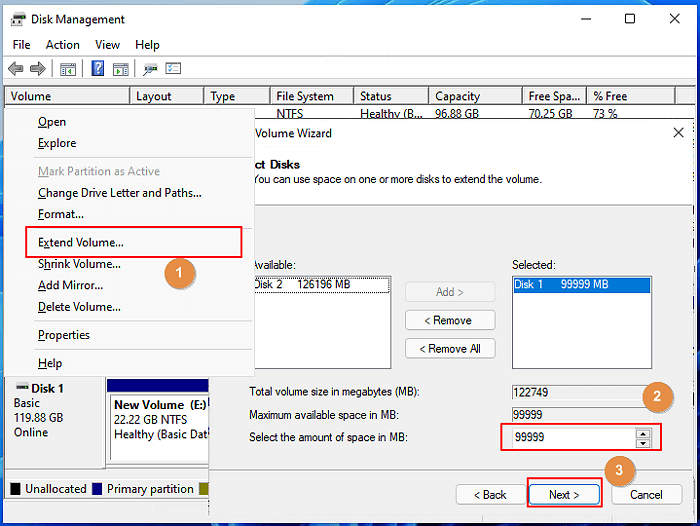
Step 6. Click "Finish" to complete expanding partition on the Windows Server computer.
Now, you've fixed the 'can't extend volume' error successfully.
Method 4. Fix "MBR 2TB Partition" Limit
If you have a 2TB partition in MBR format, it will only display the first 2TB of data due to MBR's 2TB space limit, making it seem like your partition size is smaller than it actually is.
To avoid deleting partitions and losing data, use Qiling Partition Master's "Convert MBR to GPT" feature instead of Disk Management. This feature will convert your MBR format to GPT without causing any data loss, allowing you to extend your partitions' space while preserving your existing data.
Qiling Partition Master Enterprise
Your trustworthy Windows Server disk manager.
- Extend System drive, combine/split partitions.
- Clone disk, migrate OS to HDD/SSD.
- Convert MBR to GPT, GPT to MBR, no data loss.
- 1-click adjust disk layout, create volumes at one time.
To Conclude
When you're unable to extend partitions on your Windows server, it's often due to the underlying disk partition structure. To resolve the issue, identify the reason for the limitation, and then follow one of the methods outlined above to extend the partition. This approach can help you overcome the partition extension challenge and achieve your desired disk configuration.
Qiling Partition Master is a professional and reliable tool that offers convenient yearly and lifetime packages. It provides users with multiple solutions to resolve the "cannot extend volume on Windows Server" issue, making it a trusted third-party software for addressing this problem.
This tool allows you to extend non-system and system partitions without rebooting your computer, making it a convenient option. It also offers exceptional features, including safe conversions of file formats from FAT32 to NTFS, and the ability to convert MBR files to GPT without deleting partitions.
Related Articles
- Should You Or Should You Not Defrag SSD (Windows 11 Support)
- How to Convert Primary to Logical or Logical to Primary in Windows Server
- How to Move Partition in Windows Server
- All You Should Know About Erase | How to Securely Erase Your SSD Information
- Best System Clone Software Free Download 2024 [Your Checklist]
If you're looking for a reliable system clone software to download for free, this page recommends a trustworthy tool that allows you to clone your operating system to a new drive or disk on Windows computers, making it easy to upgrade your OS to a new disk with success. - Guide to Test Disk Speed on Windows Computer [Your Free Guide Is Here]
Is your Windows computer running slow and taking a long time to perform basic tasks? It might mean that the hard disks in your system are working slower than normal. This article will explain how to test disk speed on a Windows computer.
Products
Articles & Tutorials
- Data Recovery
- Data Backup
- File Recovery
- File Backup
- System Backup and Restore
- Disk and Partition Clone
- Technical articles
- Mobile articles
- Disk Master Help
- Windows Data Recovery Tutorials
- Windows Secure Delete Tutorials
- Windows Partition Management Tutorials
- Windows File Backup and Restore Tutorials
- Windows System Backup and Restore Tutorials
- Windows Disk Backup and Restore Tutorials
- Windows Clone Tutorials