Should You Or Should You Not Defrag SSD
Some people mistakenly believe that defragmenting a solid-state drive (SSD) is a way to optimize it, but this is actually not the case. If you're unsure whether to defrag your SSD, this guide includes everything you need to know about SSD defragmentation and provides a more secure method for optimizing your drive.
SSD Defragment - 3 Things You Should Know About
While many experienced Windows users have strong opinions about disk defragmentation, some new computer users, especially those with solid-state drives (SSDs), may be unfamiliar with the concept of defragmenting SSDs. If that's the case, here are three things to know about defragging SSDs.
1. What Is SSD Defragmentation
Defragmentation is a process that re-arranges data on a storage device to store it in the smallest number of contiguous regions, leaving larger regions of free space for further storage, thereby reducing fragmentation and preventing its return through compaction.
This will maximize hard drive read and write performance, potentially doubling or even bettering it.
While it's true that defragmentation is more common among hard disk drives (HDDs), Windows still performs automatic defragmentation on solid-state drives (SSDs) as well, primarily to prevent the file system from reaching its maximum tolerance of fragments.
2. What Happens If You Defrag SSD
Unlike an HDD, a solid-A solid-state drive (SSD) stores data in a single, compact unit, allowing for faster access and retrieval compared to traditional hard drives. Unlike hard drives, which read and write data sequentially, SSDs can access memory randomly, making them ideal for applications that require quick data transfer, such as gaming, video editing, and other resource-intensive tasks.
Due to the way SSD stores data, accessing a file fragment on flash memory is instant, making defragmentation unnecessary to optimize access speed.
If you repeatedly defragment an SSD, it will only cause unnecessary writes to the drive, which can shorten its service life.
3. Should You or Should You Not Defrag SSD
Defragmenting a solid-state drive (SSD) is not necessary and can even be harmful. Unlike traditional hard disk drives, SSDs store data in flash memory, which enables quick access and retrieval of information. Defragmenting an SSD can cause unnecessary wear and tear on the drive, potentially shortening its lifespan.
- For a brand new SSD disk, don't defrag it.
- For a long-SSDs don't require defragmentation. In fact, frequent defragmentation can actually be counterproductive and reduce the lifespan of an SSD. One or two times of defragmentation is indeed enough to ensure optimal performance, but it's not necessary to do so.
To improve SSD performance, you need practical ways to optimize your SSD disk. Checking the next part will reveal SSD defrag alternative ways for boosting SSD performance.
SSD Defrag Alternative - 2 Ways to Optimize SSD
Note that if you have decided not to defrag SSDs but to optimize the disk performance, here are some ways that can help you to make it.
Method 1. 4K Alignment on SSD
4K alignment is a technique used to improve the efficiency of Solid-State Drives (SSDs) by aligning a physical partition to a 4K boundary, which is a unit of storage that is 4096 bytes in size. This alignment allows for more efficient use of the SSD's storage capacity, reducing the number of read and write operations and improving overall performance.
SSD storage uses flash memory, with each sector being 4K bytes. However, since partitions on SSDs don't always start at sector boundaries, even small files like 4KB ones will be saved across two sectors, reducing read and write speeds and wasting disk space.

If an SSD is 4K aligned, files can be saved and read in one 4K sector, improving reading and writing speed and saving storage space on the disk.
4K alignment is a crucial step to optimize the performance of Solid-State Drives (SSDs), ensuring they run at their best.
How to 4K Align SSD
You can easily perform 4K alignment on your SSD using a free partition manager in Windows 7/8/10, such as Qiling Partition Master, which allows you to align the 4K sectors with just one click without disrupting normal use.
Step 1. Select the SSD disk that you want to align, click it and choose "Move/resize".

Step 2. Tick "Optimize for SSD" option, click "Proceed".

Method 2. Use Windows Drive Optimizer
Windows' built-in defragmentation feature can optimize a hard drive, but it's not very effective for solid-state drives (SSDs).
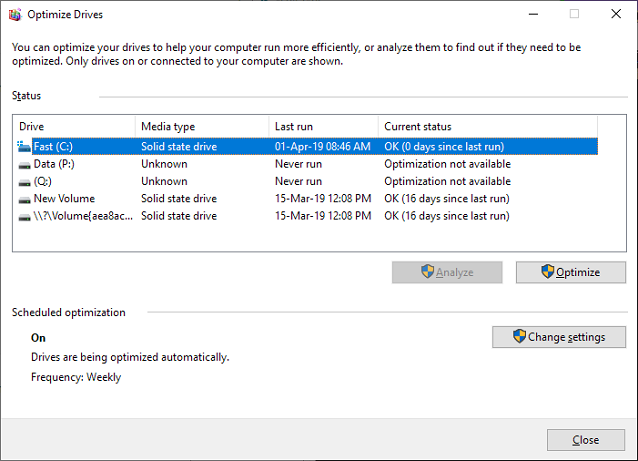
In Windows 8/10 and later, the Drive Optimizer tool has been modified to adapt to the difference between HDDs and SSDs. When optimizing an HDD, it will defragment the drive, but when optimizing an SSD, it will send the TRIM command to inform the system to erase blocks that are no longer in use. This change ensures that the tool is used effectively and safely with both types of storage devices.
Here is how to optimize SSD with drive optimizer:
Step 1. Type optimize in the Windows search box and the Defragment and Optimize Drives icon to run it.
Step 2. Select your SSD disk and click "Optimize".
Further Questions About SSD Defrag
The decision to defrag or not defrag an SSD (solid-state drive) is a common debate, with some arguing that it's unnecessary due to the drive's flash memory nature, while others claim it can still improve performance. However, the general consensus is that defragging an SSD is not necessary and can even be counterproductive. Instead, optimizing an SSD involves other methods, such as enabling TRIM, using the built-in disk cleanup tool, and ensuring the drive is properly formatted and configured.
Here are some related questions that you may interest in. If you have the same doubts, check the answers here.
1. Should I defrag SSD before installing Windows 10?
There's no need to defrag a new SSD before installing Windows 10, as fragments don't exist on the drive, and 4K alignment is more suitable.
To install Windows 10 on a used SSD disk, first back up all useful data to another secure drive, then install Windows 10, and finally defrag the SSD and follow methods to optimize its performance.
2. Should an SSD be defragmented?
For a new SSD, it's essential to 4K align the drive to optimize its performance. On the other hand, for a long-time used SSD, running a disk optimize instead of focusing on fragmentation can be more beneficial. This subtle difference in approach ensures that your SSD operates at its best, whether it's brand new or has been in use for a while.
Using Windows built-To optimize your drive, type "optimize" in the search box, open Drive Optimize, select SSD, and click Optimize.
3. Does defrag hurt SSD?
Defragmentation is a process that reorganizes disk storage, making data saved in contiguous blocks. This process is safe for traditional hard drives, but since solid-state drives (SSDs) store data differently, they typically have few fragments to begin with.
Defrag SSD is more like a re-Writing data to a disk, such as a solid-state drive (SSD), can cause wear and tear, potentially shortening its lifespan. This is because SSDs have a limited number of write cycles before their cells become worn out and can no longer store data reliably.
Related Articles
- Fix Diskpart Clean Not Working on Disk/USB/SD Card [5+ Fixes]
- How to Convert GPT to MBR (Without Data Loss) with 3 GPT to MBR Converter
- Setup SSD/HDD and Change System/OS Disk for Windows 10
- How to Format a Bootable USB Drive in Windows 10
- What Is Windows File System: Definition & Comparison & Conversion
- How Do I Upgrade Gaming PC? [Beginners Guide]
- How to Clone HDD to M.2 NVMe SSD on Windows 10 using Ghost
Want to know how to use the Ghost Image to clone an HDD to M.2 NVMe SSD? You'll get a detailed stepwise guide in this post, and we'll also provide a Ghost Image alternative to help you clone HDD to M.2 NVMe SSD easier.
Products
Articles & Tutorials
- Data Recovery
- Data Backup
- File Recovery
- File Backup
- System Backup and Restore
- Disk and Partition Clone
- Technical articles
- Mobile articles
- Disk Master Help
- Windows Data Recovery Tutorials
- Windows Secure Delete Tutorials
- Windows Partition Management Tutorials
- Windows File Backup and Restore Tutorials
- Windows System Backup and Restore Tutorials
- Windows Disk Backup and Restore Tutorials
- Windows Clone Tutorials