Wyze Cam SD card Format: How to Format SD Card for Wyze Cam?
Key Takeaways - Need to Format SD Card for Wyze Cam?
- The Wyze Cam SD card should be formatted in FAT32 format. This is the recommended format by Wyze for their security cameras.
- Get four in-To format an SD card in Windows, start by inserting the SD card into your computer's SD card reader. Next, open File Explorer and locate the SD card under "This PC" or "Devices.
- Fix the "format Wyze Cam SD card failed" error.
Quick Navigation
Wyze Cam uses the FAT32 file system format for its SD card, which is a widely compatible and easy-to-use format that allows for smooth video recording and playback. This format is compatible with most operating systems, including Windows, macOS, and Android, making it easy to transfer and view footage from the camera. The FAT32 format is also relatively small in size, which makes it ideal for use in small devices like the Wyze Cam.
Format Wyze Cam SD Card in Wyze Cam
Format Wyze Cam SD Card on Windows
Format Wyze Cam SD Card on Mac
Wyze Cam SD Card Format: What Format Does Wyze Camera Use?
- SD Cards 32GB and smaller - Choose FAT32.
- SD Cards larger than 32GB - Choose exFAT.
The Wyze Cam supports both FAT32 and exFAT formatted SD cards, but it's recommended to use exFAT for optimal performance as it has a larger file size limit and is more compatible with a wider range of devices.
Let's start to format the Wyze Cam SD card!
Format Wyze Cam SD Card in Wyze Cam
- Notice:
- Formatting your device will erase all data on it. If you have important files, please back them up before proceeding.
You can format the SD card directly in the Wyze Cam, without needing an SD card adapter.
1. Insert the SD card into Wyze Cam. Open the base, find the SD card slot, and plug the card into it.
Tip: To remove the SD card from the Wyze Cam, you'll need to access the camera's settings. This can be done by using the Wyze app on your smartphone or tablet.
To remove the SD card, press down on it slightly and listen for a click. The card will then spring out, allowing you to grab it.

2. To view your Wyze camera's live stream, open the Wyze app, tap on the Home tab, and select your camera's live stream.
3. To access the format option, select the settings icon, then advanced settings, followed by local storage, and finally format.
When you hear "ding ding", your formatting process is complete.
Video Guide by Wyze Cam - How to Format A Micro SD Card
Wyze Cam explains why users want to format their micro SD card and provides guidance on how to format microSD cards.
Format Wyze Cam SD Card on Windows
#1. Format Wyze Cam SD Card for Wyze Cam by SD Card Format Software
During the 2000s, multiple formatting applications emerged, but few gained the same popularity as Qiling Disk Master.
Qiling Disk Master is a reliable and easy-to-use partition manager that can quickly and safely format your Wyze Cam SD card. With a simple interface, it allows you to format your SD card with just a few clicks. Additionally, it can also resize, format, or recover partitions on your hard drive, making it an ideal tool for formatting your Wyze Cam SD card with comprehensive features and an affordable price.
Step 1. To format an SD card, locate the device in your computer, right-click on the partition you want to format, and select "Format" from the context menu.
Step 2. Set a new partition label, file system, and cluster size to the selected partition.
Step 3. Click the "Proceed" button to start formatting your SD card.
Step 4. Click "Yes" on the pop-up window to continue.
See Also:
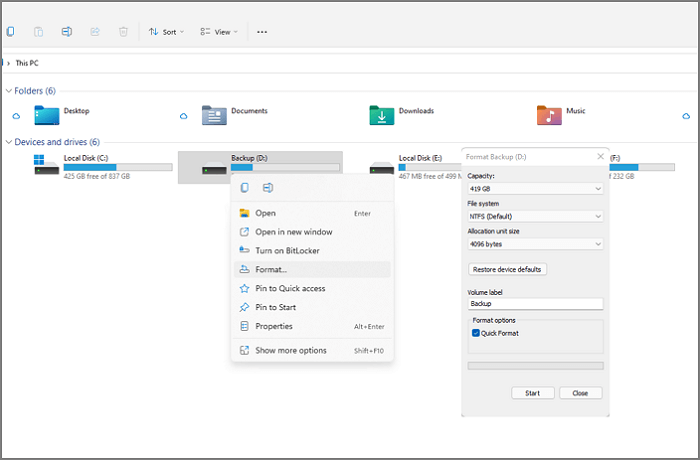
#2. Format Wyze Cam SD Card by File Explorer
1. Insert the Wyze Cam SD card into the SD card reader, then connect the SD card adapter to the computer.
2. To open File Explorer, click the Start icon located at the bottom left corner of the screen, and select File Explorer from the menu that appears.
3. To format the Wyze Cam SD card, click on "This PC" on your computer, navigate to the "Devices and drives" section, right-click on the Wyze Cam SD card, and select the "Format" option.
4. Select the idle file format under the "File system" tab, then name your volume label.
5. Check the "Quick Format" and click the "Start" button.
Format Wyze Cam SD Card on Mac
1. The Wyze Cam SD card should be placed into the SD card adapter and then connected to a Mac computer using the SD card reader.
To format your SD card, first, copy any private info to your desktop. Once that's done, you can safely insert the SD card into your computer and follow the formatting process. After formatting, you'll need to move the SD card back to its original location.
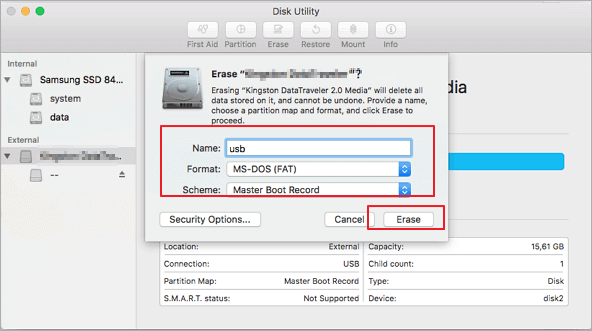
2. To access Disk Utility, follow these steps: Go to Finder, click on "Go" in the top menu bar, select "Applications", navigate to the "Utilities" folder, and then open Disk Utility.
3. All drives will be present on the left pane. Click on your SD card.
4. On the right pane, click the "Erase" button.
5. The Erase window appears, allowing you to name your Wyze Cam SD card and select the correct file format.
6. Click the "Erase" again.
Wyze Cam Format SD Card Failed
You're experiencing issues with formatting SD cards in your Wyze Cam, where the camera appears to format the card but the storage capacity remains the same. This issue is specific to 3 out of 5 cameras you've tried. Would you like to troubleshoot the problem or explore alternative solutions?
When a Wyze camera's SD card won't format, try using a free tool like Qiling Disk Master to clean the data after the camera's formatting attempt fails.
Wyze Cam SD Card FAQs
See these "People Also Want to Know" questions:
Do you have to format SD card for WYZE camera?
Formatting the SD card for your Wyze camera is not required, but it's recommended to ensure smooth performance and optimal storage usage. It helps to free up space on your SD card and extend its lifespan.
How do I know if my SD card is exFAT or FAT32?
1. To connect your SD card to your computer, insert the SD card into the SD card adapter and plug the adapter into the computer's USB port. This will allow you to transfer files from the SD card to your computer or vice versa.
2. Open the File Explorer and click "This PC".
3. To access the properties of the SD card, locate it, right-click on it, and select the "Properties" option from the context menu.
4. You can see what format your SD card is.
Related Articles
- How to Clone Windows to External Hard Drive [100% Working Solution]
- How to Fix Crtical Process Died Error in Windows 11 [2024 🔥]
- Failed to Format the Device? How to Fix HP USB Format Tool Write Protected
- How to Format SSD with Windows on It? [Windows 11/10/8/7]
- How to Decrypt and Format Encrypted SD Card [2026 Updated]
When your SD card gets encrypted, you cannot directly format encrypted SD card. You'll have to decrypt the SD card first and then format it. On this page, you'll learn the full process of decrypting SD card even without a password and format the encrypted SD card to a normal state again. - How Do I Format External Hard Drive for Xbox One Successfully? Here Is the Guide
Adding an external hard drive to your Xbox One console is a great way to free up space for new games. To do this, you'll need to select and format an external hard drive specifically for Xbox One use.
Products
Articles & Tutorials
- Data Recovery
- Data Backup
- File Recovery
- File Backup
- System Backup and Restore
- Disk and Partition Clone
- Technical articles
- Mobile articles
- Disk Master Help
- Windows Data Recovery Tutorials
- Windows Secure Delete Tutorials
- Windows Partition Management Tutorials
- Windows File Backup and Restore Tutorials
- Windows System Backup and Restore Tutorials
- Windows Disk Backup and Restore Tutorials
- Windows Clone Tutorials