Solved: Unlock Bitlocker Without Recovery Key and Password
When you enable BitLocker on a drive, it encrypts all data on the drive and stores the decryption key in an encrypted form on your computer.
You might forget your password and lose access to your recovery key, making it difficult to recover your account.
If you don't have the BitLocker password and recovery key, you'll need to either format the encrypted drive to remove the encryption or use a third-party tool like Passware Kit, Elcomsoft Forensic Disk Decryptor, or Elcomsoft Distributed Password Recovery. Qiling will provide more detailed guides on how to proceed.
BitLocker is a full-disk encryption feature developed by Microsoft, which protects data on a Windows computer by encrypting the entire hard drive. The data stored on a BitLocker drive is encrypted and can only be accessed with the correct password or recovery key.
Overview of Bitlocker and Encrypted Data Recovery
You can access a BitLocker-You can use a BitLocker password or a recovery key to access an encrypted drive. If you forget either, it's not a major issue, but if you forget both, you'll eventually lose access to the drive. You should be aware of the following:
- 1. Data recovery software cannot recover data from BitLocker encrypted drives without the password and recovery key.
- 2. There is no BitLocker recovery key generator, as each BitLocker-encrypted drive has a unique 48-bit recovery key that's automatically generated when you set up BitLocker encryption.
- 3. Formatting a BitLocker drive and removing encryption does not allow for data recovery. This is because BitLocker uses full disk encryption, meaning that even after formatting, the data remains encrypted and requires a password to decrypt.
BitLocker is a full-disk encryption feature in Windows that helps protect your data by encrypting the entire drive, making it unreadable to unauthorized users. It uses the Advanced Encryption Standard (AES) with a 128-bit or 256-bit key, making it extremely difficult to crack. When BitLocker is enabled, the operating system can't boot without the correct key, and even if someone gains physical access to the device, they won't be able to access the encrypted data without the key. This provides a high level of protection for your sensitive information, making it a valuable security feature for individuals and organizations.
How to Unlock BitLocker Without a Password and Recovery Key
If you're trying to recover your BitLocker password or recovery key to access your encrypted drive, but you can't afford to lose the data on it, you can try to recover your password or key. If you just want to remove BitLocker encryption and don't care about the data on it, you can simply format the BitLocker drive to remove the encryption.
You can download a tool that allows you to one-click remove BitLocker from a hard drive, even if you don't have the password or recovery key.
Way 1. Try Usual Passwords
If you've forgotten your BitLocker password, try recalling any similar passwords you've used in the past to see if that helps you recover it. Alternatively, you can try one of the methods below to regain access to your encrypted drive.
Way 2. Search for BitLocker Recovery Key
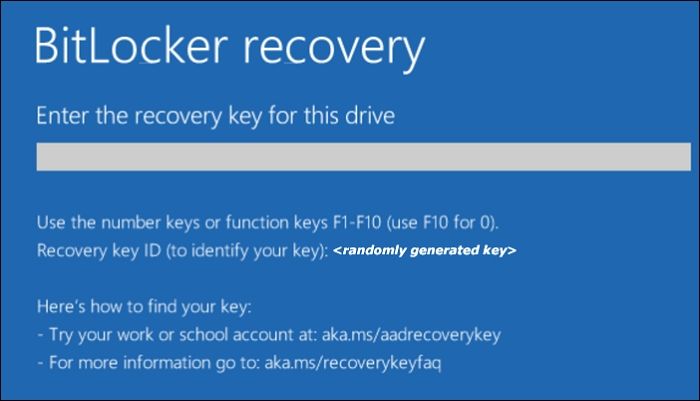
When setting up BitLocker, you have the option to save your recovery key in various ways, including saving it to your Microsoft account, saving it to a USB flash drive, saving it to a file, or printing it. If you forget your password, you can check these locations to find the recovery key.
Instructions: Search Bitlocker Recovery Key on the PC
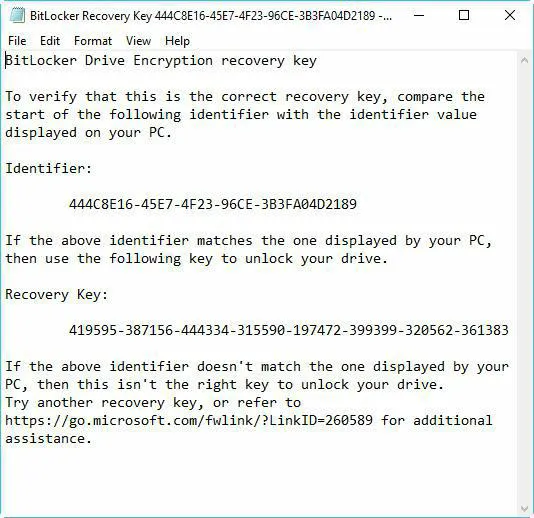
When using BitLocker to encrypt a Windows drive, a recovery key is generated and saved to a text file on the PC. This key is used to unlock the drive if the password is forgotten, and it's recommended to keep the file in a safe place for easy retrieval.
Your BitLocker recovery key is stored in a. BEK file named BitLocker Recovery Key.
If you find it difficult, use the following button to remove BitLocker encryption with one click.
Once you find this file, copy the previously saved code into a text file and follow the steps below:
💡Notice:
- This method is only useful if you have the right to access the file containing the recovery key. If you have access to the file containing the recovery key, you can use it to reset your password.
- If you can't find the code, you can search for a file on your PC called BitLocker recovery key.txt. This file contains the recovery key for your BitLocker drive, which you can use to access your encrypted data if you forget your password.
You may also like the following topic:

Fixes: BitLocker Password & Recovery Key Not Working
Learn effective solutions to resolve the BitLocker password and recovery key not working problem. This article will provide you with the necessary guidance to fix all BitLocker errors and regain access swiftly.
Way 3. Use BitLocker Recovery or Forensic Tools
Some third-party BitLocker recovery or forensic tools, including Passware Kit, Elcomsoft Forensic, and Disk Decryptor, may help extract a BitLocker recovery key by analyzing the computer's memory in specific cases.
Way 4. Use the New Hacking Method
Hackers can access the BitLocker recovery key by physically accessing the target computer's motherboard and TPM chip, then using a field programming gate array to bypass the TPM chip's security features. This allows them to obtain the BitLocker recovery key, which can then be used to unlock and access the encrypted drive.
To obtain BitLocker recovery keys via TPM, you can click the link provided to learn more about the process.
https://pulsesecurity.co.nz/articles/TPM-sniffing
How to Remove Bitlocker Encryption Without Password and Recovery Key
If the BitLocker encrypted data is not that important, you can directly solve the problem by formatting this drive. Here are three ways to format it.
Way 1. Format BitLocker Drive by Qiling Disk Master
Qiling Disk Master Free allows you to format a BitLocker drive with ease, making it a simple and straightforward process, especially for beginners who don't require extensive computing knowledge. The software provides timely prompts, guiding you through the formatting process with minimal effort and hassle.
Step 1. Run Qiling Disk Master, right-click the hard drive partition you intend to format and choose "Format".

Step 2. In a new window, set the partition label, file system (NTFS, FAT32, EXT2, EXT3, EXT4, exFAT), and cluster size for the partition to be formatted.

Step 3. To proceed, click the "Proceed" button to start formatting the partition on your hard drive.

Step 4. Then you will see a warning window, click "Yes" in it to continue.
This tool can also help you manage a BitLocker drive in various aspects, such as adding, removing, or modifying BitLocker keys, enabling or disabling BitLocker protection, and more.
Way 2. Remove Bitlocker Encryption via CMD
To format a Bitlocker drive using CMD, you can follow these steps: simply navigate to the Command Prompt, type "manage-bde -status" to check the status of the Bitlocker drive, then type "manage-bde -off" to turn off Bitlocker, and finally type "format" to format the drive. Alternatively, you can also use the "cipher /w" command to wipe the drive and then format it. Please note that formatting the drive will erase all data on it.
Step 1. Run command prompt as administrator.
Step 2. To start, run the command prompt and enter the diskpart command, then press the Enter key to launch Diskpart.
Step 3. Then enter the following commands in the Diskpart interface:
- list disk
- select disk X (Choose the correct disk)
- clean
- create partition primary
- select partition x
- format quick fs=NTFS assign letter C
The command can format a BitLocker hard drive, external hard drive, or any other storage device, including a USB flash drive.
To remove BitLocker without the recovery key and password, use Qiling Disk Master. This tool can bypass the encryption and unlock the drive, allowing you to access the data.
Way 3. Format a Hard Drive or USB Drive to Delete BitLocker
To format a drive in Windows, connect the storage device to your computer, ensure the USB cable and port are in good condition, and then follow the steps to format the drive.
Step 1. To access the BitLocker-encrypted drive, click on "This PC" from your desktop, and locate the drive that has been encrypted by BitLocker.
Step 2. Right-click the encrypted drive and choose "Format."
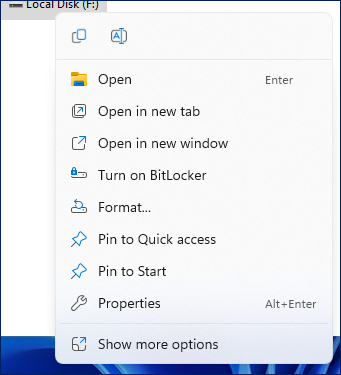
Step 3. To quickly format a drive, select the "Quick Format" option and choose the file system type and allocation unit size from the available options in the pop-up window that appears.
Step 4. To set a new name for the encrypted drive, navigate to the "Volume Label" box within the encryption settings. Here, you can enter a new name for the drive, which will replace the default or previously assigned name.
Step 5. Click "Start" to begin formatting the BitLocker encrypted drive.
Problems solved? Share the guide to help more people!
Conclusion
If you forget your BitLocker password and don't have a recovery key, you may have to format the entire drive as a last resort. However, using the recovery key is a more straightforward solution if you have it. If you don't have either, formatting the drive is the only option.
BitLocker encryption can slow down disk performance, with a maximum impact of 45% on SSDs.
Remove BitLocker Without Password and Recovery Key FAQs
If you've forgotten your BitLocker password or the recovery key from your drive, don't worry - it's a common issue. Fortunately, the solution is straightforward, as described in the scenario above. If you're wondering how to recover your password or key, you can refer to the questions below for more information.
1. Can I unlock BitLocker without a password and recovery key?
If you don't have a BitLocker password or recovery key, you may need to format the drive to remove the encryption or use third-party tools like Passware Kit, Elcomsoft Forensic Disk Decryptor, or Elcomsoft Distributed Password Recovery.
2. What will happen if you enter the wrong recovery key?
The encrypted drive will eventually enter a suspended state, locking you out, and the data may become permanently inaccessible. Contact your organization's IT department for assistance in such a case.
3. Where can I find the recovery key of Bitlocker?
When setting up BitLocker, you'll be presented with four options for securely storing your BitLocker recovery key, which is crucial for regaining access to your encrypted data in case you forget your password or encounter issues with your computer. These options include printing the key on a piece of paper and storing it in a safe place, emailing the key to a trusted individual, storing the key in a third-party password manager, and storing the key in the Microsoft account associated with your computer.
- 1. Save to Microsoft account
- 2. Save to a USB flash drive
- 3. Save to file
- 4. Print the recovery key.
You can find the key based on the option selected at the time.
Related Articles
- [Allocation Unit Size FAT32 Guide] What Allocation Unit Size Should I Use for FAT32
- Solved: Win10 Disk Management Not Loading - 10 Fixes
- How to Clone OEM Partition in Windows [2024 Full Guide]
- How to Format a Hard Disk Drive in Windows 7?
Learn how to format hard drive in Windows 7 quickly to prepare a clean installation of Windows or for other purpose. - Can't Skip Disk Check on Startup Windows 11 | What Should I Do?
If you're experiencing issues with skipping disk check on startup in Windows 11, you can follow a guide to disable automatic disk checking. The guide provides a step-by-step solution to help you skip disk checking in Windows 11 and resolve any related problems. - How to Change BIOS Mode from Legacy to UEFI Windows 10/11
If you're running Legacy BIOS, you may need to convert Legacy BIOS to UEFI to take advantage of its new feature. This process is relatively simple, but it will require you to boot into your BIOS and change a few settings. If you're ready to make the switch, here's what you need to do.
Products
Articles & Tutorials
- Data Recovery
- Data Backup
- File Recovery
- File Backup
- System Backup and Restore
- Disk and Partition Clone
- Technical articles
- Mobile articles
- Disk Master Help
- Windows Data Recovery Tutorials
- Windows Secure Delete Tutorials
- Windows Partition Management Tutorials
- Windows File Backup and Restore Tutorials
- Windows System Backup and Restore Tutorials
- Windows Disk Backup and Restore Tutorials
- Windows Clone Tutorials