Fixes: BitLocker Password & Recovery Key Not Working
Encountering issues with your BitLocker password or recovery key can be frustrating, as it leaves you locked out of accessing your data. However, if you're facing this problem, consider formatting the BitLocker drive as the quickest solution. This approach bypasses the need for troubleshooting, allowing you to access your data without further complications.
However, keep in mind that formatting will result in data loss. If the data on the drive isn't crucial, formatting might be the swiftest path. However, if your BitLocker drive contains important data, opting for manual methods is advisable. Qiling explores these alternative approaches to retain your crucial information while resolving the password or recovery key issue.
Format to Remove BitLocker - Quick Solution
Qiling Disk Master Free offers a simple way to remove BitLocker encryption using its "Format" feature, allowing users to quickly remove encryption from their drives with just a few clicks, bypassing the need to resolve password or recovery key issues manually.
Qiling Disk Master is a comprehensive disk management tool that offers a range of functionalities, including disk cloning, merging, converting, and more. Its interface and features cater to users seeking a convenient and efficient method to resolve issues such as BitLocker password and recovery key not working, making it a valuable tool for those in need of disk management solutions.
To resolve the BitLocker password and recovery key not working issue via Qiling Disk Master, you can try the following: First, ensure that the correct password and recovery key are entered. If the issue persists, try creating a new BitLocker password and recovery key.
Step 1. Run Qiling Disk Master, right-click the hard drive partition you intend to format and choose "Format".

Step 2. In the new window, set the Partition label, File system (NTFS/FAT32/EXT2/EXT3/EXT4/exFAT), and Cluster size for the partition to be formatted.

Step 3. To begin the process of formatting the partition on your hard drive, click the "Proceed" button. This action will initiate the formatting process, which will erase all data on the selected partition.

Step 4. Then you will see a warning window, click "Yes" in it to continue.
Download Qiling Disk Master to resolve BitLocker password or recovery key issues. Use its 'Format' feature to easily remove BitLocker encryption.
BitLocker Password & Recovery Key Not Working - How to Fix Manually
When users forget their BitLocker password and recovery key, they may lose access to the encrypted drive. The five methods below can help troubleshoot the issue and regain access to the BitLocker-protected drive.
Fix 1. Try the Correct BitLocker Password
When encountering password-related issues, the primary step is to attempt the correct BitLocker password. Double-check the password for any typing errors or inadvertent capitalization, and ensure the keyboard layout matches the one used during the password setup, especially if it's a different language or layout.
If the password still doesn't work, try using an external keyboard or checking your current keyboard for any issues. You can also try the password on another computer to verify its accuracy.

Solved: Unlock Bitlocker Without Recovery Key and Password
If you're unable to access your BitLocker drive due to a lost recovery key and password, don't worry - there are still ways to unlock and access the data stored on it. This guide will walk you through the process, providing a solution to retrieve your encrypted files and information.
Fix 2. Try the Correct BitLocker Recovery Key
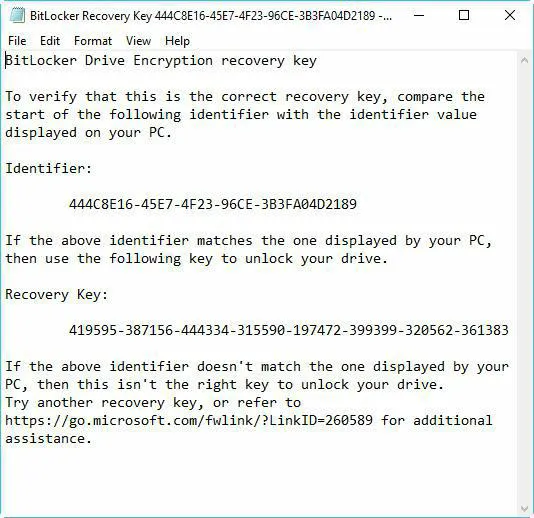
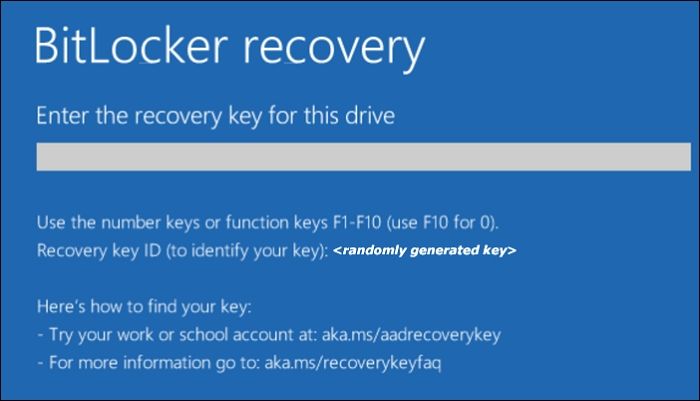
If the BitLocker password doesn't work, try using the correct BitLocker recovery key, which is a backup option that can grant access when the password fails.
To access a BitLocker-encrypted device, retrieve the recovery key from its stored location, such as a USB drive or a secure note-taking app, and enter it accurately, being cautious with character distinctions like '0' and 'O', '1' and 'I,' etc. to avoid incorrect entry.
If the BitLocker recovery key doesn't resolve the BitLocker password and recovery key not working problem, don't hesitate to seek further solutions. You can also share this guide with others who might be facing similar issues, which can help them resolve their problems.
Fix 3. Use Manage-BDE
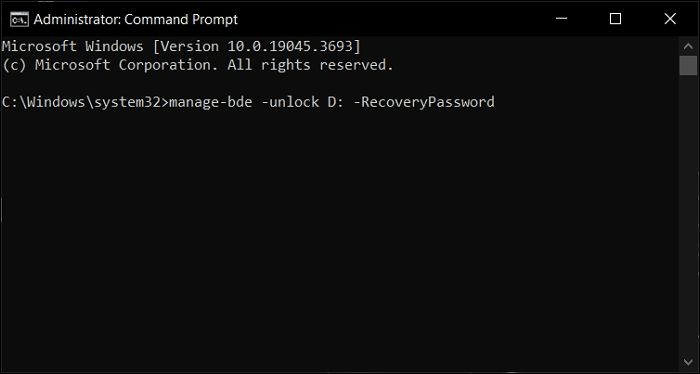
Using the Manage-To utilize the Manage-BDE command-line tool provided by Windows to address BitLocker password or recovery key issues, follow these steps. The tool provides advanced control over BitLocker settings, but improper usage can result in data loss or drive inaccessibility. To use it effectively, ensure you have administrative privileges and backup your data before making any changes. You can then use the Manage-BDE tool to unlock, enable, disable, or manage BitLocker on a drive, or to change the recovery password.
Step 1. Open the Command Prompt as administrator by searching for it in the Windows search bar and selecting 'Open as administrator'.
Step 2. To unlock a BitLocker-encrypted drive in the Command Prompt, run the command "manage-bde -unlock D: -RecoveryPassword" (where "D" represents your encrypted drive), then enter the recovery password or key to access the drive.
🔎Also Read:
Fix 4. Use Another Computer
Accessing a BitLocker-encrypted drive on another computer can be a workaround for password or recovery key issues. Connect the drive to another computer using a compatible interface, then try unlocking it with the correct password or recovery key on the alternate computer. If successful, access the drive through the second computer to retrieve or back up data.
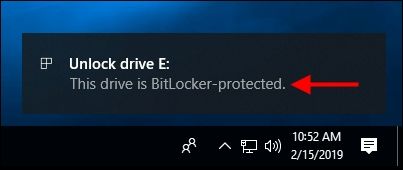
If you gain access to the drive on an alternate computer, consider backing up crucial data. If accessing the BitLocker-encrypted drive from another computer resolves the issue, that's great! Sharing this guide with others can also help them resolve their BitLocker password or recovery key issues.
Fix 5. Reformatting via CMD
Using Command Prompt (CMD) to reformat the BitLocker-encrypted drive may result in data loss and should be done with caution.
To reformat a BitLocker-protected drive via Command Prompt, follow these steps:
Step 1. To access the Run function, press "Win + R", then type "cmd" and press "Ctrl + Shift + Enter" to open the Command Prompt with admin privileges.
Step 2. To access the Disk Management console, type "diskpart" and press Enter. Next, input "list disk" and press Enter to view a list of available disks, and note the disk number of your BitLocker-encrypted drive.
Step 3. To access your encrypted drive, start by selecting the disk associated with the encrypted drive, then execute the "clean" command to erase all data on the disk, and finally create a primary partition on the disk.
Step 4. To quickly format a drive using the NTFS file system, open Command Prompt, type "format fs=ntfs quick", press Enter, and then type "exit" and press Enter again to close the session.

Using Qiling Disk Master to format the BitLocker drive can be a more user-friendly approach than using CMD, as it simplifies the formatting process and is easier to use, especially for those less familiar with command-line operations.
Conclusion
This guide offers various solutions to resolve the issue of BitLocker password and recovery key not working, aiming to restore access to encrypted drives. It suggests attempting the correct password and recovery key, utilizing the Command Prompt, and accessing alternative computers. For a user-friendly and efficient resolution, consider using Qiling Disk Master.
This third-A party tool simplifies removing BitLocker encryption, making it easy for users to resolve issues related to it. The tool has a straightforward interface and functionalities that ensure data integrity, making it a reliable choice for users who need to address BitLocker-related problems quickly and securely. Qiling Disk Master is a practical option to consider for this purpose.
Windows 10/11 BitLocker Password and Recovery Key Not Working FAQs
Encountering the BitLocker password and recovery key not working problem can be frustrating, but this guide provides effective solutions. If you have any further questions or need additional clarification on this topic, please refer to the FAQs for assistance.
1. What should you do if the BitLocker recovery key doesn't work?
- Try the correct BitLocker password.
- Attempt the correct BitLocker recovery key.
- Use the Manage-BDE command-line tool.
- Utilize another computer to access the drive.
- Format the drive only as a final option.
2. How do you unlock BitLocker when it stops accepting recovery keys?
If BitLocker stops accepting your recovery key, you can still unlock your encrypted drive by following these steps. First, try entering your recovery key again, as sometimes it just needs a retry.
Step 1. Launch Qiling Disk Master, right-click on the BitLocker partition, and select the Format option.
Step 2. The partition settings should be configured as follows within the specified time window: Partition label, File system, and Cluster size.
Step 3. Click "Proceed" to start the formatting process. A warning will appear; click "Yes" to confirm and initiate the formatting of the hard drive partition. This will begin the process.
3. How do you bypass the BitLocker recovery key?
To prevent encountering the BitLocker recovery screen during startup, you can opt to suspend it by following these steps:
To disable or suspend BitLocker, go to the Control Panel, select BitLocker Drive Encryption, and choose either Suspend protection or Turn Off BitLocker beside your C drive.
Related Articles
- Windows 11 Home VS Pro, Which Is Better? Your Tips Are Here
- How to Fix The Media Is Write-Protected | Newest Guide
- How Do I Convert NTFS to FAT32 in Windows 11 [2024 New Guide]
- Why Extend Volume Greyed Out and How to Fix Successfully?
If you're unable to extend a volume using the built-in Disk Management tool, you can use Qiling Disk Master to extend the partition when there's no contiguous unallocated space available. This alternative approach allows you to expand the volume even when the standard method is greyed out. - Windows 10 Won't Read SD Cards Unless I Reformat Them
Have you met a situation my computer or laptop run by Windows 10 won't read SD cards unless I reformat them? It'd be too easy to address this problem if you read this tutorial thoroughly. This tutorial provides simple and easy ways to check it. - How to Wipe Write-Protected SSD, Help
Need to wipe a write-protected SSD? This guide provides a detailed tutorial to help you remove the restriction and wipe the SSD safely.
Products
Articles & Tutorials
- Data Recovery
- Data Backup
- File Recovery
- File Backup
- System Backup and Restore
- Disk and Partition Clone
- Technical articles
- Mobile articles
- Disk Master Help
- Windows Data Recovery Tutorials
- Windows Secure Delete Tutorials
- Windows Partition Management Tutorials
- Windows File Backup and Restore Tutorials
- Windows System Backup and Restore Tutorials
- Windows Disk Backup and Restore Tutorials
- Windows Clone Tutorials