How to Solve Bitlocker Keeps Asking For Recovery Key? [Full Guide]
If Bitlocker is continuously asking for the recovery key in an unusual manner, it may be experiencing some issues. However, there are potential solutions to resolve this problem. If you're facing this issue, continue reading to learn what could help fix it.
Why Bitlocker Keeps Asking For A Recovery Key?
Bitlocker, a Windows feature, allows users to encrypt their hard drives. However, it may occasionally prompt users for a recovery key, which can be caused by various reasons, such as a Bitlocker prompt or a Windows update.
- Entering the incorrect pin numerous times
- You forgot the pin
- A recent change in BIOS settings could also be the culprit. This is a common issue that can cause problems with your computer's boot process.
- Updating both the TPM (Trusted Platform Module) and the option ROM firmware requires a combination of technical expertise and specialized tools. It involves accessing the system's firmware and updating the TPM, which is a critical component that ensures the integrity and security of the system's hardware and software.
The error "BitLocker is asking for a recovery key" can occur due to various reasons, including incorrect drive configuration, corrupted system files, or issues with the BitLocker service. Other potential causes include incorrect drive configuration, corrupted system files, issues with the BitLocker service, or incorrect drive configuration. However, these are the primary and most common reasons for seeing the error. To resolve the issue, you can try restarting your computer, checking the drive configuration, or running a system file checker. Additionally, you can try disabling and re-enabling BitLocker, or using the built-in recovery tool to recover the key.
How to Solve Bitlocker Keeps Asking For Recovery Key?
If the BitLocker keeps asking for the recovery key, this guide explains 10 practical solutions for fixing it. Read on for the details.
- Method 1. Use the command prompt to unlock Bitlocker
- Method 2. Turn off Bitlocker encryption
- Method 3. Disable auto-unlock option
- Method 4. Enable secure boot
- Method 5. Update your BIOS
- Method 6. Use legacy boot
- Method 7. Update Windows OS
- Method 8. Uninstall and reinstall the problematic update
Method 1. Use the command prompt to unlock Bitlocker
To unlock BitLocker using the Command Prompt, follow these steps:
Step 1. To access the BitLocker settings, open the BitLocker application and press the "Esc" button on your keyboard to view more options.
Step 2. In the troubleshooting window, click on "Advanced Option."
Step 3. Now, select "Advanced Options" again under "Advanced Options" and then choose "Command Prompt" under "Advanced Options" and then select "Command Prompt" from the menu.
Step 4. In the Command Prompt, enter the command `manage-bde-unlock C: -rp recovery key` and press "Enter."
Step 5. To disable the BitLocker protection on the boot drive, enter the command "manage-bde-protectors-disable C:" in the command prompt. This command removes the protection over the boot drive.
Step 6. Close the command prompt and restart your computer. Once it has booted up, enter the recovery key.
Here are some other reliable ways to unlock Bitlocker:
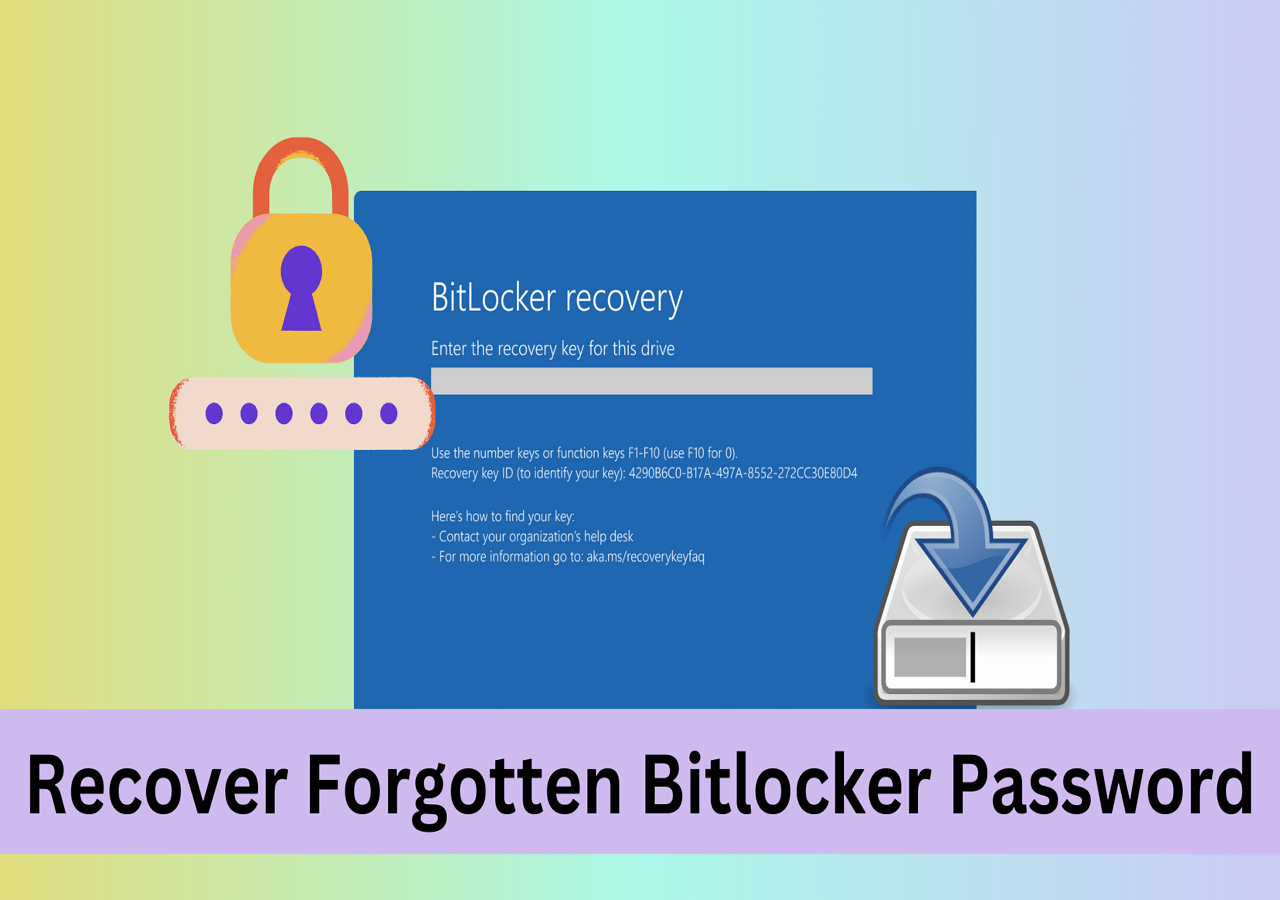
How to Recover Forgotten Bitlocker Password & Recovery Key
Windows users can recover forgotten Bitlocker passwords and unlock encrypted hard drives using four solid methods. These methods can help individuals regain access to their encrypted hard drives, allowing them to retrieve important data.
Method 2. Turn off Bitlocker encryption
Follow this step to turn off BitLocker encryption:
Step 1. To enable BitLocker, open the BitLocker application and enter your recovery key. If you're using a Microsoft account with Outlook, BitLocker will start automatically. You can retrieve your recovery key from the Microsoft account website at https://account.microsoft.com/devices/recoverykey.
Step 2. To access the Control Panel, click on the "Start" button and search for "Control Panel."
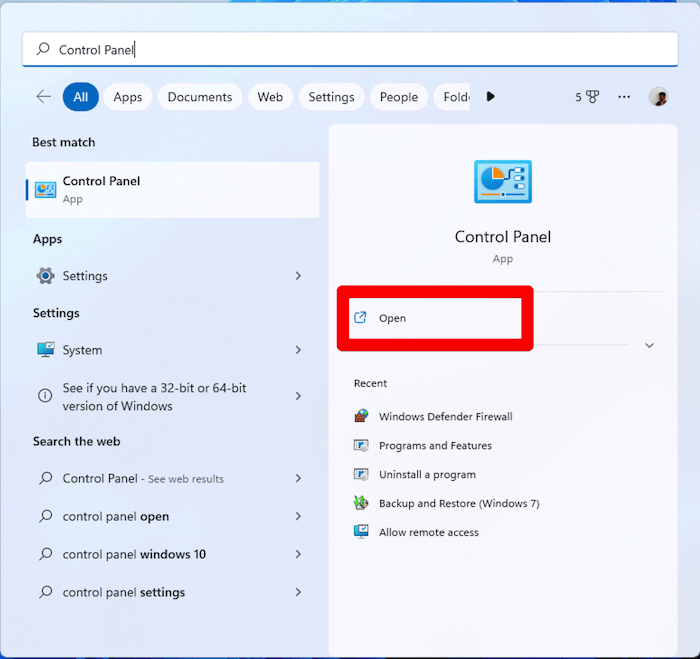
Step 3. Select "Bitlocker Drive Encryption."
Step 4. Click on "Suspend Protection" to turn off Bitlocker encryption.
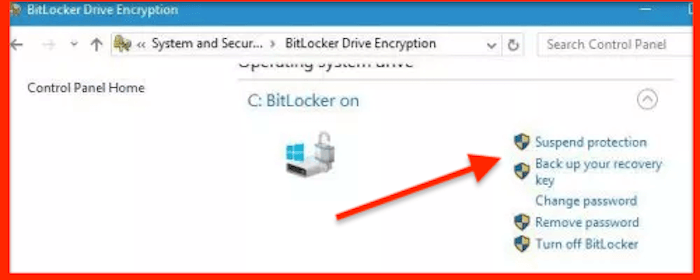
Step 5. A dialog box will open confirming the changes, click "Yes" to confirm.
Step 6. Allow the device to turn off completely, then turn it back on to enable Bitlocker TPM update.
Method 3. Disable auto-unlock option
Windows has the auto-To save yourself from entering the recovery key every time Windows locks you out, turn off the "Require additional authentication at startup" option, which is set up by default.
Step 1. Press the Windows key on your keyboard and open "Control Panel" by searching for it. In the search results, click on the "Control Panel" icon to open it.
Step 2. To encrypt your device, go to the "Control Panel" and select "Device Encryption" to open the "Bitlocker" settings.
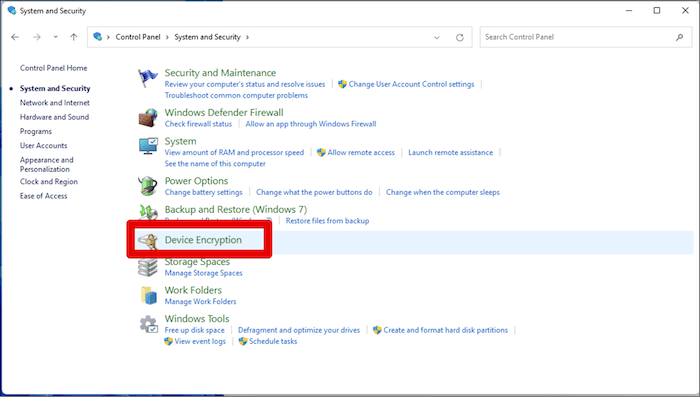
Step 3. Now, click on the "turn off auto-unlock" option.
Step 4. Restart your computer for the changes to take effect.
Method 4. Enable secure boot
Step 1. Open Bitlocker and then press the "Esc" button on your keyboard.
Step 2. Click on "Skip this drive" on the right-corner menu.
Step 3. Now choose "Troubleshoot."
Step 4. Select "Advanced Options" under the "Troubleshoot" window.
Step 5. Now, select "UEFI Firmware Settings," followed by "Restart."
Step 6. The UEFI window will now open; click on "Security."
Step 7. Now, under "Secure Boot," select "Change Configuration."
Step 8. Choose "Microsoft Only" and click on "OK."
Step 9. Now, click on "Exit" and restart your PC.
Method 5. Update your BIOS
The BIOS can become corrupted or start performing poorly, leading to issues with Bitlocker, which may keep asking for a recovery key, prompting the need to update the BIOS frequently.
To prevent Bitlocker from asking for a recovery key, update your BIOS to the latest version. This will ensure that your system meets the requirements for Bitlocker to function properly without prompting for a recovery key.
Method 6. Use legacy boot
To stop Bitlocker from asking for a recovery key during the legacy boot process, you can follow these steps:
Step 1. Click on the magnifying glass icon and search for "cmd."
Step 2. Now, select "Run as administrator."
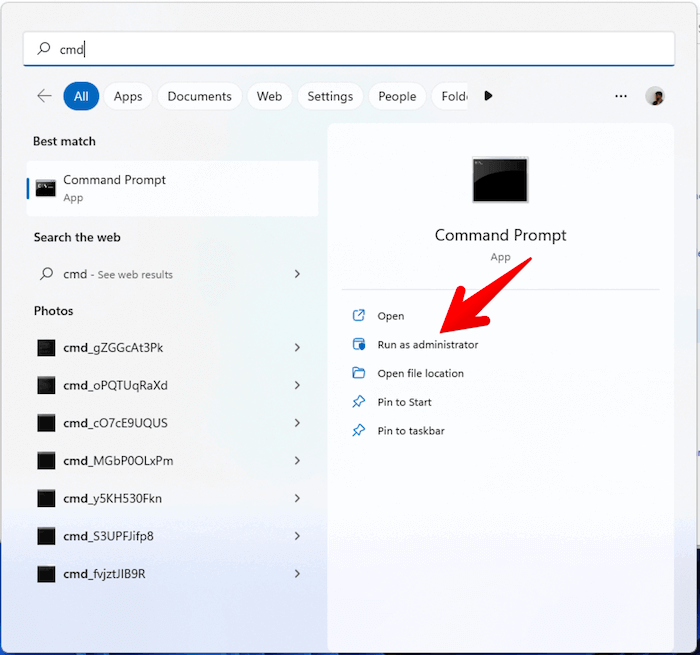
Step 3. The command "bcdedit /set {default} bootmenupolicy legacy" should be typed into the command prompt and then pressed "Enter" on the keyboard.
Method 7. Update Windows OS
If you're running an outdated version of Windows and Bitlocker keeps asking for a recovery key, it's recommended to update your Windows to the latest version, which may resolve the issue.
Here's how to update Windows:
Step 1. Click "Start" and search for "Windows Updates."
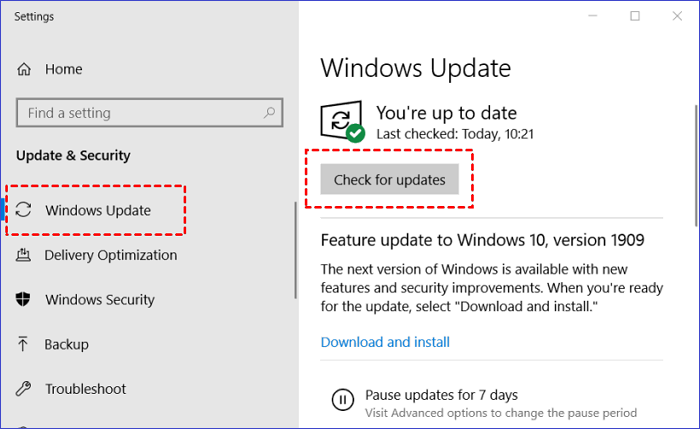
Step 2. To update Windows, open the "Windows Updates" and let it search for available updates. If it doesn't automatically search, click on "Check for updates."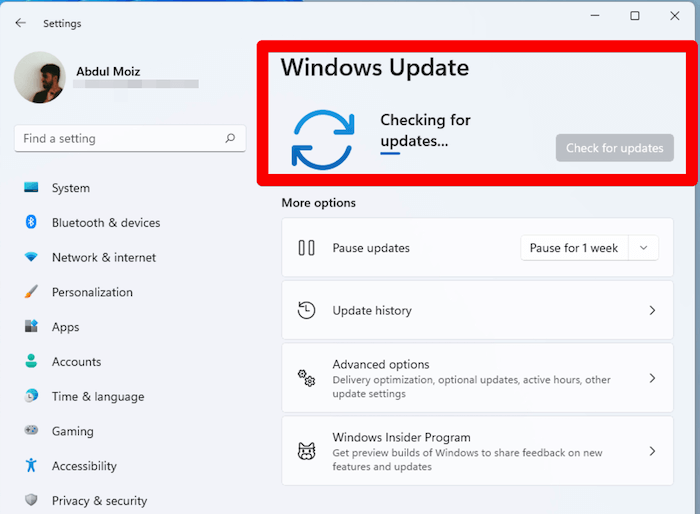
Step 3. Click on "Install updates."
Method 8. Uninstall and reinstall the problematic update
If Bitlocker is asking for the recovery key after updating your computer, it's possible that the update had bugs or wasn't properly installed. Try uninstalling and reinstalling the application to resolve the issue.
Here's how:
Step 1. To update Windows, click on the "Start" button, search for and open the "Settings" app, and then select "Windows Update".
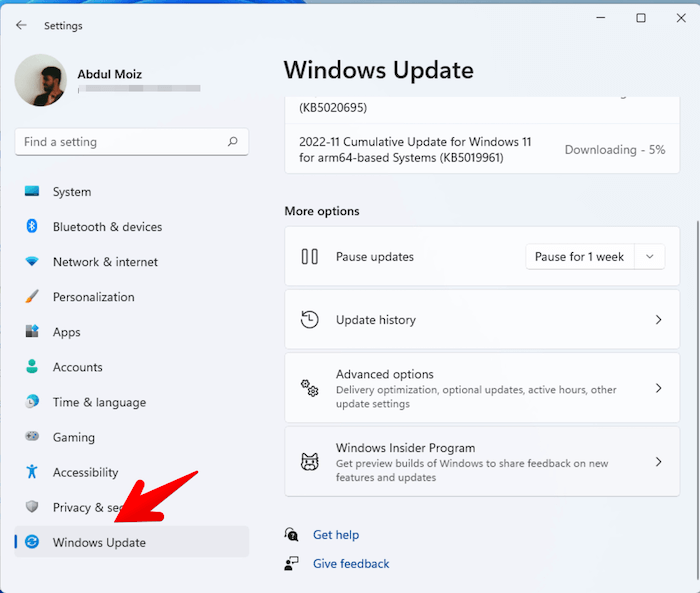
Step 2. Click on "Update history" and then select "Uninstall updates."
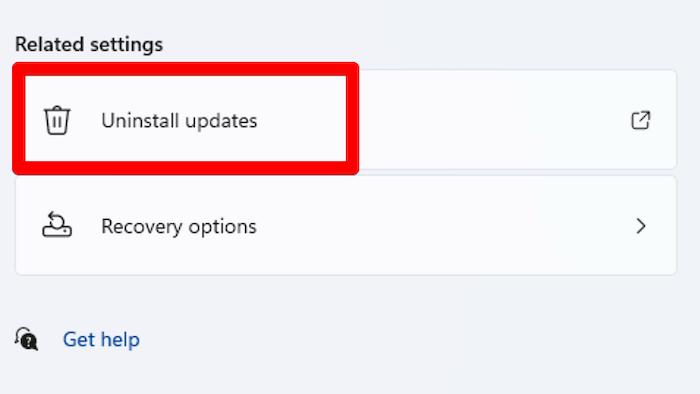
Step 3. Uninstall the problematic updates by double-clicking on them, and then restart your PC.
Step 4. To suspend BitLocker, follow these steps: Open the Control Panel and click on "BitLocker" under the "System and Security" section. Click on "Turn off BitLocker" and confirm that you want to disable it.
Step 5. To update Windows, open the "Settings" app, navigate to the "Update & Security" section, click on "Windows Updates", and install any available updates. This ensures your system has the latest security patches and features.
Concluding Thoughts
Bitlocker is a powerful encryption tool that protects hard drives and files from unauthorized access. Despite its reliability, it's not immune to glitches and can sometimes malfunction. Fortunately, these issues can often be resolved, restoring the security and peace of mind that comes with using Bitlocker.
To stop Bitlocker from asking you for a recovery key, follow the solutions above.
FAQs
Here are some additional Bitlocker-related answers that we believe you will find useful:
1. Why do I keep getting prompted for a Bitlocker recovery key?
When you connect a drive to your PC and it's detected in the boot list, BitLocker will prompt you for the recovery key.
If you're not connecting any devices and Windows keeps asking for the recovery key, it's likely because the boot support for Preboot for TBT and USB-C/TBT is enabled by default in your BIOS. To resolve this, disable this feature in your BIOS settings.
2. Why does my computer keep needing a recovery key?
If BitLocker is enabled, you'll be prompted to enter a recovery key when plugging in a new drive or copying files, confirming your identity.
3. What triggers the Bitlocker key?
If Bitlocker detects any unauthorized access attempts to your files, it will prompt you to enter the key, ensuring that only authorized individuals can access the encrypted data.
Related Articles
- What Is SSD SMART Status, Everything You're Concerned About
- External Hard Drive Heating Up: Everything You Should Know
- [10 Fixes] Error 0x800701b1 Troubleshooting on Windows 11/10
- [Detailed Guide] How to Fix Cyberpunk 2077 Saves Missing
- How to Fix PC Black Screen While Gaming in 6 Ways
Fix a PC black screen while gaming by checking graphics drivers, hardware, power, display settings, and other common causes. - My PC Randomly Restarts! How to Solve It? [Fixed in 8 Ways]
Fix a PC that randomly restarts on Windows 10 or 11. Check power, overheating, drivers, hardware, and system settings.
Products
Articles & Tutorials
- Data Recovery
- Data Backup
- File Recovery
- File Backup
- System Backup and Restore
- Disk and Partition Clone
- Technical articles
- Mobile articles
- Disk Master Help
- Windows Data Recovery Tutorials
- Windows Secure Delete Tutorials
- Windows Partition Management Tutorials
- Windows File Backup and Restore Tutorials
- Windows System Backup and Restore Tutorials
- Windows Disk Backup and Restore Tutorials
- Windows Clone Tutorials