My PC Randomly Restarts! How to Solve It? [Fixed in 8 Ways]
As a typical Windows user, you may have experienced your PC restarting randomly without warning. This is often a feature of Windows, which is designed to restart to resolve some Blue Screen of Death (BSOD) faults, ultimately benefiting the operating system.
Your computer may randomly restart with no error message, causing frustration and potential data loss, especially during important work or meetings. This issue can occur at any time, and some users have reported losing their data after restarting their PC. In this article, we will discuss how to fix the issue of a PC randomly restarting and provide guidance on recovering lost data.
| Workable Solutions | Step-by-step Troubleshooting |
|---|---|
| Fix 1. Turn Off the Automatic Feature | If your Windows PC restarts randomly without notice, you should first disable...Full steps |
| Fix 2. Disable Fast Startup | This is how you disable the fast startup feature on your Windows PC...Full steps |
| Fix 3. Check Power Connection | If none of the preceding methods work to resolve the issue of the computer randomly...Full steps |
| Fix 4. Update the Drivers | The driver accessible through Windows may not be the most recent...Full steps |
| More Fixes | The other 4 fixes are available to follow and fix the computer randomly restart...Full steps |
Causes: Why Your Computer Restarts Randomly
Your PC may be randomly restarting Windows due to various reasons such as overheating, driver issues, or software conflicts. It could also be caused by a faulty power supply, loose connections, or a malfunctioning cooling system.
A random PC restart can be caused by a range of factors, including a malfunctioning automatic restarting feature, overheating or a broken power supply, faulty RAM, a virus or malware issue, driver difficulties, and issues related to Windows updates.
Windows 11 PCs often restart randomly due to several reasons. These include outdated drivers, which can cause system instability and lead to restarts.
- 🌡️Overheating Issues: A computer's overheating is often caused by dust accumulation on the fans or air vents, which can reduce system performance and cause internal component damage, leading to random restarts.
- 🔒Overclocking the PC: Overclocking is a method of exceeding the manufacturer's intended parameters for computer hardware, allowing enthusiasts to get more performance out of their computer systems, but potentially harming components and causing random restarts.
- 😈Malware intrusion: Malware is software designed to harm a computer system or its users, often causing random restarts and disruptions.
- ⏱️Drivers out of Date: Outdated drivers can cause compatibility and stability issues, decrease computer performance, and lead to random PC restarts.
Solutions: How to Solve the PC Restarts Randomly
Here are eight solutions to fix a PC that restarts randomly:
Fix 1. Turn Off Automatically Restart Feature
If your Windows PC restarts randomly, try disabling the automatic restart feature to see if an error is causing the issue. This will allow your computer to restart without displaying an error notice, and you can then determine if an error is the cause of the random restart.
This is how you turn off the automatic restart feature:
Step 1. Open File Explorer, right-click on "This PC" and choose Properties from the context menu.
Step 2. In the next window, click on the "Advanced system settings" option next to "Related links".
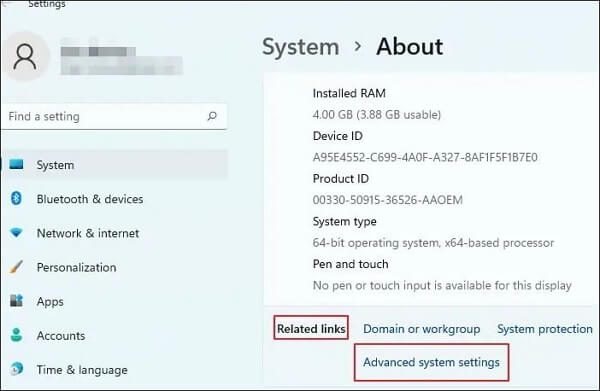
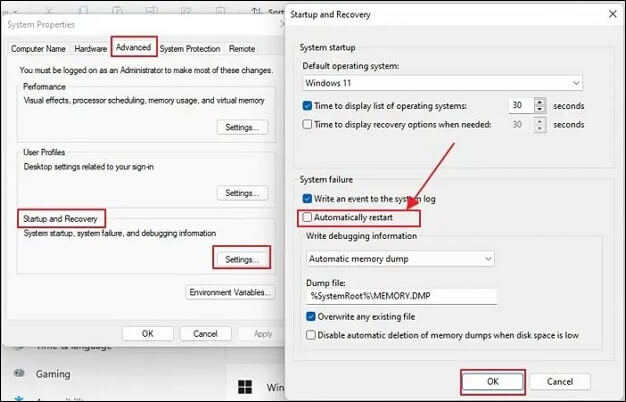
Step 3. In the "System Properties" window, click on the "Advanced" tab, then click on the "Settings" button under the "Startup and Recovery" section.
Step 4. In the "Startup and Recovery" window, uncheck the box next to "Restart" under the "System Failure" section Automatically, then click "OK" to save the changes.
Fix 2. Disable the Fast Startup Feature
To disable the fast startup feature on your Windows PC, go to Settings, then click on Update & Security, followed by Recovery. In the Recovery window, click on the "Restart settings" option, then toggle the switch next to "Turn on fast startup (recommended)" to the off position. This will disable the fast startup feature on your PC.
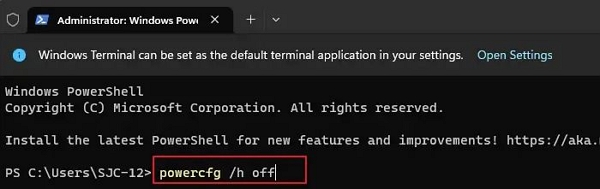
Step 1. Open "Windows Terminal" (Admin).
Step 2. Copy and paste the command given below to disable the fast startup feature:
powercfg /h off
Fix 3. Check the Power Connection
If the computer randomly restarts and other methods don't work, check if a power issue is causing the problem. Replace the old power cords or Power Supply Unit (PSU) to see if the system restarts.
If one of the methods helps resolve the PC randomly restarting issue, consider sharing it on social media platforms like Facebook, Twitter, Instagram, and others to help others who may be experiencing the same problem.
Fix 4. Update the Drivers of Your PC
Updating the latest drivers for your PC can help solve the issue of the PC randomly restarting, as the driver accessible through Windows may not be the most recent, and getting it directly from the OEM website is recommended.
How to Update Drivers on Windows 11
To update drivers on Windows 11, go to the Start menu and type "Device Manager" to open it. In the Device Manager, look for the category of devices you want to update, such as Display Adapters or Sound, Video and Game Controllers. Right-click on the device and select "Update driver" to search for and install any available updates. Alternatively, you can also use the "Check for updates" feature in Windows Update to update drivers.
Fix 5. Scan PC for Malware
If your computer restarts randomly, it could be due to a virus or malware, and running a virus scan may help determine if this is the case. This can be done using a free online scanner, downloading and installing an antivirus program, or utilizing the built-in scanner on a Windows PC.
- Use a free online scanner: To run a virus scan using a free online scanner, simply visit an antivirus provider's website and use their online scanner.
- Install an antivirus program: To download and install an antivirus program, visit an antivirus provider's website and follow their instructions. You can download TotalAV to scan malware and block unlimited ads, providing real-time protection and eliminating computer viruses.
 TOTALAV
TotalAV is an award-winning antivirus and security software that provides real-time protection against viruses, malware, and online threats.
Antivirus Protection Enabled
- Use the built-in scanner: To use a built-in scanner on Windows, navigate to the "Start" menu, type "Windows Defender", and click on "Windows Security". Press the "Scan Now" button to begin the scan.
Fix 6. Install the Latest Windows Updates
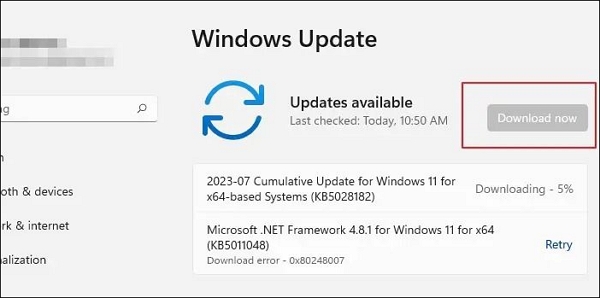
To update Windows 10, open the Settings app, click on the "Update & Security" option, and then click on the "Windows Update" tab. From there, click on the "Check for updates" button to see if any updates are available. If there are, click on the "Download and install now" button to begin the update process. This may take a few minutes or up to an hour, depending on the size of the update and your internet connection speed.
Step 1. Open "Settings".
Step 2. Go to the "Settings" app and select "Windows Update" from the left panel.
Step 3. Check for updates by clicking the "Check for updates" icon.
Step 4. Windows will now search for and install any available updates.
Step 5. Click "Download" to start downloading the updates, and you may need to restart your computer afterwards to complete the installation.
Fix 7. Update Group Policies
If your PC is restarting randomly, you might be able to solve the problem by updating your Group Policies. To do this, press the Windows key + R to open the Run dialog, type "gpupdate /force" and press Enter, and then try resetting group policies by typing "gpupdate /force /logoff" and pressing Enter. If the issue persists, you may want to consider resetting your PC to its default settings or seeking further assistance
Step 1. Open Windows Terminal (Admin).
Step 2. Copy and paste the command given below and press Enter:
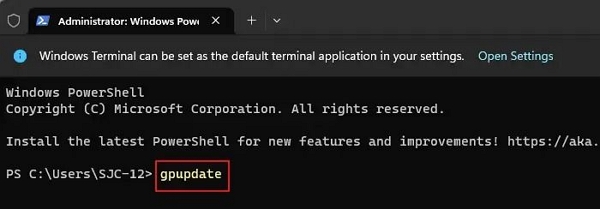
To resolve the issue of random or unexpected reboots, wait for the Group Policy change to complete before checking if the problem persists. This ensures that the new policy settings have been fully applied and are not causing the reboots.
Fix 8. Check RAM Errors
If your PC is randomly restarting, it may be due to RAM issues. To resolve this, check your RAM for errors and use the System Memory Diagnostics tool to help fix the problem.
Here is how you check for RAM errors:
Step 1. To schedule a task using the Task Scheduler in Windows, you can copy and paste "mdsched.exe" in the "Windows Start Search" box and click on the result. This will open the Task Scheduler application, where you can create, edit, or delete tasks, and set triggers and actions for them.
Step 2. A little box will appear, prompting you to select one of the two options for checking your computer for memory problems. The first option is usually suggested, and then you can select it.
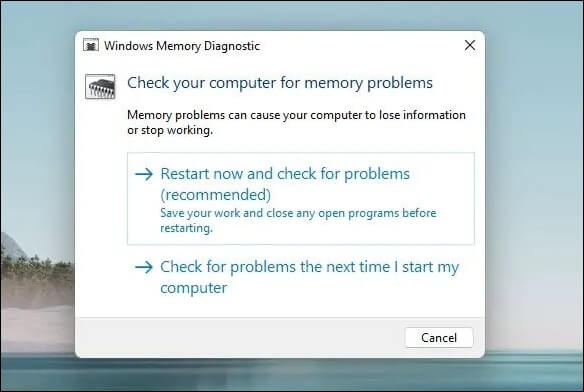
Step 3. The Windows Memory Diagnostics Tool screen will appear, showing the progress and status of the check, as it runs a series of tests to identify any issues with the system's memory.
Windows will restart automatically once the test is completed. After you log in, you can view the test results in a single paragraph: Windows will restart automatically once the test is completed, and after logging in, you can view the test results.
- Notice:
- To view the results, go to Event Viewer > Windows Logs > System, and search for "MemoryDiagnostic" in the find box, then click Find Next.
If there are any issues, replace the defective RAM.
Bonus Tip: Recover Data When Your PC Keeps Restarting
When a PC restarting issue occurs, it's essential to prioritize data safety to prevent loss of important files. A specialized data recovery tool can be a helpful resource in such situations.
Users can install Deep Data Recovery to recover data lost due to file system malfunctions, system crashes, or unintended file deletion, and create a WinPE bootable USB to recover corrupted hard drives.
Here are the highlights and main functions of Deep Data Recovery:
- ✅Simple and convenient: Deep Data Recovery is a software that allows for quick and easy data recovery, providing total data recovery in just three clicks.
- ✅Dynamic scanning mode: The utility quickly locates deleted files and folders using basic logic and provides immediate results.
- ✅Preview: The Qiling Data Recovery application allows users to quickly view the data stored on it.
- ✅Total Data Recovery: The software ensures file recovery for formatted files and helps retrieve data from an empty recycle bin, also offering crash recovery and RAW partition recovery.
- ✅Hard disk failure: Deep Data Recovery is the ideal solution to recover access to a corrupted hard disk drive. It is effective even when there is limited storage space, as little as 2 GB, making it a reliable option.
Note: To increase the chances of successful data recovery, install the Qiling data recovery software on a different disk from the one where the files were lost.
Step 1. Launch Deep Data Recovery on your Windows computer, select the affected disk partition or storage location, and click "Scan" to begin the data recovery process.

Step 2. This recovery software will scan the disk for lost and deleted files, and after completing the scan, you can filter the results by file type.

Step 3. You can use the software to preview and restore lost Windows files. Simply double-click to preview the scanned files, select the target data, and click the "Recover" button to save them to a safe spot, such as another location on your PC or an external storage device.

Final Thoughts
Your PC randomly restarting while working can be frustrating, especially if your work isn't saved, and it's unsettling to continue working with the possibility of a sudden restart.
To prevent your Windows PC from randomly restarting, try turning off the Automatically Restart feature and Fast Startup feature, check the power connection, update your PC's drivers, scan for malware, install the latest Windows Updates, and consider using data recovery software like Deep Data Recovery to restore lost files.
PC Randomly Restarts FAQs
If your Windows PC is randomly restarting, there are several potential causes. It could be due to a software issue, such as a faulty driver or a corrupted system file, or a hardware problem, like a failing power supply or a loose connection. Other possible reasons include overheating, a malfunctioning cooling system, or a virus or malware infection.
1. How do I fix random restarts in Windows 10?
Consider disabling the automatic restart feature, modifying the advanced power settings, reinstalling your graphics card driver, or double-checking the power supply to resolve the issue.
2. Can bad RAM cause restarts?
Bad RAM can cause a computer to restart, freeze, or display a blue screen of death, and can also lead to corrupted files, slower performance, and sudden restarts, especially when running resource-intensive programs like games.
3. Why did your PC restart the loop?
Your PC may reboot endlessly due to hardware failure or system instability, which could be caused by faulty RAM, Hard Drive, Power Supply, Graphics Card, External devices, overheating, or BIOS issues.
4. How to fix the PC keeps crashing to a black screen?
A Black Screen of Death can be challenging to resolve as it doesn't display an error message, only a black screen with a movable mouse pointer and no additional Windows functionality. To fix the issue, you can try the following methods to prevent your PC from crashing to a black screen.
- Unplug all unnecessary devices
- Check the boot order and try a BIOS/UEFI reset
- Start a Windows repair
- Activate Safe Mode
Related Articles
- How to Find SD Card on Mac | Step-by-Step Tutorial
- [FIXED] How to Fix Hogwarts Legacy AutoSave Not Working
- How to Force Quit on Mac When Frozen [with 5 Proven Methods to Fix It]
- Hogwarts Legacy Save File Gone: How to Fix It
- Best NAS for Home Media (2024 Selected)🏅
Explore the top NAS solutions for home media storage in 2024. Here are the best NAS devices tailored to enhance your home entertainment experience. - How to Solve Bitlocker Keeps Asking For Recovery Key? [Full Guide]
If Bitlocker keeps asking for a recovery key and you're not sure why this is happening suddenly, we have the explanation and solution for you! The issue can be resolved, and we'll guide you through the process to fix it completely.
Products
Articles & Tutorials
- Data Recovery
- Data Backup
- File Recovery
- File Backup
- System Backup and Restore
- Disk and Partition Clone
- Technical articles
- Mobile articles
- Disk Master Help
- Windows Data Recovery Tutorials
- Windows Secure Delete Tutorials
- Windows Partition Management Tutorials
- Windows File Backup and Restore Tutorials
- Windows System Backup and Restore Tutorials
- Windows Disk Backup and Restore Tutorials
- Windows Clone Tutorials