RAM Test: How to Check RAM for Errors in Windows
Your computer's RAM is responsible for running tasks, and even high-quality RAM can malfunction. To check if your memory is stable, you'll need to know how to do so.
Blue screens of death are a sign of memory failure, often causing system crashes and eventual startup crashes, making it essential to identify the problem promptly.
To check the RAM on your computer, there are a few methods you can use. One way is to check the system properties on Windows or the About This Mac section on a Mac. On Windows, you can press the Windows key + R to open the Run dialog box, type "msinfo32" and press Enter.
Test RAM with Windows Memory Diagnostic Tool
If Windows suspects any failure signs of your RAM, you can use the Windows Memory Diagnostic tool to check for defective physical memory. To do this, go to the Start menu, type "Windows Memory Diagnostic" in the search bar, and press Enter. Then, select the option to restart your computer and run the diagnostic tool.
Step 1. To open the Task Scheduler, press the Windows key + R to open the Run dialogue box, then type 'mdsched' and press OK.
Step 2. The computer will automatically restart and run a memory test after the user selects an option from the dialogue box. The tool will launch and perform the memory test. The user has the option to choose which option they prefer.
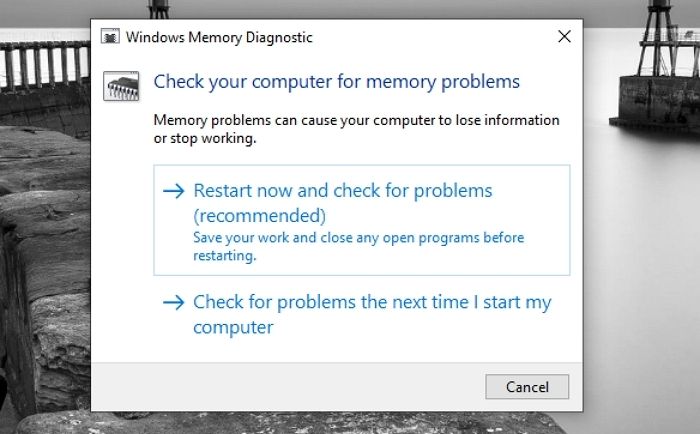
The test run may take 20-The Windows Memory Diagnostic tool can test your computer's RAM in about 30 minutes, depending on your memory configuration. After the test is complete, Windows will restart, and a pop-up with the test results will appear.
To manually search for your test result, please follow these steps:
Step 1. Go to Start, type Event Viewer, and open it.
Step 2. Click Windows Logs > Systems on the left pane, then click Find on the right pane.
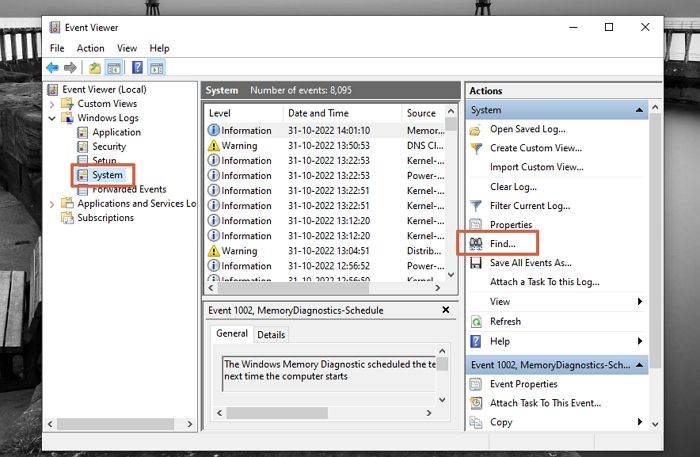
Step 3. To check your RAM, type "MemoryDiagnostic" in the search bar and click "Find Next". This will display the outcome and other information about your RAM at the bottom of the window.
If there are errors listed, your RAM might be damaged. Cleaning the memory and associated slots with compressed air after reinserting the RAM can help, but if the issues persist, it may be necessary to replace the RAM.
Test RAM With Memtest 86+
Memtest86+ is a standalone memory tester for x86 and x86-64 PCs that offers a more thorough memory check compared to BIOS memory tests, running a broader variety of tests and potentially uncovering issues that the built-in Windows test misses, and is available as a free tool that can run even on systems with Secure Boot turned on.
- Warning
- MemTest86's data will be deleted when written to a USB drive, so make sure to back up any important files on the drive beforehand.
Check out the following steps to get started.
Step 1. To test your RAM, download Memtest86+ and create a bootable USB drive by following the quick instructions in the Windows USB Installer, which can be run by connecting a regular USB drive with a FAT32 format. Once you've created the bootable drive, restart your computer and select the USB drive from the boot menu to run the Memtest86+ test.
Step 2. After creating bootable media, restart your computer and enter the BIOS or UEFI settings. From there, direct the computer to boot from the USB drive that contains the memory test tool, and then proceed with running the test.
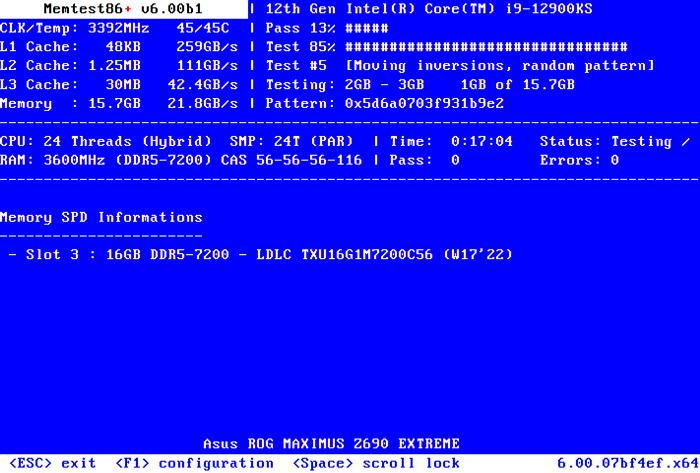
Step 3. The tool will start analyzing your memory as soon as it boots up, performing a series of tests and alerting you to any issues it finds. It will continue running tests until you choose to stop it, allowing you to see how the memory behaves over time. If any problems are detected, you'll see red lines on your screen, indicating the issues that need to be addressed.
Step 4. 1. Press the power button on your computer.
What To Do If Errors Are Found
If you've encountered errors in your RAM, try these methods to resolve the issue: Run the built-in Windows Memory Diagnostic tool, which can be accessed through the Start menu. This tool will automatically scan your RAM for errors and provide a report.
Method 1
To resolve the issue, start by removing the dust from the memory, then check for any signs of mechanical damage. If the memory is damaged, consider replacing it with a new one. Once cleaned, reinsert the memory into the slot and restart the computer to test it again. If the error persists, you may need to repair or replace the memory.
Method 2
If your memory tests produce errors, it's likely that a defective RAM stick needs to be replaced. If your computer is still under warranty, contact your PC manufacturer for service.
Method 3
If your PC is still functional, try swapping out the RAM sticks with some spare ones to see if it resolves the issue. Alternatively, if your computer has multiple RAM sticks, try removing one to see if it makes a difference. If removing a RAM stick resolves the issue, you may be able to identify the faulty component and replace it.
After making the modifications, you can re-run the RAM test to check for issues. If the test still fails, you may need to replace the RAM.
Conclusion
After ruling out RAM issues, use Memtest86+ to further troubleshoot potential causes of crashes. If errors appear, it's likely that the RAM is malfunctioning and needs to be replaced. Most RAM kits come with a lifetime warranty, making it easy to get a replacement if needed. Try each RAM kit separately to identify the faulty one and send it for warranty. This should resolve the memory problems and get your system running smoothly again.
I hope this article helped!
Related Articles
- What Are the Best External SSDs for Backup [5 Recommendations]
- [Solved] System Image Recovery Not Showing
- Mac Won't Update? Here Are 7 Ways to Fix macOS 13 Ventura Upgrade Failed
- How to Safely Format Toshiba Hard Drive for Mac with a few Clicks
- How to Find A Chrome Account and Password
If you're trying to find a Chrome account and password, this article is for you. We'll explore two different methods to help you locate your Chrome account and password. - 2022 Guide: How to Recover/Find Edge Account and Password - Qiling
Forgot your Microsoft Edge account or password? Learn three proven methods to recover Edge saved passwords, including using Edge settings, Qiling Key Finder, and manual password reset.
Products
Articles & Tutorials
- Data Recovery
- Data Backup
- File Recovery
- File Backup
- System Backup and Restore
- Disk and Partition Clone
- Technical articles
- Mobile articles
- Disk Master Help
- Windows Data Recovery Tutorials
- Windows Secure Delete Tutorials
- Windows Partition Management Tutorials
- Windows File Backup and Restore Tutorials
- Windows System Backup and Restore Tutorials
- Windows Disk Backup and Restore Tutorials
- Windows Clone Tutorials