[Solved] System Image Recovery Not Showing
What Is System Image Recovery?
System image recovery involves restoring your computer from a system image, which is a complete copy of your computer, including the operating system, applications, and files. This option is available for Windows system recovery and can be used to revive a crashed or non-functioning computer by reinstalling the entire system image, making it work again.
To find system image recovery on your computer, follow these steps. For Windows 10 users, go to Settings > Update & Security > Recovery, then click on Restart under Advanced startup in the right section. For Windows 11 users, open Settings > System > Recovery and click on Reset next to Advanced startup.
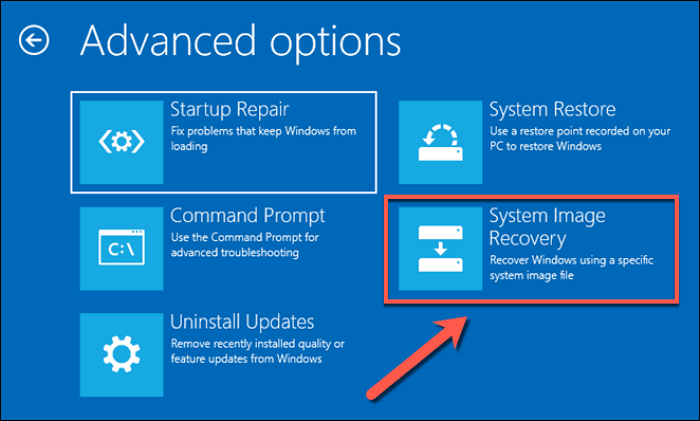
Scenarios for System Image Recovery Not Showing
When computer users attempt to use the system image recovery function, they may encounter an issue where there is no sign of system image recovery in the Advanced Options.
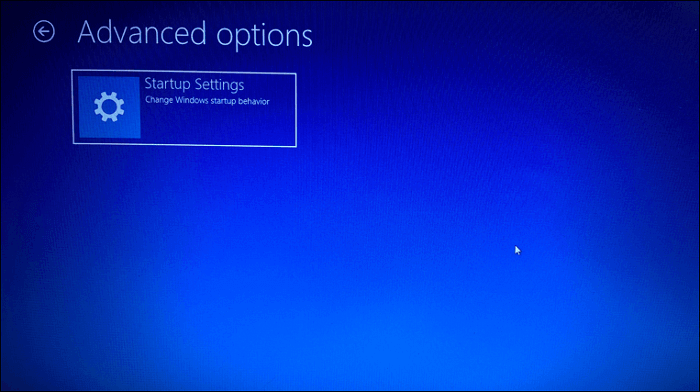
Many computer users face the issue of not being able to find the system image when attempting to perform system image recovery. This problem may arise due to various reasons, making it difficult for users to restore their system to a previous state.
- Changing the folder name of a system image.
- Putting the folder "WindowsImageBackup" into another folder.
- Changing the sub-folder name.
- Adding other folders to the WindowsImageBackup folder.
- Placing many system images on a USB drive and renaming the mediaID file.
How to Fix "System Image Recovery Not Showing" Error
Here are the ways to fix the "system image recovery not showing" error and perform Windows system image restore on your computer. To fix the error, you can try using the built-in Windows Backup and Restore tool, or use a third-party recovery software such as Qiling Backup to create a system image and restore it when needed. Alternatively, you can also use the Windows Recovery Environment to restore the system image.
Method 1. Use Troubleshoot to Find System Image Recovery
Step 1. If you can boot from the USB and get to Advanced Startup, you should see a Troubleshoot option.
Step 2. To access System Image Recovery, click on the Windows installation media, then select Advanced Options. From there, you can find System Image Recovery.
Step 3. Connect your external HDD with the system image, then click System Image Recovery to perform a system recovery.
Method 2. Manual Ways to Fix Windows System Recovery Not Showing Error
Step 1. Change System Image Folder to WindowsImageBackup.
Step 2. To create a Windows 10 backup, place the WindowsImageBackup folder in the root directory of a drive, such as a USB drive or an external hard drive. This will allow you to access the backup files and settings from the drive, and also ensure that the backup is not affected by any system issues or file corruption on the computer itself.
Step 3. Don't change the sub-folder name.
Step 4. Don't add any folders in the WindowsImageBackup folder.
Step 5. Make sure the mediaID.bin file is stored together with your system image. This file contains information about the system's media, such as the serial number and other identifying details.
Alternative Way: Use a System Backup Software
If you're having trouble recovering your system image, don't worry - there are alternative methods to try. However, these methods may be complicated for new computer users who require specific computer skills. If you've tried the usual methods and still can't recover your system image, you might want to consider using backup software like Qiling Backup instead.
Qiling Backup Home is a powerful backup utility that supports Windows 11/10/8.1/8/7, XP, and Vista, allowing for automatic system backup and recovery, backing up all file types, and serving as a universal restore software for easy and quick system backup and recovery, available for free, home, and business users.
Guide: how to backup and restore system image with a system backup tool
To resolve the issue, you'll need to back up your system and restore the system image. You can follow these steps:
Part 1. Create a Windows system image.
Step 1. Launch Qiling Backup on your computer, click System Backup on the home screen, and start the backup task.

Step 2. Your Windows operating system information and all system related files and partitions will be automatically selected, so you don't need to do any manual selection at this step. Next, you'll need to choose a location to save the system image backup by clicking the illustrated area.

Step 3. The backup location can be another local drive, an external hard drive, network, cloud, or NAS, with external physical drives or cloud storage being recommended for preserving system backup files.

Step 4. Customization settings like automatic backup schedules are available in the Options button, allowing users to choose daily, weekly, or monthly backups, or to back up upon a specific event. Upon selecting the desired settings, clicking "Proceed" initiates the Windows system backup process, which displays the completed task on the left side in a card style.

Part 2. Recover system image.
To perform system recovery on a non-bootable machine, try to boot the computer through the installation media, such as a USB drive or CD/DVD, and follow the on-screen instructions to access the recovery options.Qiling Backup emergency disk.
Step 1. Launch Qiling Backup, click "Browse to Recover".

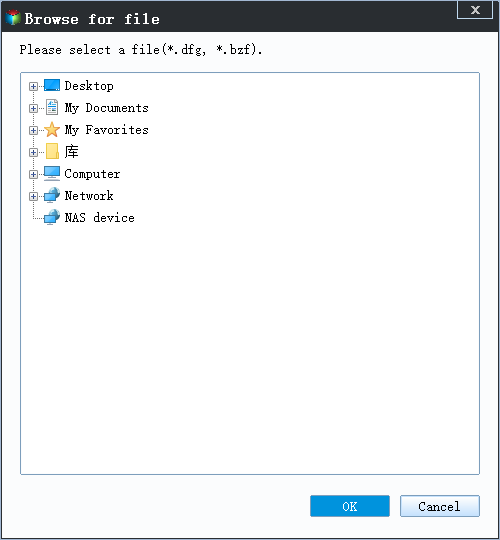
Step 2. To access your backup destination, select the system backup file you need, which is typically a .fvd file created by Qiling Backup.
Step 3. To create a recovery disk, select the recovery disk and ensure that it has the same partition style as the source disk.
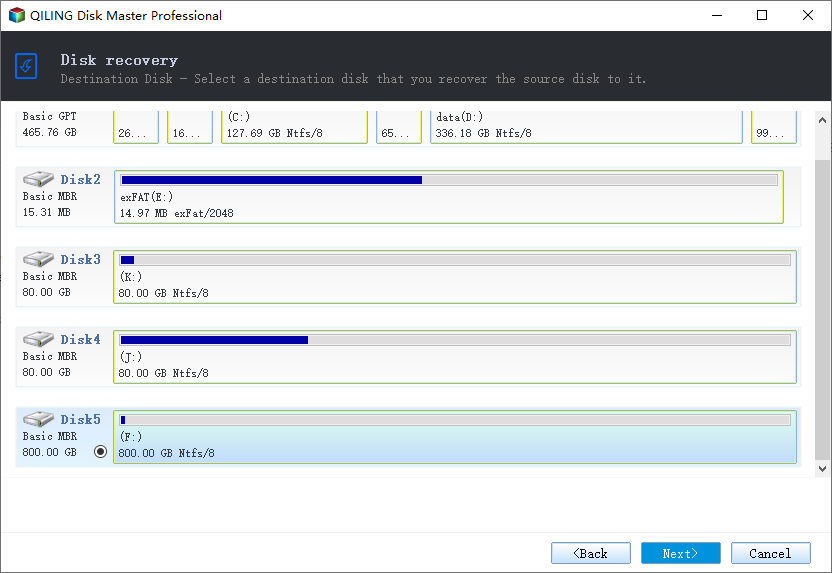
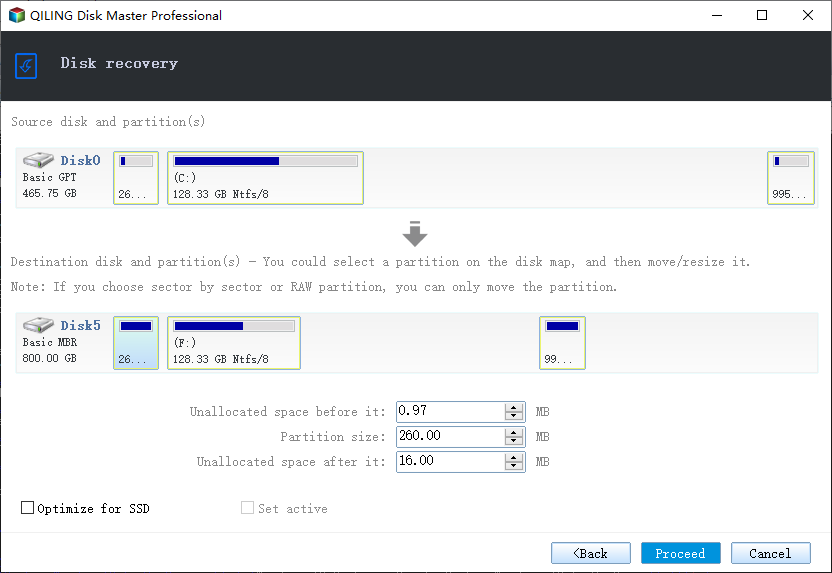
Step 4. You can customize the disk layout according to your needs, then click "Proceed" to start system backup recovery.
Conclusion
To resolve the "system image recovery not showing" error, you can use various methods, including using Qiling Backup Home, which can help solve this issue. This backup tool can also assist with tasks like automatically backing up files to an external hard drive or backing up PST files, making it a convenient solution for your backup needs.
FAQs
1. Will system image recovery delete my files?
System image recovery will not delete your files during the recovery process, instead it restores your system files, apps, settings, etc., to the state where a system image is created.
2. What is the difference between System Restore and system image recovery?
System Restore allows users to create restore points, roll back to a previous point, and modify settings, while System Recovery helps protect files from hard drive crashes.
3. Where is the location of the system image?
To ensure a successful Windows system recovery, the system image folder must be located at the top level of your hard drive. If it's not there, Windows won't be able to find it, and the recovery process will fail. Make sure to place the system image in the correct directory on your computer drive.
4. Can System Restore recover deleted files?
System Restore is a built-Windows System Restore feature allows users to restore their system to a saved point, but it only restores the system settings and does not recover deleted files.
Related Articles
- Tutorial for Tesla Format USB, Everything You Should Know
- How to Reinstall Failed/Cancled Updates in Windows 10
- [Tips] AutoSave Is Greyed Out or Not Working in Office, Word, Excel
- How to Fix Printer Driver is Unavailable Error on Windows 10/11 [Fixed Lately]
- Accidentally Saved Over a Word Document, Recover Easily
Recover a Word document accidentally saved over. Try previous versions, AutoRecover, backups, and recovery tools to restore lost content. - Acronis Clone Disk Wizard Stuck During Cloning Process - How to Fix
Acronis True Image may hang when cloning due to various reasons, but quick fixes are available to resolve the issue. Additionally, some tips can be provided to prevent the Acronis clone disk Wizard from getting stuck in the future.
Products
Articles & Tutorials
- Data Recovery
- Data Backup
- File Recovery
- File Backup
- System Backup and Restore
- Disk and Partition Clone
- Technical articles
- Mobile articles
- Disk Master Help
- Windows Data Recovery Tutorials
- Windows Secure Delete Tutorials
- Windows Partition Management Tutorials
- Windows File Backup and Restore Tutorials
- Windows System Backup and Restore Tutorials
- Windows Disk Backup and Restore Tutorials
- Windows Clone Tutorials