Accidentally Saved Over a Word Document, Recover Easily
"I accidentally saved over a Word documentIf you're using a version control system like Git, you can use the "git reset" command to go back to a previous version. For example, if you want to go back to a previous commit, you can use "git reset --hard HEAD~1" to reset your repository to the previous commit. If you want to go back to a specific commit, you can use "git reset --hard < commit_hash >" where < commit_hash > is the hash of the commit you want to go back to. Be careful when using "git reset" as it will overwrite any changes you've made since the commit you're going back to.www.quora.com
If you accidentally save a new Word document over an existing one, you can try to recover the overwritten document by checking the Word AutoRecover file or the Temp folder, and you can also try to use a third-party data recovery software to scan your hard drive for the deleted document. If none of these methods work, you can try to contact Microsoft support for further assistance.
How to Recover an Earlier Version of the Accidentally Saved Over Word Document
If you've accidentally saved over a Word document, enabling the AutoRecover option can help you recover previous versions of the file. This feature allows you to automatically save your file versions while working on it, making it easier to recover unsaved Word documents. The AutoRecover feature is particularly helpful in cases where you've lost work due to software updates or other issues. By enabling AutoRecover, you can recover your unsaved Word document from previous versions of the program.
How to recover from a saved file:
Step 1. To recover an earlier version of a Word document, open the document in Word, go to "File" in the top left corner, click on "Info", and then click on "Manage Versions" or "Version History" depending on the version of Word you are using. This shows you a list of all the saved versions of the document.
Step 2. To view previous versions of a document, click on the "Version History" tab, which will display a list of past revisions, including the date and author name for each version.
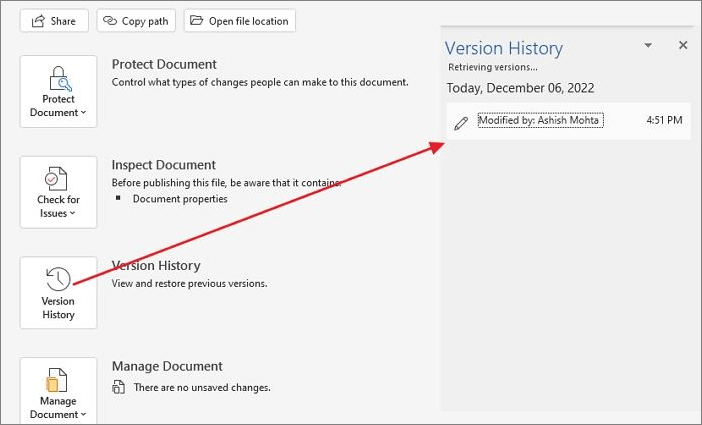
Step 3. Select the version that will be restored to that version.
Note: This feature only works if the document is part of OneDrive. If all documents are uploaded to OneDrive, you can recover the document, but if not, it will not work.
How to recover from an unsaved file:
Step 1. Go to the "File" menu, select "Info", and choose the document with unsaved changes next to the "Manage Document" button.
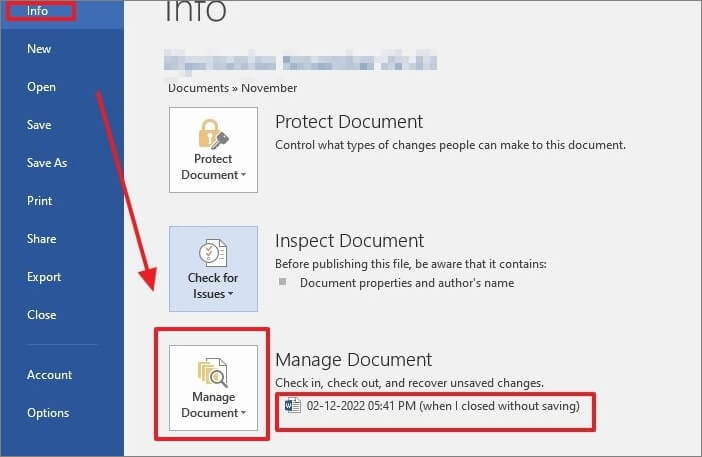
Step 2. Click on the "Restore" button to recover the unsaved file.

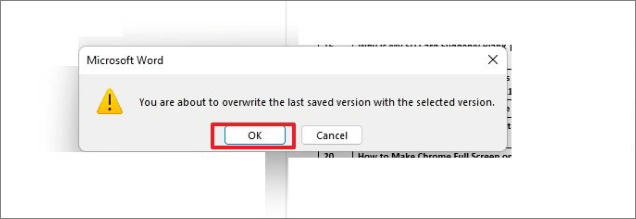
Step 3. Click on the "OK" button to overwrite the selected version with the contents of the last saved version.
To recover an earlier version of a Word document on a Mac, follow these steps: Go to the "File" menu, select "Manage Versions", and choose the version you want to restore from the list. If you don't see the version you're looking for, click on "Recover Unsaved Documents" to see if the document was automatically saved. If you're unable to find the version you want, try using the "Version History" feature in the cloud, if you've synced your document to OneDrive or iCloud. If you're still unable to find the version you want, try using a third-party recovery tool or contacting Microsoft support for further assistance.
To recover an accidentally saved over Word document on a Mac, start by closing Word and immediately restarting your computer. This will prevent any further changes from being saved.
Fortunately, you can recover an accidentally saved over Word document on Mac using a few methods. You can try recovering an earlier version of your document by checking the AutoRecover file, which is saved automatically by Word at regular intervals. You can also check the Word's Temp folder, which stores temporary copies of your document. Additionally, if you have a backup of your document or a cloud storage service like iCloud or Google Drive, you can also recover an earlier version of your document from there.
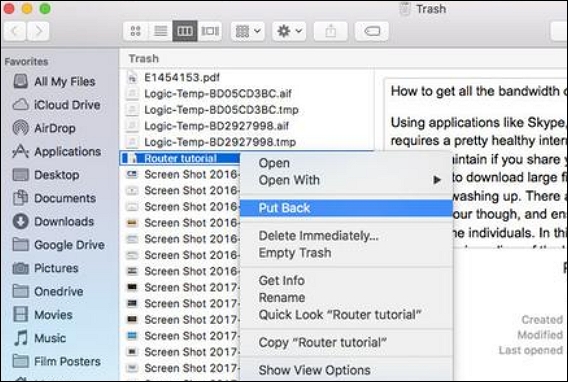
Recover Accidentally Saved Over a Word Document from Backup
If you have Windows Backup enabled, you may be able to recover an earlier version of a Word file from the backup. This method is only available to those who have Windows Backup enabled. To retrieve a Word document saved using Windows File History, follow the provided instructions.
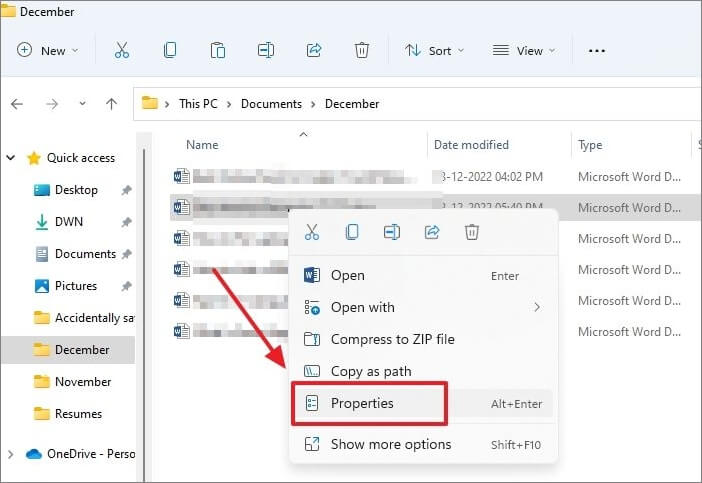
Step 1. To change the file name of a Word document, go to the Word document you have saved over, right-click and choose "Properties" from the drop-down menu.
Step 2. To check for previous Word document versions, click on the "Previous Versions" tab and verify if any previous versions are available.
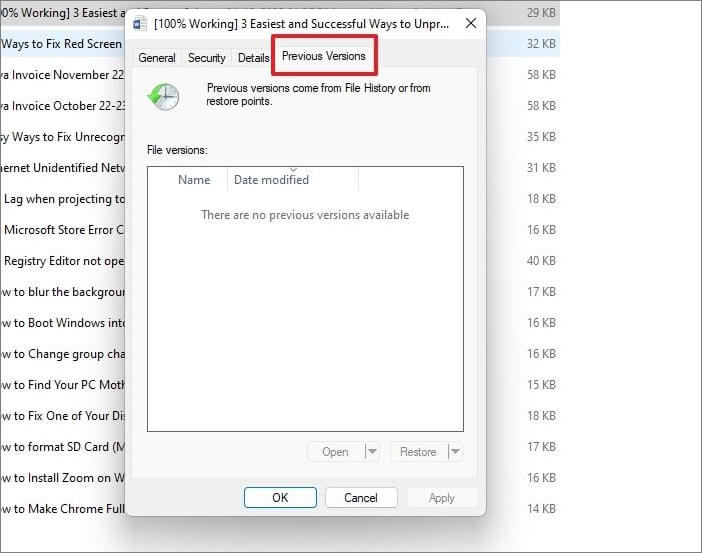
Step 3. If a file has multiple versions, you can select the desired version and click "Restore" to access a previous version of your Word document.
Note: If you get a notification saying no previous versions are available, you might still need to turn on Windows File History.
So, here is how to turn on Windows File History:
Step 1. To open the Control Panel, type "Control Panel" into the Windows search bar and click on the result to open the Control Panel window.
Step 2. Click on "System and Security".
Step 3. Next, choose "File History".
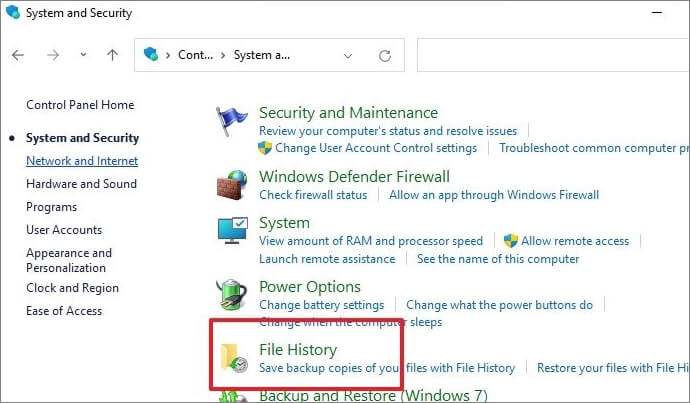
Step 4. To activate the File History function, click the "Turn on" button.
When the File History feature in Windows is enabled, copies of your files are saved, allowing you to recover them if they are lost or corrupted.
Note: If you don't have an external drive for File History, the Turn on button will stay disabled. You can, however, add a network location on your PC to back up copies of your files.
Bonus Tip: How to Recover Permanently Deleted Word Documents in Windows 11/10
Accidentally deleting a Word file is frustrating, but you can recover it if you act quickly. If you've permanently deleted a Word document, it's likely gone for good unless you have a data recovery software to retrieve it.
Using the software Deep Data Recovery, you can recover data from various devices, including PCs, USB drives, SD cards, cameras, and more, that have lost their data due to deletion, formatting, partition loss, system crashes, or virus attacks.
Deep Data Recovery helps users recover permanently deleted files like documents, photos, videos, emails, and other files on Windows 10 or 11, providing diverse and intelligent data-restoring solutions on various devices.
To recover a deleted Word document using Deep Data Recovery, follow these steps:
Step 1. Download and install Deep Data Recovery.
Step 2. To recover lost data, run a data recovery program, select the destination of the lost data (e.g., PC, SD card, or USB), and the tool will begin scanning for the lost data.
Step 3. After the scanning process completes, you can preview and restore the files you need.

Accidentally Saved Over a Word Document FAQs
Read the following frequently asked questions about Word overwriting to get more useful info.
Can I retrieve a Word document I saved over?
If you accidentally saved a Word document, the best course of action is to press the Ctrl + Z keys together to restore the document to an earlier version. This will undo the changes made since the last save.
How to recover accidentally saved over a Word document Mac?
To recover a Word document that was accidentally saved over, open the document on your Mac, select File > Revert To, and choose Last Opened, Last Saved, or Previous Save from the dropdown menu. This will allow you to restore the previous version of the document.
How to recover a previous version of a Word document?
You can right-To restore a previous version of a document, click on the document and choose the Restore previous versions option from the menu. Alternatively, open the document, go to File > Info, and select the file name below Manage Documents. Then, select Restore from the menu at the top of the file to replace any previously saved versions.
How do you recover a Word document that has been written over?
To access a previous version of a file, right-click on the file on your desktop, select Properties from the drop-down menu, and choose the Previous Versions tab from the menu. Then, select the version you want to restore and click the Restore button, followed by OK.
To Conclude
To recover a Word document that has been overwritten, you can try the undo feature if you acted quickly enough. However, if you didn't catch the mistake in time, you can use Word's built-in recovery feature to retrieve your original file. This feature can be accessed by going to the "File" tab, clicking on "Info," and then selecting "Manage Versions" or "Recover Unsaved Documents." If you have a backup of your file, you can also try restoring it from there. It's always a good idea to save your work frequently to avoid losing any progress.
You can use data recovery software like Qiling to recover deleted files on your PC. This software can scan all drives and recover files that were thought to be unrecoverable.
Related Articles
- 2 Most Effective Ways to Install/Run Windows 10 on Mac (2023 Guide)
- Windows Backup 0 Bytes | Get the Answer here!
- How to Run First Aid from Recovery Mac | Detailed Tutorial for macOS
- How to Fix Drive Is Not Accessible Access Is Denied on Windows 11
Feeling distressed when Windows 11 prevents you from using an external hard drive? You can fix the 'disk is not accessible access denied' error and use Deep Data Recovery to retrieve deleted files from inoperable disks, making it possible to recover lost data. - How to Install Google Drive for Desktop on PC ☁️
You can easily install Google Drive on your system, whether you're using Windows or Mac, and take advantage of its cloud-based storage space to store and share files. - Learn How to Install on ReFS Partition Today | Windows 11 Installation Made Simple
Have you ever thought about installing your Windows 11 on ReFS partition? This article is going to give you a full guide on how to install Windows 11 on ReFS partition with a full tutorial.
Products
Articles & Tutorials
- Data Recovery
- Data Backup
- File Recovery
- File Backup
- System Backup and Restore
- Disk and Partition Clone
- Technical articles
- Mobile articles
- Disk Master Help
- Windows Data Recovery Tutorials
- Windows Secure Delete Tutorials
- Windows Partition Management Tutorials
- Windows File Backup and Restore Tutorials
- Windows System Backup and Restore Tutorials
- Windows Disk Backup and Restore Tutorials
- Windows Clone Tutorials