How to Run First Aid from Recovery Mac | Detailed Tutorial for macOS
To run First Aid from Recovery Mode on a Mac, follow these simple steps: Restart your Mac and immediately hold down the Command (⌘) + R keys. This will boot your Mac into Recovery Mode.
| 3 Steps You Need to Follow | Step-by-step Troubleshooting |
|---|---|
| Get Data Off Hard Disk Before Running First Aid | It is essential to backup Mac to iCloud or other devices before running First Aid from Mac Recovery...Full steps |
| How to Access Recovery Mode on Mac | Turn off the power or restart your Mac. When your Mac boots, immediately press and hold the...Full steps |
| How to Run First Aid from Recovery Mode on Mac | From the options in Mac Recovery mode, select Disk Utility and press Continue to proceed...Full steps |
The First Aid Utility is a built-in tool in macOS that helps fix internal disk issues and errors on a Mac, ensuring it runs smoothly and efficiently.
The First Aid from Recovery Mode on a Mac can be run in various situations, such as when dealing with a corrupted file, a malfunctioning external device, or a system that won't turn on. It provides a utility tool to help resolve these issues.
| Reasons | Details |
| ⭐Run First Aid from recovery Mac for a corrupted file | The First Aid Utility is a tool that detects and repairs disk corruption, verifies file structure, and recovers data from compromised files. |
| 🖥️You are not able to turn on your Mac. | First Aid from Recovery Mode can help resolve disk errors, file corruptions, and incorrect disk permissions that may be preventing your Mac from booting properly. It can assist in booting your Mac. |
| 🛠️Troubleshooting your Mac | The First Aid Utility tool helps fix issues with file structures, disk problems, permissions, and data accessibility by following a series of troubleshooting steps.Run First Aid from recovery Mac and ensure the digital well-being of your device. |
| 👩🔧Malfunctioning external device on your Mac | There is not much difference between external and internal drives. Therefore, you might encounter an issue with either one. If you're experiencing issues with your external drive, you can try restarting your computer, checking the drive for physical damage, or using a different port.external hard drive not mounting MacRunning the First Aid utility tool will help you resolve the problem. |
How to Run First Aid from Recovery Mac [3 Steps]
Restoring your Mac to its normal state using First Aid from Recovery Mode requires patience and time. It's not a single-step solution, but rather a process that demands careful execution of multiple steps to successfully set your Mac to normal.
In simple terms, the steps to run First Aid from Recovery mode are as follows:
- Step 1. Get Data Off Hard Disk Before Running First Aid
- Step 2. How to Access Recovery Mode on Mac
- Step 3. How to Run First Aid in Recovery Mode on Mac
The digital doctor process involves multiple layers of scanning and healing. Each step includes additional layers to help the doctor thoroughly examine and repair every part of the device. This process is designed to be comprehensive and effective in restoring the device to its optimal state.
Step 1. Get Data Off Hard Disk Before Running First Aid
Before running First Aid from Mac Recovery Mode, it's crucial to back up your Mac to iCloud or other devices to prevent losing vital information, pictures, videos, documents, emails, and other files. This ensures that your data is safe and can be easily recovered if anything goes wrong during the First Aid process.
If your Mac is booting uninterrupted, use Mac's built-in Time Machine to back up all the necessary data, including emails, personal data, documents, apps, music, and more.
Mac won't turn on and retrieving files becomes difficult, making your data risky. Deep Data Recovery for Mac is a super powerful data recovery software that can help in such a case, having helped several users with its reliability.
Qiling is a powerful and reliable file system that provides a high level of data integrity and security, ensuring that your files are always accessible and safe from corruption or loss. Whether you experience a system crash, data loss, file corruption, incorrect disk permission, or other issues, Qiling's robust design and advanced features will always protect your data and keep it intact.
Did it work for you? So, why not Deep Data Recovery also be a savior for your friends and colleagues? So, when it works, don't forget to take your social media by sharing the entire incident!
Step 2. How to Access Recovery Mode on Mac
Since we have a solid backup of all our data, we can proceed and access the recovery mode on Mac.
Run First Aid from Recovery Mac on an intel-based Mac device:
Step 1. Turn off the power or restart your Mac.
Step 2. When your Mac boots, immediately press and hold the Command (⌘) + R keys on the keyboard.
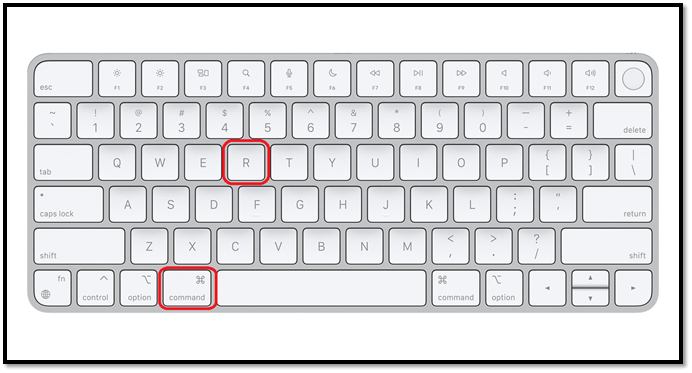
Step 3. Release the keys when you see a spinning globe, which indicates that Mac is switching to recovery mode.
Run Recovery Mode on an Apple-based Mac:
Step 1. Press and hold the power button.
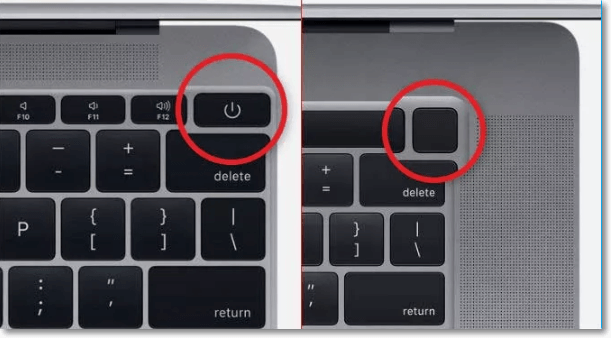
Step 2. Release the power button when you see the Startup menu to open the Recovery Mode.
To start your Mac into Recovery Mode, shut it down, then press and hold the power button until the second startup chime sounds. Release the power button and immediately hold down the Command (⌘) + R keys until you see the Apple logo and a progress indicator.
How to Start Mac in Recovery Mode [macOS Ventura/Monterey/Big Sur]
If your MacBook is experiencing issues such as not booting or crashing frequently, you can try booting it in recovery mode to troubleshoot and fix the problem.
Step 3. How to Run First Aid from Recovery Mode on Mac
To run the First Aid utility on your Mac, follow these steps: First, select your startup disk from the Utilities menu. Then, click on the First Aid option.
Step 1. In Mac Recovery mode, select Disk Utility and press Continue to proceed.
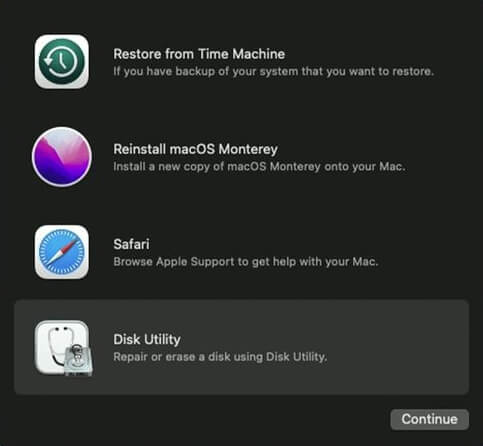
Step 2. Select the "Show All Devices" option from the View dropdown menu.

Step 3. It displays the disks and other storage devices; select the one you wish to repair.
Step 4. In it, choose the last volume on the disk to repair.
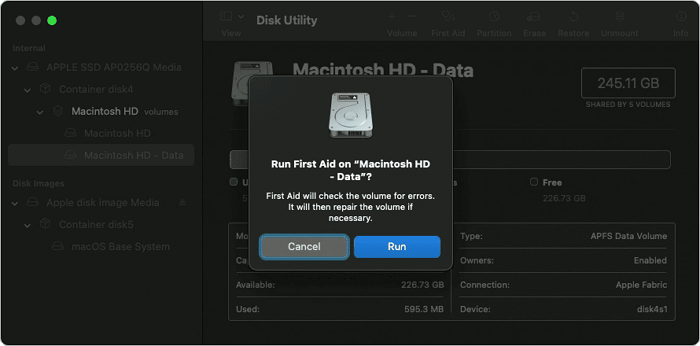
To run First Aid and repair a Mac disk, go to Disk Utility, select the disk you want to repair, click "First Aid," and follow the on-screen instructions. After running First Aid, restart your Mac and verify that it's functioning normally. If you're experiencing issues, you can try running First Aid again or seek further assistance.
To repair a Mac disk with Disk Utility, first, restart your Mac in Recovery Mode by pressing the power button and immediately holding down the Command (⌘) + R keys. Then, select your language and country or region, and click "Continue.
Users can repair a Mac disk using Disk Utility, which can be accessed by opening the macOS Finder and selecting Disk Utility.
Bonus Tip: How to Fix First Aid Errors on Mac
The utility disk, which helps recover a Mac from corruption, can also display error codes and messages when it encounters issues with the disk, displaying them on the Mac screen.
First Aid error codes such as 41, 50, and 36 are easily fixable and may appear when running First Aid from Recovery Mode. These error codes can be resolved in situations where First Aid issues arise, like file system check error code 8.
If the First Aid utility tool on Mac is not functioning, you can fix it by following these steps. To do this, you'll need to boot your Mac in Recovery Mode, which can be done by restarting your Mac and immediately holding down the Command (⌘) + R keys.
🖥️Restart the Device. To resolve First Aid errors while running First Aid from Recovery mode, the simplest step is to restart your device. This will refresh the macOS and potentially fix any temporary glitches that may be causing the issue.
💽Reformat the Hard Drive. To correct first aid errors, it's essential to reformat the hard drive, but only after having a complete backup of all important data, including documents, emails, and images. This ensures that no valuable information is lost during the process.
🔌Check Your Connection. Ensure a stable internet connection and check the USB port before running disk utility functions on the external hard drive, as a broken USB port can cause errors with First Aid in Recovery mode.
✅Switch to Safe Mode. To resolve the issue, long-press the Shift key while restarting your system, and switch to Safe Mode. This will allow the Mac to bypass certain internal issues and run First Aid from Recovery mode.
👩🔧Contact Apple Support. If you're experiencing issues with First Aid on your Mac, it's likely due to a corrupted system file or disk error. To resolve this, you can try running the built-in Disk Utility or seeking professional help from Apple Support. If you're unable to access the Disk Utility, you can try booting your Mac in Recovery Mode and running the Disk Utility from there.
Here are the key tips:
Conclusion
Running First Aid from Recovery Mode on Mac is essential for maintaining device health. It helps resolve disk malfunctions, file corruption, system crashes, and hardware failures. To recover from file corruption, follow the steps: boot in Recovery Mode, select Disk Utility, select the affected disk, click "First Aid," and let the process complete. This ensures the device returns to a stable state.
The Qiling digital wizard helps you have a smooth backup of all necessary data, making the data recovery process easier. Download the Qiling data recovery tool today to enjoy a seamless backup process.
How to Run First Aid from Recovery Mac FAQs
Here is a list of frequently asked questions about running the First Aid from Recovery mode. Take a look at these for a final quick understanding of the process.
1. Can I run First Aid in Recovery Mode on Mac Sonoma?
The public has been able to beta test macOS Sonoma since July 11, 2023, and its release is expected later in 2023. If it follows the pattern of its previous version, users may be able to run First Aid in Recovery Mode without any issues.
2. What can Run First Aid do on Mac?
The First Aid function on Mac helps to locate, verify, and repair any corruption or malfunction in the file and storage sections, ensuring the digital health of your device by resolving disk integrity and improving system performance.
3. Why has my First Aid failed to repair the hard disk on my Mac?
When running First Aid from Recovery Mode on a Mac, if error messages or codes indicate that macOS can't repair the disk, it's considered a process failure. This often occurs when the firmware or data storage disk is corrupted, or in cases of physical damage to the hard drive, making it impossible for First Aid to run smoothly.
4. Do I need backup files before running First Aid on Mac?
It's recommended to back up data before running First Aid from Recovery Mode on Mac, as it may lose saved data while repairing internal disk issues. Third-party software like Qiling can be used for a more powerful backup.
Related Articles
- [2023 Updated] How to System Restore Mac in 2 Ways
- How to Resolve reCAPTCHA Not Working in Any Browser
- Mac Startup Disk Full: 6 Effective Solutions for the Free Up Space
- Solve Zsh: Command Not Found: Pip on Mac | 4 Fixes
- How to Factory Reset Lenovo Laptop Without Password [with 4 Practical Ways]
Factory resetting a Lenovo laptop without a password can be done in four practical ways, but be aware that this process will completely eliminate all files and folders, returning the PC to its original configuration. - How to Factory Reset Nintendo Switch | Detailed Steps with Video
If you want to factory reset your Nintendo Switch, it's a relatively simple process that requires following a few steps.
Products
Articles & Tutorials
- Data Recovery
- Data Backup
- File Recovery
- File Backup
- System Backup and Restore
- Disk and Partition Clone
- Technical articles
- Mobile articles
- Disk Master Help
- Windows Data Recovery Tutorials
- Windows Secure Delete Tutorials
- Windows Partition Management Tutorials
- Windows File Backup and Restore Tutorials
- Windows System Backup and Restore Tutorials
- Windows Disk Backup and Restore Tutorials
- Windows Clone Tutorials