[2023 Updated] How to System Restore Mac in 2 Ways
If you need to system restore your Mac, there are two safe ways to do so. You can use the "Erase All Content and Settings" feature on macOS Ventura and Monterey to restore your system, or erase data in the Recovery Mode, which can also be accessed through the same process.
| Workable Solutions | Step-by-step Troubleshooting |
|---|---|
| 1. How to System restore Mac in Recovery Mode |
To force restart your Mac, follow these steps: Shut down your Mac. Hold the power button if you have an Apple Silicon Mac, or the Command (⌘) + Option (⌥) + Power buttons if you have an Intel-based Mac. Press and hold the Power button until you see the Apple logo. Release the Power button and let your Mac boot up normally. If your Mac is frozen, you can also try pressing the Command (⌘) + Option (⌥) + Esc keys simultaneously to open the Force Quit menu, then select the frozen application and click "Force Quit." This will close the application and allow your Mac to continue running. If your Mac is still unresponsive, you can try restarting it by holding the Power button until it shuts down, then immediately pressing the Power button again to turn it back on. |
| 2. How to System restore Mac with Erase Assistant | To access system settings, click the Apple menu and select "System Settings". A window will appear, and on the left side, click "General". Then, select "Transfer or Reset" from the options.Full steps |
macOS doesn't have a System Restore option like Windows, but users can restore their system using macOS Erase Assistant or reinstalling macOS in Recovery Mode.
You may need to system restore your Mac in certain situations, such as when your system is not functioning properly, you've installed software that's causing issues, or you've made changes to your system that you want to revert. This process can help you restore your Mac to a previous state, allowing you to troubleshoot and resolve problems without affecting your important files and data.
- After using your Mac for a long time, it's common for it to start running slowly due to various factors, such as accumulated software updates, cluttered storage, and outdated system files. This slowdown can be frustrating, but it's often a sign that your Mac needs some maintenance to get back to its optimal performance.
- Your Mac has been infected with malware, and you can remove the virus or the malware.
- To sell your old Mac on eBay without revealing personal information, you can erase all data on the device using a tool like Disk Utility or a third-party software, then reinstall the operating system. This will remove any personal data, including passwords and account information.
Before restoring your system, you may already be dealing with data loss, and it's recommended to recover lost data using professional software first to prevent further damage.
Recover Lost Files with Software Before System Restore Your Mac
If you're using System Restore on a Mac to fix issues, you may face data loss. To recover lost data, use a data recovery program.
Applying Deep Data Recovery for Mac is a perfect choice to recover lost data on Mac, even if your old Mac or MacBook Air won't turn on, as it offers help to recover data from it.
Here are the highlights of Deep Data Recovery for Mac:
- Recover data from a variety of storage devices, including local Macs, SD cards, cameras, external hard drives, USB flash drives, and more.
- Recovering deleted photos from a Mac can be done using various methods, including using the Time Machine backup, restoring from a previous backup on iCloud, or using third-party software such as Disk Drill or Deep Data Recovery Wizard. These tools can scan the Mac's hard drive and recover deleted files, including photos, documents, music, audio, emails, and videos, depending on the type of data and the severity of the deletion. It's essential to stop using the Mac immediately after realizing the photos have been deleted to prevent overwriting of the deleted files, which can make recovery more challenging or impossible.
- If you have lost or deleted files that are damaged or corrupted, you can try using data recovery software to repair them. This software can scan your device for corrupted files and attempt to recover them.
To recover lost files with Deep Data Recovery for Mac, start by downloading and installing the software. Next, select the drive or folder where the lost files were stored and choose the file type you're looking to recover.
Step 1. Select file types
Launch Deep Data Recovery software, select the desired file types, and click "Fast Scan" to initiate the recovery process.

Note: You can choose different search modes based on where and why the data was lost.
Step 2. Select the drive to be scanned
Select the drive you need to recover lost/deleted files from, and click the "Scan" button in the main Deep Data Recovery window.

Step 3. Select your lost data/files
Deep Data Recovery for Mac scans the selected disk volume and displays the scanning results, allowing users to sort and find specific files if needed.

Step 4. Recover lost/deleted data
Once you have found the desired files, preview them and then click "Recover" to start the recovery process for your deleted or lost Mac files.
How to System Restore Mac with Two Reliable Methods
You have three ways to system restore your Mac. The first method is resetting your Mac in Recovery Mode, and the second is erasing your Mac with macOS Erase Assistant. There is also a third way, but it's not mentioned in the original text, so I'll leave it out for now.
Method 1. How to System Restore Mac in Recovery Mode
If you've forgotten your Mac's admin password, you can reset it by booting into Recovery Mode, signing out of iCloud, iMessage, and other accounts, and unpairing Bluetooth devices, then using Disk Utility to reinstall macOS.
To reinstall macOS from macOS Recovery, follow the steps outlined in the Apple Support video. The process involves booting from macOS Recovery, selecting your language and country or region, and then choosing the option to reinstall macOS.
- 00:24 Introduce three keyboard combinations
- 00:33 Command R reinstall macOS
- 01:01 Reinstall macOS on Mac/MacBook
To system restore your Mac in Recovery Mode, start by shutting down your computer. Then, turn it back on and immediately hold down the Command (⌘) + R keys.
Step 1. Make sure your Mac is shut down.
Step 2. If you're using an Apple Silicon Mac, hold the power button. If you're using an Intel-based Mac, hold and press the Command and R keys.
Step 3. Release the keys until you see the Recovery menu.
Step 4. Select "Disk Utility" and click "Continue".
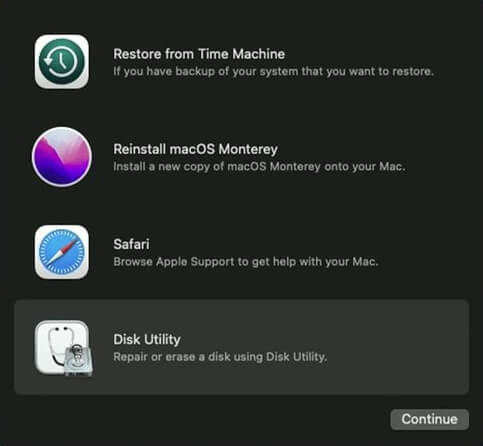
Step 5. Select the disk named Macintosh HD, and click "Erase".
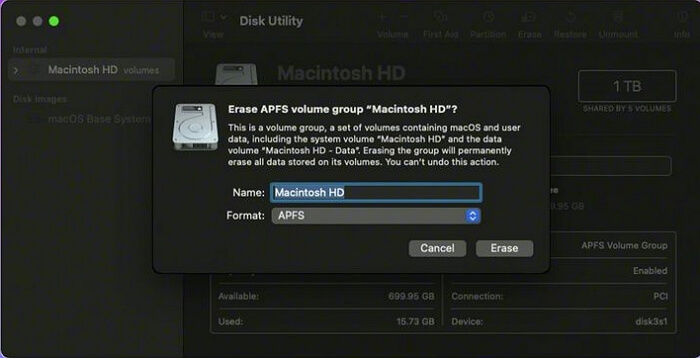
Step 6. After erasing your startup disk, quit Disk Utility and click "Reinstall macOS" to reinstall macOS Ventura or an earlier version.
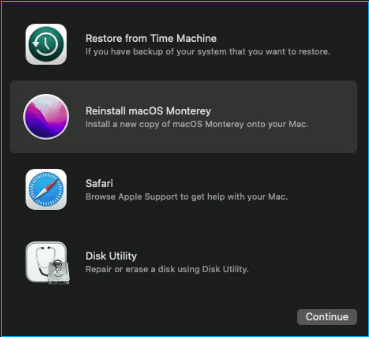
Method 2. How to System Restore Mac with macOS Erase Assistant
macOS Ventura and Monterey users can now erase and system restore their Mac with a single click using the "Erase All Content and Settings" feature, a new built-in option that helps users quickly reset their device. To find this feature, follow the leads to locate the "Erase All Content and Settings" option on your macOS Ventura or Monterey device.
On macOS Ventura:
Step 1. Click the "System Setting" under the Apple menu.
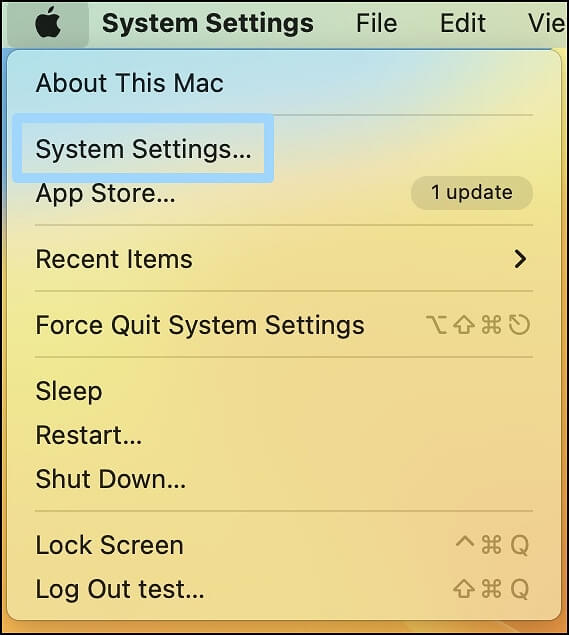
Step 2. A window will appear, and you can click on the "General" tab on the left.
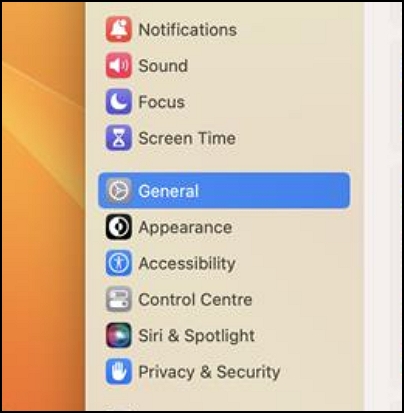
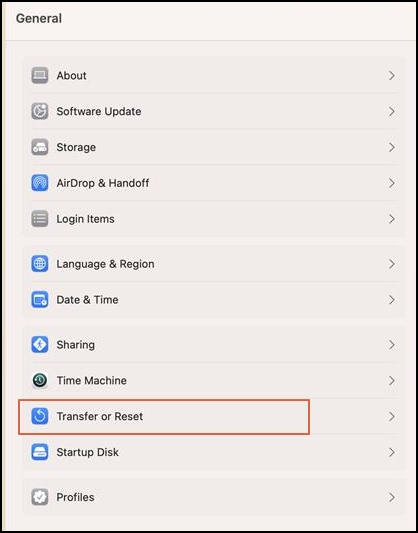
Step 3. Select "Transfer or Reset".
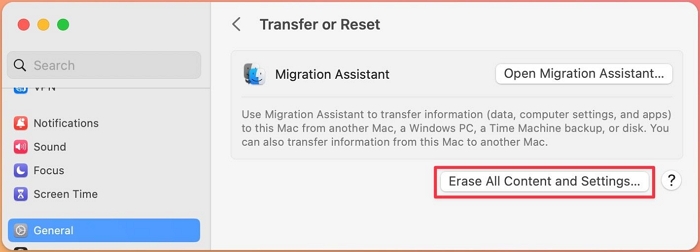
Step 4. You will see Migration Assistant and Erse Assistant. Click "Erase All Content and Settings" to activate Erase Assistant.
On macOS Monterey:
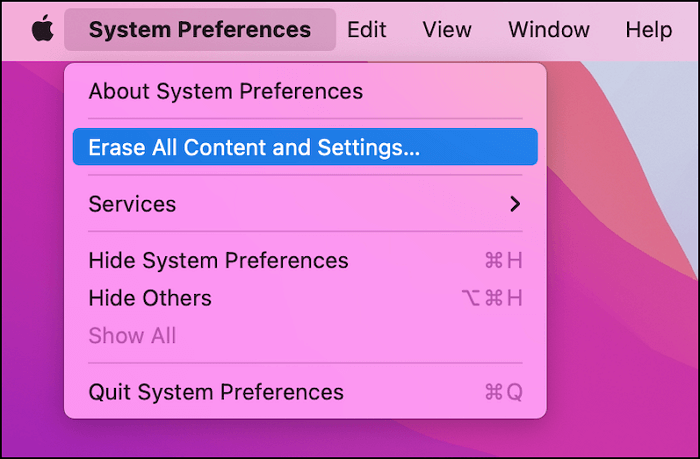
Step 1. Select "System Preferences" under the Apple menu.
Step 2. Now you will see the target option, and you can click "Erase All Content and Settings" to activate Erase Assistant.
After finding the built-If you're experiencing issues with your Mac, you can try system restore as an option. You can follow the prompts to restore your Mac to a previous point in time when it was working properly.
Step 1. Type in the admin password if asked.
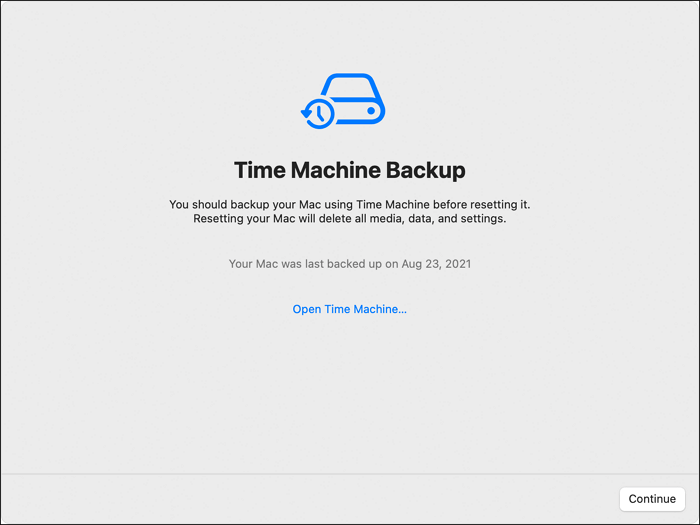
Step 2. To decide whether to back up your Mac with Time Machine, consider the importance of your data and the potential risks of losing it. If you have critical files, photos, or other data that you can't afford to lose, backing up with Time Machine is a good idea.
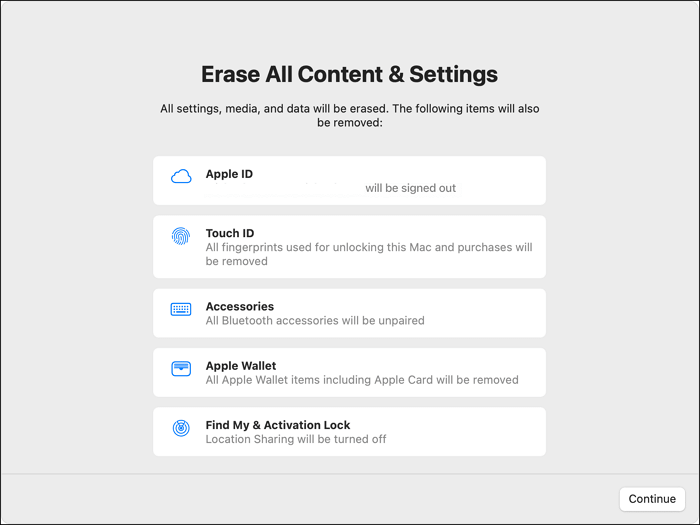
Step 3. The Apple ID, Touch ID, accessories, and Apple Wallet will be reset. Click the "Continue" button to proceed.
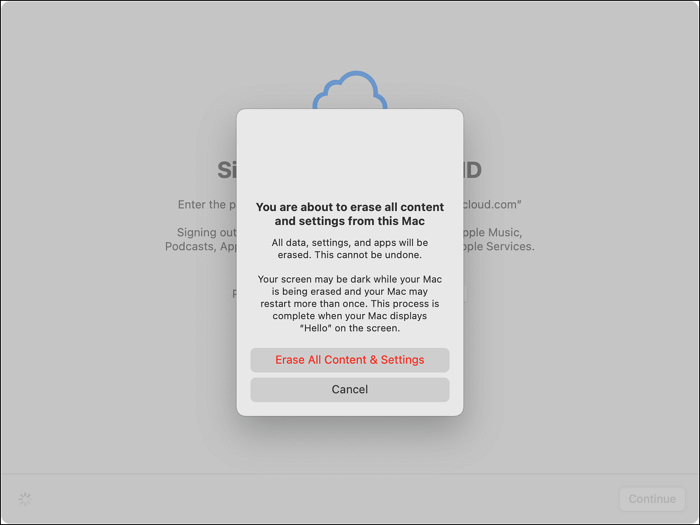
Step 4. Confirm system restoration by clicking "Erase All Content & Settings".
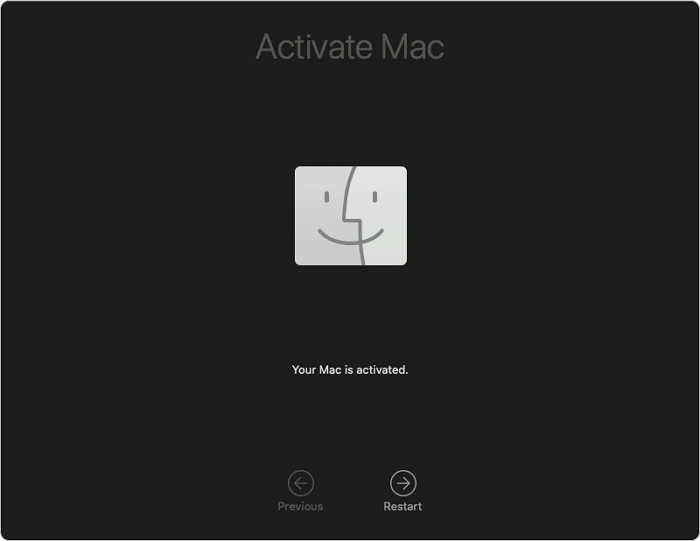
Step 5. Restart and activate your Mac.
Bonus Tip: How to Restore Mac to an Earlier Date with Time Machine
If you've accidentally altered some Mac settings and want to revert to the original ones, or if you've lost important files and want to recover them without using recovery software, restoring your Mac to a previous date using Time Machine may be the solution.
To prevent data loss, back up your Mac regularly with Time Machine, allowing you to restore it to a previous date if needed. If you don't have a backup, you can use Deep Data Recovery for Mac to recover lost files.
How to restore from Time Machine?
Step 1. Boot Mac into Recovery Mode.
Step 2. Select "Restore from Time Machine".
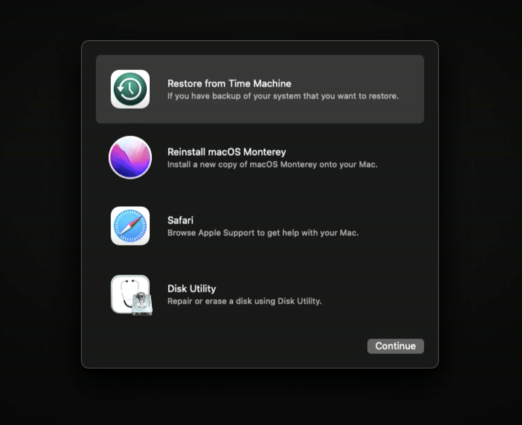
Step 3. You will see the backup with an accurate date, select the date and restore macOS.
Step 4. Choose the destination to restore macOS.
How to System Restore Mac FAQs
To system restore Mac, you can follow these steps: First, restart your Mac in safe mode by holding the Shift key while restarting. Then, go to System Preferences > Time Machine and select the backup you want to restore from.
How do I do a full system restore on a Mac?
To perform a full system restore on a Mac, you can either use macOS Erase Assistant or boot the device into Recovery Mode. In the latter case, you can erase the startup disk using Disk Utility and then reinstall macOS. It's recommended to log out of all linked accounts on the Mac before booting into Recovery Mode.
How to factory reset my M1 Mac?
On an M1 Mac running macOS Ventura and Monterey, you can factory reset the device using the "Erase All Content and Settings" option or Disk Utility. Erase Assistant is a convenient feature that helps erase your Mac safely and quickly.
How do I restore my Mac to a previous date with Time Machine?
You can restore your Mac to a previous date using Time Machine in two ways.
- 1. To restore your Mac from a previous Time Machine backup, you can use the System Preferences menu to access the Time Machine feature, specifically the "Restore From Time Machine Backup" option, which allows you to select a previous backup and restore your Mac to that point in time.
- 2. To boot a Mac into Recovery Mode, press the power button and hold down the 'r' key until the Apple logo appears. Then, click "Restore from Time Machine" from the Utilities menu.
Where is System Restore on Mac?
There is no system restore option on a Mac, but you can system restore Mac with macOS Erase Assistant. To find this option on macOS Ventura or Monterey, go to System Settings, then click on "General" and scroll down to "Transfer or Reset Mac". Click on "Erase All Content and Settings" and follow the prompts to system restore your Mac.
On macOS Ventura:
- 1. Click "System Setting" under the Apple menu.
- 2. A window will appear, and you can click "General" on the left.
- 3. Select "Transfer and Reset".
- 4. You will see Migration Assistant and Erse Assistant. Click "Erase All Content and Settings" to activate Erase Assistant.
On macOS Monterey:
- 1. Select "System Preferences" under the Apple menu.
- 2. After clicking the target option, you can activate Erase Assistant by clicking "Erase All Content and Settings".
Related Articles
- Will System Recovery Delete My Files? Answered Here!
- 6 Solutions to Fix Unmountable Boot Volume Windows 10/8/7
- How to Stop Windows 10 Deleting Files Automatically
- How to Solve Samsung Smart TV USB Not Working [Updated 2023]
- What Is an Active Partition in 2024, Everything You Need to Know
Learn what an active partition is, when Windows needs one, and how to set or fix an active partition safely. - AHCI VS NVMe: Which Is Better? What's Their Difference?
Compare AHCI and NVMe SSD technologies by speed, compatibility, interface, and upgrade value to decide whether NVMe is worth it.
Products
Articles & Tutorials
- Data Recovery
- Data Backup
- File Recovery
- File Backup
- System Backup and Restore
- Disk and Partition Clone
- Technical articles
- Mobile articles
- Disk Master Help
- Windows Data Recovery Tutorials
- Windows Secure Delete Tutorials
- Windows Partition Management Tutorials
- Windows File Backup and Restore Tutorials
- Windows System Backup and Restore Tutorials
- Windows Disk Backup and Restore Tutorials
- Windows Clone Tutorials