Will System Restore Delete My Files
system restore is a safe process. When you restore your computer to a previous point, it will revert all system files, settings, and installed programs back to that point, but it won't touch your personal files, including videos downloaded from YouTube. So, you can restore your computer without worrying about losing your files. However, it's always a good idea to back up your important files, just in case, but in this case, you're good to go. Go ahead and restore your system, and it should resolve the issue you're facing.
System Restore and System Image Recovery are Windows tools that help protect and repair computers with boot issues. They create snapshots of system files and the registry (Restore Points) or system images, allowing you to return to a working state without reinstalling the OS.
| Workable Solutions | Step-by-step Troubleshooting |
|---|---|
| How to Check What Programs Will be Deleted | Press Windows + R keys > Type rstrui.exe in Run > Choose a different restore point...Full steps |
Which Program and Files Will Be Affected by System Restore
Microsoft describes System Restore as a way to bring your computer back to a healthy state, and some Windows users even believe it's a viable method for recovering permanently deleted files without using software.
System Restore can help recover lost documents and files, but it's not the most effective way to do so. It can restore files from a previous restore point, but this method has limitations.
Notice:
A system restore will affect your system files, programs, drivers, and registry settings, which can impact your overall system functionality.
Never rely on System Restore as a solution to recover deleted or lost files on a Windows PC, as it's not a normal or recommended way to do so.
When planning a system restore, take a moment to consider the potential consequences - what benefits might it bring, and what might it ruin?
To check which programs, drivers, and files will be affected by running System Restore on your PC, follow these steps:
Step 1. Press "Windows + R" keys in Windows 10/8/7 to bring up the Run box.
Step 2. Type rstrui.exe in the empty box and hit Enter. This will open System Restore.
Step 3. Select "Choose a different restore point" and click "Next".
Step 4. Click "Scan for affected programs".
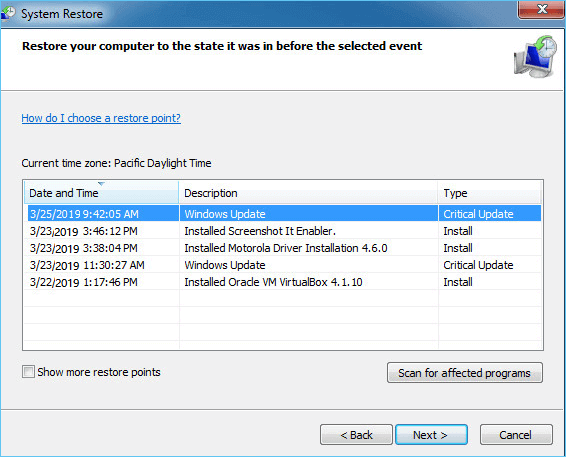
System Restore will scan for programs and list which ones will be affected or not affected by the restore point. This process will also identify which drivers will be impacted. A form will be presented, detailing the affected and unaffected programs and files, allowing users to review the changes before proceeding with the restore.
| Affected Programs and Files | Not Affected Programs and Files |
|---|---|
|
|
Two Suggestions
System Restore can indeed affect some programs and files on a Windows PC, making it an imperfect solution for simple file recovery. To safeguard personal data and prevent files from being deleted by System Restore, consider implementing two protective measures.
# 1. Restore Lost Data with Reliable Data Recovery Software (Instead of System Restore)
If you accidentally delete a file or it's not recoverable from the recycle bin, use a third-party data recovery software to help. Unlike system restore, this software will only recover the lost files without causing further damage to your existing data.
Qiling Deep Data Recovery software helps recover deleted, formatted, or virus-infected data without the need for system restore.
Download, install this software on your computer and recover all types of missing files on your own:
Step 1. Download Deep Data Recovery software for Windows, connect the SD card using a reader or the device, launch the software, and select the SD card from the list. Then, click "Fast Scan".

Note: You can choose different search modes based on where and why the data was lost.
Step 2. Identify the location where data loss occurred, such as a hard disk drive, external disk, USB, or SD card, then click on the "Scan" option.

Step 3. You can filter the scan results to only show specific file types while scanning, then go to either the "Deleted Files" or "Other Lost Files" section to find the desired files.

Step 4. After choosing the data, click "Recover" and choose a location on another drive to save the files.
Caution: Don't save recovered files on the same partition or drive where data was lost until the device is secure to save data again.
# 2. Back Up Computer Data and System Before Running System Restore
Before restoring your Windows OS to a previous version, create a new backup of your valuable files and Windows OS to avoid losing more data. This is the safest way to protect your valuable data.
Qiling file backup software allows you to backup a whole disk, partition, or individual files in just 3 easy steps.
Step 1. Launch Qiling Backup software and then choose "File Backup", "Disk/partition Backup" or "System Backup" for different backup purpose.

Step 2. To back up your data, you first need to choose what system, disk partition, files, or apps you want to save. Next, select a destination where you will store the backup file. This could be an external hard drive, cloud storage, or another location on your computer.
Step 3. Click "Proceed" to start the data backup process.
Bonus Guide: How to Run System Restore
To restore your computer to a previous state after backing up valuable files and data, follow these steps: first, ensure you have backed up all important files and data; then, use your chosen backup method (such as System Restore or a cloud backup service) to restore your computer to a previous point in time; finally, verify that your computer has successfully restored to the desired state and that all backed-up files and data are intact.
Step 1. Right-click on the Windows icon and select "Search".
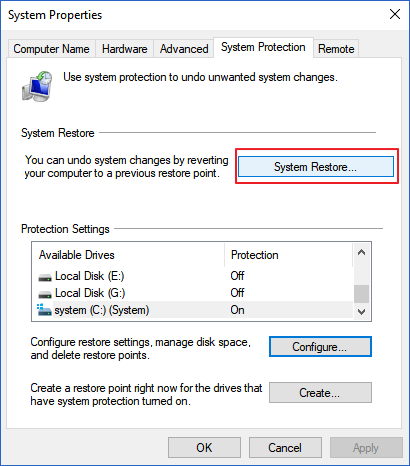
Step 2. Type create a restore point, and click the top result to open "System Properties".
Step 3. Click the System Restore button under System Protection section to bring up all the restore points that you've created.
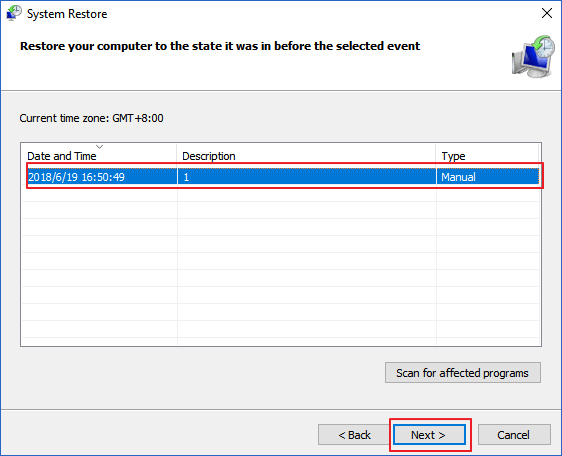
Step 4. Click "Next" and select the restore point that you want to use and restore on your PC.
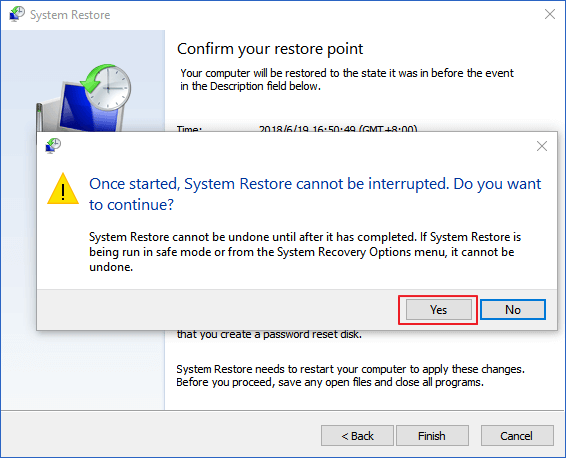
Step 5. Click "Finish" to confirm your restore point and click "Yes" to execute the System Restore on your PC.
Related Articles
- Short DST Failed! How to Fix Hard Disk DST Short Test Failed
- Fixed: Windows 10 Will Not Update with Error Code 0x80240fff
- Fix 0x80070780: The File Cannot Be Accessed by the System Error in Windows 10/8/7 [10 Fixes]
- [3 Solutions] Fix Word Not Opening on Mac
- How to Repair Corrupted Files After Recovery
If you've successfully recovered data but the files are corrupted. Before using a file repair software. you can recover intact files by following the steps outlined in this post. - Files/Folders Keep Reappearing After Deletion in Windows 10/8/7
If you're experiencing issues with deleted files reappearing in Windows 10, or if they're coming back on an SD card or flash drive, there are ways to resolve this problem.
Products
Articles & Tutorials
- Data Recovery
- Data Backup
- File Recovery
- File Backup
- System Backup and Restore
- Disk and Partition Clone
- Technical articles
- Mobile articles
- Disk Master Help
- Windows Data Recovery Tutorials
- Windows Secure Delete Tutorials
- Windows Partition Management Tutorials
- Windows File Backup and Restore Tutorials
- Windows System Backup and Restore Tutorials
- Windows Disk Backup and Restore Tutorials
- Windows Clone Tutorials