How to Resolve reCAPTCHA Not Working in Any Browser
Nowadays, it is common to receive a prompt saying, I'm not a robot while browsing your favorite content. Google has offered a free-of-cost service called reCAPTCHA that assists with mitigating automatic attacks on websites.
Many users are experiencing issues with reCAPTCHA, which disappears without loading the website. Instead, they see a warning message saying their PC is sending automated queries, and the website can't process the request due to outdated browser versions, IP addresses, VPN interruptions, or corrupted browser profiles.
We can help you to resolve reCAPTCHA not working in any browser with our helpful solutions.
- Solution 1: Checking for Malware Issues
- Solution 2: Updating Your Browser
- Solution 3: Resetting the IP Address
- Solution 4: Disabling the VPN Service
- Solution 5: Disabling the Extensions
Solution 1: Checking for Malware Issues
When you unknowingly download malicious apps or files, or receive them via suspicious emails with links or images, Malware can infect your system. This can also happen when you tap on suspicious links or images, or when they're hidden by browsers. To resolve the issue, it's recommended to scan your PC for Malware and consider using a reputable antivirus software like TotalAV to detect and remove any malware. This can help resolve reCAPTCHA not working issues in any browser.
TotalAV is an award-winning antivirus and security software that offers real-time protection from viruses, malware, and online threats.
Antivirus Protection Enabled
The scanning process is completed, and the detected threats are isolated and analyzed to ensure they are removed from the computer.
Solution 2: Updating Your Browser
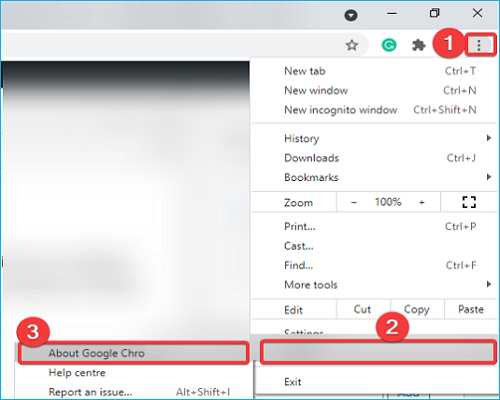
Keeping your browser updated can resolve reCAPTCHA not working issues by enhancing security, fixing bugs, and improving functionalities.
Steps to Use:
Step 1: To access browser settings, open your browser (e.g. Google Chrome, Mozilla Firefox, or Microsoft Edge) and click on the three-dot menu or three lines icon located in the top right corner.
Step 2: To open the "About" page, select the "Help" menu and tap on "About Google Chrome" or "About Firefox" depending on your browser. The exact steps may vary slightly depending on the browser and device you are using, but the general idea is the same.
Step 3: Your browser will automatically check for updates, download and install them once they are found.
Step 4: After installing the updates, restart the browser, and then attempt to access the website where the reCAPTCHA issue was experienced.
Try using a different browser or clearing your browser's cache and cookies. If the issue persists, try restarting your device or checking for any software updates.
Solution 3: Resetting the IP Address
If you're experiencing issues with reCAPTCHA not working in any browser, you might encounter a network error. To resolve this, try resetting your IP address, which can help resolve the problem.
Steps to Use:
Step 1: To open an elevated command prompt, press the "Win + R" keys to open the Run dialog box, then type "CMD" and press Enter. Alternatively, you can also use the shortcut "Win + X" and select "Command Prompt (Admin)" from the menu. This will open a command prompt with administrator privileges, allowing you to perform tasks that require elevated permissions.
Step 2: Now you will see a window for the Command prompt wherein you have to paste or type out the given command lines, one after the other, and press the "Enter" key.
- netsh Winsock reset
- netsh int ip reset
- ipconfig /release
- ipconfig /renew
Step 3: As soon as you successfully execute all the commands, open any browser and see if the issue is resolved.
Solution 4: Disabling the VPN Service
As a novice user, you may need to be made aware that using a proxy or VPN can cause reCAPTCHA issues due to the VPN service hindering its functionality, but temporarily disabling the VPN service can help resolve the issue.
If you're using a paid VPN service, talking to your service provider may help you further.
Solution 5: Disabling the Extensions
You may encounter issues with reCAPTCHA due to web browser extensions installed on your device, but you can resolve the problem by disabling the extensions in Chrome, Firefox, Edge, or any other browser you use.
If you've resolved the issue, identify the problematic extension, enable it one by one, and test for the issue. Once you find the culprit, remove it and find an alternative to continue your work.
Conclusion
Google's reCAPTCHA helps protect against malicious automated tools and spam attacks, but sometimes it may fail due to various issues, resulting in an error message.
We hope the solutions provided help resolve the reCAPTCHA not working in any browser issue you were facing. If you're still experiencing problems, feel free to reach out to an expert for further assistance.
Related Articles
- Fix Delete Volume Greyed Out in Disk Management on Windows 7/8/10/11
- 10 Fixes to Solve Chromebook Black Screen [2023 Guide]
- 3 Ways to Fix USB Device_Descriptor_Failure Error in Windows
- 7 Best Ways to Fix CD/DVD Missing or Not Showing Up in Windows 10/8/7
- How to Factory Reset an Acer Laptop on Windows 10/8/7
If you want to learn how to factory reset your Acer laptop running Windows 10/8/7, this guide is for you. It will walk you through the process of restoring your laptop to its original settings. - Factory Reset ASUS Laptop F9 Not Working [Why & How to Fix]🔥
Fix a Chromebook black screen with practical checks for power, display, system glitches, and recovery options.
Products
Articles & Tutorials
- Data Recovery
- Data Backup
- File Recovery
- File Backup
- System Backup and Restore
- Disk and Partition Clone
- Technical articles
- Mobile articles
- Disk Master Help
- Windows Data Recovery Tutorials
- Windows Secure Delete Tutorials
- Windows Partition Management Tutorials
- Windows File Backup and Restore Tutorials
- Windows System Backup and Restore Tutorials
- Windows Disk Backup and Restore Tutorials
- Windows Clone Tutorials