10 Fixes to Solve Chromebook Black Screen [2024 Guide]
Click the quick navigation below to get the tip you prefer swiftly.
- 1. Check Chromebook Power
- 2. Check the Screen Brightness
- 3. Restart Chromebook
- 4. Check the Battery
- 5. Run Out the Battery
- 6. Cool Down the Chromebook
- 7. Examine the External Devices
- 8. Change Different Chromebook Charger
- 9. Reset Your Chromebook
- 10. Check Whether the Screen Is Damaged
Chromebooks have evolved into smart, portable devices with their sleek appearance and compact size, offering basic laptop functionality. Despite the various brands available, they all run on Chrome OS, designed by Google.
A Chromebook black screen can occur when the device is experiencing technical difficulties, such as a software or hardware issue, causing it to freeze or shut down unexpectedly, leaving the user with a blank screen and no cursor, making it difficult to access important files or complete tasks.
Frequent problems with your system can be unsettling, and it's essential to identify the underlying reasons to resolve them quickly and effectively. Knowing the exact causes is crucial to taking the proper steps to fix the issue and prevent it from happening again in the future.
The Chromebook screen turning black can be frustrating, but there are some practical ways to troubleshoot the issue. However, before we dive into the solutions, it's essential to understand the possible reasons behind this problem, which may include a hardware or software issue, a faulty display, or a malfunctioning graphics card. Once we identify the root cause, we can proceed with the solutions to resolve the problem and get your Chromebook screen back to normal.
Why Is Your Chromebook Screen Black and Won't Turn Off
There are several situations that can cause a Chromebook screen to turn black. These include hardware issues such as a faulty display or graphics card, software glitches like a corrupted Chrome OS or app, power issues like a dead battery or faulty power adapter, and user error such as closing all tabs or turning off the device without properly shutting down. Additionally, malware or viruses can also cause the screen to turn black.
- When the Chromebook gets overheated.
- Due to Chromebook battery issues.
- The charger is not working.
- USB Device conflicts with the Chromebook.
- The screen brightness is too low.
How to Fix Chromebook Black Screen
If your Chromebook is displaying a black screen, try troubleshooting by checking the power cord, unplugging and replugging it, and ensuring the device is properly charged. Additionally, try booting in safe mode, resetting the Chromebook, and checking for loose connections.
1. Check Chromebook Power
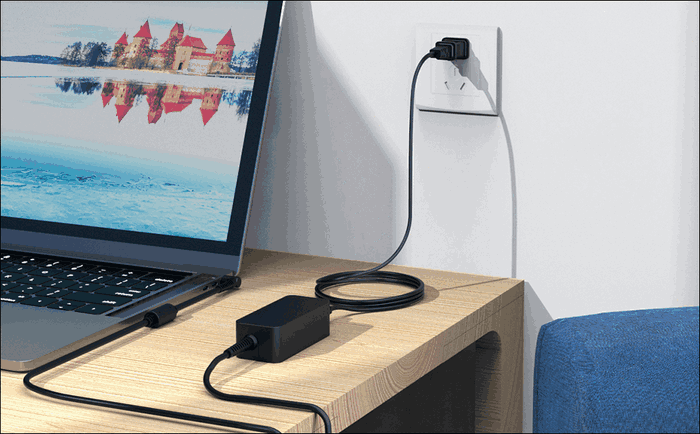
If your Chromebook has a black screen, the first thing to try is making sure the charger is properly plugged in and assembled, as a dead battery can cause this issue.
To troubleshoot a dead Chromebook battery, ensure the charger is properly connected to a working power outlet and plugged into the Chromebook. If the issue persists, try resetting the charger and its cables, and then turn the power on again. If the battery remains dead, plug it in and let it charge for a while.
If the issue persists, try the next troubleshooting step. If that doesn't work, move on to the next fix. If none of the fixes work, it may be time to contact a professional for further assistance.
📖Read Also: Acer Laptop Screen Black
2. Check the Screen Brightness
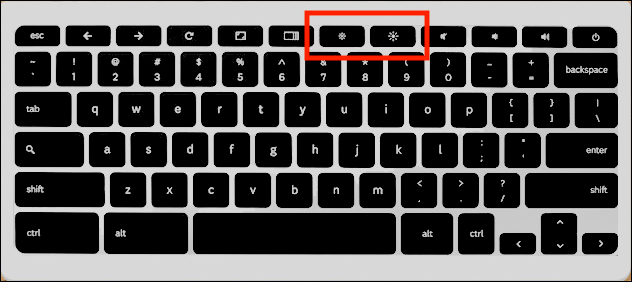
If you're experiencing Chromebook screen issues, try checking the screen brightness. You can adjust the brightness by pressing a specific key and setting it to a minimum of zero, ensuring the level is high enough for clear visibility.
To resolve the Chromebook black screen issue, look for the numbers 8 and 9 on your keyboard, and find the screen brightness key above them. Press this key until you're able to see the transparent display. If the issue persists, try pressing the keys in a specific order to see if it resolves the problem. The steps may vary depending on the Chromebook model, but this general approach should help you troubleshoot the issue.
3. Restart Chromebook
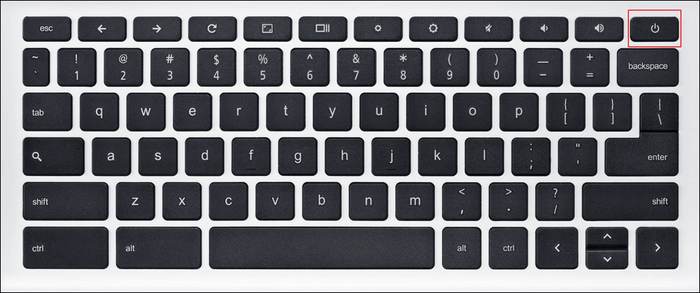
If the above fix did not work, try plugging your Chromebook into a power source, then press and hold the power button for about 10 seconds until the lights turn off. This should resolve the issue.
Chromebooks come in different shapes and sizes, and their power buttons are often placed in distinct locations. This can be a bit confusing, especially for those who are not familiar with the design of a particular Chromebook model. However, once you get used to it, it's not a big deal.
4. Check the Battery
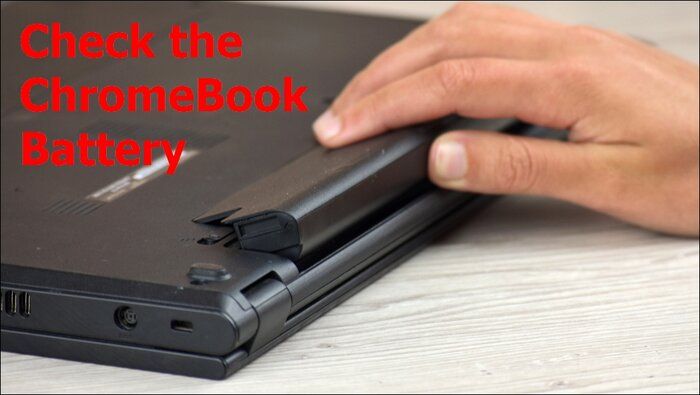
If you're experiencing a black screen on your Chromebook, it's worth checking for a battery issue. If you have a removable battery model, try taking out the battery and reconnecting it to ensure the connection between the internal contacts and the battery is secure. This simple troubleshooting step might resolve the issue and get your Chromebook up and running again.
If you can't remove the battery without disassembling your Chromebook, you can follow these steps instead. Firstly, shut down your Chromebook completely.
- Unplug the power cord to let the battery drain completely. This will help the battery retain its charge for a longer period.
- Once the battery is exhausted, you can plug the power cord back into the charging port.
- Allow your Chromebook to charge for around 30 minutes, then connect it to see if it's working again.
If you're experiencing issues with your computer or device, here are some steps you can try to troubleshoot the problem: Check your internet connection, restart your device, and update your operating system. If these steps don't work, try reinstalling your operating system or seeking help from a professional. If you're still experiencing issues, try checking for any physical damage to your device, such as loose connections or damaged ports.
5. Run Out the Battery
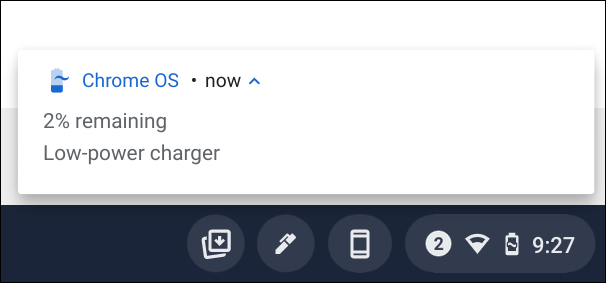
If your Chromebook's screen is black, draining its battery may solve the issue. Keep the device until the battery runs out, then charge it for at least 30 minutes to see if the screen turns back on.
If not, try the next fix.
6. Cool Down the Chromebook
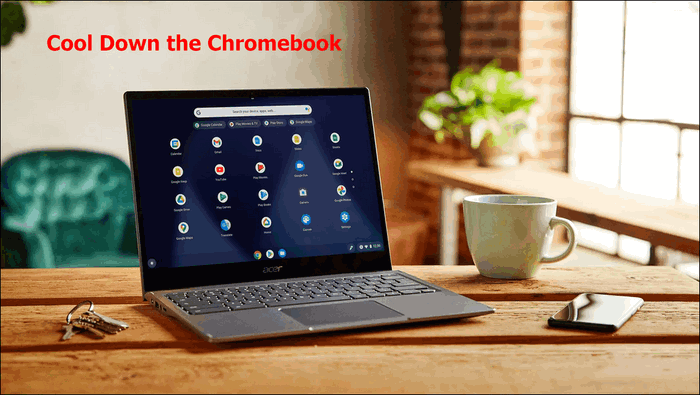
If your Chromebook's screen turns black, it might be overheating. This can happen when the device gets too hot, causing it to shut down. To fix this, unplug your Chromebook, place it on a stable surface, and let it cool down for 30 to 40 minutes. This should resolve the issue.
Now, try to restart the Chromebook and see if the black screen issue was due to overheating. If your problem gets fixed, you must keep your Chromebook in a space with good ventilation, and not keep it in a closed space like a backpack while it is still running. If not, proceed with the next fix.
7. Examine the External Devices
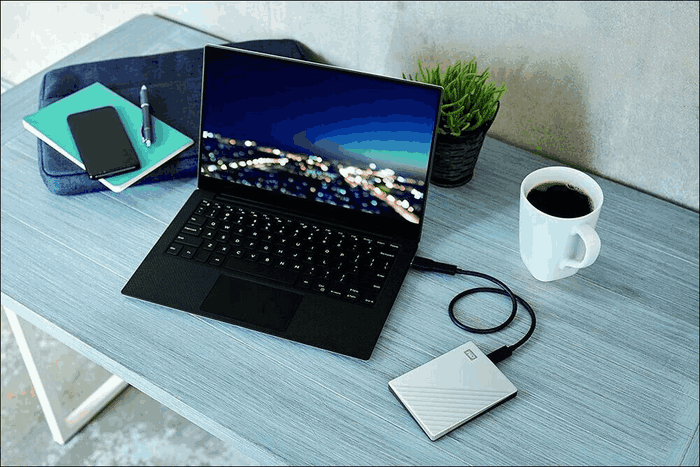
If your Chromebook is turning black and you can't access the screen, it might be due to an issue with your external devices connected to it, which could be affecting its startup process and causing performance malfunctions.
If you plug in a corrupt SD card to your device, especially if it's a Chromebook in developer mode, you may encounter the issue of the screen going blank.
To resolve the Chromebook black screen issue, disconnect all external devices, shut down the Chromebook, wait 1-2 minutes, and then turn it back on.
8. Change Different Chromebook Charger
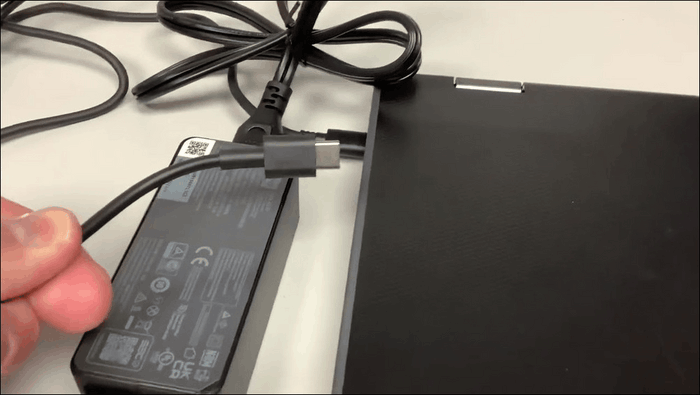
If your Chrome OS shows a black screen and does not respond to your commands, there may be an issue with the charger, so try using a different charger to see if it resolves the problem.
Before buying a new charger for your Chromebook, ensure it's compatible with your device and meets the manufacturer's charging specifications, such as voltage ratings and power output, to avoid damaging your device.
If your Chromebook charger is not working, it may be due to a problem with the charger itself, the charging port, motherboard, or hard disk. You can check if the charger works on other devices, and if it doesn't, it might be the charger that's faulty. If it does work on other devices, it could be a hardware issue with your Chromebook that requires a hardware reset.
9. Reset Your Chromebook
If you want to fix the black screen of death issue in your Chromebook, you can opt for a factory reset of the hardware of your Chromebook. It is also known as a hard reset.
The time it takes to factory reset a PC can vary, but for a Chromebook, it typically takes around 30 minutes to 3 hours. This process involves restarting the hardware and deleting a few files from the download folder. If other fixes don't work, trying this might resolve the issue.
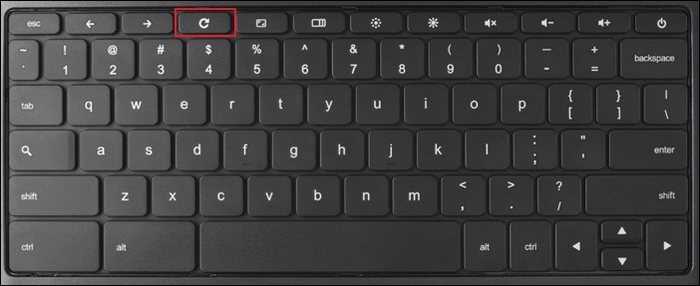
For performing a hard reset on your Chromebook, you can follow the given steps:
- Start by turning off your Chromebook.
- Press and hold the refresh button and then press the power button.
- Once your Chromebook is started, you can release the refresh button.
There are two tips that you can follow during the process:
- To force restart your iPhone, apart from following the above steps, you can also tap and hold the Back button, Refresh, and Power button at the same time for a minimum of 10 seconds.
- If using a tablet, press and hold the volume up button and the Power button together for 10 seconds to initiate the process. Release them once the time is up.
There are some other ways that you can opt for performing a hard reset on your Chromebook. These are:
- Resetting the hardware by tapping on a special dedicated reset button.
- Unplug the power cable.
- Remove and reinsert the battery.
10. Check Whether the Screen Is Damaged
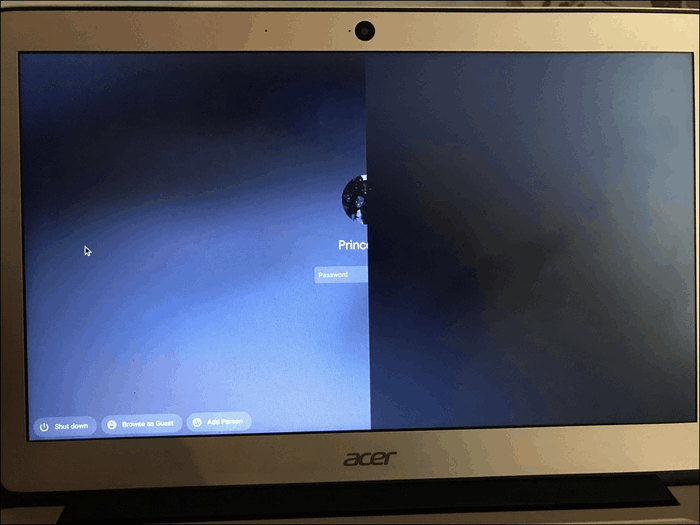
If the previous fixes didn't work, check if the screen is damaged. To do this, connect your Chromebook to an external monitor. If it works on the external monitor but not on the built-in screen, take it to a repair shop to check for hardware damage.
If your Chromebook's hard drive is broken, causing a black screen, you may need to replace the hard drive, especially if Chrome OS isn't loading.
If your device is still under warranty or you're experiencing issues like a black screen due to a factory defect, you can contact the manufacturer for support or consider replacing the device.
Conclusion
Chromebooks are a great alternative to Macbooks and Windows 10 laptops, offering optimal performance. However, like any laptop, they can experience issues, including the frustrating Chromebook black screen problem. As a Chromebook user, you may encounter this issue and find it challenging to resolve. Fortunately, we've compiled top quick fixes to help you troubleshoot and treat this problem.
If you're experiencing black screen issues on your computer, or if your friends are facing similar problems, there are other helpful posts that can provide assistance.
FAQs
1. How do you force restart a Chromebook?
To force restart a Chromebook, you can press and hold the Power button for 10 seconds to shut it down, and then press and hold the Power button again to turn it back on. Alternatively, you can press and hold the Esc and Power buttons simultaneously for 10 seconds to force a restart.
- Start by turning off your Chromebook.
- To restart your iPhone, press and hold the Sleep/Wake button and the Volume Down button at the same time. Hold them for about 10 seconds, or until the Apple logo appears.
- Release the Refresh button once done.
2. How do I fix an unresponsive Chromebook screen?
If your Chromebook screen is unresponsive, you can try restarting it, resetting it hard, checking for battery issues, or letting it cool down.
Related Articles
- How to Restore Mac to a Previous Date with Time Machine/Migration Assistant/Recovery Software
- How to Fix Grayed Out Folders or Files on Mac
- How to Turn On FileVault on Mac [with Video Tutorial]
- [SOLVED] The Action Can't Be Completed Because the File Is Open in Another Program
- [BSOD Error] How to Fix the Stop Code Memory Management in Windows
Are you receiving stop codes from memory management in Windows? Then check out these solutions which help you resolve the problem and ensure the stop code doesn't reappear. Even if it does, you always know how to resolve it. - Solve System Reserved Partition on Wrong Drive: Everything You Should Know
Fix a System Reserved partition on the wrong drive. Learn why it happens and how to move or repair boot files safely.
Products
Articles & Tutorials
- Data Recovery
- Data Backup
- File Recovery
- File Backup
- System Backup and Restore
- Disk and Partition Clone
- Technical articles
- Mobile articles
- Disk Master Help
- Windows Data Recovery Tutorials
- Windows Secure Delete Tutorials
- Windows Partition Management Tutorials
- Windows File Backup and Restore Tutorials
- Windows System Backup and Restore Tutorials
- Windows Disk Backup and Restore Tutorials
- Windows Clone Tutorials