How to Fix Acer Laptop Screen Black [Causes & Solutions]🔥
"When I was enjoying a movie on my Acer laptop, the screen went black suddenly. I got worried. I turned off the laptop and turned it back on, but the screen stayed black. Can someone please help me get it back to normal?"
Acer is a well-Acer is a well-known computer manufacturer with millions of satisfied consumers. However, many users have reported about the Acer laptop screen black issue. If you are one of those who are facing the black screen problem in Acer laptops, we are here to help, as Qiling Software comprehends multiple ways to resolve this issue with step-by-step explanations, making the process convenient.
How to Fix Acer Laptop Screen Black
If your Acer laptop is displaying a black screen, there are several efficient ways to troubleshoot the issue. Firstly, you can try pressing the power button for 30 seconds to discharge any residual power, then press it again to turn it on.
- Method 1. Reset Acer Laptop Power Supply
- Method 2. Try the F2, F9 and F10 Keys
- Method 3. Use Windows Boot Repair Tool
- Method 4. Test Acer laptop with an External Monitor
- Method 5. Check for Hard Disk Errors
- Method 6. Update Graphics Card Drivers
- Method 7. Update the BIOS
- Method 8. Check for Viruses and Malware
- Method 9. Reset Acer Laptop
If the first two techniques fail to return your screen, you must continue with the other solutions in Safe mode. If these solutions are helpful, you can also click the buttons and share this guide with your friends.
Method 1. Reset Acer Laptop Power Supply
Here are the quick steps to reset your Acer laptop:
Step 1: Turn off your Acer laptop.
Step 2: Remove the AC adapter, external devices and cables.
Step 3: Hold the laptop upside down and unscrew the base panel.
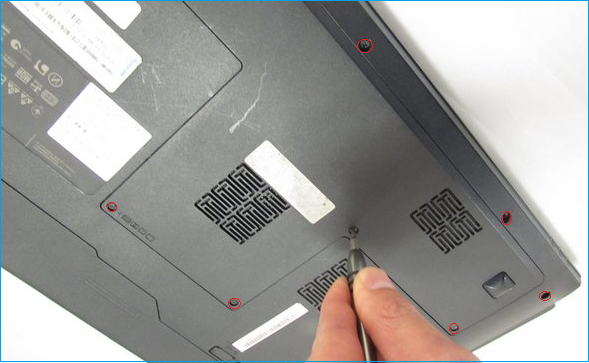
Step 4: Detech the battery and keep it in a safe place.
Step 5: To shut down your laptop, press the Power button and hold it for 20 to 30 seconds. This will drain the remaining electric charges from your laptop.
Step 6: Attach the battery and screw the base panel carefully.
Step 7: Turn on the laptop and see if it can boot normally. If it does, then the issue is likely with the charger or power source, and you can try plugging it into a different outlet or using a different charger. If it doesn't boot, then the issue is likely with the laptop itself, and you can try troubleshooting further by checking the RAM, hard drive, or other components.
If your Acer laptop screen is black but still running, try the following steps to fix the issue. First, press the F2 key repeatedly during boot-up to enter the BIOS settings.
Further Reading: Windows 11 Black Screen with Cursor
Method 2. Try the F2, F9 and F10 Keys
To troubleshoot the black screen issue on your Acer laptop, try pressing the F2, F9, and F10 function keys in sequence. Pressing F2 will often reset the BIOS, F9 may refresh the display, and F10 can reconfigure the boot settings. If none of these keys resolve the issue, it's possible that the problem lies with the laptop's hardware or a software glitch.
Step 1: If your Acer laptop has a blue light on but the screen is black, turn it off using the power button.
Step 2: Unplug all external devices like drives, mouse, and keyboard.
Step 3: Turn on your laptop.
Step 4: When the Acer logo or splash screen appears, press the keys F2, F9, F10, and then Enter.
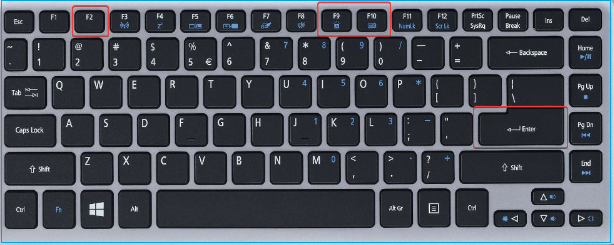
Step 5: Choose "Exit" and "Yes" using arrows and Enter.
Note* If your Acer laptop shows a black screen with a cursor on Windows 11/10, click on "Exit" and then "Yes" using your mouse.
Read Also: Toshiba Laptop Black Screen
Method 3. Use Windows Boot Repair Tool
Qiling Disk Master is a Windows boot repair tool that resolves boot-related issues with its powerful "boot repair" feature, making it a lifesaver for users experiencing system failures or blue screens, and allowing them to diagnose and resolve boot issues with ease.
To repair your computer's boot process, download Qiling Disk Master and follow the provided instructions for a seamless boot repair.
Step 1. To create a bootable media using Qiling Disk Master, connect an external drive or USB to your computer, then launch Qiling Disk Master and navigate to the "Bootable Media" section. From there, click on the "Create bootable media" option.

Step 2. Insert a USB drive or CD/DVD and click "Proceed" to continue. Alternatively, you can burn the Windows ISO file to the storage media.

Step 3. Connect a bootable drive to a new computer, reboot by holding F2/Del, set the drive as the boot disk, and exit by pressing F10.
Step 4. To resolve the issue, boot the computer again and access the WinPE interface. From there, open Qiling Disk Master and navigate to the "Tools and utilities" tab page, where you will find the "Fix Boot" option. Clicking on this will initiate the necessary steps to resolve the problem.

Step 5: Select the system you want to repair and click "Proceed".

Step 6. The system has been successfully repaired. Click "OK" to complete the boot repair process.
This powerful feature solves all startup-related problems. If you have encountered the errors such as Windows failed to start, startup repair, or Windows failed to boot, click the link to view the details.
Method 4. Test Acer laptop with an External Monitor
If your Acer laptop screen is black but still running, a faulty firmware might be the cause. You can test this by connecting an external monitor to see if the issue persists. If the external monitor displays the laptop's screen, the problem is likely with the laptop's display, not the firmware. However, if the external monitor is also black, the issue is likely with the firmware. In this case, you may need to reflash the firmware to resolve the issue.
Step 1: Connect an external monitor to your Acer laptop using an HDMI cable, ensuring a successful connection.
Step 2: Check if the external display sharing the laptop screen.
Step 3: If the external screen isn't working, press "F4" until your laptop's screen appears.
If the screen isn't reflecting on the external monitor, the issue may be caused by outdated graphics card drivers or hard disk errors, which can be resolved by updating the drivers or running disk checks.
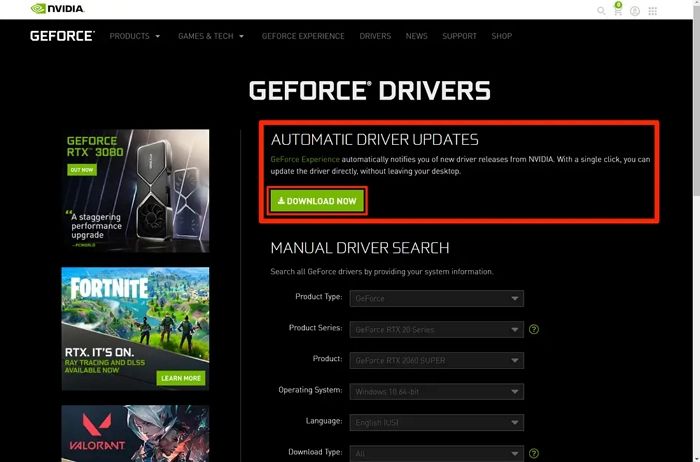
Acer Stuck on Loading Screen - 9 Quick Fixes
If your Acer laptop screen is displaying a black image, don't worry, as this issue can be resolved with some practical solutions. The problem may be caused by a faulty graphics card, loose display cable, or outdated drivers. To fix the issue, try restarting your laptop, checking the display cable for any loose connections, updating your graphics drivers, or running a system restore to a previous point when the display was working properly.
Method 5. Check for Hard Disk Errors
Qiling Disk Master is a powerful tool that can check disk errors efficiently, making it useful for fixing issues like a black Acer Laptop screen, and also allows users to create a bootable USB stick for full file system checks and repairs through BIOS configuration.
Download Qiling Disk Master and follow these steps to check for hard disk errors.
Further Reading:
How to Fix Computer Stuck on Restarting
If your computer is stuck on restarting, try booting in safe mode, checking for malware, or running a System Restore. You can also try disabling any recently installed hardware or software, or running a System File Checker. If none of these methods work, you may need to reinstall Windows or seek further assistance.
Method 6. Update Graphics Card Drivers
Updating your graphics card drivers is crucial for a seamless computer display experience. Outdated, corrupted, or missing drivers can cause display issues, such as a black screen on an Acer laptop, even after login. To resolve this problem, you can update your graphics card drivers, and if the updated driver still doesn't work, you can try reinstalling the drivers following the provided instructions. This should help fix the Acer laptop black screen issue.
Step 1: Press the Windows key + X and select Device Manager from the list.
Step 2: Double-click to expand the "Display adapters" category.
Step 3: Right-click on graphics and choose "Update Driver."
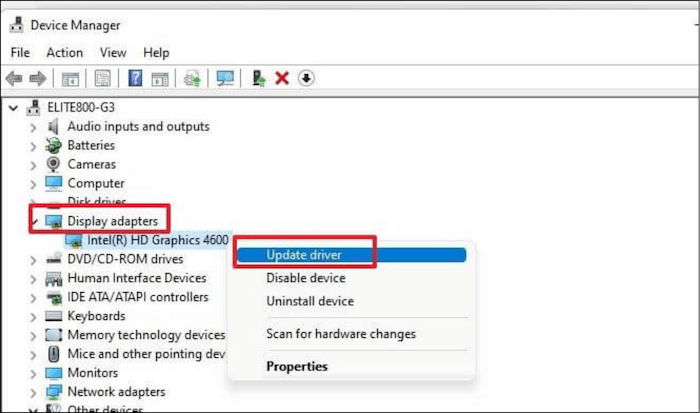
Step 4: The first step is to click on the first option, "Search automatically for driver" to let the window find the latest version of the driver. Once it has done that, follow the on-screen instructions to update the driver.
If you see the message "The best drivers for you are already installed," it might be a good idea to uninstall the driver.
Step 1: Close the update driver window.
Step 2: Right-click on graphics, then select "Uninstall device" and "Uninstall."
Step 3: To install the driver for your Acer device, you can visit the Acer support page or click on the provided link to download and install the driver directly from Acer's support website.
Step 4: Identify your device using Serial, SNID, or modal number.
Step 5: To find the correct graphics driver for your device, you can visit the manufacturer's website (e.g., NVIDIA or AMD) and enter your device's model number or search for the driver using the device's name.
Step 6: Open the downloaded file and follow the on-screen instructions to install the driver.
How to Fix Windows 10 Boot Loop
If you're experiencing a Windows 10 boot loop, don't panic! This Qiling troubleshooting guide can help you fix the error and get your PC up and running securely again.
Method 7. Update the BIOS
The BIOS is responsible for booting a computer, and any issues with it can cause the system to fail to boot, potentially resulting in problems like a black screen after login or a black screen of death.
Consider updating the BIOS configuration if it has an issue. Below are the detailed steps to update BIOS.
Note* Updating BIOS settings can be risky and potentially harm your system, so it's not recommended for inexperienced Windows users.
Step 1: Go to the "Start menu" and select "Run."
Step 2: In the search box, type the following command and press "Enter."
msinfo32
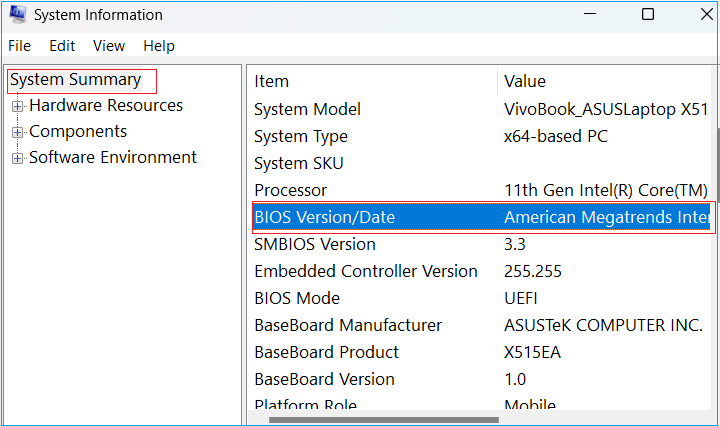
Step 3: Press the Windows key + R to open the Run dialog box, type "msinfo32" and press Enter to open the System Information window. In the left-hand menu, click on "System Summary" and then click on "BIOS" in the right-hand menu to view the current BIOS version and date.
Step 4: To troubleshoot your Acer laptop, start by opening the official Acer support page. From there, identify your laptop's model to access specific and relevant troubleshooting guides and support resources.
Step 5: Download the relevant BIOS version.
Step 6: Extract the downloaded Zip file.
Step 7: Connect a blank USB drive to your laptop, which has a FAT32 file system, and copy the extracted files to it.
Note* To find the specific BIOS key for your device, search the web using the device's model number or name along with the keyword "BIOS key" or "boot key". This will provide you with the correct key combination to access the BIOS settings on your device.
Step 8: To enter the BIOS configuration, restart your laptop and press the key that triggers the BIOS setup screen. The key to press varies depending on the laptop model, but common keys include F2, F12, Del, or Esc. Press this key immediately after restarting your laptop, before the operating system boots up.
Step 9: Select "Boot" from the top menu bar and "Advanced Settings."
Step 10: To update the BIOS configuration, select "Removable Device" from the list and follow the on-screen instructions.
The system will automatically restart once the BIOS will update.
Further Reading: If the Windows Boot Manager is not showing in the BIOS, it's likely due to a corrupted boot configuration or a missing or outdated BIOS update. To resolve this, try running the Bootrec tool from the Command Prompt to rebuild the boot configuration, or use a Windows installation media to repair the boot.
Method 8. Check for Viruses and Malware
Viruses and malware attacks can internally damage the operating system, causing issues like file corruption and potentially resulting in the Acer laptop screen turning black while the mouse is still visible, ultimately leading to system malfunction and booting problems.
To resolve the issue of the Acer laptop screen turning black, you should run a virus scan in safe mode to identify and remove any viruses that may be causing the problem. Since you're in safe mode, Windows is operating with limited capacity, and features like Windows Defender may not be functional. If Windows Defender is working, run a quick scan to remove the virus. If not, download a trusted antivirus software from a web browser to remove the malware.
Method 9. Reset Acer Laptop
If your Acer laptop is experiencing a black screen issue and the previous steps didn't resolve the problem, you can try resetting your laptop and reinstalling the operating system. To do this, follow these steps:
Step 1: To access WinRE, restart your laptop and press the power button until you enter the WinRE interface, which can be done by rebooting the system three times.
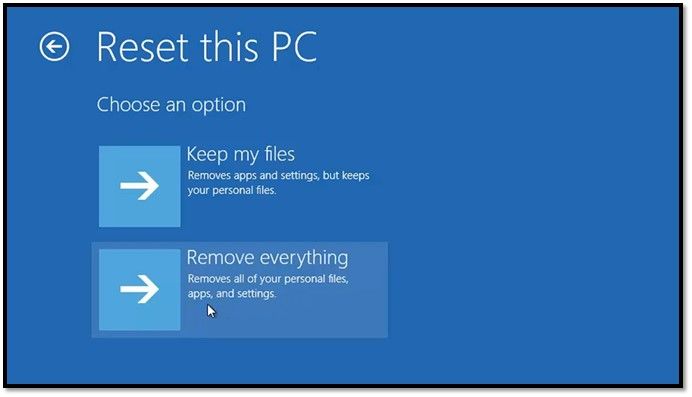
Step 2: Click "Troubleshoot and select the "Reset this PC" option.
Step 3: Select the first option, "Keep my files." It protects your system from data loss.
What Caused the Acer Laptop Screen Black?
We believe you can fix issues like an Acer Laptop screen black or the Acer laptop black screen with cursor Windows 11/10. The causes can vary, but common reasons include issues with the display driver, a faulty or loose connection to the screen, overheating, or a problem with the operating system. Understanding these potential causes can help you take preventative measures to avoid future inconvenience.
- Hard Disk Errors: Hard disk errors on an Acer laptop can cause a blank screen, preventing the OS from loading the necessary files for a successful boot.
- Graphics Card Driver Errors: Always keep your graphics card drivers up to date to prevent black or blue screens caused by outdated or faulty drivers.
- Malware Attacks: Malware attacks can prevent a machine from functioning normally, potentially resulting in a black screen.
- Computer Overheating: Overheating can cause a black screen and hardware problems in laptops, often due to inadequate airflow in the cooling system, which users should check to resolve the issue.
The cause of a black screen can vary depending on the specific hardware or software issue.
Conclusion
If you can fix the black screen on the Acer laptop problem, the article's objectives will have been achieved. We provided multiple solutions as the issue could have a variety of root causes. The simplest solution to cover you in the meantime is using the professional Windows boot repair tool - Qiling Disk Master, which helps in black screen restoration without data loss, and also allows for easy boot repair, checking disk errors, and making bootable devices.
FAQs About Acer Laptop Screen Black
Here are some popular FAQs about the topic discussed on the page. Please find the answers here if you have further questions.
1. Why does my Acer laptop not turn on, but the power light is on?
If the power light on your Acer laptop is on, but the screen remains dark, it could be due to outdated graphic drivers, hardware malfunction, disk errors, or software problems. Running a troubleshooting in Safe mode may help resolve the issue.
2. Why is my Acer laptop stuck on the startup screen?
A computer getting stuck on the startup screen can be caused by corrupted system files, BIOS issues, boot failure, or hardware problems. To resolve this, try starting in Safe Mode, performing a startup repair, updating the graphic driver, or checking for hardware issues.
3. How do I reset my Acer laptop black screen?
If your Acer laptop has a black screen, try a power reset. Unplug all external devices, take out the battery, and hold the power button for about 30 seconds. This can sometimes resolve the issue.
Related Articles
- Windows 10 Booting From Wrong Drive - Fix Easily
- Fix 'System C Drive Full' Error in Windows Server 2019/2016/2012
- How to Convert FAT32 to NTFS Windows 10 Without Losing Data in 3 Ways
- 8 Fixes for There Is Not Enough Memory Or Disk Space to Run Word Error
- Why My SD Card Shows Empty But is Full
It is a common issue that an SD card is full, but no files show up. If you are wondering 'Why my SD card shows empty but is full', this page provides you the answer and guide you to resolve the problem. - Why Pen Drive Is Write-Protected and How to Fix?
Sometimes the USB flash drive will change into write-protected, so why USB flash drive is write-protected and how to fix? This page briefly introduces the reasons and offers some practical methods to remove write protection.
Products
Articles & Tutorials
- Data Recovery
- Data Backup
- File Recovery
- File Backup
- System Backup and Restore
- Disk and Partition Clone
- Technical articles
- Mobile articles
- Disk Master Help
- Windows Data Recovery Tutorials
- Windows Secure Delete Tutorials
- Windows Partition Management Tutorials
- Windows File Backup and Restore Tutorials
- Windows System Backup and Restore Tutorials
- Windows Disk Backup and Restore Tutorials
- Windows Clone Tutorials