Windows 10 Booting From Wrong Drive - Fix Easily
Windows 10 is booting from the wrong drive due to various reasons such as BCD errors, changes in computer settings, not updating the boot sequence, SATA cable connection issues, or boot mode errors.
Don't worry! You'll learn several effective solutions to fix the Windows 10 booting from the wrong drive error, including simple troubleshooting steps and solutions, all covered in this article.
If you're not comfortable with manual troubleshooting steps that require technical expertise, you can use a user-friendly software solution like Qiling Disk Master to fix the problem quickly and safely.
Use Third-Party Software to Fix Windows 10 Booting from Wrong Drive
This method is a convenient and useful solution for beginners and non-technical people to ensure Windows 10 boots from the correct drive, and can also be used by experts to quickly resolve issues using Qiling Disk Master.
Qiling Disk Master Professional is a powerful tool with numerous features, including a feature that simplifies changing the boot order and a feature to rebuild the Master Boot Record (MBR).
To change the original wrong boot order using Qiling Disk Master, follow these steps:
Step 1. Launch Qiling Disk Master on your computer and navigate to the "Boot Repair" section in "Toolkit."

Step 2. To change the boot order, go to the "UEFI items" tab and drag the drive to the first position in the list.

Step 3.To apply the changes, click "Proceed". This will set your operating system to boot from the new hard drive.
Note:If you press the "Reboot" button after the drive, the operating system will be able to boot from this disk at the next startup.
Follow the steps to rebuild MBR:
Step 1. Create a WinPE bootable disk
- Launch Qiling Disk Master, click "Bootable Media" on the toolbar, and select "Create bootable media" from the menu.
- Click "Next" to finish the process.

Step 2. Boot Qiling Disk Master Bootable USB
- Connect the bootable USB or CD/DVD to your PC.
- To enter the BIOS screen, press F2 or Del when restarting your computer. Once in the BIOS screen, set your computer to boot from the "Removable Devices" or "CD-ROM Drive". After doing so, Qiling Disk Master will automatically run.
Step 3. Rebuild MBR
- To fix a disk, go to the "Disk Management" tab, right-click on the disk you want to repair, and select "Rebuild MBR" from the context menu.

- To proceed with the process, select the disk you wish to modify and choose the type of Master Boot Record (MBR) you want to create. Once you've made your selections, click the "Proceed" button to initiate the changes.

- The message indicates that the Master Boot Record (MBR) of a disk, identified as Disk X, has been successfully rebuilt. This means that the disk's boot sector has been restored to a healthy state, resolving any issues that may have been preventing the system from booting properly.
You can easily resolve the Windows 10 booting from the wrong drive error and get your computer up and running again. To do this, download the Qiling Disk Master, which can be a helpful tool for managing your computer's drives.
How to Fix Windows 10 Booting from Wrong Drive Manually
If you're having trouble with Windows 10 booting from the wrong drive, don't worry! We can guide you through a step-by-step process to fix the issue using our guide. Just carefully follow the fixes and steps, and choose the method that best suits your situation.
Fix 1. Disable UEFI
Sometimes, disabling UEFI can fix the issue. According to some users' feedback, they've tried this. Follow the steps:
Step 1. Go to Windows settings by pressing the Windows+I keys simultaneously.
Step 2. Click "Update & Security" and choose "Recovery" from the left-side menu.
Step 3. Under the "Advanced startup" section, click "Restart now." Your PC will be rebooted to the Windows Recovery Environment.
Step 4. To access the UEFI BIOS, go to Troubleshoot, click Advanced options, and select UEFI Firmware Settings. Then, click Restart, and your PC will directly boot to the UEFI BIOS.
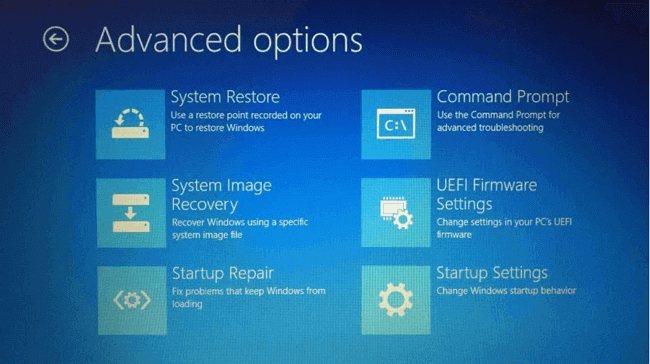
Step 5. To disable Secure Boot on the UEFI screen, navigate to the Boot tab from the top menu, select the Secure Boot option using the arrow keys, and change its value to Disable using + or –.
🔎Note: The Secure Boot option in the motherboard's BIOS/UEFI firmware can be found in different locations depending on the specific motherboard model, typically within the Boot, Security, or Authentication tab.
Share this article to let more people know about it!
Fix 2. Rebuild BCD
Windows boot sector issues on the wrong drive and unbootable computer errors can be caused by corrupted BCD files. The Boot Configuration Data (BCD) is a critical Windows component that contains boot configuration parameters, used to boot PCs properly. To resolve this, you can try repairing BCD using the Windows installation media.
Step 1. To boot from a Windows bootable media, insert the USB drive or CD/DVD disk into your computer. Then, enter your computer's BIOS settings by pressing a specific key (usually F2, F12, Del, or Esc) as it boots up.
Step 2. When your computer boots from the installation media, click on Repair your computer on the Install Now tab.
Step 3. Select Troubleshoot and then Advanced options; then select Command Prompt.
Step 4. Type the following command in the CMD dialogue and press Enter to repair BCD.
Bootrec /RebuildBcd
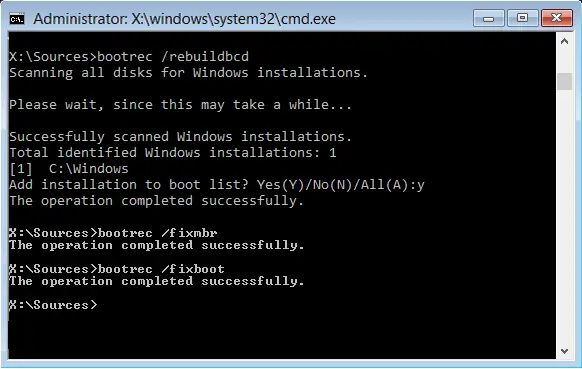
To fix the Windows 10 boot from the wrong drive issue, go to the BIOS settings and change the boot order to prioritize the correct drive. Save the changes and exit the BIOS settings.
Fix 3. Run Bootrec.exe to Rebuild MBR
Running bootrec.exe can fix the issue by repairing the BCD, which is often the cause of Windows 10 booting from the wrong drive. This method requires a Windows installation disc.
If you don't have an installation disk yet, click the link to learn how to create a bootable USB on Windows 10.
Then, follow the steps:
Step 1. To resolve the issue, boot your PC from the Windows installation disc, then navigate to Troubleshoot > Advanced Options > Command Prompt.
Step 2. The command "bootrec.exe" is used to initiate the built-in Bootrec tool within the Command Prompt, which is a utility that can be used to troubleshoot and repair boot issues on Windows systems. By running this command, you are essentially launching the Bootrec tool, which can then be used to perform various tasks such as rebuilding the Boot Configuration Data (BCD) store, identifying and fixing boot issues, and more.
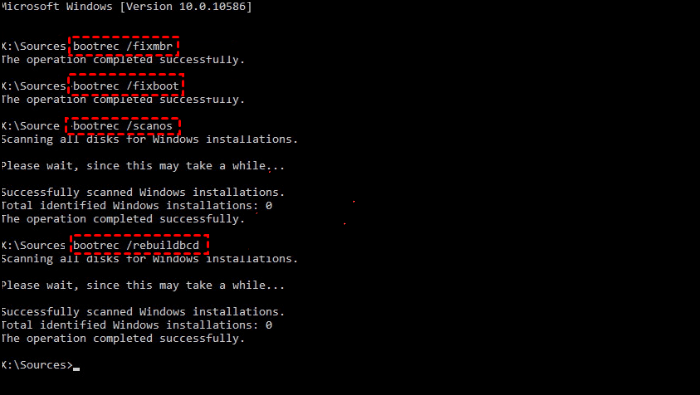
Step 3. Type the following commands one by one by pressing the Enter button after each.
- bootrec.exe /fixmbr
- bootrec.exe /fixboot
- bootrec.exe /scanos
- bootrec.exe /rebuildbcd
Fix 4. Change Boot Order in BIOS
After cloning your HDD to an SSD, you may need to access your computer's BIOS and set the first boot option to the cloned SSD to ensure Windows 10 boots from the correct drive. This is necessary because Windows may initially boot from the wrong drive. By setting the boot option correctly, you can resolve this issue and get your computer up and running smoothly.
Follow the steps:
Step 1. To access the BIOS settings, restart your computer and press the key (F2/F8/Del) repeatedly, as the specific key may vary depending on the computer model.
Step 2. Change the boot order to prioritize the cloned SSD as the primary boot option.
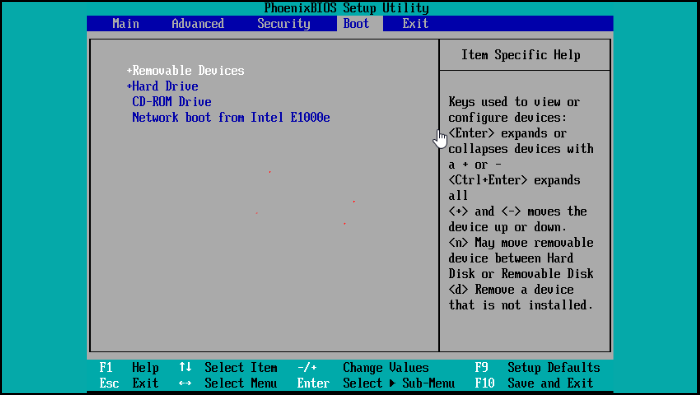
Step 3. Save changes by pressing F10 and exiting the BIOS. Restart the PC and verify if your PC boots from the correct drive.
If you're stuck at any point, our support team is here to help you overcome any obstacles.
Qiling experts offer one-on-one manual services 24/7 to help fix Windows boot errors, BSOD, and computer boot loops. They provide free evaluation services and use their expertise to diagnose and resolve system boot failures, Windows stop codes, and OS lagging issues. They can help with Windows boot errors, BSOD, and computer boot loops.
- 1. To fix the BSOD (Blue/Black Screen of Death) error caused by Windows updates or other reasons, you can try restarting your computer in Safe Mode to disable any recently installed drivers or updates. If that doesn't work, you can try running a System File Checker (SFC) scan to replace any corrupted system files.
- 2. To resolve Windows boot errors like "no bootable device found" or BCD file corruption, you can try booting from a Windows installation media, such as a USB drive or CD/DVD, and then select the "Repair Your Computer" option. This will allow you to access the Command Prompt, where you can run the "bootrec" and "bcdboot" commands to repair the BCD and boot configuration.
- 3. Serve to fix 0X000_error codes on Windows system or OS boot loop issues.
Conclusion
Resolving the Windows 10 booting from the wrong drive issue is crucial for maintaining a smoothly functioning system. To choose the right method, you need to understand the situation. Fortunately, we've explored the causes and solutions, providing beginner-friendly options with third-party software like Qiling Disk Master and manual troubleshooting steps for experienced users to help you solve this issue on your own.
The guide provides step-by-step instructions on how to resolve the issue of Windows 10 booting from the wrong drive. By following these steps, users can identify and correct the problem, ensuring their system boots from the intended drive.
You May Also Like:
Windows 10 Booting From Wrong Drive FAQs
Windows 10 may boot from the wrong disk due to various reasons such as incorrect BIOS settings, disk configuration, or corrupted system files. To resolve this issue, users can try resetting the BIOS settings to their default values, checking the disk configuration in the BIOS settings, or running a System File Checker (SFC) scan to identify and replace corrupted system files. If the issue persists, users can try reinstalling Windows 10 or seeking professional help from a Microsoft support specialist.
1. Why does Windows 10 keep booting from the wrong drive?
Windows 10 may boot from the wrong drive due to issues such as incorrect BIOS boot order, corrupted boot files, or the presence of multiple drives with an older installation of Windows, causing confusion, or misconfigurations in UEFI firmware.
2. How do I boot Windows 10 from a different drive?
To boot Windows 10 from a different drive, restart your computer, go into the BIOS settings, navigate to the "Boot" tab, change the boot order to prioritize the desired drive, save changes, and restart the PC.
3. How do I change my boot manager drive?
Follow the steps to change your boot manager drive:
Step 1. To access the BIOS settings, restart your computer and press the key (F2/F8/Del) to enter the BIOS setup screen.
Step 2. To set the primary boot option, navigate to the "Boot" or "Boot Order" section in the BIOS settings. Select the desired drive, such as the SSD or hard drive, and set it as the primary boot option.
Step 3. Save the changes by pressing F10 and exit the BIOS. Restart the PC.
Related Articles
- How to Create Password Reset Disk Windows 10
- How to Fix BOOTMGR Is Missing in Windows
- Is 8GB RAM Enough? Get the Answers Here!
- How to Perform Xbox Series S Internal SSD Upgrade💡
- How to Boot Lenovo Laptop from USB Windows 11/10 [Full Guide]
To boot a Lenovo laptop from a USB drive, you'll need to create a bootable USB and follow a step-by-step guide. First, prepare the USB drive by formatting it and downloading the Lenovo bootable ISO. Then, use a tool like Rufus to burn the ISO onto the USB drive. - How to Boot Samsung Laptop From USB on Windows 10/11
To boot a Samsung laptop from a USB drive, start by creating a bootable USB drive using a tool like Rufus or Etcher. Next, insert the USB drive into your laptop, and enter the BIOS settings by pressing the key that corresponds to your laptop model (usually F2, F12, or Del).
Products
Articles & Tutorials
- Data Recovery
- Data Backup
- File Recovery
- File Backup
- System Backup and Restore
- Disk and Partition Clone
- Technical articles
- Mobile articles
- Disk Master Help
- Windows Data Recovery Tutorials
- Windows Secure Delete Tutorials
- Windows Partition Management Tutorials
- Windows File Backup and Restore Tutorials
- Windows System Backup and Restore Tutorials
- Windows Disk Backup and Restore Tutorials
- Windows Clone Tutorials