How to Boot Samsung Laptop From USB on Windows 10/11
If your Samsung laptop isn't turning on or you want to boot it from a USB for safety reasons, don't worry - it's possible. You can try booting your Samsung laptop from a USB drive, which can be useful for troubleshooting or reinstalling the operating system.
It is very easy to set up your USB drive to boot a Samsung Laptop.
Booting a Samsung laptop from a USB drive is a straightforward process that can be achieved with a few simple steps. By following the instructions provided by Qiling Software, you can successfully boot your Samsung laptop from a USB drive and explore a lot more features and functionalities.
Stage 1. Preparations Before Booting A Samsung Laptop From USB
To prepare a USB drive for Windows installation, you need to create a bootable USB drive, which involves formatting the drive and copying the Windows installation files to it. This process typically starts by downloading a Windows installation media creator tool, such as Microsoft's Media Creation Tool, which will guide you through the process of creating a bootable USB drive.
🚩Prepare a USB:
You need a USB drive with at least 32 GB of storage space, formatted to NTFS or exFAT.
To clone the OS to your USB, you will need to use a cloning software, such as Qiling Partition Master, to create an exact copy of the OS on the USB drive. This process will overwrite any existing data on the USB, so make sure to backup any important files on the USB before proceeding.
🚩A Cloning Tool:
With Qiling Disk Master, you can easily clone an operating system (OS) onto a USB drive, as well as convert the file system of the USB drive, all without damaging the OS.
Read Also:

The Sony VAIO Boot Menu is a utility that allows users to select the boot device or operating system when multiple operating systems are installed on the computer. To get Sony VAIO to boot from a USB drive, you can create a bootable USB drive with a compatible operating system, such as Windows or Linux, and then set the VAIO to boot from the USB drive in the Boot Menu. This can be done by pressing the "F11" key during the boot process, or by accessing the Boot Menu through the VAIO's BIOS settings. Once in the Boot Menu, select the USB drive as the boot device and save your changes.
This guide introduces the Sony VAIO boot menu and Sony BIOS key, allowing you to easily boot your Sony VAIO laptop from USB drives.

Stage 2. Clone Samsung Laptop to USB
The Qiling Disk Master has a cloning feature that allows you to quickly clone all data, including the OS and boot files, from a Samsung laptop to a USB drive, with an easy-to-use interface compatible with Windows XP to Windows 11.
Download this tool and start to clone the OS disk:
Step 1. Select the source disk.
- To clone a disk, click the "Clone" option from the left menu, then select either "Clone OS Disk" or "Clone Data Disk" and proceed by clicking "Next".
- Choose the source disk and click "Next".
Step 2. Select the target disk.
- Select the desired storage drive, such as an internal hard disk drive (HDD) or solid-state drive (SSD), as the target location and proceed by clicking the "Next" button.
- Read Warning message and confirm "Yes" button.
Step 3. View the disk layout and edit the target disk partition size.
Then click "Continue" when the program warns it will wipe out all data on the target disk. (If you have valuable data on the target disk, back up it in advance.)
You can choose from three options to customize your disk layout: Autofit the disk, Clone as the source, or Edit disk layout. The latter is recommended if you want to leave more space for the C drive.
Step 4. Click "Start" to start the disk cloning process.
Copying files one by one can be time-consuming and may even damage boot files, making manual copies a risk. To avoid this, download Qiling Disk Master today and streamline the process, completing file copies in just a few seconds.
Stage 3. 3 Ways to Boot Samsung Laptop From USB
To boot Windows on a Samsung laptop from a USB, you first need to change the boot order. If you're not familiar with this process, don't worry - we'll guide you through it.
Guide 1. Use Windows Settings to Boot Samsung Laptop From USB
You can change the boot order of your Samsung Laptop to boot from USB using Windows. Here's how:
Step 1. Click on the "Start" button and open "Settings."
Step 2. Select "Update and security."
Step 3. Choose " Recover."
Step 4. To access the Advanced Startup menu, select it from the left-side menu and click on the "Restart now" option in the right-side window.
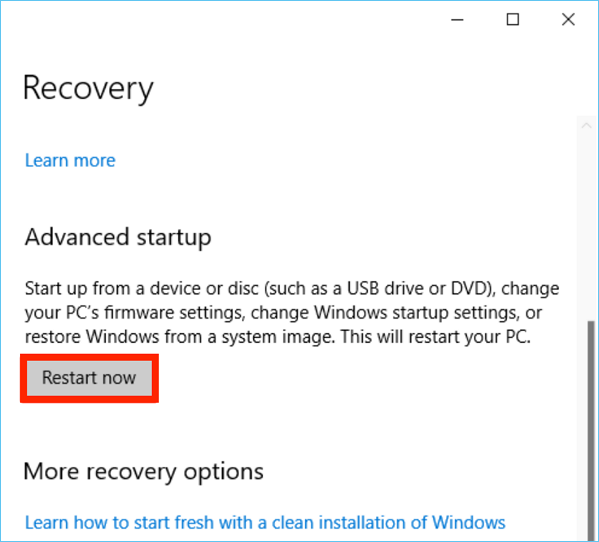
Step 5. Your Samsung laptop will restart now, and a window will appear with the option to choose what to do next.
Step 6. Connect your USB drive.
Step 7. Select the "Use a device" option in the "Choose an option" window.
Step 8. To change the boot order and boot your Samsung laptop from a USB drive, select the USB drive under the "Use a device" window. This will allow your laptop to prioritize booting from the USB drive over its internal storage.
Guide 2. Use the Boot Menu to Boot Samsung Laptop From USB
To boot your Samsung notebook from a USB drive using the boot menu, insert the USB drive into a USB port on your notebook. Press the power button to turn on your notebook, then immediately press and hold the F2 or F4 key (depending on your model) to access the boot menu. Use the arrow keys to navigate to the USB drive option, then press Enter to boot from the USB drive.
Step 1. Turn off the Samsung laptop, then plug the bootable USB pen into the computer.
Step 2. Turn your laptop back on and press F10 repeatedly to enter the boot menu.
- Tip
- If your laptop fails to load the boot menu, try powering off the computer and attempting to load the boot menu again. If this doesn't work, contact Samsung Support for further assistance.
Step 3. To boot your Samsung device from a USB, navigate to the Windows Boot Manager in the boot menu, select the bootable USB device from the list, and your Samsung device should boot into any OS or program in the USB.
Guide 3. Configure the BIOS to Boot Samsung Laptop From USB
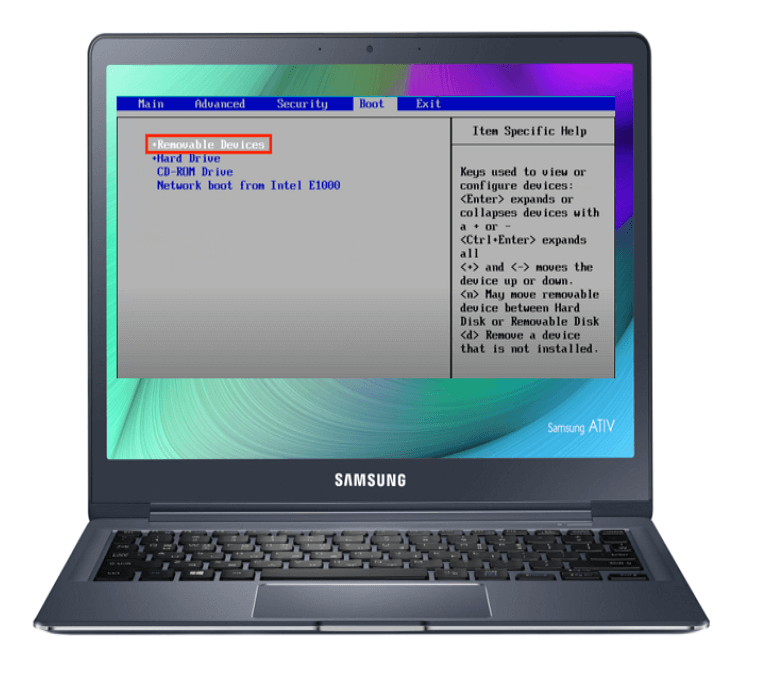
To change the boot order of your Samsung laptop, you can configure the BIOS. To do this, restart your laptop and press the F2 key repeatedly until the BIOS menu appears. From there, navigate to the "Boot" or "Boot Order" section and select the device you want to boot from first, such as a USB drive or CD/DVD drive.
Step 1. Plug the USB drive into your Samsung laptop.
Step 2. Restart your PC.
Step 3. Press the F8 key to open the BIOS menu, as this is the most common key used by most PC manufacturers.
Step 4. Open the "Advanced" tab.
Step 5. Locate "Fast BIOS mode" and disable it.
Step 6. Now, open the "Boot" tab.
Step 7. In the "Boot Device Priority" option, select "USB" as the primary boot device.
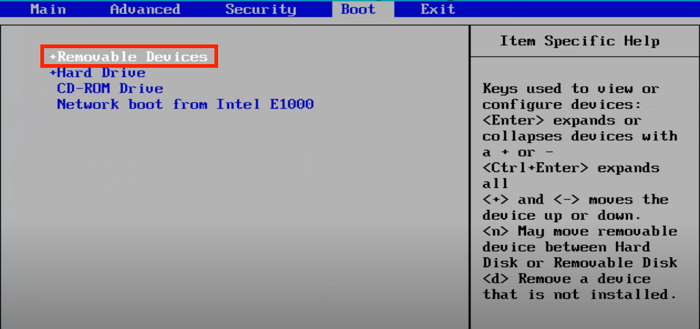
Step 8. Exit BIOS after saving changes.
Share these ways to help those who want to boot their Samsung laptops from USB drives.
🔎More Details Booting a Samsung Laptop From USB
Want to learn more about booting your Samsung laptop from a USB? This section will guide you through the process, providing you with the necessary information to get started.
What Does Booting a Samsung Laptop From USB Mean
Booting from USB means running Windows from a USB drive instead of the usual installation on an HDD or SSD. Typically, Windows boots from the drive it's installed on, but you can also install it on a USB drive and set it as the boot drive, allowing you to start your Samsung laptop using the USB. This involves changing the boot order to prioritize the USB drive over the other storage devices.
Which Models of Samsung Laptops can Boot From a USB?
Samsung laptops can boot from a USB drive without any restrictions or minimum requirements. To do this, you'll need to change the boot order in your laptop's settings and keep the USB drive plugged in while booting from it. If you remove the USB drive during the boot process, your computer may crash.
Why Do We Need to Boot Samsung Laptop From USB?
If your Samsung laptop isn't working properly, you can boot it from a USB drive to troubleshoot issues. This can be done in various scenarios, such as when the laptop is stuck in a boot loop, won't turn on, or is experiencing software glitches. By booting from a USB drive, you can access a live operating system, run diagnostics, and potentially fix problems without having to reinstall the entire operating system.
- Install Windows.
- Install drivers.
- Install antivirus software.
- Reset your Windows password.
- Scan viruses.
Pros and cons of booting a Samsung Laptop From USB
Here are some pros and cons of booting a Samsung laptop from a USB:
Pros:
- Since most people already have a USB, there's no need to buy a new DVD or CD.
- Portable and lightweight.
- Faster read and write speeds
- It's easy to burn Windows with an ISO file.
Cons:
- Bootable CDs have a wider range of support compared to USB boot utilities, which are available for some operating systems.
- Need to change the boot order.
Conclusion
If you have a Samsung laptop and need to troubleshoot an issue or boot Windows from a USB for security, you can use the solutions provided to resolve the problem or create a bootable USB drive.
Burning an ISO using traditional methods can be time-consuming and error-prone. That's why we recommend using Qiling Disk Master, which cannot only burn ISOs but also change the file system, making the process much more efficient and reliable.
Qiling Disk Master can quickly convert file systems and also enables fast ISO burning to a USB drive, outperforming traditional methods in terms of speed.
FAQs About Booting Samsung Laptops From USB
Booting a Samsung laptop from USB is a straightforward process that can be completed with a few simple steps. To begin, you'll need to create a bootable USB drive using a tool like Rufus or a similar software. Once the USB drive is prepared, you can insert it into your Samsung laptop and restart the device.
1. What is the boot function key for a Samsung laptop?
The boot function keys on Samsung laptops are typically F2, F8, or F10, but may vary to F6 or F7 for some models. When you turn on the laptop, look for the key to access the boot settings, which can be used to configure boot options.
2. How do I boot from USB on a Samsung Chromebook?
Here's how to boot a Samsung Chromebook from a USB:
- To change the booting mode to boot from a USB in the Command Prompt on a Samsung Chromebook in Developer Mode, you can enter the following command: `crossystem dev_boot_usb=1` followed by pressing Enter. This command enables USB booting, allowing you to boot from a USB drive.
- After booting from the USB, press CTRL+D to boot from the USB drive in the Developer Mode startup window.
3. How do I enter the BIOS on a Samsung laptop?
To enter the BIOS menu on a Samsung laptop, press the assigned key (which may be ESC, F2, F6, F7, F8, or F10) during startup. The key varies by laptop model, so check your specific laptop to determine the correct key.
Related Articles
- How to Merge or Combine Partitions in Windows 11
- How to Boot Lenovo Laptop from USB Windows 11/10 [Full Guide]
- Should I Partition an SSD into Multiple Drives?
Is it good to partition an SSD? Given the fact that the capacity of SSDs are getting larger, more and more people are asking a same question if it's necessary to partition an SSD. You may find the answer in the article. - Migrating OS to SSD with 4k Alignment for Higher Performance
Learn how to check SSD 4K alignment and how to migrate Windows 7/10/8 OS to SSD with 4K alignment to get better performance for computer with Qiling Disk Master. - [100% Fixed] Can I Extend C Drive from Another Disk in Windows 10/11?
You can extend your C drive in Windows 10/11 by using a professional disk manager, such as Qiling Partition Master, to merge free space from another disk into your C drive, even if there is no unallocated space available. - Can't Extend C Drive in Windows 11? Here Is Why and How-to Fix
Facing an error while trying to extend your full-storage C drive can be frustrating. Fortunately, this article provides reliable and guaranteed methods to increase storage, helping you overcome this issue.
Products
Articles & Tutorials
- Data Recovery
- Data Backup
- File Recovery
- File Backup
- System Backup and Restore
- Disk and Partition Clone
- Technical articles
- Mobile articles
- Disk Master Help
- Windows Data Recovery Tutorials
- Windows Secure Delete Tutorials
- Windows Partition Management Tutorials
- Windows File Backup and Restore Tutorials
- Windows System Backup and Restore Tutorials
- Windows Disk Backup and Restore Tutorials
- Windows Clone Tutorials