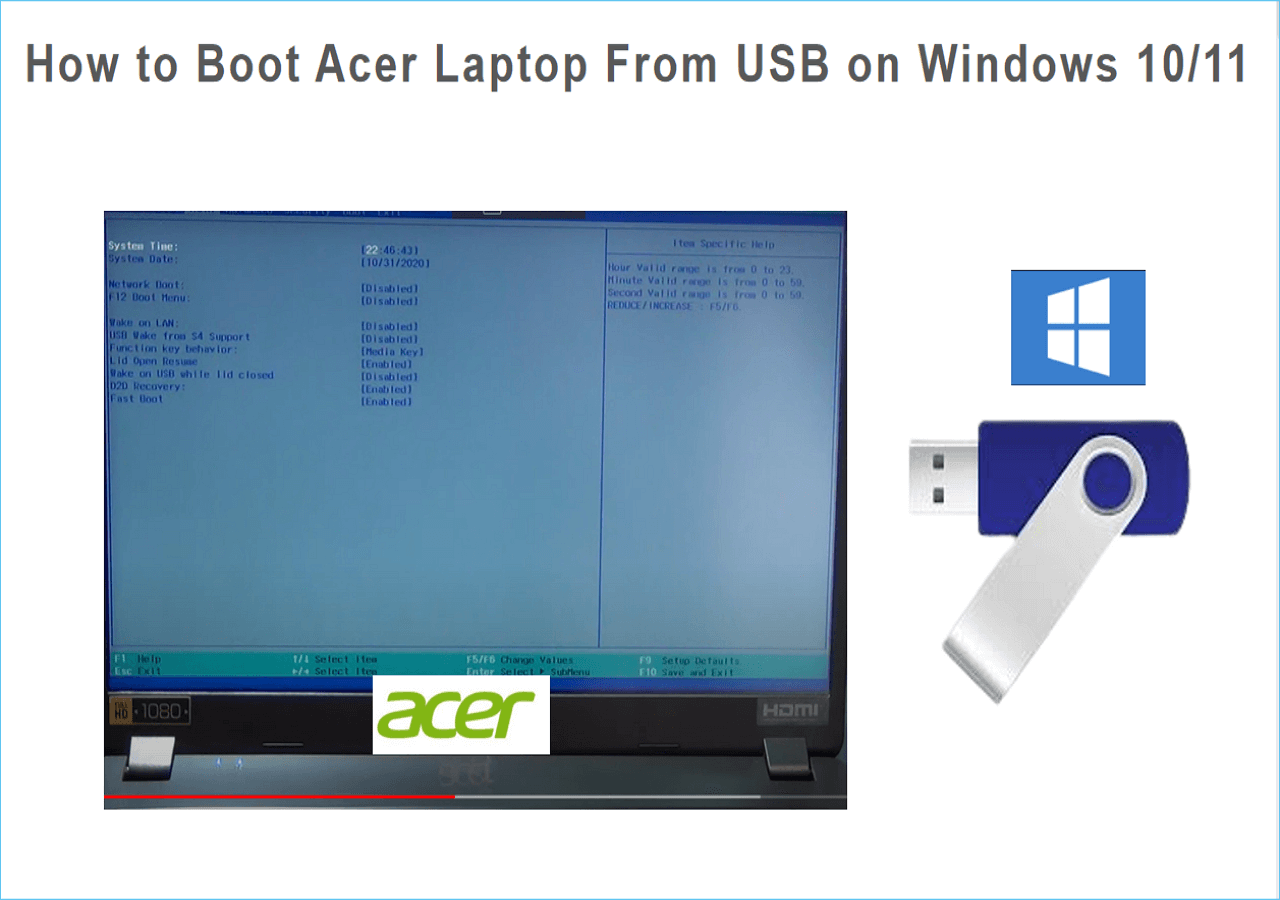
How to Boot Acer Laptop From USB on Windows 10/11
"My old operating system became corrupt, which has put me in a pickle. This is a minor technical issue, but to be very honest, I have no idea how to boot my Acer laptop from a USB drive to install a new OS. I've never done it before, so I'm hoping for a solution that doesn't have my following a maze of complex processes. If anyone knows a quick and easy way to do this, please let me know!"
If you're experiencing issues with booting your Acer laptop from a USB drive, this article provides a step-by-step guide to resolve the problem. By following the necessary steps, you can successfully boot your Acer laptop after changing the boot order in the BIOS.
| 💡Aspects | 🧩Details |
|---|---|
| 🔎Complex Level | Low, step-by-step guide |
| 🚩Stages | |
| 💻Applies to | Boot Acer Laptop From USB on Windows 10/11/8/7 |
To boot an Acer laptop from a USB drive, follow this three-stage process. First, ensure your laptop is set to boot from USB by accessing the BIOS settings, usually by pressing F2, F12, or Del keys. Next, insert the USB drive containing the operating system you want to boot from and save the changes in the BIOS settings. Finally, restart your laptop and it should now boot from the USB drive. This process is straightforward and can be completed by any Acer laptop user.
Stage 1. Boot Acer Laptop From USB - Preparation
Here are the preparation steps to boot an Acer laptop:
To prepare a USB drive as a bootable device, insert the USB drive into your computer. Then, open a command prompt and type the command `diskpart` to enter the Diskpart command-line utility. Next, type `list disk` to list all the disks connected to your computer, including the USB drive.
- Ensure the new drive has a larger or equal capacity to the original OS drive on the Acer Laptop.
- Check if the USB drive has a compatible file system format, such as FAT32 or NTFS.
- You can check the specific installation requirements determined by Microsoft, in addition to the general installation requirements.
Read the following topics to help you finish this step smoothly:
To make the USB drive a bootable device, you need to use a tool like Rufus or Etcher to create a bootable USB drive. This will allow you to boot your computer from the USB drive.
A cloning tool - Qiling Disk Master can be helpful for those who are unsure about how to make a bootable device. It offers a simple "Cloning" feature that allows users to create a bootable USB drive with just one click, making it easier for inexperienced Windows users to transfer the Windows OS and create a bootable device.
Now that the preparation is complete, you can proceed to the next step, which involves booting your Acer laptop from the USB device and installing the preferred operating system. This is the final stage of the process, where you will be able to install the operating system of your choice on your laptop.
Stage 2. Boot Acer Laptop From USB - Cloning OS Disk
Qiling Disk Master Professional is a versatile solution that provides multiple functions, allowing users to easily clone an OS to a USB drive, eliminate the need for complicated processes, and create USB bootables with a convenient functionality and friendly interface.
- Important
-
If your system partition and boot partition are separate, ensure that you have created two distinct partitions on the USB drive.
Connect the USB to the Acer Laptop properly before cloning.
Step 1. Launch Qiling Disk Master, go to the Tools tab, select "System Clone" and click "Next".
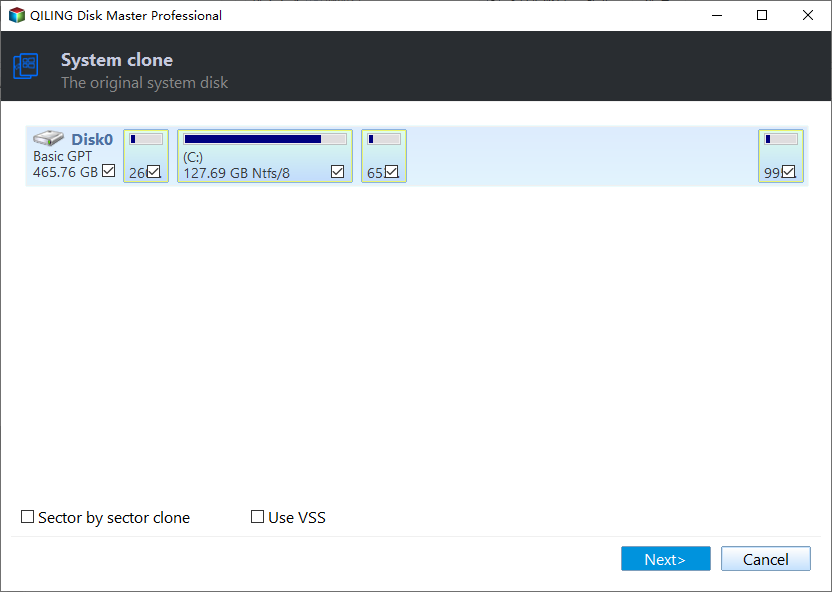
Step 2. Select the target new drive where you want to clone the OS to, and click "Next".

Step 3. The process of cloning an operating system involves creating a duplicate of the existing OS on a new disk, which can be useful for upgrading or replacing a failing hard drive. To initiate the cloning process, view the disk layout to ensure the target disk is correctly selected and aligned with the source disk.

Confirm that you want to continue with the OS disk cloning process. Click "Yes" to proceed.

Step 4. When the cloning process is finished, you'll see a confirmation message asking if you want to start up your computer from the cloned target disk.
- Reboot Now To reboot your PC and configure it to boot from the new disk, you simply restart your computer and enter the BIOS settings during the boot process. In the BIOS settings, you'll need to select the new disk as the primary boot device.
- Done means you want to make the changes later.
Qiling Disk Master is the ideal tool for cloning Acer OS to a USB drive, offering a user-friendly and efficient solution. Its ability to clone the entire Acer system, including the OS, settings, and applications, to a USB drive makes it a convenient option for users who want to create a portable version of their system. The tool's simplicity and effectiveness make it a popular choice for those looking to clone their Acer OS to a USB drive.
- Compatibility: Qiling Partition Master is a powerful tool that offers excellent compatibility with various file systems and disk types, making it stand out from other tools. It can work with any internal or external storage devices, including USB drives, SSDs, hard disks, SD cards, and more.
- Multiple cloning modes: Qiling Disk Master has a unique "clone" feature that allows users to clone the used sectors and the whole disk, enabling the creation of bootable media to install operating systems on any computer.
- Stability: Qiling Disk Master is a reliable software for cloning disks, providing stable and seamless performance and infallible cloning processes.
- Easy Interface: The software offers a user-friendly interface that simplifies the process, making it accessible to users with varying levels of expertise.
- Additional features: After successfully booting the Acer Laptop from a USB, the disk management features enable you to manage or create partitions on the USB and fulfill other disk-related needs efficiently.
You can click the blue button below to download a professional tool from the official website, which allows you to manage your disk or external storage devices.
Stage 3. Boot Acer Laptop From USB - Change Boot Order
To avoid a boot error, you need to set the USB drive as the primary boot device by changing the boot order in your Acer laptop's BIOS configuration. Restart your laptop and press the F2 key to enter the BIOS settings. Look for the Boot Order option and change it to prioritize the USB drive as the first boot device, then save the changes and exit. This should resolve the boot error and allow you to access your system.
Step 1: Connect the USB drive and restart the laptop.
Step 2: Repeatedly press the correct key to enter the BIOS settings.
- Notice:
- The BIOS key on an Acer laptop can vary, but common keys used include F2, F8, or F10, and searching for your specific model's design may provide the correct key.
Step 3: When entering the BIOS settings, use the arrow keys to navigate to the "Boot" or "Boot Order" section, where you can configure the order in which the computer boots from different devices.
Step 4: To locate your USB drive, find it in the list and use the + or - keys to move it to the first place. It may be displayed as a Removable Device or USB.
Step 5: Press the F10 key to save changes or select the Save and Exit option.
Your Acer laptop will automatically restart with the new boot order after following these steps. Once it restarts, you can test the boot order by pressing the key that was previously set as the boot key (F2, F12, or Del) to see if the UEFI/BIOS menu appears. If it does, it means the boot order has been changed successfully.
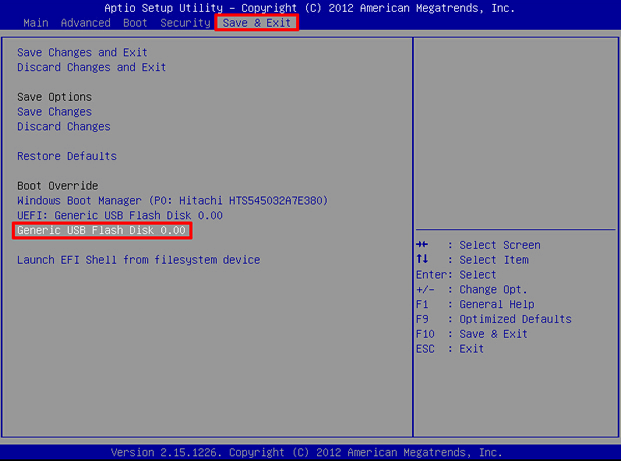
If you're unable to find the USB drive under the boot options and receive a "no bootable device found" error, try the following steps:
- Step 1: Navigate the "Advanced" or "Integrated Peripherals" section.
- Step 2: Settings related to USB can be found under "Device Settings" or "Hardware Settings" and may include options such as "USB Configuration," "USB Ports," or "USB Device Manager."
- Step 3: If you see "disabled" next to the USB option, change it to "enabled" and save the changes, then exit the BIOS settings.
- Step 4: To resolve the issue, simply restart your laptop and enter the BIOS settings. From there, you can change the boot order to prioritize the USB drive or CD/DVD drive, allowing you to install the operating system or run a bootable media.
Conclusion
We hope this guide helps you easily boot your Acer laptop from a USB drive. If you're not familiar with the process, don't worry - all the stages are explained in detail, making it easier to follow. Even if you're new to computing, you can still boot your laptop with the help of tools like Qiling Disk Master. The guide covers essential steps to make the boot procedure smoother.
FAQs About Booting Acer Laptop From USB
Booting an Acer laptop from a USB can be a straightforward process with the right guidance. If you have any additional questions or need further assistance, you can find answers in the FAQs section.
1. Why is my Acer laptop not booting from USB?
Multiple causes may include a faulty USB drive, incorrect file format, or wrong boot order settings, which can prevent an Acer laptop from booting from a USB drive. Troubleshooting these causes can resolve the issue.
2. What is the Acer BIOS Key?
The most common BIOS keys for Acer laptops are Delete, F2, F10, or F8, but the specific key may vary depending on the laptop model and BIOS version. You can check the handbook or search online using your laptop's model to find the correct key.
3. How do I enable USB in Acer BIOS?
To boot from a USB device, restart your laptop, enter the BIOS settings, navigate to the 'Boot' or 'Boot Order' section, select the USB device, and move it to the first place using the + and - keys.
Related Articles
- Beginner's Guide - Install A New Hard Drive/SSD in Windows 10/8/7
- How to Convert Primary to Logical or Logical to Primary in Windows 11 [2024 Guide]
- How to Free Up Hard Drive Space in Windows 10/11 [Step-by-Step Guide]
- Windows 11 System Migration Software: Free/Paid Software to Move OS to SSD
- Panasonic SD Formatter Windows 10 [2024 Full Guide]
Whether are you looking for great tools to help you format your SD memory card? This post provides a specific introduction to Panasonic SD Formatter as well as some other available and useful formatting tools with full operation guidance offered to you. - Paragon Migrate OS to SSD Review [Pros & Cons]
this guide provides a detailed review of Paragon Migrate OS to SSD, covering its pros and cons. It also highlights the best alternative, Qiling Disk Master, for migrating Windows OS to SSD.
Products
Articles & Tutorials
- Data Recovery
- Data Backup
- File Recovery
- File Backup
- System Backup and Restore
- Disk and Partition Clone
- Technical articles
- Mobile articles
- Disk Master Help
- Windows Data Recovery Tutorials
- Windows Secure Delete Tutorials
- Windows Partition Management Tutorials
- Windows File Backup and Restore Tutorials
- Windows System Backup and Restore Tutorials
- Windows Disk Backup and Restore Tutorials
- Windows Clone Tutorials