Panasonic SD Formatter Windows 10 [2024 Full Guide]
If you're looking forward to using SD Formatter on Windows 10, Panasonic SD Formatter is a name you might want to consider.
Most operating systems struggle to format SD, SDHC, and SDXC cards perfectly, leading to lower performance, due to the "Protected Area" security feature on these cards.
The Panasonic SD Formatter Windows 10 guide provides complete information to make SD/SDHC/SDXC formatting easier, offering a streamlined process for users.
- About Panasonic SD Formatter
- Can I Use Panasonic SD Formatter to Format SD Card on Windows 10?
- How Do I Format A SD Card on Windows 10?
About Panasonic SD Formatter
Panasonic's SD Formatter for Windows 10 is a tool that formats SD memory cards, offering easy access to their capabilities, and supports various operating systems including Windows and macOS.
The SD Formatter is recommended over general formatting utilities for optimal performance on memory cards, as the latter often fail to provide efficient formatting.
Can I Use Panasonic SD Formatter to Format SD Card on Windows 10?
Panasonic SD Formatter is a useful tool for formatting SD cards on Windows 10, as the built-in tools may not be sufficient due to the protective area on the cards, which can be formatted perfectly with this tool.
You May Also Like: Best Memory Card Format Software Free Download.
How Do I Format A SD Card on Windows 10?
Formatting an SD card on Windows 10 is a straightforward process that can be done using a Panasonic SD Formatter, but if you're not interested in using that or are having trouble, there are alternative methods available that can make the process easier.
- Method 1. Format SD Card via Qiling Disk Master
- Method 2. Format SD Card via Memory Card Formatter 5.0.2
- Method 3. Format SD Card via Windows 10 File Explorer
- Method 4. Format SD Card via Disk Management
Method 1. Format SD Card via Qiling Disk Master
Qiling Disk Master is a free partition manager that provides quality and instant formatting, resolving file system incompatibility or corruption issues on SD cards and other storage drives, serving as a comprehensive hard-drive management and troubleshooting solution for Windows-compatible devices.
Benefits:
- Simple and user-friendly design
- Can format SD cards over 32GB to FAT32 efficiently
- The software can resolve various Windows-related issues, including those that prevent SD card formatting from succeeding. With its capabilities, users can troubleshoot and fix problems that might be hindering their ability to format their SD cards, ensuring that their devices can continue to function properly.
- Provides most disk management functions efficiently5
To learn how to format SD cards, simply download Qiling Disk Master and follow the step-by-step guidelines provided. This will guide you through the process of formatting SD cards with ease.
Step 1. Find your SD card, right-click the partition you want to format and choose "Format".
Step 2. Set the partition label, file system, and cluster size for the chosen partition.
Step 3. Click the "Proceed" button to start formatting your SD card.
Step 4. Click "Yes" on the pop-up window to continue.
If you want to know more about ways to format a hard drive, please check the articles below:
Method 2. Format SD Card via SD Memory Card Formatter 5.0.2
The SD Memory Card Formatter, developed by SD Association, is a reliable option for SD cards, SDHC cards, and SDXC cards. It offers high-quality services from reputable brands and effectively resolves various SD card issues by formatting, also improving the performance of your SD cards.
The tool serves as a dedicated formatting tool that suits the needs of users looking to format SD cards and USB flash drives, and it works well on most Windows and Mac operating systems.
Formatting different cards using this tool is straightforward. The only things you have to do here are to select the desired card type, customize its design, and add the necessary information.
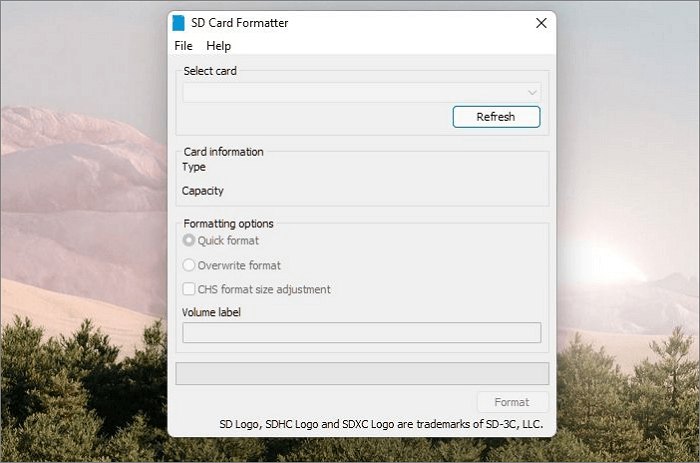
Step 1. Run the SD Memory Card Formatter 5.0.2 on your device.
Step 2. Select the drive letter for the preferable SD memory card, then choose the format option from the available choices.
Step 3. Tap on the confirm format process to initiate the format process. Once completed, the SD card will be perfectly formatted.
The issue of formatting is a complex one, with different styles and conventions used in various fields and contexts. In academic writing, the Chicago Manual of Style and the MLA Handbook are two of the most widely used guides, while in business and technical writing, the AP Stylebook and the Microsoft Manual of Style are commonly followed.
Method 3. Format SD Card via Windows 10 File Explorer
Ensure the SD card is connected to your computer. Once connected, you can proceed with the process.
Step 1. To launch the File Explorer on your device, press the Windows key and the "E" key simultaneously on your keyboard. This will open the File Explorer.
Step 2. To view your SD card on your computer, tap on the "This PC" option, and once done, you will see your SD card being enlisted there.
Step 3. Make a right-click on it to move further with the process. The next thing you have to do is to select the "Format" option.
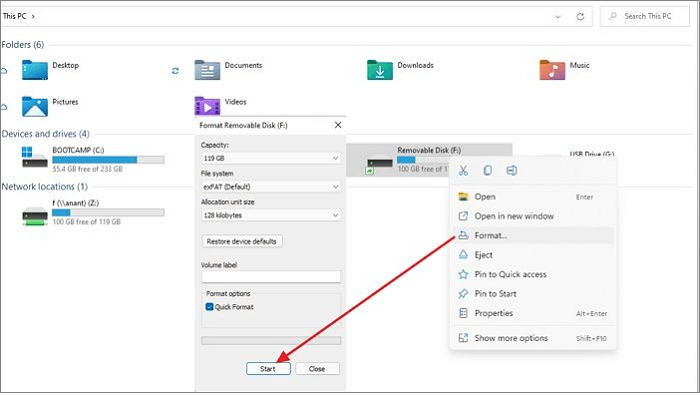
Step 4. Once you've done that, a new window will appear on your home screen, where you can select your preferred file system.
Step 5. To format your SD card, first, insert the card into your computer using an SD card reader. Then, open the File Explorer, right-click on the SD card and select "Format". Next, choose the file system you want to use, such as FAT32 or exFAT, and select the allocation unit size. Finally, click "Start" to begin the formatting process.
Method 4. Format SD Card via Disk Management
To format an SD card using Disk Management, follow these steps:
Step 1. Press the Windows key and the R key at the same time to open the Run command on your Windows device.
Step 2. To open the Disk Management Tool, type `diskmgmt.msc` in the Run window and press OK.
Step 3. Once you have successfully launched the Disk Management Tool, locate your SD card partition and right-click on it. From the context menu that appears, select the option to change the drive letter of the partition.
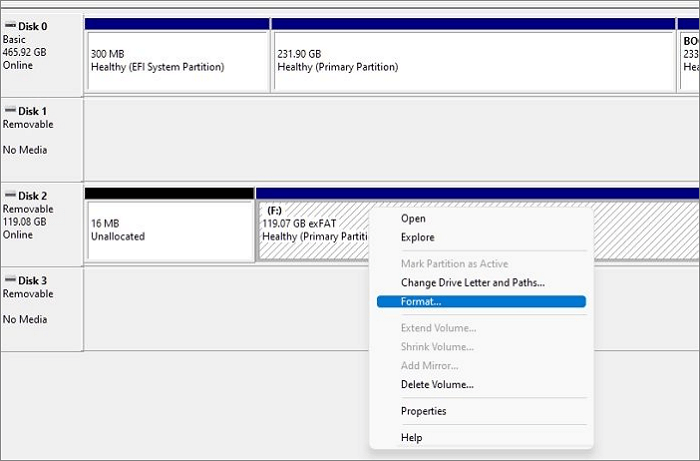
Step 4. To quickly format a drive, select the drive in File Explorer, right-click on it, and choose "Format" from the context menu. Check the box that says "Quick format" to perform a quick format, which will erase all data on the drive without checking for errors.
Step 5. To format a device, select the desired file system and allocate the unit size, then tap OK to initiate the process.
Conclusion
The SD Formatter for Windows 10 has been updated with leading formatting tools, including Panasonic SD Formatter and Qiling Disk Master, which are highly reliable and provide users with absolute results without any issues.
Panasonic SD Formatter FAQS
We've covered various methods and tools for formatting SD cards effectively. If you still have any questions, please refer to the FAQs below for further clarification.
1. How Do I Format My Panasonic SD Card?
- Run SD card Formatter on your device.
- Then select the drive letter for the SD card.
- Select the format option.
- Tap on the confirm format process.
- Bingo! You have successfully done formatting Panasonic SD Card.
2. How do I format a 32GB SD card to Fat32?
Qiling Disk Master is a reliable option for formatting a 32GB SD card to FAT32, offering a feature-loaded SD Formatter with complete hard disk troubleshooting solutions and drive management. This free tool simplifies the formatting process for users.
3. How Often Should SD Cards be Formatted?
Formatting an SD card can be a last resort solution for various issues, but it can also lead to a reduction in its lifespan and performance, making it a decision to be taken only when absolutely necessary.
Related Articles
- Full Guide on HDD Benchmark on Windows [2024 Newest]
- Steam Deck Speed Test, Everything You Should Know
- Windows Password Unlocker - Download for Windows🔥
- How to Partition, Format or Wipe Hard Drive Without OS
- [2022 New Fix] Use SD Card as Internal Storage in Windows 11/10 | See Full Guide
Is it possible to use SD card as internal storage in Windows 11/10? In this article, we will show you two useful methods of using SD card as internal storage in a laptop. you can find effective fixes to mount SD card as permanent storage or local drive. - How to Move Desktop Folder to Another Drive on Windows and Mac in Simple Ways
Want to move your desktop folder to another drive on your Windows or Mac PC? Discover the easy ways to do so in this article, and make the process hassle-free and quick!
Products
Articles & Tutorials
- Data Recovery
- Data Backup
- File Recovery
- File Backup
- System Backup and Restore
- Disk and Partition Clone
- Technical articles
- Mobile articles
- Disk Master Help
- Windows Data Recovery Tutorials
- Windows Secure Delete Tutorials
- Windows Partition Management Tutorials
- Windows File Backup and Restore Tutorials
- Windows System Backup and Restore Tutorials
- Windows Disk Backup and Restore Tutorials
- Windows Clone Tutorials