Steam Deck Speed Test, Everything You Should Know
Key Takeaways of Steam Deck Speed Test:
- If you're a gamer who owns a Steam Deck, this tutorial is a must-read for you. It's essential to test your Steam Deck's speed to ensure it's running at its best, and this guide will walk you through the process.
- Running a speed test on your Steam Deck can help you identify whether your device is experiencing performance issues and take corrective action to resolve them.
- By optimizing your gaming settings, you can improve your gaming experience. This practice ultimately allows you to enjoy a seamless gaming experience.
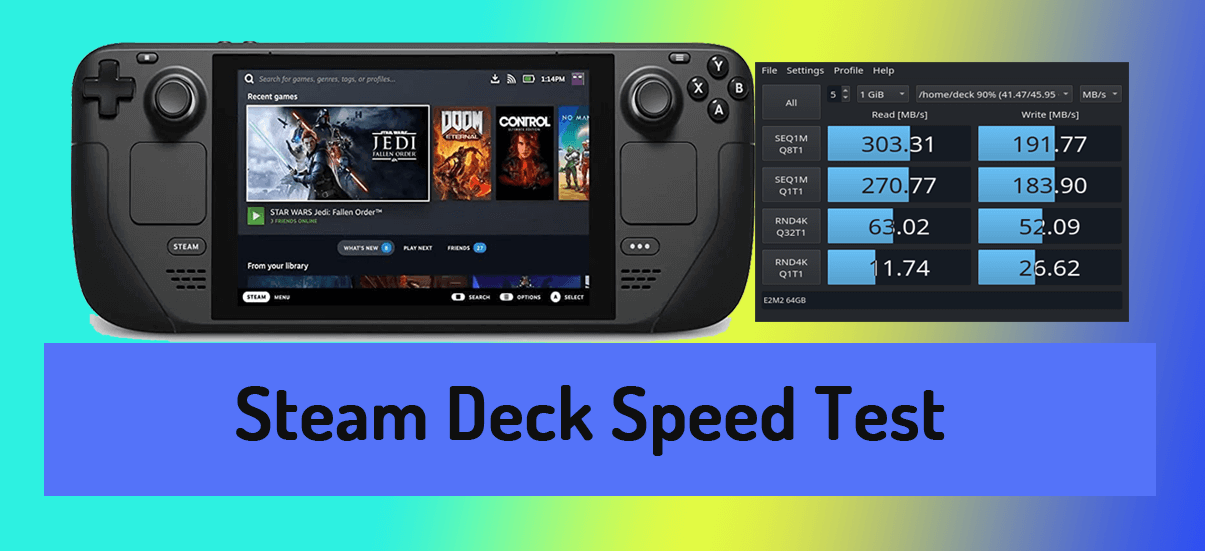
Follow our expert guide to run a Steam Deck speed test on your own and identify any speed issues affecting your gaming experience. With our step-by-step instructions, you can take advantage of the full potential of your Steam Deck and start testing its speed today.
| 🎯Goal: | Run Steam Deck Speed Test |
| ⏲Duration: | 5-10 minutes |
| 🧰Tools: | Steam Deck SSD disk, network, speed test software |
| 🩺What to Test: |
To run the Steam Deck Speed test efficiently, stay here and follow the tips and best methods outlined in the following sections. This will help you learn how to navigate the test and get the most accurate results.
Guide 1. Run Steam Deck Speed Test
- ⏱Duration: 3-5 minutes
- 🚩Complexity: Easy
- 🧰Tools: PC, Steam Deck SSD, Qiling Disk Master
If you're a curious Steam Deck user, you can quickly test the speed of your SSD with the user-friendly Qiling Disk Master software and its DiskMark feature, all in just a few simple steps.
You can connect your Steam Deck SSD to your PC through an M.2 slot and test its speed using the provided guide. This will help you determine if your Steam Deck SSD is running at a fast or slow speed. So, why wait? Let's start the Steam Deck SSD speed test today!
Follow the instructional steps:
Step 1. Launch Qiling Disk Master, click the download button to activate the "Surface test" feature under the "Disk management" section.

Step 2. To start the test, click on the drop-down box to select the target drive, test data, and block size. This will initiate the testing process.

Step 3. Once everything is configured, click "Start" to begin the disk test, and you will see the Sequential read speed, I/O, and Delay data.

Installing Windows on Steam Deck in 2024 is a straightforward process. First, ensure your Steam Deck is running the latest firmware. Next, download the Windows on Steam Deck installation package from the Steam Deck's settings menu.
You can learn how to install Windows OS on Steam Deck in detail, along with a step-by-step tutorial and troubleshooting alternatives, in the post.
Guide 2. Run Steam Deck Ethernet or WiFi Speed Test
- ⏱Duration: 3-5 minutes
- 🚩Complexity: Medium
- 🧰Tools: PC, Chrome browser, WiFi or Ethernet
To test your Steam Deck's internet speed, simply run the Steam Deck ethernet or WiFi speed test. For more accurate results, it's recommended to test your speed a few times a day. Before starting, ensure your Steam Deck is connected to the internet via either an Ethernet cable or WiFi.
Here are the how-to steps:
Step 1. To start using your Steam Deck, connect it to the internet via Ethernet cable or WiFi, then navigate to the desktop.
Step 3. To use your Steam Deck, open your preferred web browser, such as Google Chrome, on the device.
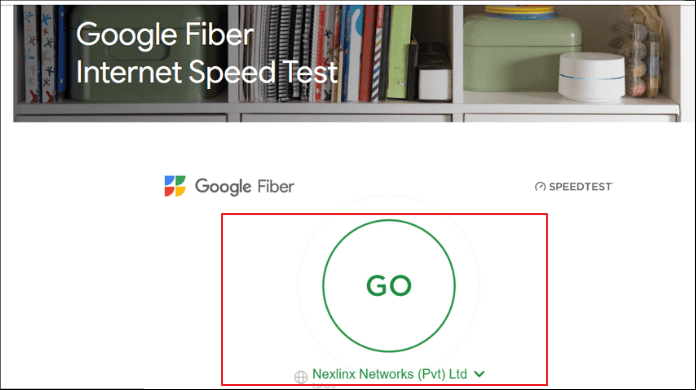
Step 4. To check your internet speed, go to a reliable speed test website like Google Fiber Internet Speed Test or search for "internet speed test" on Google.
Step 5. Click the "Go" or "Start Test" button on the speed test website.
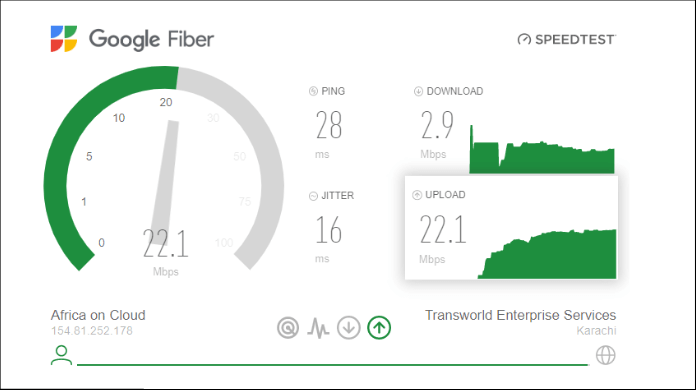
Step 6. Wait a few moments for the speed test to complete. You'll see the results of your download, upload, and ping speed.
To test your Steam Deck's Ethernet or WiFi speed, first, go to the Settings app, then select "Network" and choose the type of network you want to test (Ethernet or WiFi). Next, click on "Test" to run the speed test. You can also use an external app like Speedtest.
Guide 3. Run Steam Deck Game Downloading Speed
- ⏱Duration: 5-15 minutes or longer
- 🚩Complexity: Medium
- 🧰Tools: Steam Deck and settings, WiFi
To download content on your Steam Deck, follow these steps:
Step 1. Plug in the Steam Deck to a power source and turn it on. Connect to the internet by either plugging in an Ethernet cable or using the WiFi option.
Step 2. Make sure that you have initiated a download.
Step 3. Once a file is downloading on Steam, open the Steam menu by pressing the Steam button or tapping the Steam menu icon on the bottom right corner of the screen.
Step 4. From the available options, select Downloads.
Step 5. You'll be directed to the Downloads section, where you'll see your current downloads and their progress. The download speed will also be shown at the top right corner of the screen.
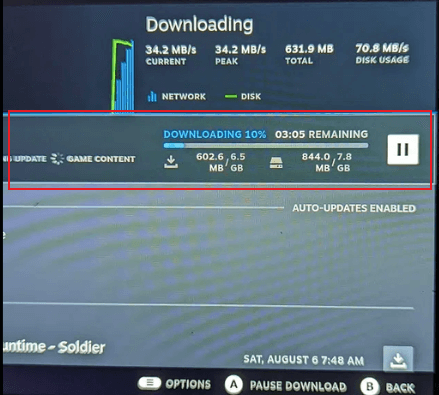
- Tip
- ①Valve hasn't provided data on the Steam Deck's average download speed, but it's affected by factors like internet speed, network congestion, and game size.
- ②. The Steam Deck's Wi-The device features 6 and Bluetooth 5.0, allowing for fast and reliable internet connectivity. It also comes with custom SSD storage, which is faster than traditional hard drives, making downloads quicker.
- ③The download speed of the device should be comparable to other modern gaming devices, considering the various factors at play.
What Slows Down the Steam Deck Speed?
The speed and performance of the Steam Deck can be influenced by several factors, including its hardware, software, and usage patterns.
- 💽Low storage capacity: The Steam Deck's SSD can lead to slow performance if it's almost full, affecting overall gaming experience.
- 🚀Slow Wi-Fi or network speed: The Steam Deck's performance can be affected by slow internet speeds, leading to slower game loading and potential lag.
- ⚙Background processes: To free up resources on your Steam Deck, close any unnecessary apps or programs that are running in the background. This will help ensure optimal performance.
- 🌡Heat: The Steam Deck generates heat, which can cause slow performance, so it's best to keep it in a well-ventilated area and avoid placing it on soft surfaces like beds or couches.
- 🩺Outdated drivers: Outdated drivers can also cause issues with performance and stability.
To run a Steam Deck speed test efficiently, close unnecessary programs, ensure good ventilation, and use a reliable internet connection. Running a benchmark test can also help identify performance issues that need to be addressed.
Bonus Tips to Improve Steam Deck Speed
Here are some practical tips to improve the speed of your Steam Deck:
- Upgrading your Steam Deck's SSD can significantly enhance its speed, as solid-state drives (SSDs) offer faster read and write speeds compared to traditional hard disk drives (HDDs), leading to quicker game loading times.
- Apart from upgrading your SSD, you can also improve SSD speed by performing regular maintenance tasks such as defragmenting or trimming the drive.
- Upgrading your WiFi or Ethernet bandwidth is a simple way to get the most out of your Steam Deck's internet connectivity.
- Save or transfer old games to an external drive to free up internal storage and improve your device's overall performance.
- Close unnecessary programs and applications to let your Steam Deck improve speed.
- To keep your Steam Deck up to date, install the latest software updates and drivers.
Conclusion
As a gamer, it's frustrating when your Steam Deck is slow or gets stuck while loading games, making it necessary to test its speed, especially when experiencing slow gaming speed or a stuck device.
To combat performance issues on your Steam Deck, consider upgrading your SSD to a larger one, improving your internet connectivity, and freeing up internal storage to enhance its speed. If you're curious about your device's SSD speed, Qiling Disk Master is a useful tool to test it.
4K alignment technology can improve SSD speed and performance, enhancing the gaming experience.
Upgrade your Steam Deck gaming experience with these tips and tools to enjoy a faster, smoother gameplay. Say goodbye to lag and hello to seamless gaming with these simple yet effective solutions.
FAQs About Steam Deck Speed Test
If you're experiencing issues with Steam Deck speed or have additional questions, the below FAQs could be helpful for you.
1. How fast can the Steam Deck be?
The Steam Deck's download speed is influenced by internet speed, network congestion, and game size, but its powerful hardware, including Wi-Fi 6 and Bluetooth 5.0, and custom SSD storage, can help speed up the downloading process.
2. How do I test the SSD speed of Steam Deck?
To test the SSD speed of your Steam Deck, you can use software like Qiling Disk Master, which measures the read and write speeds of your SSD and provides insight into its overall performance.
3. Why does Steam Deck download speed drop?
Steam Deck's download speed can be affected by network congestion, unstable internet connection, or large game files, but there are a few things you can do to improve it. You can try pausing other downloads and streaming services, switching to a wired internet connection, restarting the device and modem/router, optimizing the SSD, and freeing up internal storage to help boost your download speed.
Related Articles
- 6 Ways to Reset Forgotten Windows 10 Password 🥇
- Fix SFC SCANNOW Stuck at 4/30/69/93 |6 Efficient Ways
- Can Windows 11 Run MBR? Your Guide to Install Windows 11 on MBR in 2024
- Here's What to Do With Unallocated Space on SSD After Cloning
- How To Fix the Item Can Not Be Copied Because It Is Too Large for the Volume's Format on Mac and Windows 11/10
To fix the issue of being unable to copy files larger than 4GB on Mac and Windows 11/10 due to the volume's format, simply format the file system to NTFS or exFAT. This will resolve the problem and allow for seamless file transfer on USB or external hard drives. - How Do I Transfer My Avira to New Computer/Another Drive
To transfer your Avira product to a new computer, download Qiling Disk Master on your PCs and use it to transfer your data, applications, and account settings from one PC to another with simple steps.
Products
Articles & Tutorials
- Data Recovery
- Data Backup
- File Recovery
- File Backup
- System Backup and Restore
- Disk and Partition Clone
- Technical articles
- Mobile articles
- Disk Master Help
- Windows Data Recovery Tutorials
- Windows Secure Delete Tutorials
- Windows Partition Management Tutorials
- Windows File Backup and Restore Tutorials
- Windows System Backup and Restore Tutorials
- Windows Disk Backup and Restore Tutorials
- Windows Clone Tutorials