6 Ways to Reset Forgotten Windows 10 Password 🥇
To reset your Windows 10 password, you can use the built-in password reset feature, which is available for both local and Microsoft accounts. If you're using a local account, you can use the built-in Administrator account to reset your password. If you're using a Microsoft account, you can reset your password on the Microsoft account website or through the Windows 10 password reset feature. Additionally, you can also use a USB drive or a password reset tool to reset your password. If you're still having trouble, you can also contact Microsoft support for assistance.
How to Reset Windows 10 Password Automatically
There are many third-Qiling Disk Master is a reliable party tool that helps reset Windows 10 passwords. Its "Password Reset" function enables users to remove forgotten passwords and unlock their computer with just one click, making it accessible to those without command or computer operation experience. This user-friendly feature allows anyone to easily erase their original Windows password.
Step 1. Insert the target USB disk into the computer, download and run Qiling Disk Master, then click "Tools" > "Password Reset" to proceed.
Step 2. A small window will pop up, and after reading the information carefully, click on the "Create" button.
Step 3. Select the correct USB flash drive or external mobile hard disk, click "Create" again, and wait patiently. Once the password reset USB drive is created, click "Finish".
Step 4. Insert the password reset USB into the locked PC, restart it, and follow the prompt to change the boot drive to boot from USB. The system will then automatically boot from the USB and guide you through the password reset process.
Step 5. After restarting the computer, find Qiling Disk Master again and go to the "Password Reset" option. In the interface, all accounts on the PC will be displayed, and by clicking on the target account and checking the "Reset" option, the password can be reset.
Step 6. When you receive this prompt, click "Confirm" to continue. Your password will be erased.
This tool can unlock a computer without a password, including Lenovo, Dell, ASUS, and HP laptops running Windows 10 or 11.
How to Reset Forgotten Windows 10 Password Manually
If you're having trouble accessing your Windows 10 computer, you can try resetting your password using manual methods, such as unlocking your computer password. However, these methods can be limited and difficult to use, especially if you're not tech-savvy. In that case, it's recommended to opt for an automatic and simple method that can help you reset your password and unlock your computer with ease.
- Way 1. Use Security Questions
- Way 2. Use Command Prompt
- Way 3. Use Password Reset Disk
- Way 4. Use Microsoft Account
- Way 5. Use Local Account Recovery
- Way 6. Reset Windows 10 PC
Read Also:
4 Tips to Reset Windows 7 Password without Disk
If you've forgotten your Windows 7 password and don't have a disk, don't worry - there are still four feasible options to reset it. You can use a professional password tool, or one of the three Windows built-in tools: Command Prompt, Computer Management, or Windows Password Recovery Tool.
Way 1. Use Security Questions
To reset a lost Windows password using a password reset disk, follow these steps: Create a password reset disk using the built-in tool in Windows, then insert the disk into your computer. Click on the "Reset password" option on the login screen, and follow the prompts to create a new password. If you don't have a password reset disk, you can also use the built-in Administrator account or a third-party password recovery tool to reset your password. However, using a password reset disk is the easiest and most secure method.
Step 1: Click Reset password under your username on the login screen.
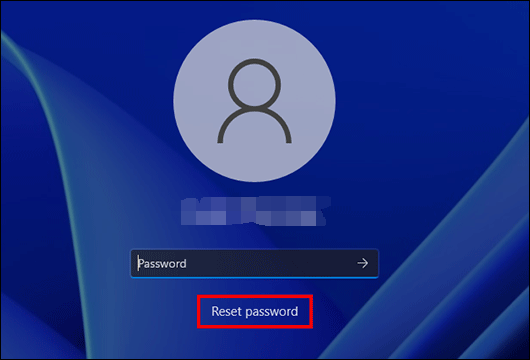
Step 2: Before entering a new password, respond to certain security questions.
Step 3: You can change your password by clicking Ctrl + Alt + Delete and selecting Change a password.
Step 4. To change a password, you need to select the account you want to update and enter a new password.
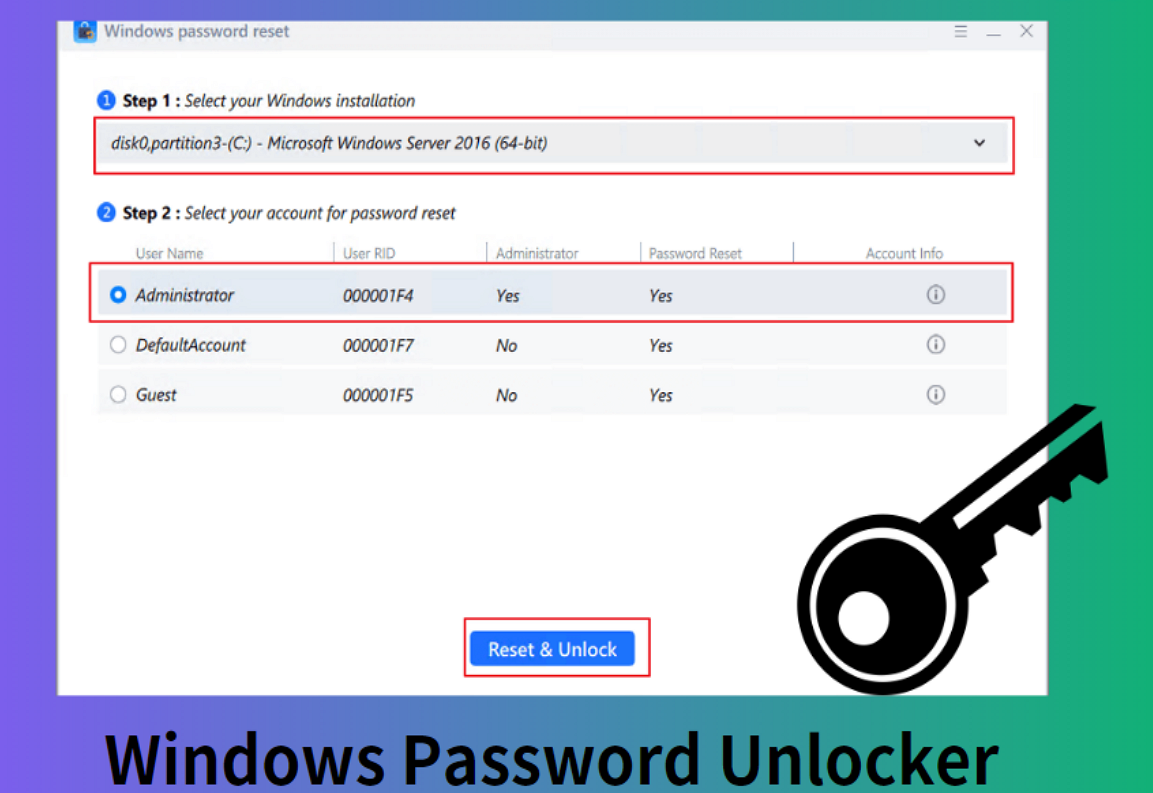
Windows Password Unlocker [Ultimate Guide]
This page provides a professional Windows Password Unlocker - Qiling Disk Master to solve Windows-related queries, including downloading the Windows password unlocker and creating a Windows password unlocker ISO.
Way 2. Use Command Prompt
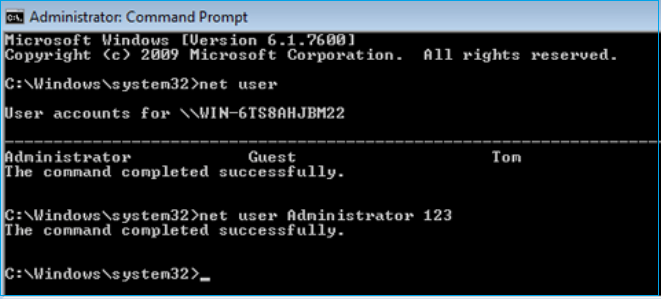
To reset your Windows 10 password, sign in with a PIN, picture password, or another administrator account, then launch Command Prompt. From there, type `net user` and press Enter to see a list of all user accounts on the system, including the one you're trying to reset. Note the username of the account you want to reset, then type `net user` again, followed by the username and a new password, and press Enter.
Step 1: To open the Command Prompt, press the Windows key plus X on the keyboard to open the Quick Access menu, then click Command Prompt.
Step 2: To receive a list of all user accounts, type "net user" and press Enter.

Step 3: To change your username and password, type the command: `chage` followed by your new username and password. For example: `chage newuser newpassword`.
net user [username] *
Note that you need to replace "username" with your account.
Step 4: Enter the new password for Windows 10.
If this way helps you reset the password on Windows 10, share this article and let more users know about it.
Way 3. Use Password Reset Disk
A password reset disk is a tool that allows you to reset your Windows 10 password instantly from the lock screen, without having to log in. You can generate one on a USB drive or SD card, which can be used to reset your password when plugged into your PC. If you don't have a password reset disk yet, you can create one following a guide, which will allow you to reset your password without logging in.
Guide 1. Create a Password Reset Disk
Step 1: Connect a USB disk to your computer, then type "Create a password reset disk" into the Windows 10 search box and select the first result.
Step 2: Click Next in the Forgotten Password procedure, choose the USB disk as the recovery drive, and then click Next again.
Step 3: Type your current account password and click Next. Once you've done that, the wizard will finish, and you can click Finish.
Guide 2. Reset Windows 10 Password
Follow these steps to reset your Windows 10 password:
Step 1: First, select Next > Reset password.
Step 2: To reset your password, select the device on which your password reset disk is stored from the dropdown box.
Step 3: Make a new password and verify it.
Step 4: Enter a password hint.
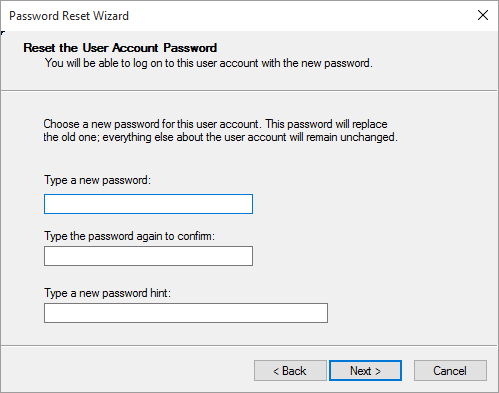
Step 5: Select Finish. Your account's password has already been changed.
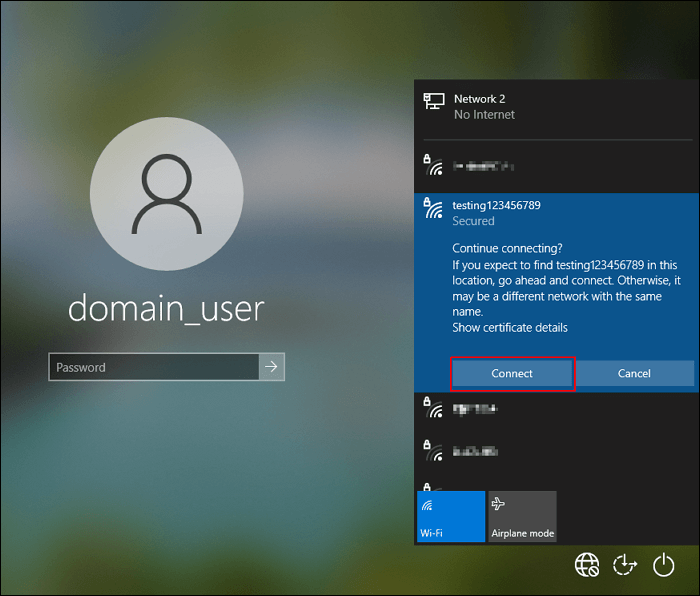
Windows 10 Not Accepting Password? 7 Quick Solutions
If your Windows 10 is not accepting the password, you can try resetting the password, checking for corrupted system files, running a System File Checker scan, and updating Windows. You can also try booting in Safe Mode, checking for malware, and resetting Windows 10 to its default settings. Additionally, you can try using the built-in Administrator account, resetting the password using the Command Prompt, or using a third-party password reset tool.
Way 4. Use Microsoft Account
During system installation, you'll be asked to create a Microsoft account, which can be used to recover a forgotten password.
Step 1: Make sure your Windows 10 PC is connected to the internet, click on the "forgot password" option on the Windows 10 login page.
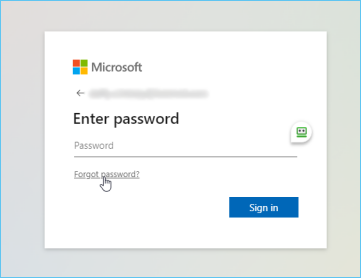
Step 2: Enter your Microsoft account address and click Enter. You can receive a verification code via email or text message.
Step 3: To reset your password, enter your verification information and follow the prompts to the password reset page. Ensure your new password is strong and secure.
Way 5. Use Local Account Recovery
If you have a local account on Windows 10, answering security questions will always allow you to reset your password.
Step 1: Click OK after inputting the incorrect password.
Step 2: Go to your local account and type the responses to each of the questions you have selected after choosing the Reset password link.
Step 3: Enter your new password after creating it.
How to Remove Password in Windows 10 Without Login
In Windows 10, you can remove passwords without logging in using various methods. One way is to boot in Safe Mode, where you can access the system without needing a password. Another method is to use the built-in Windows 10 feature called "Reset this PC" which allows you to remove passwords and other personal data. Additionally, you can also use a third-party tool like Qiling Password Manager to remove passwords.
Way 6. Reset Windows 10 PC
If all attempts to retrieve your password have failed, resetting your computer is a last resort. This process will erase all data on your computer, so make sure to back up any important files first. To reset your computer, insert the Windows installation media, boot from it, and follow the on-screen instructions to select the language and other preferences, then click on "Next.
Step 1: Press and hold the shift key on the login interface, then click the power icon and select restart.
Step 2: Press the Windows key + X and choose the Power button. Hold down the Shift key until the "Choose an option" window opens.
Step 3: Select Troubleshoot.
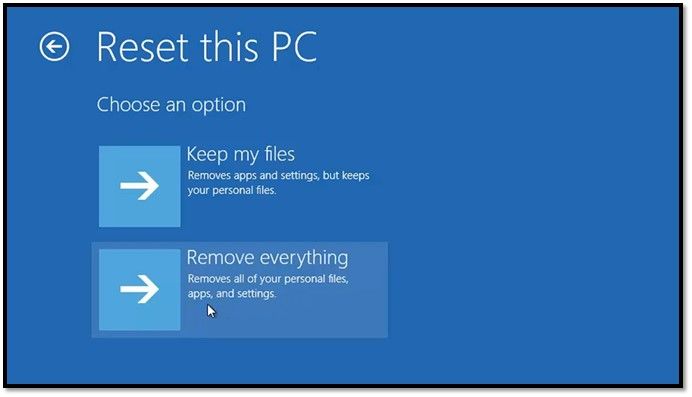
Step 3: Click Reset this PC > then choose "Remove Everything."
Step 4: Select the Only the drive where Windows is installed option.
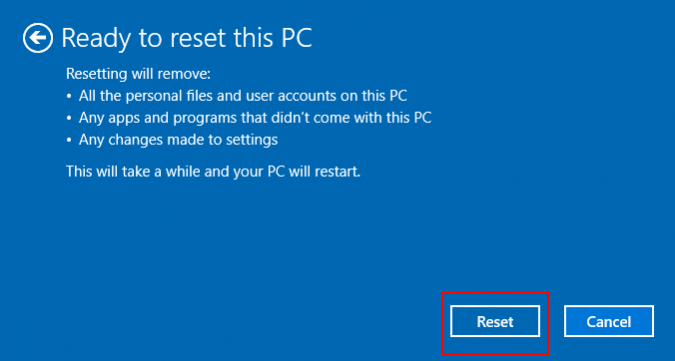
Step 5: Click Just remove my files; click "Reset" then.
Conclusion
To reset your Windows 10 password, you have six methods to choose from. You can reset your password through the built-in password reset feature, use a password reset disk, answer security questions, use the built-in administrator account, use Qiling Disk Master to remove your password, or use a third-party password reset tool. To avoid forgetting your password again, consider taking precautions such as adding security questions, creating a password reset disk, or regularly backing up your passwords.
Reset Forgotten Windows 10 Password FAQs
Have you reset the password on your Windows 10 PC? This part provides detailed answers to other frequently asked questions. Continue to read and learn more:
1. How to reset your Windows 10 password without logging in laptop?
To reset Windows 10 to its original settings, follow these steps:
- 1. After entering an incorrect password, click the Reset Password link.
- 2. Answer the security question to tell Windows that you are trying to access your Windows account.
- 3. The new password should be entered and used to log in normally.
There are no security issues if you're using a version before Windows 10, version 1803, so you won't have to reset Windows to factory settings.
2. How to reset my Windows password when I am locked out?
After you give the wrong password, follow the steps below to reset the Windows password:
- Respond to security queries.
- After that, change your password.
- Use the new password and log in to your account as normal.
3. Is there any Windows 10 password recovery tool?
PassFab 4WinKey and Ophcrack are popular password recovery tools compatible with Windows and Mac. However, you can reset Windows passwords using built-in tools like Command Prompt or a Password reset USB or SD card, eliminating the need for third-party software.
Related Articles
- [2024 Update]How to Resize EXT4 Partition in Windows 11/10
- Fix DiskPart I/O Device Error in Windows 10/8/7
- How to Boot Samsung Laptop From USB on Windows 10/11
- How to Install M.2 SSD [Beginner's Guide⭐]
Discover the step-Installing an M.2 SSD is a straightforward process that can be completed in a few simple steps. First, locate the M.2 slot on your motherboard, which is usually labeled as an M. - Qiling Partition Master vs. Acronis Disk Director, Differences and Similarities [2022 New]
If you're looking for a comparison between Qiling Partition Master and Acronis Disk Director, this page is for you. - 4 Ways to Troubleshoot Reboot and Select Proper Boot Device Error
The “reboot and select proper boot device” error occurs when a computer fails to boot from a designated device, such as a hard drive or SSD, and instead loops back to the boot selection screen.
Products
Articles & Tutorials
- Data Recovery
- Data Backup
- File Recovery
- File Backup
- System Backup and Restore
- Disk and Partition Clone
- Technical articles
- Mobile articles
- Disk Master Help
- Windows Data Recovery Tutorials
- Windows Secure Delete Tutorials
- Windows Partition Management Tutorials
- Windows File Backup and Restore Tutorials
- Windows System Backup and Restore Tutorials
- Windows Disk Backup and Restore Tutorials
- Windows Clone Tutorials