Windows 10 Not Accepting Password? 7 Quick Solutions
Windows 10 is one of the most widely used operating systems and offers strong security features. Adding a login password helps protect your computer, but access becomes difficult when Windows 10 stops recognizing the correct password.
The Windows 10 not accepting password problem can appear without warning, even when you enter the correct password. Qiling Software provides six effective methods to help you resolve the issue and sign in to your Windows 10 computer again.
Remove Windows 10 Password When the Original Password Not Accepted
To resolve the issue of Windows 10 not accepting passwords, consider using Qiling Disk Master, a powerful software that offers a "Password Reset" functionality. This tool can simplify the process and provide a solution to this problem, making it a valuable resource in scenarios like this one.
Qiling Disk Master offers a straightforward way to remove or reset the original Windows 10 password, providing hassle-free access to your computer, even for those with limited technical experience.
Follow the simplified step-Here are the shortened instructions:
Step 1. To reset a password on a USB disk using Qiling Disk Master, insert the USB disk into the computer, download and run Qiling Disk Master, and then click "Tools" > "Password Reset" from the program's menu.

Step 2. A small window will appear. After reading it, click "Create bootable media".

Step 3. After selecting the correct USB flash drive or external mobile hard disk, click "Proceed" again. Wait patiently for the password reset USB flash drive to be created, then click "Finish."

Step 4. To reset the password on a locked PC, remove the password reset USB, insert it into the locked PC, and restart. This will prompt a request to change the boot drive to boot from the USB, and once completed, the system will automatically boot from USB.
Step 5. After restarting your computer, find the Qiling Disk Master program again and navigate to the "Password Reset" section. In the interface, you will see a list of all accounts on the PC; select the target account and check the box next to "Reset & Unlock."

Step 6. When you receive this prompt, click "Confirm" to continue. Your password will be erased.

Qiling Disk Master offers a range of partition and disk management features beyond password resetting to optimize computer performance.
If you're facing the challenge of Windows 10 not recognizing your password, we highly suggest considering Qiling Disk Master as your initial solution. This tool allows you to download and utilize it to regain access to your computer. It may offer the most efficient and effective means of resolving the issue.
- Create bootable USB
- Make a password reset USB for another computer
- Fix Your PIN is no longer available
- Unlock laptops without passwords
- Remove the Windows 10 password with simple steps
- Reset Windows 10 forgotten password
While traditional methods may not be effective for everyone, there are alternative approaches that can be explored to address the complex problem at hand. These alternative methods can provide a new perspective and potentially lead to a more effective solution.
6 Other Fixes for Windows 10 Not Accepting Password Error
If you're experiencing issues with Windows 10 not accepting your password, there are several quick fixes that can help resolve the problem. These include checking for typos, ensuring the Caps Lock key is not on, verifying that the password is not too short or too long, and checking for any password requirements set by your administrator. Additionally, you can try resetting your password, running the Windows 10 password reset tool, or using a password recovery tool to regain access to your account.
Fix 1. Reboot Windows 10 Once or Several Times
If your laptop won't accept the password for Windows 10, try restarting your computer, signing out and signing in again, or using the password reset feature to resolve the issue.
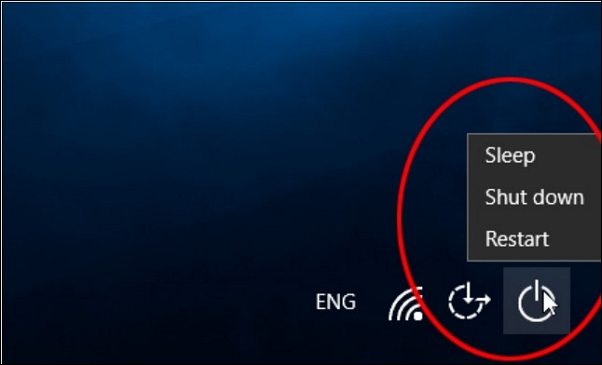
To reboot your Windows 10 computer, click on the Start menu and select the Power icon. From the drop-down menu, select "Restart" to immediately shut down and restart your computer. Alternatively, you can press the Windows key + X and select "Restart" from the menu. Rebooting your Windows 10 helps to refresh the system and resolve any temporary issues.
Instructions: To resolve the issue, click the Power button from the bottom right corner and select "Restart." After the computer reboots, attempt to log in. If login fails, repeat the process multiple times.
You May Also Like:
Fix 2. Connect to the Internet
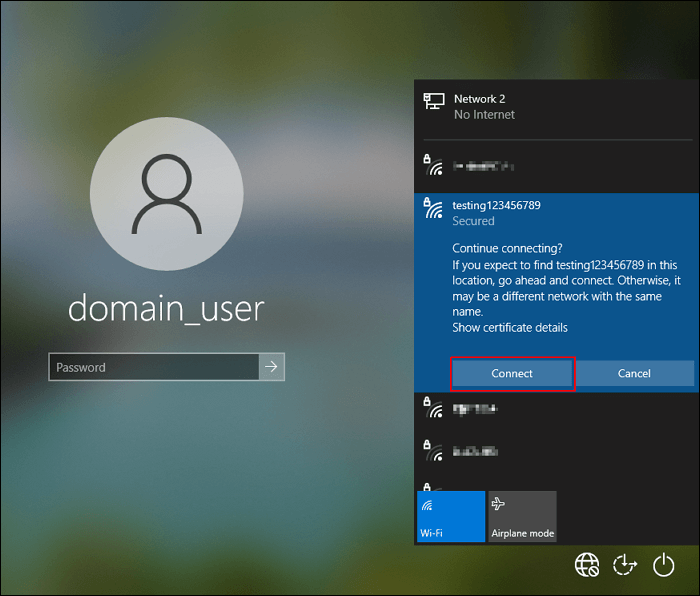
To resolve the 'Windows 10 Password Authentication Failure' issue, ensure that your Windows 10 system has a stable internet connection, as it may be required to verify your password, especially when using a Microsoft account for authentication. If the issue persists, try restarting your computer, resetting your password, or running the built-in Windows troubleshooter to identify and fix any potential problems. If none of these steps resolve the issue, consider resetting your Windows 10 installation to its original settings or seeking assistance from a professional.
Instructions: If you're offline, click on the "Network" icon in the lower right corner, select your Wi-Fi network, and enter your password. Then, try logging into Windows 10 again.
See also:
Fix 3. Use the Virtual Keyboard
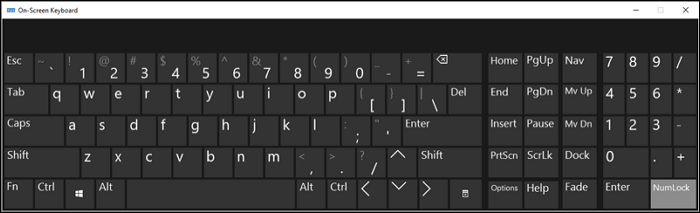
If you suspect that there might be a problem with your physical keyboard preventing you from entering your password correctly on Windows 10, you can utilize the virtual keyboard as a solution. To do this, press the Windows key + P on your keyboard to open the on-screen keyboard, then type your password using the virtual keyboard. This should allow you to enter your password correctly and resolve the issue.
Step 1: To open the on-screen keyboard on your Windows login screen, click the "Ease of Access" icon at the bottom right corner, then select "On-Screen Keyboard" from the menu that appears. This will display the virtual keyboard on your screen.
Step 2: Click on the virtual keyboard to input your password, then click the "Sign In" button to see if the issue has been resolved.
Fix 4. Boot Windows 10 into Safe Mode
To boot Windows 10 into Safe Mode, first, ensure your computer is turned off. Then, press the power button to turn it back on. As soon as the BIOS screen appears, start tapping the F8 key repeatedly. This will open the Advanced Boot Options menu.
Step 1: When on the login screen, click the "Power" button and tap "Restart" while holding the "Shift" key, which will take you to the Advanced Startup Options.
Step 2: Here, select "Troubleshoot" and then proceed by clicking on "Advanced Options," then navigate to "Startup Settings" and choose the option labeled "Enable Safe Mode."
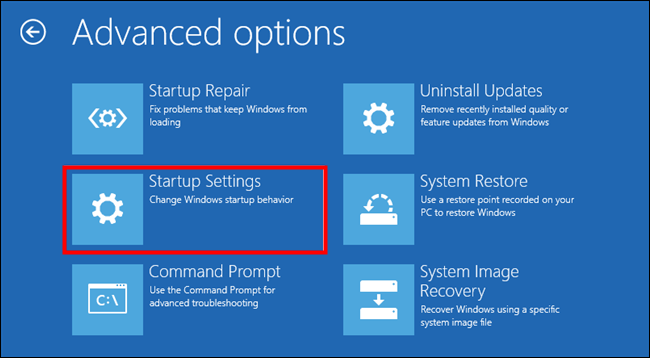
Step 3: After Windows 10 enters Safe Mode, it loads only essential drivers and services, helping to determine if a third-party application or driver is causing the login problem.
Fix 5: Use the Startup Repair Tool
If your Windows 10 computer still doesn't accept your password, you can use the built-in Startup Repair tool to identify and fix potential issues causing the login problem. To do this, restart your computer and repeatedly press the F11 key until the Startup Repair tool appears. Then, select your language and click "Next." Choose the correct user account and click "Next" again.
Step 1: Press the "Shift" key and click on "Restart" within the "Power" options to access the "Advanced Startup Options," where you should select "Troubleshoot" to proceed.
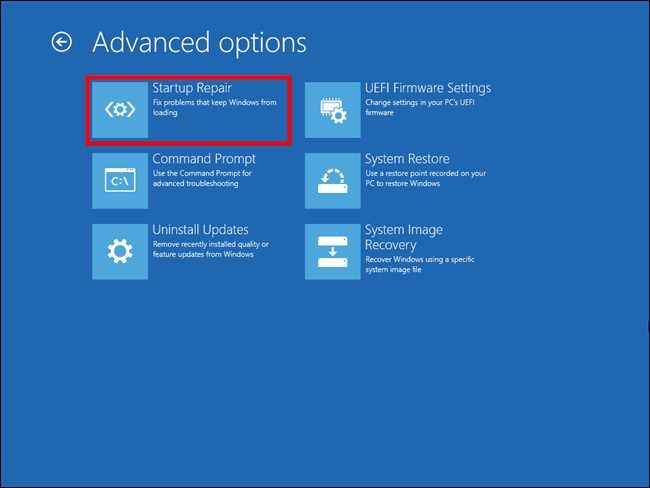
Step 2: To initiate the repair process, go to the "Advanced Options" and select "Startup Repair" or "Automatic Repair." This will start the repair operation, and once it's done, you can try logging in again.
Fix 6. Recover Original Microsoft Account Password Online
If you're using a Microsoft account to log in to Windows 10 and are having trouble with your password, you can reset it online. To do this, go to the Microsoft account website, click on "Forgot password," and follow the prompts to reset your password. This should resolve the 'Windows 10 Not Accepting Password' issue.
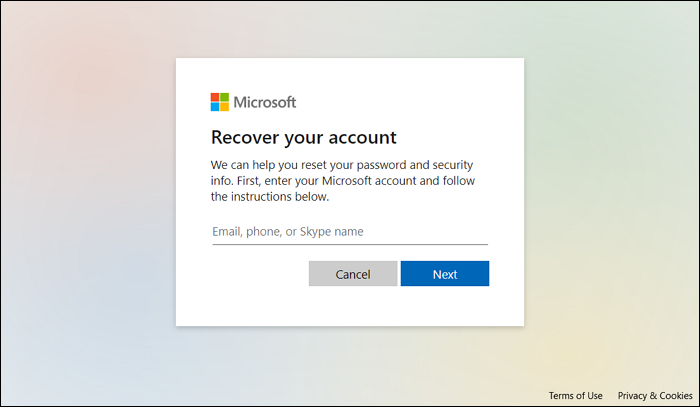
Step 1: Access the Microsoft Account Reset Page and type in your email ID or phone number associated with the Microsoft account.
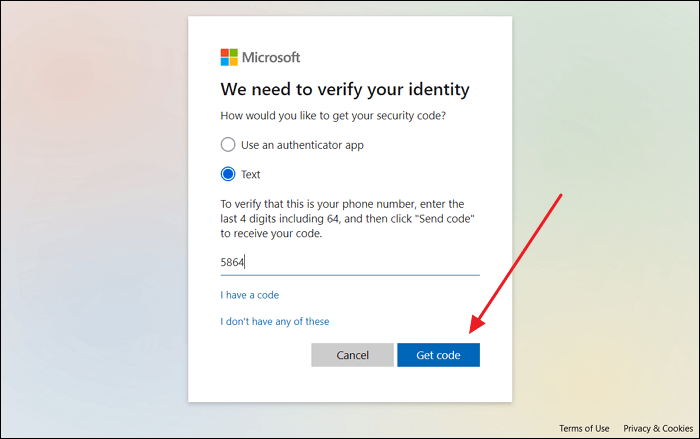
Step 2: On the next screen, follow the password verification step and create a new password. Once you've successfully set the password, use it to log in to your Windows 10 computer.
If you've forgotten your Windows password, you can follow a guide video to reset it using various methods, such as using the built-in Administrator account, creating a password reset disk, or using a third-party tool. Alternatively, you can use the built-in Windows feature to reset your password, which can be accessed by following the guide video.
Why Won't Windows 10 Accept Password
The frustration of encountering a "Windows 10 Not Accepting Password" error can be overwhelming, but understanding the possible causes can help in troubleshooting and finding a solution. Common factors that might prevent Windows 10 from recognizing your password include a mismatch between the password typed in and the actual password, password complexity issues, password length limitations, password reset or change issues, corrupted system files, and incorrect password settings in the Windows settings or user account.
1. Incorrect Password
Human error is often the root cause of login issues. Double-check that you're entering your password correctly, paying attention to capitalization, special characters, and any potential typos, to ensure a smooth login experience.
2. Keyboard Issues
If you're having trouble entering your password due to a physical keyboard issue, try using an on-screen keyboard or an external keyboard to rule out this possibility and see if it resolves the issue.
3. Forgotten Password
Forgetting a password can happen easily, especially if it hasn't been used for a while. In such cases, initiating a password reset is a recommended solution.
4. Microsoft Account Issues
If you use a Microsoft account to log in to Windows 10, problems with your Microsoft account can stop you from logging in, such as a forgotten password or a locked account.
5. Network Connection
To use Windows with a Microsoft account, you may need an internet connection. Make sure your computer is connected to the internet.
6. Software Conflicts
Third-Uninstalling or disabling party software, especially security or password management tools, can sometimes resolve login issues by removing potential interference.
Share this article with others who may be facing similar issues and need help. Many people struggle with mental health issues, financial problems, and relationship issues, and it's essential to share your experience to help others feel less alone.
Conclusion
Encountering the frustrating "Windows 10 Not Accepting Password" error can be a daunting experience, but this article offers a thorough handbook to empower you in effectively addressing this issue, covering six solutions tailored to target various facets of the problem.
Qiling Disk Master is an exceptional tool to address the "Windows 10 Not Accepting Password" error. It offers a specialized "Password Reset" feature that simplifies the process of removing or resetting your original Windows 10 password, making it a valuable asset for troubleshooting. Its intuitive interface and robust data protection measures make it a reliable choice.
Windows Not Accepting Password FAQs
If you're still experiencing issues or have specific questions about Windows 10 passwords, we've got some frequently asked questions to help you out.
1. How do I fix Windows 10 not accepting my password?
To resolve the issue, try restarting your computer by following these simple steps: 1. Save any unsaved work and close all applications.
To restart your computer, click on the "Power" button located in the lower right corner and select "Restart" from the menu. This will initiate a system reboot.
2. Why does it say my password is incorrect when it's right?
To avoid the issue of not being able to log in to Windows with a Microsoft account, ensure that the Caps Lock key is not accidentally activated, as Windows passwords are case-sensitive. Also, double-check your password for any typographical mistakes or capitalization errors. If you've recently changed your Microsoft account password, try using your device's local password instead, as it may not have been synchronized yet.
3. How to bypass Windows 10 password?
Use the following simplified steps to bypass the Windows 10 password:
Step 1: To restart your laptop, press the power button until it turns off, then press it again to turn it back on. Once it's on, immediately start pressing the F8 key repeatedly until you see the Administrator login screen. This will allow you to access the login screen.
Step 2: To access the Administrator login screen, press Ctrl + Alt + Del, then select Switch User and type Administrator as the username.
Step 3: Leave the password field empty and press the "Enter" key. This will grant you access to your laptop without the need for a password.
Related Articles
- How to Reset Forgotten Password in Windows 10 [2025 Tutorial]
- Full Guide to Upgrade PS4 to SSD [Quick & Easy]
Are you looking for a way to improve your PS4 performance? Here is a detailed guide to upgrading PS4 to SSD to make your experience more seamless. - How to Find What Is Taking Up Space on My SSD [Effective Ways]
Discover quick steps to identify large files on your SSD. Uncover what is taking up space on my SSD with our 2024 tutorial and optimize your storage efficiently. - How to Fix Windows 11 Startup Repair Not Working | 7 Tips
Resolve Windows 11 startup issues easily with our comprehensive guide, featuring easy solutions and expert tips to fix 'Windows 11 startup repair not working' and get your computer up and running smoothly. - How to Burn ISO to USB? 2024 Complete Guide 🔥
You can burn an ISO image to a USB drive, and this page will guide you through a simple process to do so. Follow the steps to learn how to create a Windows ISO bootable media in USB on your own. - How to Burn ISO to External Hard Drive Windows 10 [Fast & Detailed]
Burning an ISO file to an external hard drive in Windows 10 can be a complex process, but this article will guide you through two methods to achieve this successfully.
Products
Articles & Tutorials
- Data Recovery
- Data Backup
- File Recovery
- File Backup
- System Backup and Restore
- Disk and Partition Clone
- Technical articles
- Mobile articles
- Disk Master Help
- Windows Data Recovery Tutorials
- Windows Secure Delete Tutorials
- Windows Partition Management Tutorials
- Windows File Backup and Restore Tutorials
- Windows System Backup and Restore Tutorials
- Windows Disk Backup and Restore Tutorials
- Windows Clone Tutorials