How to Find What Is Taking Up Space on My SSD [Effective Ways]
Most SSD customers experiencing space storage issues are often left wondering what's taking up space, but by identifying huge or unneeded files, a clogged cache, crowded system logs, or bloated apps, these problems can be easily addressed.
Qiling offers practical techniques, tools, and best practices in this guide to help you quickly identify and manage SSD space-hogging offenders, keeping your computer system tidy and organized. By implementing these strategies, you can recover lost capacity on your SSD and ensure a smooth and spectacular computing experience.
How to Find What Is Taking Up Space on My SSD?
To maximize your computer's efficiency and ensure a seamless user experience, it's essential to monitor the space on your Solid-State Drive (SSD). This can be achieved through two efficient methods: one involves using a robust and simple approach to reclaim your SSD space, while the other involves performing in-depth disk use analysis to identify areas where space can be optimized. By doing so, you can guarantee a smooth and enjoyable user experience.
| ⏱️Duration | About 6 Minutes |
| 💻Goal | Find what is taking up space on my SSD |
| 👩💻Suitable User | For all users: beginners and experienced users |
| 🧰Preparation |
✔️Ensure your SSD is connected properly to the computer. ✔️Download Qiling Disk Master on the same computer. |
| 🛠️Methods |
Way 1. Qiling Disk Master - For Beginners
Qiling Disk Master is a powerful tool that helps users identify and manage what's taking up space on their SSD, making it easier to optimize and clean their disk.
The best part is that you can get a thorough overview of your entire hard disk or a single partition with the "Space Analyzer" feature, which allows you to determine precisely what is using up space on your SSD and gives you the information you need to decide how to optimize your storage.
With the user-Qiling Disk Master offers a user-friendly interface and extensive capabilities to help you manage your disk space effectively. With its intuitive interface, you can easily identify what's consuming your SSD space, extend your system partition, examine your hard drive, and optimize your storage with just a few clicks. By downloading Qiling Disk Master, you can simplify your computing experience and maximize your storage capacity.
Way 2. Windows Settings - For Experienced Users
This approach doesn't require third-party tools, but Windows Settings is less effective, offering only a basic overview of disk use.
To get a basic idea of your SSD storage via Windows Settings, follow these simple steps: Go to Settings, then click on System, followed by Storage. On the next page, you'll see a breakdown of your storage usage, including the amount of space used by your SSD.
Step 1. Launch "File Explorer" and choose "This PC."
Step 2. To access storage settings, hit the Windows icon and choose "Settings" > "System" > "Storage".
Step 3. Locate the nearly full partition of the SSD to see what is taking up space on my SSD.
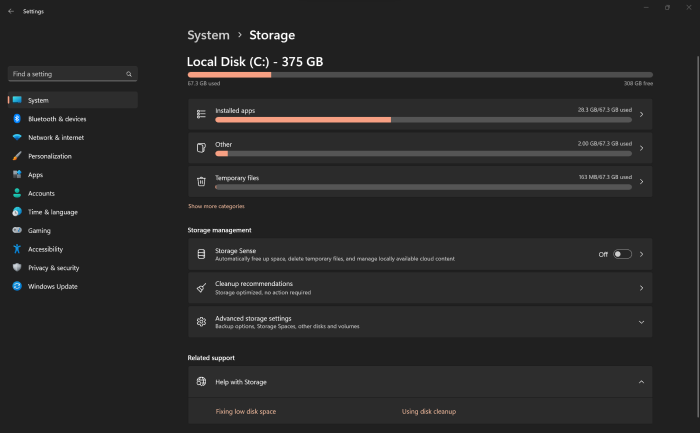
Qiling Disk Master is the superior option compared to the other approach, as it offers faster performance and a more user-friendly interface with a straightforward design. Additionally, it provides extra features such as disk cloning and partition management, and helps with regular disk usage checks to ensure long-term computer stability.
🔍Further Reading: How to Find Large Files on Windows 10
If you want to perform tasks beyond storage analysis, Qiling Disk Master is a great option. With its versatile capabilities, you can do more complex tasks. To free up space on your SSD, check out the bonus tip in the next section. You can also share this article quickly online by clicking the social media platform links below to help more users.
Bonus Tip: How to Free Up SSD Space
Now that you have gained valuable information about what is using your SSD space, it's time to look into possible strategies for SSD storage optimization. Several effective ways to optimize SSD capacity and clean them up will be explored, resulting in a smooth computing experience and top performance. These strategies will help you take the next step in maximizing your SSD's potential and ensuring a seamless computing experience.
1. Clean up junk files
To achieve optimal SSD performance, it's essential to regularly clear junk files, either manually or using a specialized tool, to free up storage space, prevent data buildup, and reduce clutter, ultimately ensuring peak efficiency and a smooth computing experience. This process improves system responsiveness, speeds up load times, and enhances overall performance.
2. Remove or transfer programs
To free up critical storage space, consider uninstalling unused programs and moving large personal data from your SSD to other devices, ensuring it only stores essential programs. This will result in quicker load times and more fluid multitasking, also allowing for future installs and upgrades.
3. Use Disk Cleanup
Disk Cleanup is a quick and easy tool that efficiently removes unwanted system restore points, temporary files, redundant data, and other items that build up on your SSD, freeing up several gigabytes of space and preserving top SSD performance. Regular use of this tool guarantees a clean and organized disk, optimizing storage for crucial files and programs, and creating a more responsive and fluid computing environment.
4. Disable System Restore and Hibernation
Disabling Hibernation mode and modifying System Restore settings can significantly free up valuable SSD space. Hibernation, although useful, generates a large hiberfil.sys file that can limit SSD capacity. By disabling this feature, you can assign extra storage to essential files and apps, achieving a more balanced and effective SSD utilization. This simple tweak can help maximize your SSD's potential and make the most of its storage capacity.
5. Enable Storage Sense to free up space
When Storage Sense is enabled in Windows settings, it acts as an automatic housekeeper for your SSD, clearing out unnecessary files and temporary data caches to make room for new files, keeping your SSD optimized and clutter-free, allowing for smooth multitasking and quicker access to important data.
By utilizing these solutions, users can free up valuable space on their SSDs, leading to improved system performance and maximizing device potential. These methods cater to both tech-savvy individuals and beginners, providing a comprehensive approach to SSD management that suits various needs and skill levels.
Conclusion
This tutorial has hopefully addressed your concern about what is taking up space on your SSD and provided you with efficient methods to optimize it. By exploring basic to more advanced ways to obtain thorough disk utilization data, you can identify space-hogging offenders and make informed decisions.
Qiling Disk Master is a comprehensive tool that helps you track down where your disk space is being consumed. In addition to its robust disk management capabilities, it features an intuitive interface and additional functions like disk cloning and partition administration, making it a must-have for every computer enthusiast.
FAQs about what is taking up space on my SSD
What is taking up space on my SSD? To determine what is consuming space on your SSD, you can use the built-in Disk Cleanup and Storage Sense features in Windows 10. These tools can help identify and remove temporary files, system files, and other data that may be taking up space on your drive.
1. How to free up space on my SSD?
You can try the "Disk Cleanup" tool to clean up space on your SSD. To do this, follow these steps:
Step 1. Locate the "Disk Cleanup" option in the Start menu.
Step 2. Select your SSD drive and click "OK."
Step 3. Choose the file types to delete.
Step 4. Click "OK" to confirm and free up space on your SSD.
2. Should I optimize my hard drive?
Optimizing your hard drive, especially SSD, is crucial for peak performance and efficiency. By maintaining organized storage, you can enjoy faster load times, smoother multitasking, and an improved overall computing experience.
3. What is the recommended SSD speed for gaming?
Faster SSD speeds improve gaming performance by reducing load times and responsiveness. Choose SSDs with high read and write speeds, ranging from 500 MB/s to 3,500 MB/s, depending on budget and gaming needs. For this reason, you need to test SSD read and write speed regularly.
Related Articles
- How to Shrink C Drive without Losing Data [Full Guide]
- Windows 10 Booting From Wrong Drive - Fix Easily
- System Clone VS System Migration, What's the Differences and How to Use?
- Effective Fixes for Windows Was Unable to Complete the Format SD Card and USB Drive
- How to Resize Partitions with Windows XP Partition Manager Software
This article will provide some useful tips to perform Windows XP partition management, like resize, move, merge, create, extend or shirk partitions. - How to Apply Wipe Data/Factory Reset on Android
Wipe Data/Factory Reset is a feature on Android devices that allows users to completely erase all data, settings, and applications, returning the device to its original factory settings.
Products
Articles & Tutorials
- Data Recovery
- Data Backup
- File Recovery
- File Backup
- System Backup and Restore
- Disk and Partition Clone
- Technical articles
- Mobile articles
- Disk Master Help
- Windows Data Recovery Tutorials
- Windows Secure Delete Tutorials
- Windows Partition Management Tutorials
- Windows File Backup and Restore Tutorials
- Windows System Backup and Restore Tutorials
- Windows Disk Backup and Restore Tutorials
- Windows Clone Tutorials