System Clone VS System Migration, What's the Differences and How to Use?
In this article, you'll learn:
- What Is System Clone and System Migration
- System Clone VS System Migration, What're The Differences
- System Clone VS System Migration, When To Use It?
- When deciding between system cloning and system migration, it's essential to choose the right software and execute the operation correctly. System cloning involves creating an exact copy of a system, including all hardware and software configurations, while system migration involves transferring a system from one hardware platform to another.
System cloning and system migration are two distinct concepts that are often confused with each other. Cloning involves creating an exact copy of an existing system, whereas migration typically involves transferring data or information from one system, disk, or drive to another. Understanding the difference between these two concepts is essential, and by going by their names, one can easily distinguish between them. This article aims to provide a detailed explanation of the differences between system cloning and system migration.
The choice between a system copy and a system move operation depends on the real-time purpose. If you need an exact copy of the existing system, a system copy is the way to go. However, if you're looking to move files from one system to another, a system move operation is more suitable.
What Is System Clone and System Migration
Now that we've covered the basics, let's dive deeper into cloning and migration. Cloning refers to the process of creating an exact copy of a database, while migration is the process of moving data from one database to another, often with changes.
System cloning in computers or PCs refers to creating an exact copy of the existing system for backup or data transfer purposes, effectively remaking the computer's operating system and all its settings, data, and information to get identical systems.
System migration in computers involves transferring data, settings, or user environments from one computer to another, often seen in situations where a user buys a new PC and wants to transfer their settings and data to the new device, utilizing hard drives to facilitate the process.
System Clone VS System Migration, What're The Differences
You already know the main difference between these two with the names themselves. Please look at the table below to note the significant differences between them.
| System Clone | System Migration |
|---|---|
| The system is cloned, including all data, applications, and system settings, creating an exact duplicate. | Transfers the required or desired data to another PC. |
| The final output is a bit-by-bit copy of the original one. | The new system contains only the transferred data and applications. |
| Used in the cases of backup and similar system configurations. | When upgrading to a new version or moving a specific system from one OS to another, it is essential to ensure that the new system is compatible with the existing infrastructure and applications. This includes verifying that the new OS supports the necessary hardware, software, and network configurations. |
| The process of cloning a computer involves creating an exact copy of the computer's operating system, programs, and data onto another computer using bootable CDs or USB drives with cloning software. | Migration can be done through software, manual transfer via cables, or with the assistance of cloud services. |
System Clone VS System Migration, When To Use It?
The main goal is to choose a process to achieve your desired target. In practical scenarios, this can be implemented in various ways, such as in a business setting where a company needs to achieve a specific goal, or in a technical context where a system needs to be cloned or migrated. We will discuss the pros and cons of system cloning and migration, providing insights into their feasibility and effectiveness.
1. When to Use System Clone
Cloning can be used for practical purposes such as creating copies of items for backup, testing, or demonstration. For example, a software developer might clone a website to test new features without affecting the live site, or a business might clone a successful product to create a new version with updated features.
1. Backup of the existing system: We can create a backup of software or critical systems to prevent failures, system corruption, and data loss.
2. Identical systems: In a multi-branch company, instead of developing separate security software for each location, a single system can be cloned and deployed at each branch, streamlining security management.
3. Testing purposes: We can create clones of software or systems to test them in real-time, identify any faults or downsides, and make changes to the original system accordingly.
| Pros | Cons |
|---|---|
| In the event of a system failure, we can quickly recover and get back to work by having a backup plan in place, which can minimize downtime and ensure business continuity. | If you want to upgrade to a new version or server, you'll have to set up the entire system again with compatible hardware and OS. |
| Automate the deployment of identical systems for large-scale infrastructure with a simple configuration file. This approach streamlines the process of setting up multiple systems with the same specifications, reducing the time and effort required for repetitive tasks. | If the cloning process is not done correctly, it could result in data loss or corruption in the original system. |
| Testing and debugging the systems gets easier. |
2. When to Use System Migration
We need to consider the real-world applications and scenarios to effectively apply migration processes in our work, just like we would with cloning.
1. Upgrading to a new system: If you want to move your current work and applications to a more compatible hardware and OS, such as an upgraded PC, we can consider migration.
2. Transferring selective data: Migration is the best way to move selective information and files to a new system, allowing you to transfer only what's needed.
3. Effective use of cloud services: You can move your data to cloud-based computing services or storage to run the system on cloud servers, reducing costs and improving scalability, which can be a more cost-effective and efficient solution.
| Pros | Cons |
|---|---|
| Ability to select what data you want to transfer. | Migration can be a complex process, requiring specialized software and organizational knowledge. |
| Merging many systems or servers into a powerful one. | Time-Consuming |
| In the event of a faulty original system, the new system may be rewritten in a way that corrupts or malfunctions, potentially leading to further issues. |
System Clone VS System Migration, Which Software to Use and Execute the Operation?
In the previous sections, we discussed the software for cloning and migration. These operations may sound simple if you go by their names, but the whole thing depends on the tool you are using.
If you're looking for a tool to facilitate system cloning and migration operations, Qiling Disk Master is the solution.
Qiling Disk Master specializes in managing partitions on hard drives, SSDs, and external disks, with additional features to clone and migrate software for systems, allowing for duplicate partitions or disks without data loss and transferring data and applications to new ones without malfunctions.
The processes are safe and secure with no complications and can be completed in a few simple steps. To clone and migrate systems using Qiling Disk Master, download the software tool and follow the guide to complete these complex operations in simple steps.
1. Guide to Clone System
Step 1. Launch Qiling Disk Master, go to the Disk Clone tab, select Clone OS Disk.
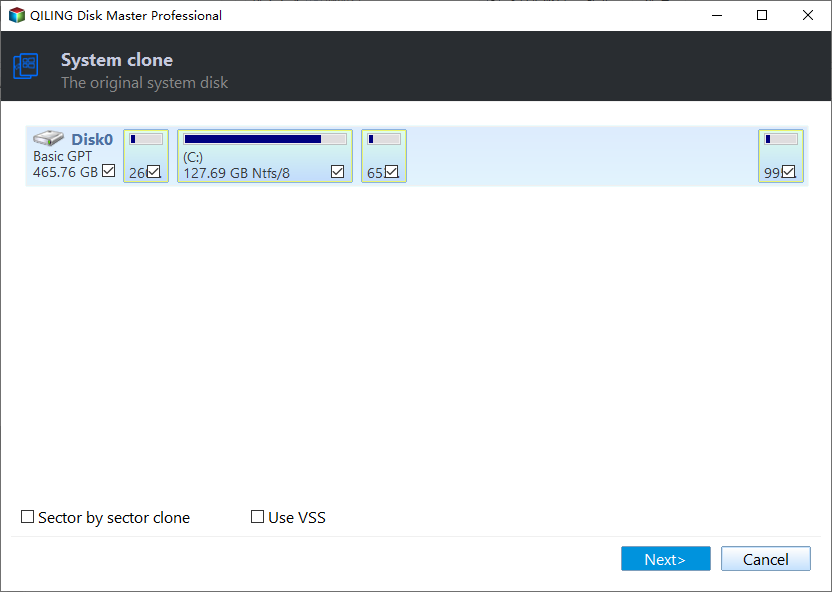
Step 2. Select the target new drive where you want to clone the OS to, and click "Next".

Click "Yes" to confirm that you want to continue the OS disk cloning process.

Step 3. The process for cloning a computer's OS involves viewing the disk layout and clicking "Proceed" to initiate the cloning process.

Step 4. When the process finishes, you'll see a confirmation message asking if you want to start up your computer from the cloned target disk.
- Reboot Now To reboot your PC and configure it to boot from the new disk immediately, you would restart the computer and enter the BIOS settings. From there, you can set the new disk as the primary boot device, and save the changes.
- Done means you want to make the changes later.
2. Tutorial to Migrate System
Steps to migrate OS to HDD/SSD:
- Run Qiling Disk Master, and select "Clone" from the left menu.
- Check "Migrate OS" and click "Next".
- Select the SSD or HDD as the destination disk and click "Next".
- The data and partitions on the target disk will be deleted, so please back up any important data beforehand to avoid any loss. If you haven't already, do it now.
- Then click "Yes".
- Preview the layout of your target disk. Then click "Start" to start migrating your OS to a new disk.
- After this, click "Reboot Now" or "Done" to reboot the computer from the new disk immediately.
"Reboot Now" means to apply the changes immediately, whereas "Done" means you'll need to restart the computer manually later.
Note: When migrating your OS to an SSD or HDD, be aware that the process will erase existing partitions and data on the target disk if there's not enough unallocated space. Make sure to back up any important data on the target disk to an external drive beforehand to avoid losing it.
IMPORTANT: Change BOOT Drive After System Clone or System Migration
To ensure a smooth transition when migrating the OS or cloning the system to a new disk, it's essential to configure the new disk as the boot drive. This step is crucial whether you're migrating the OS or cloning the system, as it allows the system to boot up properly from the new disk.
Here are the steps:
- Install the new disk with cloned or migrated OS to PC.
- Restart your PC and press F2/F8/Del to enter BIOS settings.
- To set the new disk with the cloned or migrated system as the boot drive, go to the Boot Menu and select it as the primary boot drive. This will ensure that the system boots from the new disk instead of the original one.
- Press F10 or click Save and Exit to reboot the PC from the new disk.

The Final Verdict
The system clone and system migration are two distinct concepts. A system clone refers to an exact copy of the original system, while system migration involves moving required data and applications from one system to another. The choice between the two methods depends on the intended purpose, such as creating a duplicate for testing or transferring data to a new system.
Once you've decided on the process, you can use the Qiling Disk Master to complete it efficiently in a few clicks, as guided.
If you find this article helpful, share it with your friends and leave a comment about it. If you have any queries regarding the topic, feel free to ask them in the comment box, and do let me know of the future issues you wish to see articles from Qiling.
FAQs About System Clone VS System Migration
Here are some of the most frequent FAQs asked on the topic: If you have similar queries, hope this will help you.
1. What is the difference between cloning and migration?
Cloning and migration differ in their names, but not in their purpose. Cloning refers to making a copy of something, while migration means moving something. In the context of computer systems, cloning and migration are often used interchangeably, but technically, cloning is the process of making a bit-by-bit copy of an existing system, whereas migration involves transferring data and applications onto a new system or disk.
2. What is a system clone?
System cloning in computers refers to creating an exact copy of the existing system, including its operating system, settings, data, and information, for the purpose of backup or data transfer, effectively remaking your computer's entire setup to get identical systems.
3. What is the difference between disk clone and system clone?
The main difference between a disk clone and system clone lies in their purpose. A disk clone or disk image is created when your hard drive is corrupted due to malware, bad sectors, or virus attacks, essentially backing up your data and settings. On the other hand, a system clone is created for situations like selling your device or replacing your hard drive, allowing you to transfer all relevant data, applications, and programs to a new drive.
Related Articles
- How to Wipe Partition Data to Protect Privacy
- More Windows Guides: How Long Does a Windows Update Take? 🔥
- Windows 10/11 Media Creation Tool: 2024 Complete Guide🔥
- What Is the Easiest Way to Shred Files in Windows 10?
Are you concerned about data security? You can easily protect your sensitive information by securely shredding files on your Windows 10 computer. This simple method ensures that your confidential data is completely erased, leaving no chance of unauthorized access. - How to Undelete Windows 11 Partitions [Solved]
Did you delete your Windows 11 Partition accidentally? If yes, then this guide will help you undelete it. Using the right set of software, you can recover all the lost partition data and bring back the partition. Read our ultimate guide on how to undelete Windows 11 Partition. - How to Unpartition a Hard Drive on Windows 11/10/8.1/8/7
You can unpartition a hard drive on Windows 11/10/8.1/8/7 using one of three methods: Disk Management, DiskPart, or Qiling Partition Master. This guide will walk you through the process of removing partitions from a hard drive using these tools.
Products
Articles & Tutorials
- Data Recovery
- Data Backup
- File Recovery
- File Backup
- System Backup and Restore
- Disk and Partition Clone
- Technical articles
- Mobile articles
- Disk Master Help
- Windows Data Recovery Tutorials
- Windows Secure Delete Tutorials
- Windows Partition Management Tutorials
- Windows File Backup and Restore Tutorials
- Windows System Backup and Restore Tutorials
- Windows Disk Backup and Restore Tutorials
- Windows Clone Tutorials