What Is the Easiest Way to Shred Files in Windows 10?
In Windows 10, file shredding, also known as secure deletion, is a feature that ensures permanent deletion of files, making them unrecoverable even with specialized software. This is particularly important for sensitive data, such as financial or personal information, to prevent unauthorized access. By shredding files, you can be confident that your deleted data is truly gone, providing an additional layer of security and privacy.
In today's digital age, it's essential to protect your sensitive data from unauthorized access. Windows 10 users, including professionals, students, and casual users, should prioritize shredding sensitive files to prevent potential cybersecurity threats and data breaches.
File shredding, a more secure alternative to deletion, makes data irrecoverable by overwriting it with random information, providing robust protection against data recovery. This guide will introduce file shredding, its benefits, and provide easy steps to implement it on Windows 10 for enhanced data security.

How to Shred Files in Windows 10?
As part of our data security and privacy measures, we require you to shred files on your Windows 10 device. To make this process easy, we'll guide you through a step-by-step procedure to shred files effectively.
Stage A. Selecting Files for Shredding
Identify and sort sensitive files to shred, including personal documents, financial records, and other data you want to delete permanently.
💡Related Reading: How to Find Large Files on Windows 10
Navigate to the desired file location in Windows Explorer, select and sort out the folders/files you want to shred, and then proceed with the shredding process.
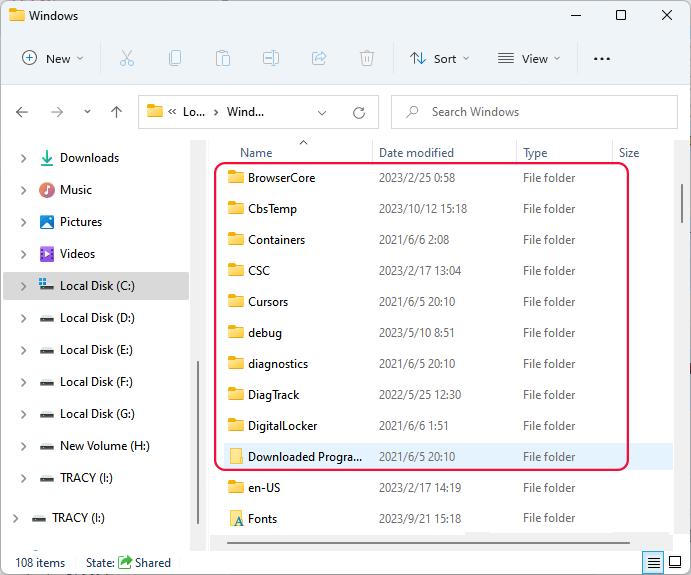
If you need a further guide, refer to this link for help:
Locate, Remove and Delete Large Files in Windows
You can easily find, locate, remove, and delete large files in Windows 10, 8, or 7 by following two effective methods. This will help you clean up and free up space on your PC, which can be slowed down by large files. By using these solutions, you can quickly identify and eliminate large files that are taking up unnecessary space, making your computer run more smoothly.
Once you determine what files you want to shred, follow the next step.
Step B. Turn to Third-Party File Shredding Software
To securely shred files and make them irrecoverable, use a reliable tool like Qiling Disk Master, a trustworthy file shredding software for Windows 10 that offers advanced features and supports traditional and solid-state drives.
Qiling Disk Master simplifies disk management tasks and empowers users to control their storage resources, catering to home users, small business owners, and IT professionals alike.
To ensure the security of your sensitive data, download and install Qiling Disk Master, a tool that can shred files and eliminate worries about unauthorized access.
C. Shredding Files using Third-Party Software
To shred files in Windows 10, download and install the Qiling Disk Master, then follow the step-by-step guidelines:
Step 1. Launch Qiling File Shreder
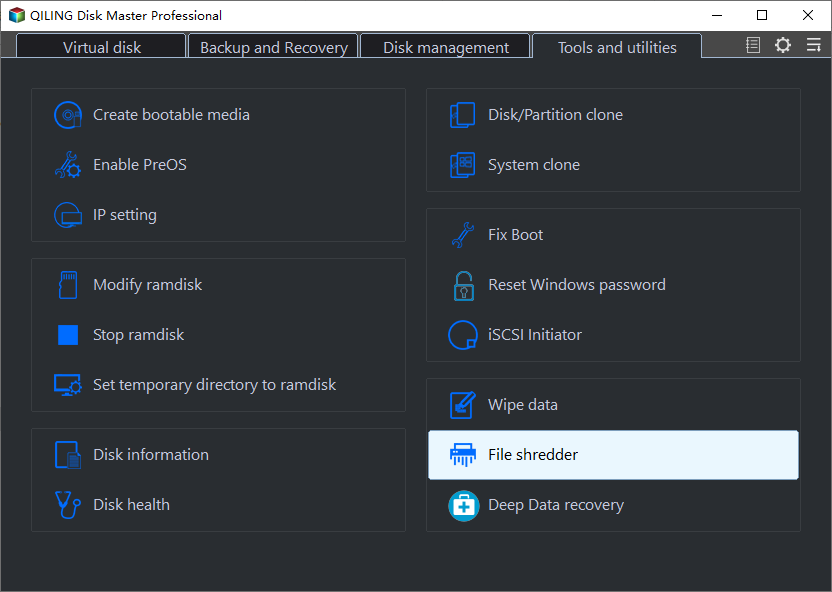
Run Qiling Disk Master, go to the Discovery section, and click "File Shredder" to shred files.
Step 2. Select Files or Folders to Shred
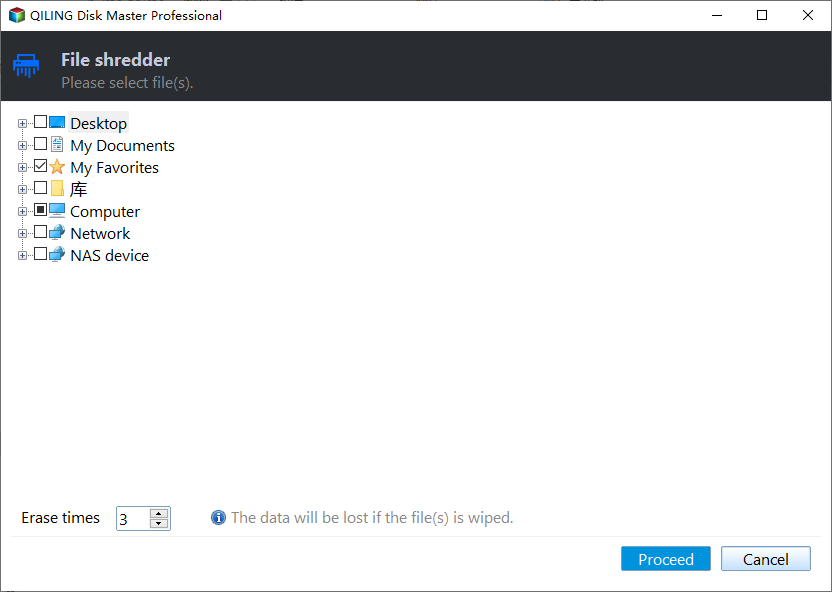
Drag files or folders to the center area or click on "Add Folder" or "Add Files" to select the files or folders you want to shred.
Step 3. Confirm to Shred
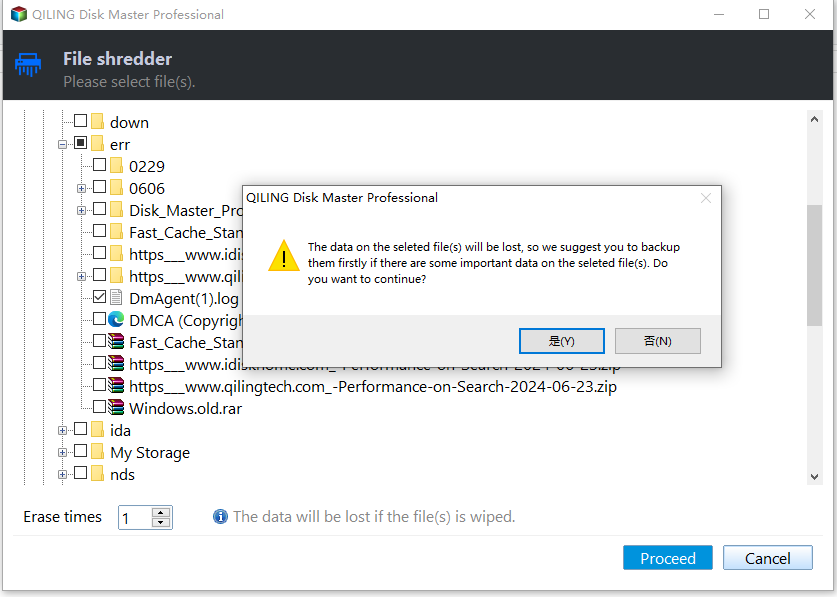
Confirm the selected files or folders, and click "Shred" to permanently delete the data from your device.
Share this incredible tool with your friends to help them effortlessly shred files on their computers and external storage devices for free. This amazing tool makes it easy for them to securely delete sensitive information, protecting their privacy and security.
When to Apply File Shredding in Windows 10?
File shredding in Windows 10 is a security practice that involves permanently deleting files to prevent unauthorized access. It's essential in various scenarios, such as when disposing of confidential documents, deleting sensitive information, or removing malware. A file shredding tool can be used to securely erase files, making it impossible for others to recover them, even with specialized software.
|
A. Shredding Recycle Bin Contents: |
To securely delete files, shred them before emptying the Recycle Bin, ensuring sensitive data isn't recoverable. |
|
B. Shredding Files on External Drives: |
When transferring files to an external drive, remove them from your computer afterwards to prevent data leakage if the drive is lost or shared. |
|
C. Clean up confidential or private document files: |
To maintain your privacy and data security, shred documents containing sensitive information, such as financial records, medical reports, or personal correspondence, on a regular basis. |
|
D. Additional Security Measures: |
When boosting overall computer security, consider incorporating file shredding into your arsenal, alongside other measures such as encryption and strong passwords, to bolster your data protection. |
|
E. Before Selling or Disposing of Hardware: |
Before getting rid of old computers or storage devices, use file shredding to completely erase all data, preventing potential data breaches and identity theft. |
|
F. After Virus or Malware Attacks: |
If your computer has been compromised by malware or viruses, shred files that may have been infected to prevent the malicious code from being resurrected from deleted files. |
|
G. When Sharing a Computer: |
If you share a computer with others, it's a good idea to shred files after each use, especially if they contain personal or confidential information. This will help protect sensitive data from being accessed by others. |
| H. End of a Project: | When a project is complete, shred project-related files to declutter and protect sensitive data. |
Applying file shredding in situations where sensitive data is involved can significantly enhance data security and protect personal information from unauthorized access. This process involves securely deleting files to prevent them from being recovered, thereby safeguarding against potential data breaches and misuse.
Conclusion
File shredding in Windows 10 is necessary to protect your data, ensuring it's permanently and irreversibly deleted. However, the process can be complex, making third-party software a reliable option. Qiling Disk Master simplifies and enhances secure file deletion, offering an easy way to protect your data from potential threats.
Prioritizing file shredding is crucial for maintaining digital privacy and security in Windows 10. Whether you're dealing with personal documents, sensitive work files, or project-related data, shredding files is a vital practice that ensures your sensitive information remains confidential and irretrievable. By making shredding a routine, especially in situations that demand data protection, you can rest assured that your files are thoroughly deleted and cannot be recovered.
FAQs of Shredding Files in Windows 10
If you have questions about shredding files in Windows 10, you can find the answers in these FAQs.
1. What is the best free file shredder for Windows 10?
Qiling Disk Master is a top-notch free file shredder for Windows 10 that securely deletes files beyond recovery. By downloading and installing this tool, you can permanently erase files and make them irrecoverable.
2. Does Windows 10 have a file shredder?
Windows 10 does not have a built-in file shredder, but you can use third-party software to securely shred specific files, or use the Command Prompt to erase an entire disk or drive.
3. How do I permanently shred a file in Windows 10?
To permanently shred a file in Windows 10, you can use third-party software like Qiling Disk Master, which allows you to securely delete files by overwriting them multiple times with random data, making recovery impossible.
- Download and install Qiling Disk Master.
- Launch the software and choose "File Shredder."
- Click "Add" to choose the file you want to shred.
- Confirm the file selection and click "Shred."
Related Articles
- Full Guide to Check and Fix Disk Error in Windows 11
- Can I Run Windows Disk Speed Test with Command Line? Sure, Your Guide Is Here
- 4 Ways to Fix PNY 128 GB Flash Drive Write Protected
PNY 128 GB flash drive write protection is a common issue that can be frustrating for many computer users. Fortunately, there are four effective ways to resolve this problem, which will be discussed in this article to help you regain access to your write-protected flash drive. - Best PNY USB Flash Drive Format Tool Free Download👍
If you're looking for a PNY USB flash drive format tool, you'll find four reliable free format tools in this post. Follow the detailed guide to format your PNY USB flash drive. - 10 Fast Ways to Speed Up Windows 11 | How to Make Windows 11 Faster
Upgrading to Windows 11 can sometimes result in a slow computer, but there are ways to speed it up. Once you've completed the upgrade, you can try various methods to improve your PC's performance. - Why Is Windows Server Slow and Tips to Speed Up Windows Server in 2026
As a common user, one might wonder why Windows Server is so slow, and Qiling offers a chance to learn how to speed up Windows Server with simple tricks and tips.
Products
Articles & Tutorials
- Data Recovery
- Data Backup
- File Recovery
- File Backup
- System Backup and Restore
- Disk and Partition Clone
- Technical articles
- Mobile articles
- Disk Master Help
- Windows Data Recovery Tutorials
- Windows Secure Delete Tutorials
- Windows Partition Management Tutorials
- Windows File Backup and Restore Tutorials
- Windows System Backup and Restore Tutorials
- Windows Disk Backup and Restore Tutorials
- Windows Clone Tutorials