Why Is Windows Server Slow and Tips to Speed Up Windows Server in 2022
Developers and computer experts often assume server issues when experiencing desktop problems, but the problem may actually reside within the server itself. Have you ever wondered why your Windows server was slow, yet was running smoothly just days ago? The issue may not be with the server's operating system, but rather with the server itself, which can be a complex computer running a unique software program. Fortunately, resolving such issues can be achieved through simple tips, which this article will outline in detail.
| Workable Solutions | Step-by-step Troubleshooting |
|---|---|
| 1. Switch power settings to high performance | If you have a fluctuating power supply, then it is impossible to obtain the processor's hundred percent...Full steps |
| 2. Close unnecessary background programs | Always close the unnecessary programs completely before initiating the next one...Full steps |
| 3. Extend system drive | Option 1. Extend System C drive with unallocated space...Full steps |
| 4. Migrate Windows Server OS to SSD |
Run Qiling Partition Master, select Migrate OS from the top menu...Full steps |
Why is the Windows server so slow?
A server can slow down due to various reasons, making it common for Windows Server to experience a decline in performance. Several issues can contribute to this, and some of the most common reasons include.
- Low power performance can cause the server to slow down and reduce the clock speed of the processors.
- Excessive usage of RAM, also known as Random Access Memory, refers to the situation where a computer or device uses more memory than it has available, leading to decreased performance, crashes, or other issues.
- Running multiple large programs simultaneously can cause high CPU utilization, reducing the server's speed.
- Heavy network utilization can slow down the server while surfing the net.
- Multiple junk files are taking up space on the hard disk.
- Being infected by viruses and other unnecessary malware.
- Low disk space, especially in the computer file storage drive.
To speed up your Windows server, start by checking if the issues listed above are present in your server. It's likely that the problems lie within your server rather than elsewhere, so testing these theories can help you identify the issues without needing to consult experts.
How can I speed up slow Windows server performance?
To speed up a Windows server, it's essential to follow specific steps and address potential issues. While the basic reasons for slowing down have been listed, it's also important to analyze and optimize your system server to achieve optimal performance. By doing so, you can ensure your server runs smoothly and efficiently, making it a valuable asset for your business or organization.
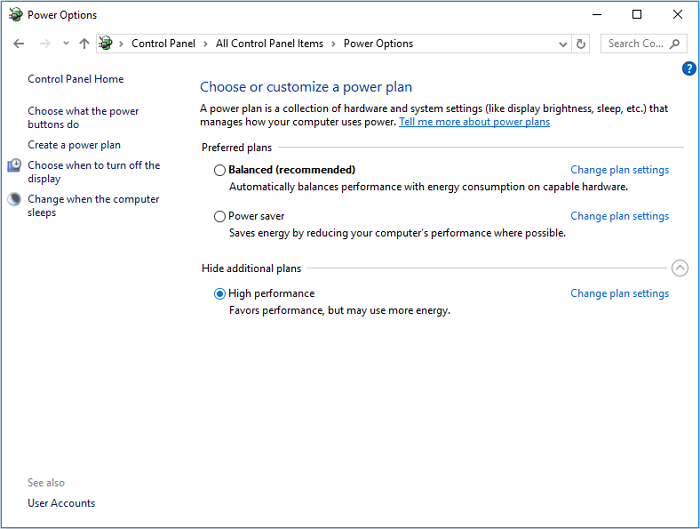
Switch power settings to high performance
Each system or server requires its own set of power settings to function regularly, with the consumed power matching the clock speed of the processor. Even a slight change in power supply can slow down the processor, making it challenging to achieve 100% efficiency. To overcome this, a power backup system like a UPS combined with a stabilizer can ensure the processor runs smoothly and continuously without interruptions.
Close unnecessary background programs
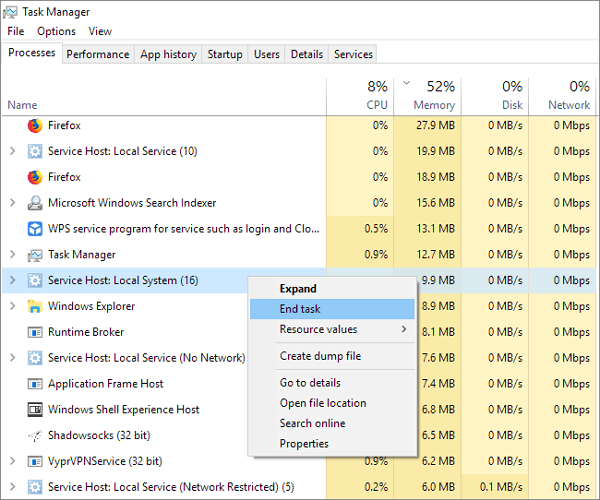
The amount of RAM storage capacity limits the number of programs that can be kept open at a time. Each program consumes some storage space to run efficiently, and when multiple programs exceed this capacity, the computer's performance slows down and may even freeze. To prevent this, it's essential to close unnecessary programs completely before opening a new one.
Extend system drive
To maintain server speed, it's recommended to separate the administration drive from other partitions using multiple partitions. This prevents overcrowding on the administration drive, ensuring the server runs smoothly. Utilize software like Qiling Partition Master Enterprise to extend the system drive without reducing volumes, making the process simple and efficient.
Qiling Partition Master Enterprise
Your trustworthy Windows Server disk manager.
- Extend System drive, combine/split partitions.
- Clone disk, migrate OS to HDD/SSD.
- Convert MBR to GPT, GPT to MBR, no data loss.
- 1-click adjust disk layout, create volumes at one time.
Option 1. Extend System C drive with unallocated space
- 1. Click on the System C: drive and select "Resize/Move".
- To expand the C: drive, drag the system partition end into the unallocated space, effectively adding it to the C: drive. This will increase the size of the C: drive.
- Click Proceed to execute the operations and extend the C drive.
Option 2. Extend System C drive without unallocated space
- 1. Right-click a big partition with enough free space on the system disk, select "Allocate Space" to free up space.
- 2. Select the system drive at the "Allocate Space From" section, and drag the end of the System C drive into the unallocated space.
- 3. Click "Proceed" to save the changes and extend the C drive.
Migrate Windows Server OS to SSD
The main issue with the administrative disk drive is its current storage on an HDD, which can be outdated. With advancements in technology, it's now possible to transfer the Windows server operating system to a faster and more efficient SSD disk. Using a tool like Qiling Partition Master can make this transfer process simple and efficient, reducing transfer time and ensuring that all data are properly transferred without any damage to file quality.
Steps to migrate OS to HDD/SSD:
- Run Qiling Partition Master, select Migrate OS from the top menu.
- Select the SSD or HDD as the destination disk and click Next.
- Be aware that the data and partitions on the target disk will be completely erased. Before proceeding, ensure you have backed up any critical data on the disk to prevent loss. If you haven't backed up your data yet, do so immediately.
- Then click Continue.
- To migrate your operating system to a new disk, first preview the layout of your target disk. Once satisfied, click the "Proceed" button to initiate the migration process. This will start the transfer of your OS to the new disk, effectively replacing the old one.
Note: If you're migrating your OS to a new SSD or HDD, be aware that the process will erase all existing data and partitions on the target disk if it doesn't have enough unallocated space. Make sure to back up any important files to an external drive beforehand to avoid losing them.
Add RAM
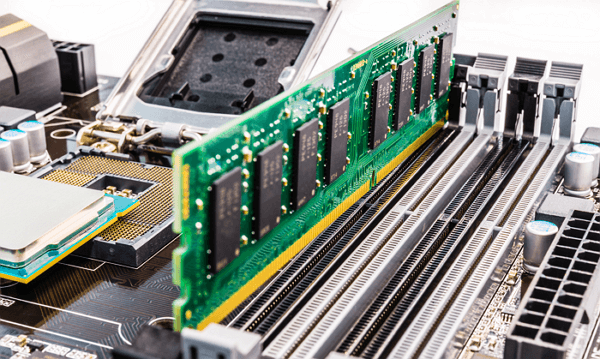
You can add extra RAM to your server to improve its speed when you need extra storage space, but only purchase a server with the suitable RAM capacity based on the programs you install.
Run disk cleanup
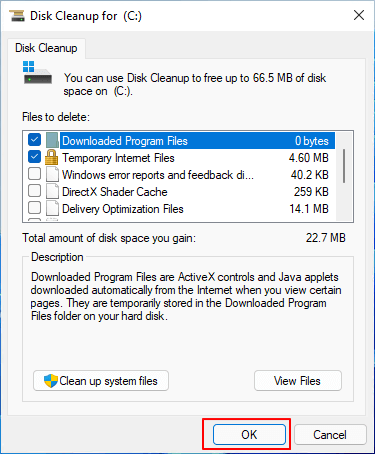
Excessive storage and lack of space on the hard disk drive can slow down the server, particularly if accessory storage within the disk is utilized. To prevent such issues, it's essential to perform disk cleanup, deleting unwanted files and retaining necessary data, which can help maintain optimal server performance.
Remove virus and malware
Having an updated antivirus program is essential in most computers and servers. Installing and regularly running antivirus software, at least once every 10 days, can help reduce the attack of external viruses and malware, which can speed up the Windows server.
Bonus tips to keep Windows server computers fast and efficient
Along with these professional ideas, there are certain tips that you can follow to keep your Windows server optimized for efficient running. Some of the tips have been listed below for your verification.
- To optimize server disk space, consider using an external hard drive to store and back up data, freeing up the server disk drive from unnecessary space and data.
- To ensure a stable power supply for your computer, consider using a stabilizer, which can regulate and filter the input power to prevent voltage fluctuations and spikes. Additionally, using an external battery as a backup power source can provide a reliable alternative to the main power supply, helping to prevent data loss and system crashes.
- To increase the storage capacity of your computer, consider adding an external hard drive (HDD) or solid-state drive (SSD) to expand your storage space. This will provide you with more room to store files, programs, and other data, helping to keep your computer running smoothly and efficiently.
- Regularly check the system admin drive using disk cleanup to detect and remove unwanted programs by uninstalling them.
- Regularly backing up data and cleaning up cookies can help improve internet and server speeds. This can be done to ensure that data is safe and to remove unnecessary files that may be slowing down the system.
Conclusion
To speed up Windows servers, various techniques can be employed, including those mentioned above. By implementing these ideas, the speed of the server can be improved, reducing the stress of the person operating it and ensuring a perfect final output. Whether it's a simple home computer or an advanced office computer, server maintenance is essential to follow.
Related Articles
- 2022 Sony USB/Pen Drive Format Tool Is Online | Free Download
- Move Unallocated Space to the Left, Right or End of A Drive Easily
- How to Fix The Selected Disk is not a Fixed MBR Disk
- How to Improve SSD Performance in Windows 11 [Step-by-Step]
- How to Fix Unexpected Store Exception in Windows 10/11
If your Windows computer is affected by a blue screen of death (BSoD) error, specifically an Unexpected Store Exception error, - this guide can help. This post offers 10 practical solutions to help you fix this issue in Windows 10/11, providing a tested and reliable way to resolve the problem. - How to Unlock ASUS Laptop Without Password - Tutorial
Forgot your ASUS laptop password? you can still unlock your laptop without it by using the methods and insights explained in this article, which provides helpful solutions for regaining access to your device.
Products
Articles & Tutorials
- Data Recovery
- Data Backup
- File Recovery
- File Backup
- System Backup and Restore
- Disk and Partition Clone
- Technical articles
- Mobile articles
- Disk Master Help
- Windows Data Recovery Tutorials
- Windows Secure Delete Tutorials
- Windows Partition Management Tutorials
- Windows File Backup and Restore Tutorials
- Windows System Backup and Restore Tutorials
- Windows Disk Backup and Restore Tutorials
- Windows Clone Tutorials