How to Unlock ASUS Laptop Without Password - Tutorial
If you're having trouble unlocking your ASUS laptop without a password, don't worry - there are several options available. Qiling's guide provides four detailed methods suitable for all skill levels, from beginners to experts. Each method is discussed in terms of its difficulty level and potential data risks, allowing you to choose the one that works best for you. Whether you're looking to bypass a forgotten password or simply want to explore alternative unlocking methods, there's a solution here.
| Method | Target Users | Difficulty | Data loss |
|---|---|---|---|
| Use Qiling Disk Master | Beginners/Experts | Low | None |
| Use Built-in Administrator Account | Experts | Complex | Moderate |
| Use Microsoft Account Service | Beginners/Experts | Low | Moderate |
| Use Reset Disk | Intermediate/Experts | Moderate | Moderate |
| Factory Reset | Intermediate/Experts | Moderate | All |
If you're having trouble unlocking your ASUS laptop, don't worry - there are several simple methods to get you back in. One of the easiest ways is to use Qiling Disk Master, which allows you to reset your Windows password without even logging in. In the following sections, we'll walk you through each method in detail, so you can quickly and easily regain access to your laptop, regardless of your skill level.
Keeping your laptop secure is crucial, but mishaps can happen, such as forgetting your password. Having unlocking methods at your fingertips is invaluable, whether you choose the straightforward approach of Qiling Disk Master or the last-resort Factory Reset. These tools ensure that a forgotten password doesn't become an insurmountable obstacle, allowing you to bypass Windows 11 password and unlock your ASUS laptop without password, giving you peace of mind and a path back to productivity.
Unlock ASUS Laptop Without Password Using Qiling Disk Master
In the world of password recovery, Qiling Disk Master is your trusted friend. This tool can help you regain access to your ASUS laptop without the headache of remembering a password, making it a reliable solution for password-related issues.
Qiling Disk Master offers a convenient solution for ASUS laptop users who have forgotten their password, allowing them to regain access to their device with ease. Its "Password Reset" feature is specifically designed to handle this issue, eliminating the hassle of forgotten passwords. By downloading Qiling Disk Master, users can say goodbye to password-related problems and regain control of their laptop.
Step 1. To reset a password on a USB disk, insert the target USB disk into the computer, download and run Qiling Disk Master, and click on the "Toolkit" option followed by "Password Reset" within the program.

Step 2. Insert the password reset USB flash drive into the computer and follow the on-screen instructions to reset the password. Wait patiently. After the password reset is complete, click "Finish".

Step 3. Insert the password reset USB into the locked PC, restart the PC, and follow the instructions to change the boot drive to boot from the USB. The system will then automatically boot from the USB.

Step 4. After restarting, find Qiling Disk Master again and go to "Password Reset". Click on the target account and check "Reset" to reset all accounts on the PC.

Step 5. When you receive this prompt, click "Yes" to continue. Your password will be erased.

With this tool, you can easily remove Windows password and reset Windows 11/10 password without logging in.
Use Built-in Administrator Account
The built-The Administrator account serves as a backup key to unlock your ASUS laptop when you forget your password, offering a reliable and accessible solution.
Step-by-Step Guide:
- Start your laptop and head over to the login screen.
- Press the "Power" button in the lower-right corner.
- From the pop-up menu, select restart.
- After your laptop restarts, select the "Troubleshoot" option from the multiple choices provided.
- Select "Advanced Options" from the given options.
- Select the "Command Prompt."
- Type 'net user administrator /active:yes' and press Enter.
- Restart your laptop once more.
To access your laptop, click on the Administrator account on the login screen. It will be displayed, and clicking on it will grant you access to your laptop.
Helping others unlock their ASUS laptops without a password can be a lifesaver, and sharing this information with them can be a big help.
🔥Further Reading: How to Unlock Lenovo Laptop Without Password
Use Microsoft Account Service
The Microsoft Account Service provides a convenient way to regain access to your ASUS laptop, allowing you to reset your password and log in seamlessly if your account is linked. Additionally, it can be used to reset passwords for older versions of Windows, such as Windows 7. To regain access to your laptop, simply follow the steps outlined.
Step-by-Step Guide:
- Enter your regular password into your ASUS laptop.
- If the password entered is incorrect, a "Recover your account" option will appear. Click on it.
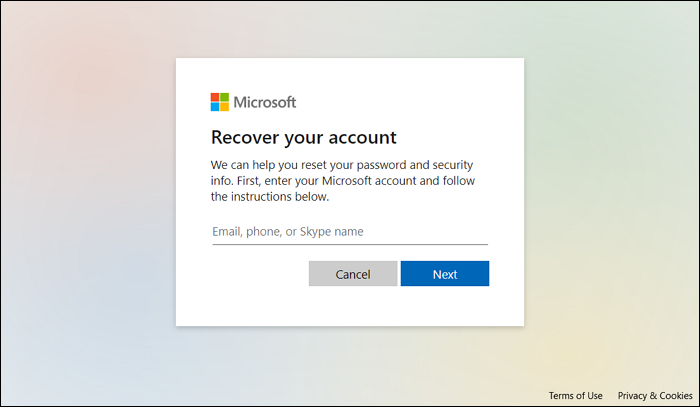
- To start the process, use your Microsoft account.
- Verify your identity with an email address or phone number linked to your Microsoft account.
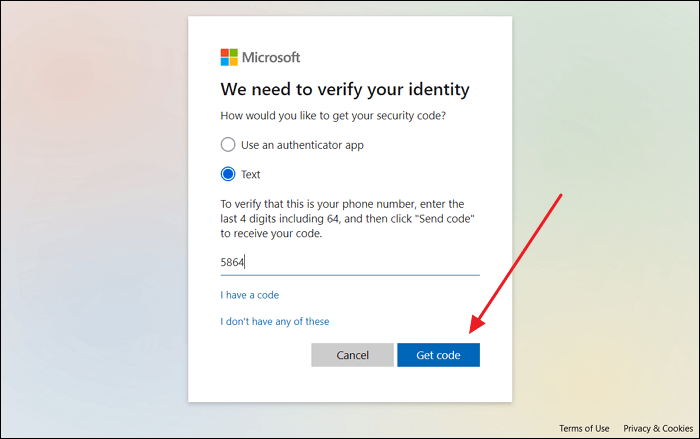
- Follow the instructions that appear on your screen to reset your password.
- To access your ASUS laptop, return to the login screen and enter your new password.
If you've linked your ASUS laptop to your Microsoft account, you can regain access to it by using the "Forgot password" feature. This process is straightforward and can be completed in a few steps. You'll need to enter your Microsoft account email address and password, and then follow the prompts to reset your password.
💡Read Also: How to Unlock a Dell Laptop Without Password
If your ASUS laptop is locked, don't panic! There are several ways to unlock it. First, try pressing the power button for 30 seconds to discharge the battery.
Use a Password Reset Disk
A reset disk is a crucial safety net for ASUS laptops, allowing you to reset forgotten passwords and regain access to your device in case of a lockout.
Step-by-Step Guide:
- Create a password reset disk on another computer.
- When locked out of your ASUS laptop, insert the password reset disk you created. This disk contains a bootable operating system and the password reset utility, allowing you to bypass the login screen and reset your password.
- Click on the "Password Reset Wizard" prompted by the system. Then, click Next to proceed.
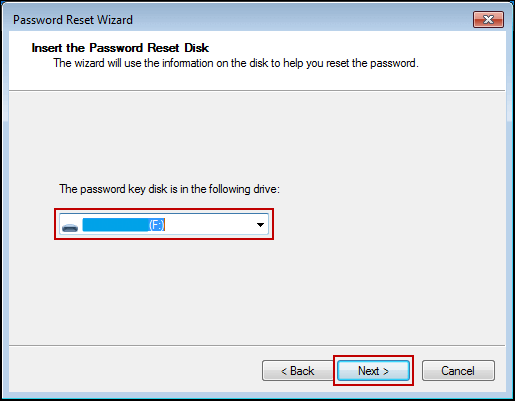
- What steps should I follow to reset my password?
- After resetting your password, you can safely remove the reset disk and restart your laptop.
Forgetting your password can be frustrating, but having a reset disk can be a lifesaver in such situations, providing a backup plan for unexpected password issues.

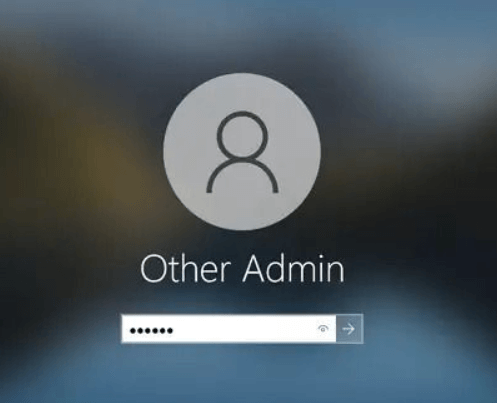
5 Ways | Reset Windows 10 Password Without a Disk
To reset your password without a password reset disk, follow these easy steps. You can try multiple methods to regain access to your account, such as using a password recovery tool, answering security questions, or contacting the account administrator for assistance.
Unlock ASUS Laptop Without Password Using Factory Reset
This section will explore the last resort method: Factory Reset the ASUS laptop. This method will erase all data on the laptop, so use it only when other methods fail.
Step-by-Step Guide:
- Before proceeding, ensure you have backed up all important data, as this method will completely erase everything.
- Restart your ASUS laptop.
- Press the specified key during startup to enter the "Advanced Boot Options" menu.
- Click "Troubleshoot" and then "Reset this PC."
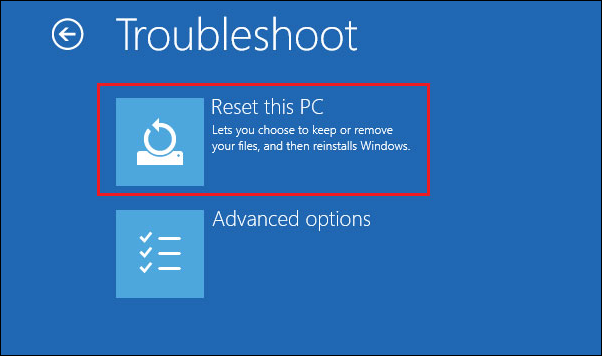
- To start the Factory Reset process, follow the prompts on the screen.
- Your laptop will reset to its original settings.
When you're locked out of your device, a Factory Reset can be a last resort, but be aware that it will erase all your data. If other methods fail, it's an option, but it's essential to understand the consequences of losing your data. If you're unsure, you can also refer to a video for more guidance.
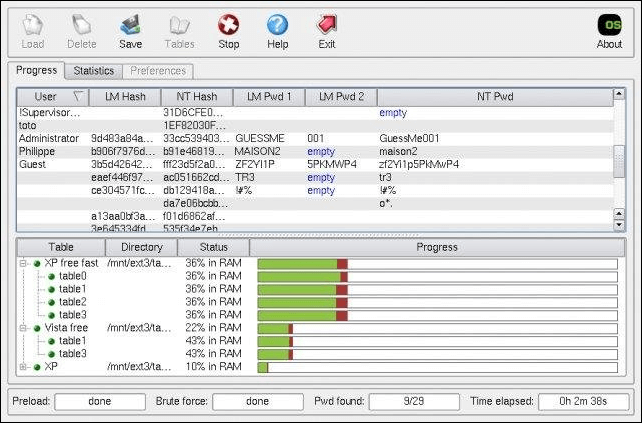
Windows 7 Password Reset Tools - Top 5 Checklist
If you're running Windows 7 for professional or personal reasons and got locked out of your account, don't worry! There are top 5 Windows 7 password reset tools that can help you regain access without formatting your PC.
Conclusion
The process of unlocking an ASUS laptop without a password involves various methods, including using the user account, password reset, safe mode, Qiling Disk Master, the built-in Administrator account, Microsoft account service, a reset disk, or the Factory Reset option. These methods can be employed to regain access to the laptop, depending on the specific situation and desired outcome.
When deciding how to reset your Qiling Disk Master, consider the pros and cons of each method. For a hassle-free experience, Qiling Disk Master is the user-friendly choice. However, if you're facing serious issues, a Factory Reset might be necessary, but be aware that it comes with the risk of data loss and should be your last resort.
Feel free to share this article with your peers to help them tackle ASUS laptop unlocking issues. A helping hand goes a long way!
Unlock ASUS Laptop Without Password FAQs
Unlocking an ASUS laptop can be easy with the proper tools or methods, especially for those encountering ASUS laptop login issues. We've gathered answers to common questions to help resolve these problems.
1. How do I unlock my ASUS laptop when I forget the login password/PIN?
If you've forgotten your password, you can try using the built-in Administrator account or Qiling Disk Master to regain access.
2. What do I do if I accidentally lock my laptop?
You can try pressing the Windows key + X and selecting the Power button to shut down your laptop, then press the power button again to turn it back on. If that doesn't work, you can try pressing the Windows key + R to open the Run dialog, type 'shutdown /f /t 0' and press Enter.
- 1. Wait for the Lockout Timer
- 2. Try a Different User Account
- 3. Use Password Recovery Options
- 4. Windows Password Reset Disk
- 5. Contact Support
- 6. Qiling Disk Master
3. How long will a computer lock you out for the wrong password?
A computer may lock you out for 15-30 minutes after entering the wrong password multiple times, depending on its settings.
You may also like:
Related Articles
- Qiling Disk Master 16.0 Crack 2024 | Get Qiling Disk Master Crack License Key
- How to Fix Black Screen After Cloning Disk - 3 Proven Methods
- How to Fix "Windows 11 Can't Format Hard Drive" Error
- How Do I Partition SSD on Windows 11? 5 Things You Need to Know
- Can't Extend C Drive in Windows 11? Here Is Why and How-to Fix
Facing an error while trying to extend your full-storage C drive can be frustrating. Fortunately, this article provides reliable and guaranteed methods to increase storage, helping you overcome this issue. - Troubleshooting: Why Can't I Format My USB Drive as FAT32 [2022 Guide]
Having trouble formatting your USB drive as FAT32? This page provides can help. We'll explore the possible reasons behind your formatting issues and provide a step-by-step guide to help you successfully format your USB drive as FAT32.
Products
Articles & Tutorials
- Data Recovery
- Data Backup
- File Recovery
- File Backup
- System Backup and Restore
- Disk and Partition Clone
- Technical articles
- Mobile articles
- Disk Master Help
- Windows Data Recovery Tutorials
- Windows Secure Delete Tutorials
- Windows Partition Management Tutorials
- Windows File Backup and Restore Tutorials
- Windows System Backup and Restore Tutorials
- Windows Disk Backup and Restore Tutorials
- Windows Clone Tutorials