5 Ways to Reset Windows 10 Password Without a Disk
Windows is a user-friendly operating system, where most issues can be resolved independently. However, when it comes to forgotten passwords, users, especially those who signed in with a local account, may have limited options. This can be frustrating, especially when trying to access important data. Fortunately, there are still some possible solutions available, allowing users to regain access to their Windows PC.
In this case, you would require a password reset disk, which is supposed to be set up beforehand. However, other methods can be used for the same. In this article, Qiling will learn how to reset your Windows password without a disk.
Read Also:
4 Tips to Reset Windows 7 Password without Disk
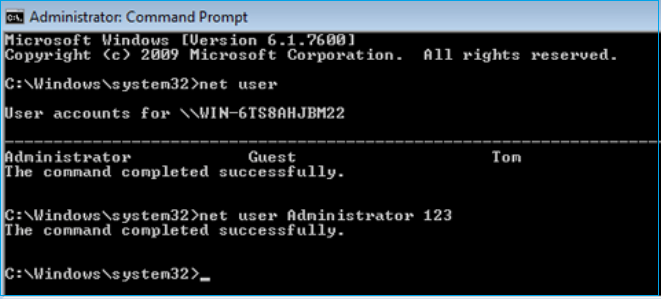
To reset a Windows 7 password without a disk, you have four feasible options. You can use a professional password tool, or one of the three Windows built-in tools: the built-in Administrator account, the Command Prompt, or the System Restore feature.
Reset Windows 10 Password Without a Disk Using Third-Party Software
While manual methods can help reset passwords, they can be complex and time-consuming. Fortunately, there are third-party apps available that can help recover Windows 10 passwords without the hassle of manual methods.
The Qiling Disk Master software has a built-in Windows Password Reset feature, making it easy to use and providing valuable tools in the package, all of which are free and ad-free, backed by decades of industry experience.
To avoid the hassle of manually resetting a Windows password, you can download a Windows password unlocker, which allows you to reset the password quickly and easily.
Step 1. To reset the password on a USB disk, insert the target USB disk into the computer, download and run Qiling Disk Master, and click "Tools" > "Password Reset" from the software.
Step 2. A small window will pop up, prompting you to confirm a software update. Read the information carefully and click "Yes" to proceed with the update.
Step 3. Select the correct USB flash drive or external mobile hard disk and click "Proceed". Wait patiently. After the password reset USB flash drive is created, click "Finish".
Step 4. Remove the password reset USB, insert it into the locked PC, restart it, and you'll be prompted to change the boot drive to boot from USB. The system will then automatically boot from USB.
Step 5. After restarting, find Qiling Disk Master again and go to "Password Reset". All accounts on the PC will be displayed in the interface; click on the target account and check "Reset" to reset the password.
Step 6. When you receive this prompt, click "Yes" to continue. Your password will be erased.
If you want to bypass or crack a Windows 10 password, you may like to read this post:
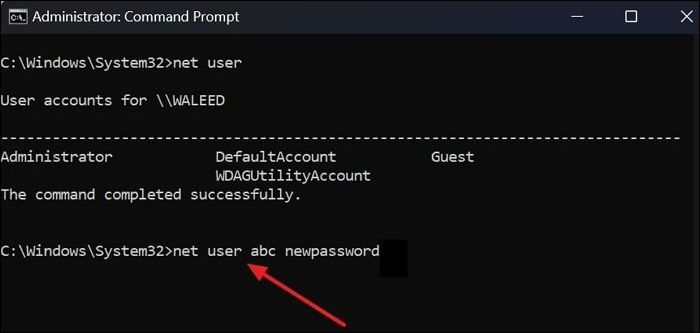
How to Change Windows Password Using Command Prompt
If you're struggling to change your Windows password, you can do so using Command Prompt, but there may be a more convenient alternative. This page will guide you through the process of changing your Windows password using Command Prompt.
How to Reset Windows 10 Password Without a Disk - 5 Tips
In Windows 10, resetting a forgotten password depends on the account type. If you're signed in with a Microsoft account, the process is straightforward. However, if you're using a local account, you'll need a password reset disk, unless you use one of the alternative methods that don't require a disk. These alternatives can help you reset your Windows password without a disk.
Way 1: Reset Windows 10 Password via Security Questions
To reset your Windows 10 password via security questions, go to the login screen and click on the "Forgot password" option. Then, select "Answer my security questions" and enter your answers to the previously set security questions. If your answers are correct, you will be able to access your computer without entering a password. This process allows you to bypass the password requirement and unlock your computer using your security questions.
Step 1. To get the Reset password option in Windows 10, start by entering a random password in the password field. This will prompt the system to display the Reset password option.
Step 2. Once you see the option, click on it.
Step 3. The three previously set-up security questions are on the reset password page. Answer those questions correctly.
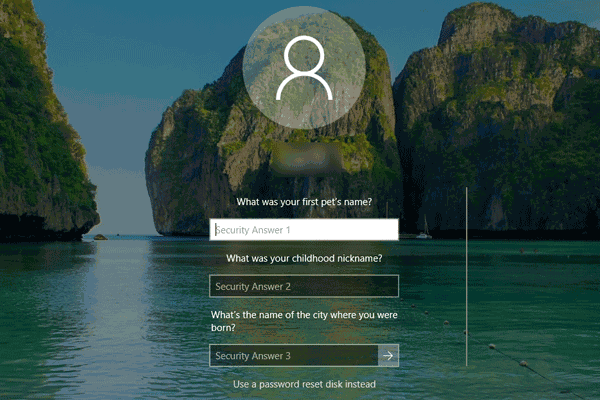
Step 4. Once you've answered a few security questions correctly, you'll be able to create a new password.
Way 2: Reset Windows 10 Password via Other Sign-in Options
If you've forgotten your Windows 10 password or PIN, you can use other sign-in options like fingerprint, picture, or facial recognition to log in. To do this, you'll need to have already set up these alternative sign-in methods. If you have them enabled, you can follow a few simple steps to reset your password using one of these options.
Step 1. To open the elevated command prompt, you can search for "cmd" in the start menu, right-click on the Command Prompt result, and then select the "Run as administrator" option. This will open the Command Prompt with administrator privileges, allowing you to run commands that require elevated permissions.
Step 2. Enter the following command.
net user account_name new_password
💡Note: To update the password for the account "account_name", replace "account_name" with the actual name of the account and "new_password" with the new password you want to set for the account.
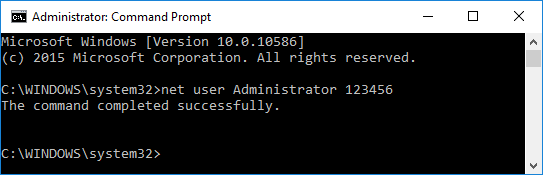
Step 3. Press Enter on your keyboard.
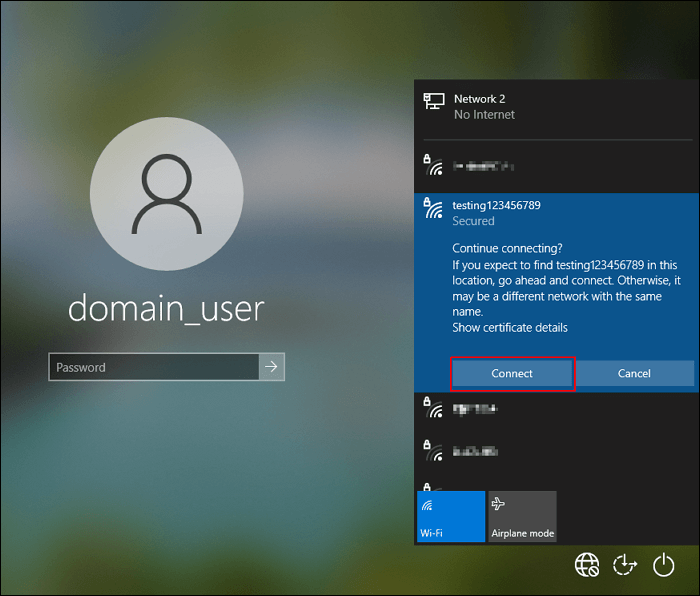
Windows 10 Not Accepting Password? 7 Quick Solutions
If your Windows 10 is having trouble accepting your password, preventing you from logging in, this guide can help you resolve the issue.
Way 3: Reset Windows 10 Password Via Other Administrator Account
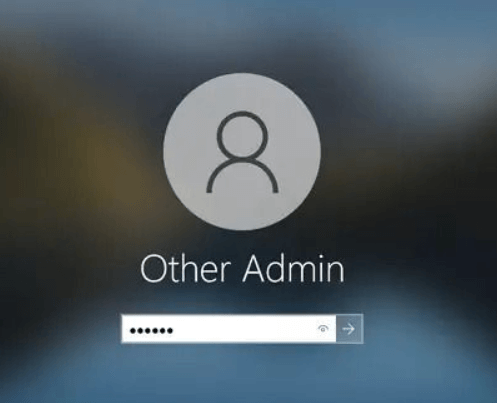
If you have another administrator account set up on your device and have access to it or someone else does, you can log in to it and change the password for your administrator account by following these steps:
Step 1. Sign in to another administrator account on your Windows PC.
Step 2. In the start menu, search for the Control panel.
Step 3. To access the user account section, open the control panel and navigate to the user accounts option, which is usually located on the left-hand side of the window.
Step 4. In the user account section, click on Manage another account, select the account you wish to reset, and click Change the password.
Step 5. Type in the new password, confirm it, type a password hint, and click Change password.
Way 4: Reset Windows 10 Password via CMD
You can reset your Windows 10 password without a disk by using the Command Prompt from the login window, but this method only works if you've forgotten your PIN or password. This allows you to reset your password directly from the login screen.
The steps are below:
Step 1. When Automatic Repair is turned off, a dialog box appears where you can choose to restart or access advanced options.
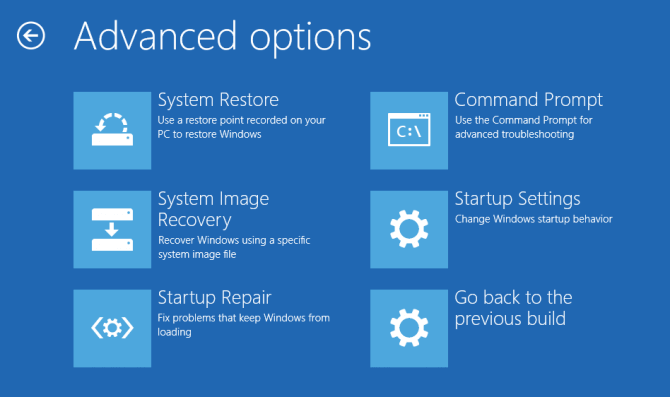
Step 2. To access advanced options, select the "Advanced Options" option, which will prompt you to a new Troubleshooting window.
Step 3. Select Advanced Options > System Image Recovery.
Step 4. The error message "Windows cannot find a system image on this computer" appears when Windows Update fails to create a system image. This issue can occur due to various reasons, including corrupted system files, incorrect system image settings, or problems with the Windows Update service. To resolve this issue, you can try restarting the Windows Update service, running the System File Checker (SFC) tool to scan and replace corrupted system files, or resetting Windows Update using the Windows Update Troubleshooter.
Step 5. There, click Advanced > Install Driver > OK.
Step 6. Navigate to the local disk C:\Windows\System32, search for utilman, and rename it to utilmancopy.
Step 7. To find the renamed file, go to the folder where you last saved it. Look for the file with the new name you gave it. Once you've found it, copy it to a safe location.
Step 8. Close all windows and restart your computer.
After restarting the computer without the disk, you must perform the following steps:
Step 1. In step 8, renaming utilman to utilmancopy replaced the Ease of Access button with the CMD window.
Step 2. To reset a Windows password, open the Command Prompt as an administrator by searching for "cmd" in the Start menu, right-clicking on the result, and selecting "Run as administrator". Then, type "Net User [Username] New Password" and press Enter, replacing [Username] with the actual username and New Password with the desired new password.
Step 3. Now, replace your username and password with your desired username and password.
When complete, a message will appear, "Command completed successfully."
Read Also: Remove Password in Windows 10 Without Login
Way 5. Reset Windows 10 Password If You Remember PIN
If you've forgotten your Windows PC password but remember your PIN, you can reset the password using the elevated command prompt. This method requires an Administrator account and knowing the exact account name. You'll need to follow the steps outlined in the previous method, using the command prompt to reset the password. This method is a viable option if you've forgotten your password but still have access to your PIN.
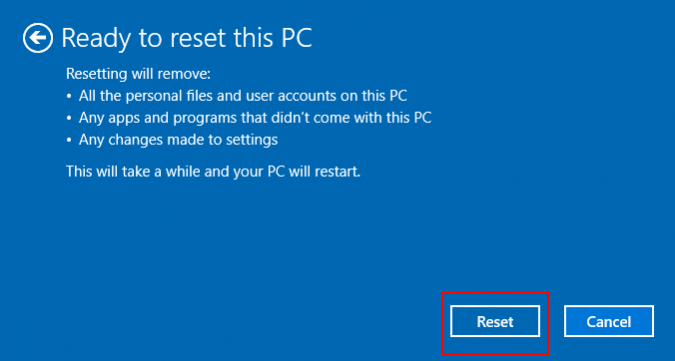
Reset Forgotten Windows 10 Password - 6 Ways
Don't worry if you've forgotten your Windows 10 password - this article provides a full guide on how to reset it and regain access to your laptop or computer.
Conclusion
This article showed us how to reset Windows 10 passwords without a disk, utilizing the operating system's built-in fixes. While these fixes may not always be easy to use, they are available for every related issue. Additionally, software like Qiling Disk Master can provide assistance. We hope you found this article helpful and will share it with others.
Reset Windows 10 Password Without a Disk FAQs
While we tried our best to provide a solution for the issue, it is valid to have some questions regarding the article. You can find the answers to a few of them here.
1. How to recover a Windows 10 password without a resetting disk?
If you have access to another admin account on your PC, log in and go to the Control Panel. From there, navigate to User Accounts, click on "Manage Another Account", select the locked account, and reset its password by typing a new one, confirming it, adding a hint, and clicking "Change Password".
2. How to reset the Windows 10 password using CMD?
To reset a Windows account password using the command prompt, open an elevated command prompt, then type `net user account_name new_password`, replacing `account_name` with the account you want to reset and `new_password` with the new password you want to set. Press Enter to execute the command, which will reset the password for the specified account.
3. How do I get into Windows 10 without a password?
To access Windows 10 without a password, you can reset your password by answering your security questions or by using the Command Prompt (CMD) with your PIN. This allows you to regain access to your account.
Related Articles
- How to Run Raspberry Pi SD Card Benchmark Test [Step-by-Step Guide]
- Troubleshoot and Bypass SMART Failure in Windows 2024 [Full Guide]
- How to Delete Partitions on SSD in Windows 11/10 [Step-by-Step Guide]
- How to Remove MBR Partition in Windows 7/8/10/11
- Best Dynamic Disk Manager for Windows 10, 8, 7, You Can Try
Looking for a powerful dynamic disk manager for Windows 10, 8, 7? Here we bring a great dynamic disk and partition manager for Windows PC users. - Format External Drive/USB exFAT in Windows 10 in Simple Steps
Format drive to exFAT Windows 10 so that it is read-and-write in Mac OS. This post tells how to format drives to exFAT in Windows 10.
Products
Articles & Tutorials
- Data Recovery
- Data Backup
- File Recovery
- File Backup
- System Backup and Restore
- Disk and Partition Clone
- Technical articles
- Mobile articles
- Disk Master Help
- Windows Data Recovery Tutorials
- Windows Secure Delete Tutorials
- Windows Partition Management Tutorials
- Windows File Backup and Restore Tutorials
- Windows System Backup and Restore Tutorials
- Windows Disk Backup and Restore Tutorials
- Windows Clone Tutorials