Change Windows Password Using Command Prompt - 2 Ways
To change the Windows password using Command Prompt, follow these steps: Open Command Prompt as an administrator, type the command "net user username newpassword" (replace "username" with your current username and "newpassword" with your desired new password), and press Enter. This command updates your Windows password. Note that you may be prompted to confirm your old password before making the change.
- 1. Change Windows Password With Simple Clicks (No Commands Required)
- 2. Change Windows Password Using Command Prompt [Step-by-Step Guide]
This article from Qiling will highlight two easy methods to change the Windows password, one of which uses Qiling Disk Master, an easier and more convenient way to change your Windows password, while the other method utilizes the Command Prompt (CMD).
Change Windows Password With Simple Clicks (No Commands Required)
Changing the Windows password has become straightforward with Qiling Disk Master Professional, thanks to its Password Reset functionality. This feature allows you to easily alter your password in just a few seconds, following a simple and hassle-free process that requires just a few uncomplicated steps.
The Password Reset feature creates a bootable USB drive that allows users to change or reset Windows' password, regaining PC access in just a few seconds. This powerful software is a must-have, offering a fantastic opportunity to regain control of your PC.
Let's explore the step-To change your Windows password using Qiling Disk Master, first, download and install the software on your computer. Then, run the program and select the disk where your Windows is installed.
Step 1. To reset the password, insert the target USB disk into the computer, download and run Qiling Disk Master, and click on "Tools" followed by "Password Reset".

Step 2. A small window will appear, and after reading it carefully, click on "Create bootable media".

Step 3. Insert the password reset USB flash drive into the computer, and then click "Next" to proceed. Select the correct USB flash drive or external mobile hard disk and click "Proceed" again. Wait patiently. After the password reset USB flash drive is created, click "Finish."

Step 4. To reset the password on a locked PC, remove the password reset USB, insert it into the PC, and restart. You will be prompted to change the boot drive to boot from USB, and once done, the system will automatically boot from USB.
Step 5. After restarting, find Qiling Disk Master again and go to "Password Reset." Click on the target account and select "Reset & Unlock" to reset all accounts on the PC.

Step 6. When you receive this prompt, click "Confirm" to continue. Your password will be erased.

Key Features
- Reset Windows 10 Password
- Create a password reset disk for another PC
- Unlock HP/Dell/Lenovo/ASUS laptop
- Unlock Surface with simple steps
- Reset Windows 10 password without a disk
Don't let a forgotten Windows password hold you back, download Qiling Disk Master for a simple and functional solution.
Change Windows Password Using Command Prompt [Step-by-Step Guide]
The Command Prompt is a tool in Windows that allows users to perform various functions using text-based commands, including changing their Windows password with admin privileges. However, it can be challenging for beginners to use. To change a Windows password using Command Prompt, follow the instructions.
Step 1. To open the Command Prompt as an administrator, type "cmd" in the "Search" menu, right-click on the result, and select "Run as administrator" to open the Command Prompt with elevated privileges.
Step 2. To proceed, input the "net user" command and hit "Enter" to view all user accounts on the system, then note the specific account name for which the password will be modified.
Step 3. To change a user's password, you need to input the command "net user username newpass" in the command prompt, replacing "username" with the actual username and "newpass" with the desired new password.
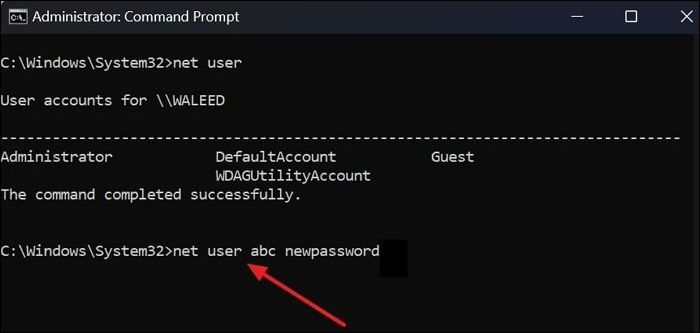
Step 4. To change the password of a user account, you can use the command "net user" followed by the username and the new password. If the username contains multiple words, it should be enclosed in quotes. For example, "net user "USER NAME" NEWPASS" and press Enter.
To avoid errors when resetting a forgotten password using net user commands, even with admin access, users can use Qiling Disk Master instead.
If you've found this guide on the Qiling Disk Master and CMD method helpful, share it with your friends, family, and colleagues to empower them to take control of their Windows experience and overcome password-related challenges with ease.
Conclusion
The article provides two simple methods to change a Windows password using Command Prompt: one using Windows commands and the other using the Qiling Disk Master tool.
Qiling Disk Master is the recommended choice between the two methods if you want the most effective and easy option to change your Windows password. This tool allows users to change their Windows password within a few seconds safely and without any experience.
You May Also Like:
Change Windows Password with Command Line FAQs
For additional inquiries about the process of changing the Windows password using Command Prompt, this section provides a comprehensive explanation. Exploring the answers to these frequently asked questions will offer a more precise grasp of the concept.
1. Can I change my Windows password using Command Prompt?
To change a user's password in the Command Prompt, type "net user Username NewPassword" and press Enter.
Note: To change your computer's password, use the command "net user Username NewPass" in the Command Prompt, replacing "Username" with your actual username and "NewPass" with the new password you want to use. This will update your password and allow you to log in with the new one.
2. How can the "net user" command line be utilized to modify your Windows password?
To view your Windows password, open Command Prompt, type "net user" followed by the account name, and press enter. This will display your password.
3. How do you change the administrator password in Windows 10 using CMD from the guest account?
You can change the administrator password in Windows 10 using CMD from the guest or any unauthorized account, but it requires administrative privileges. For authentic changes, use an account with administrative permissions.
Related Articles
- How to Fix New Simple Volume Greyed Out in Windows Server
- How to Permanently Delete Files from Computer Without Recovery Windows 11/10/8/7
- Resize/Move Partitions to Solve Low Disk Space Issue
- How to Fix SSD Full for No Reason
- 3 Powerful Ways to Convert GPT to MBR in Windows 11 [2022 Guide]
Learn how to convert GPT to MBR in Windows 11, when MBR is useful, and how to reduce data loss risk before changing disk style. - How to Convert MBR to GPT Using CMD in Windows 11
Converting a Master Boot Record (MBR) to a GUID Partition Table (GPT) using the Command Prompt in Windows 11 can be a bit tricky, but it can be made easier by using a tool or employing the command prompt.
Products
Articles & Tutorials
- Data Recovery
- Data Backup
- File Recovery
- File Backup
- System Backup and Restore
- Disk and Partition Clone
- Technical articles
- Mobile articles
- Disk Master Help
- Windows Data Recovery Tutorials
- Windows Secure Delete Tutorials
- Windows Partition Management Tutorials
- Windows File Backup and Restore Tutorials
- Windows System Backup and Restore Tutorials
- Windows Disk Backup and Restore Tutorials
- Windows Clone Tutorials