How to Run Raspberry Pi SD Card Benchmark Test [Step-by-Step Guide]
This article presents two methods for benchmarking Raspberry Pi SD cards, as well as a professional SD card speed test tool. The first method involves using the built-in Raspberry Pi command line tool, while the second method utilizes a third-party tool.
If you're looking to run the Raspberry Pi SD card benchmark, don't worry, as this article provides two detailed guides and a professional SD card management tool to help you with this problem.
The Raspberry Pi SD Card Benchmark is a tool used to measure the performance of SD cards on the Raspberry Pi, a small, low-cost, and highly capable computer. This benchmark is necessary because the Raspberry Pi's performance can be heavily influenced by the quality and speed of the SD card used, and different cards can have varying levels of performance.
Why Do We Need Raspberry Pi SD Card Benchmark
The Raspberry Pi is a small single-board computer developed by the Raspberry Pi Foundation, requiring an SD card to store its operating system, games, and photos. The speed of the SD card directly impacts the Raspberry Pi's performance, with faster data read times resulting in quicker boot-up and program loading times.
The SD card on a Raspberry Pi device can slow down or experience errors, making it impossible to use the operating system. To troubleshoot this, SD card benchmark tests can be run to check the read and write speed of the card in various situations, helping to identify solutions to enhance the desktop environment.
To run the Raspberry Pi SD Card Benchmark, you can try two methods. Alternatively, if your Raspberry Pi is experiencing boot issues, you can bypass the SD card and boot from USB instead. For more information on booting from USB, click on the provided connection.
How to Boot Raspberry Pi From USB [Step-by-Step]
To modify the Raspberry Pi bootloader to boot from a USB storage medium, follow these detailed steps. This guide will walk you through the process of making the Raspberry Pi boot from a USB device, allowing you to run your operating system or other software from a USB storage medium. By following these instructions, you can enable your Raspberry Pi to boot from a USB device, giving you more flexibility and options for your projects and applications.
How to Run Raspberry Pi SD Card Benchmark Test
Benchmarking SD cards is easiest with a Raspberry Pi, but the tools provided by Raspberry Pi are not comprehensive. Instead, you can insert the Raspberry Pi SD card into an SD card reader on a Windows computer, then check the SD card speed. I will outline two different methods for comparison.
| Comparison | ||
|---|---|---|
| ➡Data Tested | Sequential/random read/write speed, I/O, Delay | Simple read/write speed |
| ➡Data Results | Accurate and detailed data display, exportable | Only PASS/FAIL results are displayed |
| ➡Process | Complex, need to export and insert the SD card | Simple, direct use |
| ➡Suitable User | Simple interface, suitable for all | Suitable for all |
Qiling Disk Master is the best choice for SD card speed tests. It may require moving the card back to the Raspberry Pi, but it provides more accurate data testing, better data protection, and easily fixes SD card errors.
Here are the specific steps for both methods.
Raspberry Pi SD Card Benchmark via Qiling Disk Master
Qiling Disk Master Free provides a simple and easy-to-use interface to test the speed of your SD card, offering a "DiskMark" function to generate detailed read/write or I/O data reports with just a click, making it accessible even for novice users.
To run the Raspberry Pi SD card benchmark test, follow these steps: Insert the SD card into the Raspberry Pi, boot up the device, and open a terminal window. Type 'sudo apt-get update' to update the package list, then 'sudo apt-get install sdcard-benchmark' to install the benchmarking tool.
Step 1. Launch Qiling Disk Master, click the download button to activate the "Surface test" feature under the "Disk management" section.

Step 2. Select the target drive, test data, and block size from the drop-down menus.

Step 3. Once everything is configured, click "Proceed" to begin the disk test, which will display the Sequential read speed, I/O, and Delay data.
Qiling Disk Master is a powerful disk management tool that not only helps you manage your Raspberry Pi SD Card but also provides additional features to enhance your disk management experience.
- Check SD Card Health
- Clone Raspberry Pi SD Card
- Format SD Card for Raspberry Pi
- Resize/create/delete partitions on the SD card
Qiling Disk Master is a versatile tool that supports a wide range of hard drives and is also a top-notch SSD benchmark tool, making it a great option to download and try out if needed.
Raspberry Pi SD Card Benchmark via Raspberry Pi Diagnostics
To check the condition of your Raspberry Pi SD Card and determine if it will continue to work, you can use the Diagnostics tool, which is pre-installed on your device. If it's not installed, you can install it using the command `sudo apt-get install rpi-diagnostics`. Once installed, you can run the tool by typing `sudo rpi-diagnostics` in the terminal. This will provide you with a detailed report on the SD Card's condition, including its health, usage, and other relevant information.
sudo apt update
sudo apt install agnostics
To test the speed of an SD card on a Raspberry Pi, you can follow these steps. First, install the `hdparm` package using the command `sudo apt-get install hdparm`.
Step 1. To run the Raspberry Pi Diagnostics, navigate to the Raspberry Pi menu, then select the "Accessories" option, and finally click on "Raspberry Pi Diagnostics."
Step 2. Check the SD card you need to test and click on "Run Tests".
Step 3. You will receive the test results.
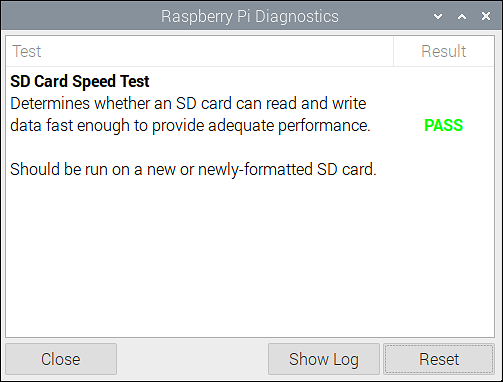
If your SD card passes the test, it's fast enough. If it fails, you need to replace it.
Conclusion
The Raspberry Pi SD card benchmark is a crucial test that evaluates the card's performance and helps improve the computer's status. There are two methods to perform this test: using Raspberry Pi Diagnostics on the Raspberry Pi itself, or running Qiling Disk Master on a Windows computer.
Raspberry Pi Diagnostics can only provide a rough PASS or FAIL result, but for a more accurate and detailed speed test, Qiling Disk Master is a great option. This tool allows you to export the results and determine if your SD card is providing adequate performance. If you haven't used it yet, download it and try it out!
You May Also Like:
FAQs About Raspberry Pi SD Card Benchmark
this guide discusses the Raspberry Pi SD card benchmark and offers two methods to test SD card speed. If you have any further questions, additional information can be found in the answers provided.
1. How do I test my SD card speed on my Raspberry Pi?
You can test the speed of your SD card on your Raspberry Pi using either Agnostics or the dd command. For those new to computers, Agnostics is a simpler option. To test with Agnostics, follow these easy steps.
Step 1. The Raspberry Pi menu, click on Accessories, then select Raspberry Pi Diagnostics.
Step 2. Click "Run Tests" in the pop-up windows.
2. Does SD card speed affect Raspberry Pi performance?
The speed of SD cards can significantly impact the performance of your Raspberry Pi, with varying speeds affecting its effectiveness. To get the fastest SD card for your Raspberry Pi, consider the Samsung Pro Plus. If you want to test the speed of your SD card, you can use Qiling Disk Master on Windows or the Diagnostics tool on Raspberry Pi.
3. How can I check my SD card performance?
If you're using Raspberry Pi, check the SD card via Diagnostics and command. If you're unsure about the accuracy of the data, test the SD card speed on Qiling Disk Master first.
Step 1. Start Qiling Disk Master and click "DiskMark" under Discovery.
Step 2. Configure the test data size and the target drive.
Step 3. After clicking "Start," wait a moment to view the test's findings. The test will analyze your computer's performance and display the results in a new window, providing you with a detailed report of your system's health and any potential issues that may need attention.
For a Windows-based comparison before using the card in a Raspberry Pi, see SD Card Benchmark for Raspberry Pi on Windows - Qiling.
Related Articles
- [New] Get 2024 Official Qiling Disk Master License Code, Serial Key Here!
- How to Reinstall Windows 11 Without Losing Data [4 Ways]
- 3 Easiest Ways to Run USB Speed Test in Windows 10 in 2024
- Partition Clone Guide | Clone EXT4/EXT3/EXT2 Partitions in Windows 10
- How to Merge C Drive That Is Less Than 2GB with Unallocated Space?
When we planned to use Qiling Disk Master to merge C drive that is less than 2GB with unallocated space, but unallocated space can't be ticked. How to succeed in merging C drive that free space is less than 2 GB with unallocated space. - How to Allocate Free Space from One Partition to Another Easily and Quickly
You can allocate free space to C drive when C drive is almost full, you can refer to this post to learn how to do it.
Products
Articles & Tutorials
- Data Recovery
- Data Backup
- File Recovery
- File Backup
- System Backup and Restore
- Disk and Partition Clone
- Technical articles
- Mobile articles
- Disk Master Help
- Windows Data Recovery Tutorials
- Windows Secure Delete Tutorials
- Windows Partition Management Tutorials
- Windows File Backup and Restore Tutorials
- Windows System Backup and Restore Tutorials
- Windows Disk Backup and Restore Tutorials
- Windows Clone Tutorials