3 Easiest Ways to Run USB Speed Test in Windows 10 in 2024
| Goal | Test USB Speed in Windows 10 |
| Duration | 3-5 minutes reading |
| Tools | To test the speed of a USB drive on a Windows 10 computer, you can use tools like Qiling Disk Master, the Command Prompt (CMD), or Task Manager. Qiling Disk Master is a dedicated software that can measure the read and write speeds of a USB drive. |
| Price | $0 |
Knowing the read and write speeds of your USB drive can save you from mental pain, especially when transferring files or photos on a tight deadline, like before a trip. This knowledge can help you avoid grabbing a slow drive that might take hours to transfer your files, allowing you to stay on schedule.
You can check the speed of your old USB by looking for its specifications, which are usually printed on the device or its packaging. The speed is often indicated by a number, such as 2.0 or 3.0, with higher numbers indicating faster speeds.
To determine the USB speed, you can perform a USB speed test on your Windows 10 PC. If you're unsure how to check the USB speed, don't worry! This article will guide you through the process, so continue reading to learn how.
3 Best Ways to Test USB Speed in Windows 10
We provide three methods to test the speed of your drive. Before we dive into the step-by-step guides, let's compare these tools. They offer a way to measure the speed of your drive, but differ in their approach and features.
| USB Speed Test Methods | Pros | Cons |
| Accurate & Reliable👍 | - | |
| Reliable | Clunky | |
| Live transfer speeds | Not accurate |
Qiling Disk Master is the best tool to perform a speed test of your USB drive, as it generates a detailed report that can also be helpful in comparing multiple USB drives' speeds.
Way 1. Use Qiling Disk Master to Run the USB Speed Test - Easiest & Professional
The Qiling Disk Master offers a "Disk Mark" feature that lets you accurately check your USB drive's speed. This is a free tool available for Windows 11/10/8/7 that also allows a disk performance test of your HDD or SSD, as well as a speed test on any USB drive from any brand.
Here are the steps.
Step 1. Launch Qiling Disk Master, click the download button to activate the "Surface test" feature under the "Disk management" section.

Step 2. To select the target drive, test data, and block size, click on the drop-down box and choose the desired options from the list provided.

Step 3. Once everything is configured, click "Proceed" to begin the disk test. This will display the Sequential read speed, I/O, and Delay data.

If you're looking for a simple yet effective tool that delivers accurate results, look no further than Qiling Disk Master!
If you find this method useful and easy, share it with your friends to let them know!
Way 2. Run the CMD Command to perform a USB Speed Test in Windows
The Command Prompt can also run a speed test for your USB drive. However, since using CMD could be risky for beginners, you should be careful when following this tutorial guide. Here's how to do that:
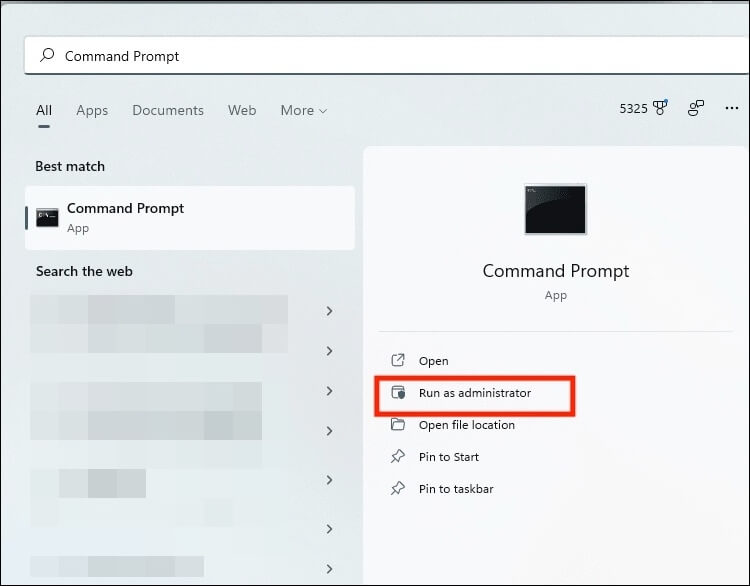
Step 1. Click "Start" and search for "Command Prompt."
Step 2. Select "Run as administrator."
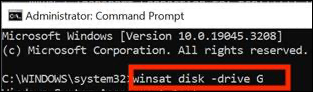
Step 3. To run the Windows Assessment Tool, type the command "winsat disk -drive X" in the Command Prompt, where "X" is the letter of the USB drive that corresponds with the drive letter in "This PC".
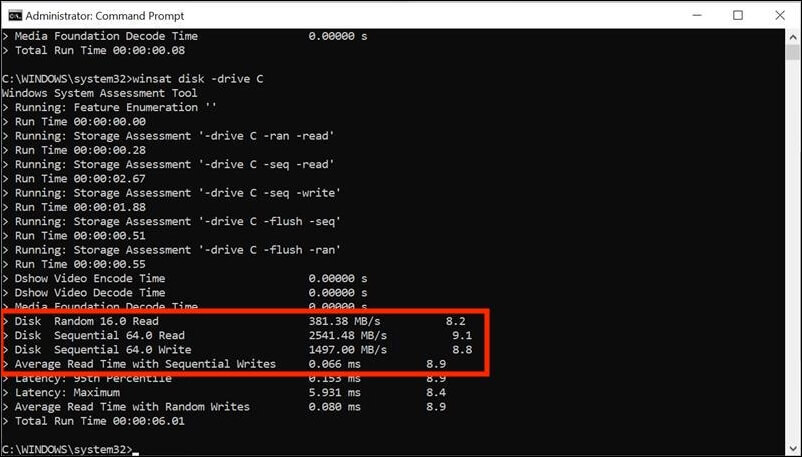
Step 4. Here are the results for the query "What is the average temperature in Paris, France in January?":The average temperature in Paris, France in January is around 3°C (37°F) during the day and 0°C (32°F) at night.
Step 5. Then, you can check the USB speed results to determine if they are fast enough for your needs.
Way 3. Use Task Manager to Get USB Real-Time Speed Data
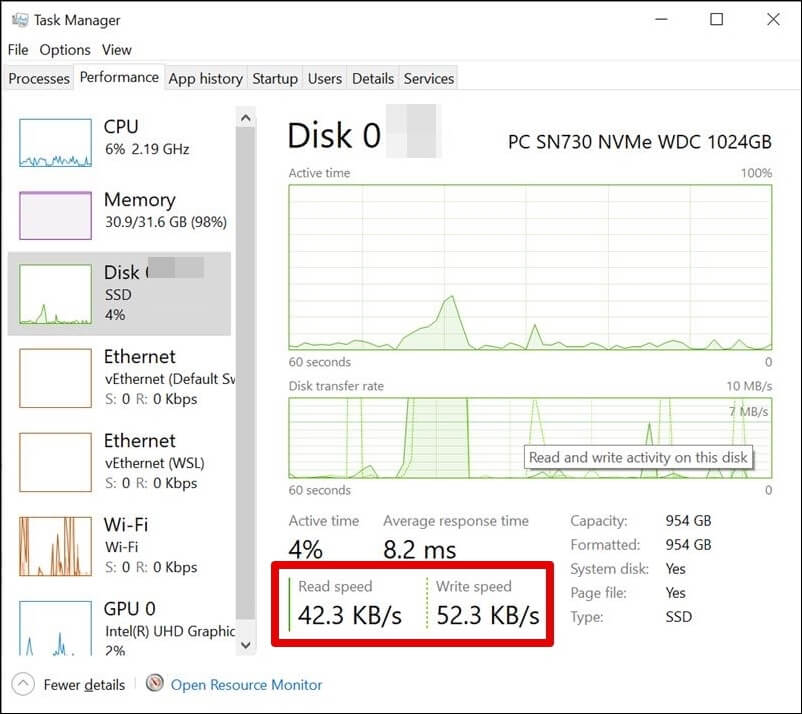
Windows Task Manager can be used to check the write/read speeds of a USB drive, but it may not be entirely accurate as it displays the speed at which a file is copied, not the actual drive performance.
The transfer process often involves fluctuations in speed due to various factors, resulting in multiple speed drops and increases. This phenomenon is not ideal for evaluating a USB drive's maximum performance capabilities.
To check the speed of your internet connection in real-time, follow these steps:
Step 1. Press "Ctrl+Shift+Esc" simultaneously.
Step 2. Open the "Performance" section.

Step 3. In the left menu, select your USB drive.
Step 4. You can check the read and write speed of your USB drive on the right-side window.
Compare USB Speed and Keep USB Speed At High Performance
After running the USB drive speed test, compare the results to the industry standard to see if your drive's speeds are on par. If your USB drive's speeds are slower than those of the same-spec drives from a different brand, there may be an issue that needs to be addressed. To improve performance, find a way to fix the slow USB transfer speed.
Here are the average speeds for each USB generation: USB 1.0 (1.5 Mbps), USB 1.
1. Compare USB Speed
The average speed of a USB drive can be influenced by several factors, including the generation of the drive (such as USB 3.1, USB 3.0, or USB 2.0), as well as the capabilities of the PC and the manufacturer of the drive itself.
Here are the average write speeds of USB 3.1, 3.0, and 2.0: USB 3.1: 200-300 MB/s, USB 3.
| USB 3.1 | 30-70 MB/s |
| USB 3.0 | 10-40 MB/s |
| USB 2.0 | 1-5 MB/s |
Here are the average read speeds:
| USB 3.1 | 30-90 MB/s |
| USB 3.0 | 50-60 MB/s |
| USB 2.0 | 1-10 MB/s |
If you think your USB drive is running slower than it should be, try running a disk cleanup, updating the drive's firmware, and checking for physical damage. You can also try formatting the drive or using a different USB port.
2. Bonus Tips to Improve USB Speed
If your USB drive speeds are slower than average, you can try updating your USB drive's firmware, checking for physical damage, and ensuring it's properly connected to your computer. You can also try using a different USB port or cable, and checking for any software or driver issues that might be causing the slowdown.
- Upgrading to USB 3.1 or USB 3.0 from USB 2.0 drives can significantly improve data transfer speeds, allowing for faster file transfers and reduced wait times. This upgrade can also enhance overall system performance, making it ideal for applications that require high-speed data transfer, such as video editing, 3D modeling, and gaming.
- To get the best speeds from your USB 3.1 drive, connect it directly to a USB 3.1 port on your computer. If you only have USB 3.0 or 2.0 ports available, you may still be able to use the drive, but your speeds may be slower.
- Check and remove viruses if any are detected.
- If you're a Windows user, format your USB drive to the NTFS file system. If you're a Mac user, format it for the exFAT file system.
After reading this informative article, you may want to share it on your social media platforms to spread the knowledge and insights it provides.
Conclusion
If your USB drive is becoming slow or stuck when opening files, or you notice that the transfer speeds have slowed down, you should run a speed test to evaluate its performance. A recommended tool for this is Qiling Disk Master, which is a reliable and accurate tool to measure the speed of your USB drive.
The software also offers additional features, including changing the file system of your USB drive from FAT32 to NTFS, checking for file system errors, and testing the health of the USB drive.
FAQs About Getting USB Speed in Windows 10
Here are some other frequently asked questions and answers about how to run speed tests for your USB drive on Windows 10.
1. How do I test my USB 3.0 drive speed?
You may use Task Manager to do a speed test on your USB 3.0 disk to determine the transfer speed.
- Press "Ctrl+Shift+Esc" to open Task Manager and click on "Performance".
- Select your disk.
- You can check the read/write speeds on the right-side window.
2. How fast should my USB 3.0 be in Windows 11?
Your USB 3.0 should have a write speed of about 10-40 MB/s and a read speed of about 50-60 MB/s.
3. How do I know if my USB is using 3.0 or 2.0?
Here's how:
- Right-click "Start" and select "Device Manager."
- Expand "Universal Serial Bus."
- Check if you have any USB 3.0 ports.
- Connect your USB drive to the 9-pin USB port on your PC.
4. Can CrystalDiskMark test the USB speed?
You can use CrystalDiskMark to test the speed of your USB drive, as well as any other storage device or memory card. The test results in a report that shows your drive's performance and how it compares to other drives in the same class. This allows you to see how your drive stacks up against others in its category.
Related Articles
- Your Best Guide for SSD Speed Test on Windows 10 | Step-by-Step Guide 2024
- How to Fix System Partition is Not Allowed to Be Formatted
- How to Merge Non-adjacent Partitions in Windows 11/10
- Partition SSD for Windows 10 Installation, Full Guide with Pictures
Need to install partition SSD for Windows 10? Follow this comprehensive guide to access the simplified solutions for this process. - How to Create Qiling WinPE Bootable Disk in Windows 10/8/7
Download the Qiling Partition Manager Software to create a Qiling Partition Master WinPE bootable disk, compatible with Windows Server 2003/2008/2012 and Windows XP/Vista/Windows 7/8. - [Fixed] 'Current Read-Only State Yes' on USB Flash Drive/SD Card
When Diskpart shows 'Current Read-only State: Yes' on your USB flash drive or SD card, it means that you can't write or use files on the device. To resolve this issue, follow the instructions on this page to remove the current read-only state and make your drive writable again.
Products
Articles & Tutorials
- Data Recovery
- Data Backup
- File Recovery
- File Backup
- System Backup and Restore
- Disk and Partition Clone
- Technical articles
- Mobile articles
- Disk Master Help
- Windows Data Recovery Tutorials
- Windows Secure Delete Tutorials
- Windows Partition Management Tutorials
- Windows File Backup and Restore Tutorials
- Windows System Backup and Restore Tutorials
- Windows Disk Backup and Restore Tutorials
- Windows Clone Tutorials