How to Run Disk I/O Test on Windows | Your Solutions Here!
In today's fast-paced digital age, people crave quick performance from their computers and laptops, seeking to minimize downtime and maximize productivity.
If you're a Windows user concerned about disk speed, it's essential to consider DISK I/O performance. Regardless of how advanced your computer's other hardware is, poor I/O performance can significantly impact your device's overall performance, leading to slow boot times, lag while multitasking, and slower program loading times.
This article helps Windows users identify disk performance issues and use I/O testing tools to troubleshoot disk problems.
What Is Disk I/O on Windows
The input/output (I/O) process involves the read-and-write functions of a computer's physical disk, impacting performance, especially during maintenance or heavy program usage, when the I/O rate can be high and put a heavy load on the disk.
See Also: Disk Performance Test on Windows
HDDs have significantly slower I/O operations compared to solid-state memory like RAM, taking on average 2,000 times longer. I/O issues in storage drives can be tricky to troubleshoot as they're often related to memory or CPU, making it harder to identify the problem. To avoid disk performance issues, it's essential to regularly test the Disk's I/O using the right tools and be aware of common performance issues, such as slow disk performance, which can be identified by signs like slow data transfer rates, high latency, and frequent disk errors.
- There is a high I/O at peak times or during maintenance.
- Write or read requests take longer while using multiple programs.
- Queries slow down due to memory pressure.
- The database server is being slowed down by CPU pressure.
- Concurrency issues from locking/blocking.
How to Run Disk I/O Test on Windows [Two Ways]
This section covers two essential tools for evaluating the performance of hard drives and SSD drives on Windows computers. They are designed to test the capabilities of these storage devices.
Way 1. Run Disk I/O Test via Qiling Disk Master
Way 2. Run Disk I/O Test via Performance Monitor
The first solution is a professional tool that enables efficient management of disks and partitions. It provides a comprehensive interface for users to work with disks and partitions, making it an ideal solution for professionals who need to manage disk space and partition configurations. With this tool, users can perform various operations such as creating, deleting, and resizing partitions, as well as managing disk space and optimizing system performance.
Way 1. Run Disk I/O Test via Qiling Disk Master
Qiling Disk Master is an easy-to-use and secure tool that provides a convenient way to perform disk I/O tests, ensuring optimal hard disk performance. Its DiskMark feature offers more accurate results, making it a valuable tool for analyzing disk performance. Compatible with all Windows versions, Qiling Disk Master is a quick and easy solution for non-tech-savvy users.
Download Qiling Disk Master and follow the steps to run Disk I/O Test on Windows.
Step 1. Launch Qiling Disk Master, click the download button to activate the "Surface test" feature under the "Disk management" tab page.

Step 2. Select the target drive, test data, and block size from the drop-down menus to proceed.

Step 3. Once everything is configured, click "Proceed" to begin the disk test, which will then display the Sequential or Random read/write speed, I/O, and Delay data.

With Qiling Disk Master, you can test hard drive speed easily and quickly. This tool covers most aspects of disks and partitions, offering more powerful features that cater to your needs.
- Fix hard drive slow
- Check hard drive health
- Add space to C drive
- Create/resize/delete partitions
If you encounter any partition errors, you can use Qiling Disk Master to resolve them.
Way 2. Run Disk I/O Test via Performance Monitor
To get a general overview of the current workload of I/O, use the Performance Monitor, a built-in Windows Utility that estimates the current disk input/output performance. Execute the following steps and use the Perfmon counter to monitor disk I/O on Windows.
Step 1: To start the Performance Monitor, press the Windows button, type 'Perfmon' and click 'Run as Administrative' to open it.
Step 2: On the left-side panel, find the Performance section.
Step 3: Click Data Collector Sets, and choose User Defined.
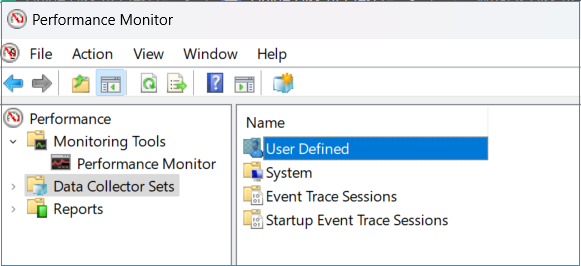
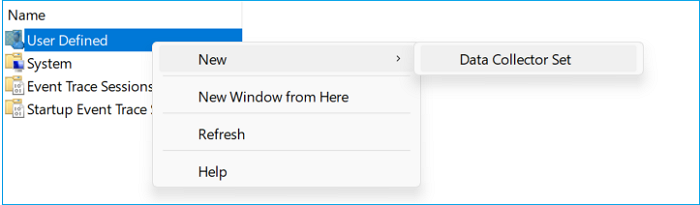
Step 4: Right-click on User Define, select New and Data Collector Set.
Step 5: To create a new test, type your desired name (i.e., Test 1), and select Create manually (Advanced).
Step 6: Click Next, and select the Performance Counter option under Create Data Logs.
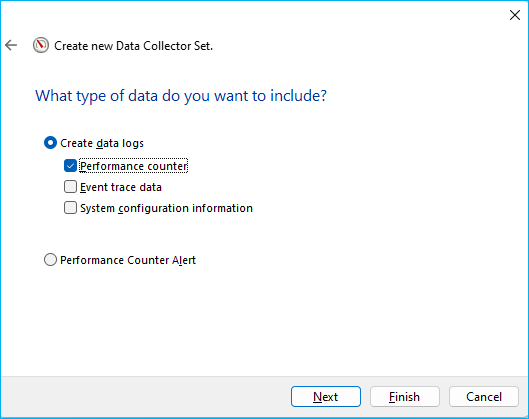
Step 7: Select Finish.
Note* The data set (Test 1) will be displayed in the right panel.
Step 8: Double-click the data set and verify if the 'DataCollector01' appears.
Step 9: Double-click on the DateCollector01 and select Add.
Step 10: Find and select PhysicalDisk from the list of available counters.
Step 11: Select the counters you need to check:
- % Disk Read Time
- % Disk Time
- % Disk Write Time
- % Idle Time
- Current Disk Queue Length
- Disk Peads/sec
- Disk Writes/sec
- Split IO/sec
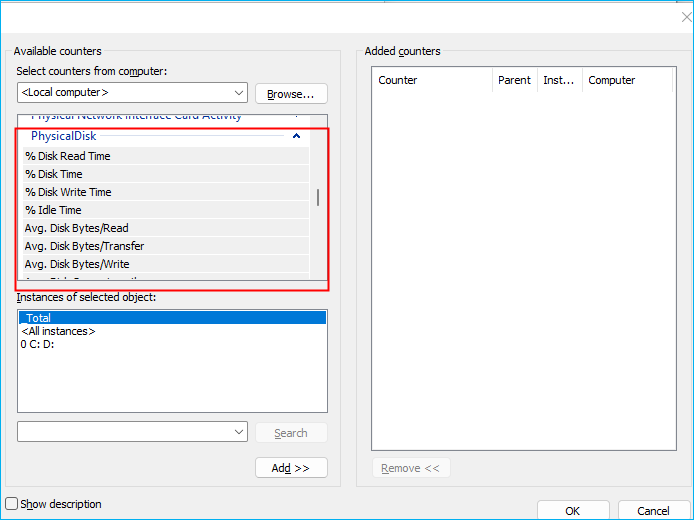
Step 12: Click Add and close the "Add Counters" window.
Step 13: Set the "Sample interval" to 30 seconds in the "Performance Counters" window, then click "Next".
Step 14: Choose a location to save the perfmon log file.
To start capturing I/O data using the new Data Collector Set, you can follow these steps: First, open the Performance Monitor, and then create a new Data Collector Set. After that, you can add the I/O data collector to the Data Collector Set.
Step 15: To access the Performance Data Collector Sets, go to the Performance tab, then click on Data Collector Sets, followed by User Defined, and finally select the report name from the list.
Step 16: Right-click the report name and select "Start".
Step 17: After capturing the data, right-click the report and click "Stop."
Qiling Disk Master is a reliable tool for checking disk health, providing a more precise result than other methods. Its process may seem complicated, but it's a great option for those unfamiliar with disk checking tools.
Conclusion
To effectively test I/O disk performance, consider using Qiling Disk Master, as it can help simplify the process and reduce the risk of unexpected disk failure. After testing, you can take action to counter possible performance issues. Alternatively, you can use Windows Performance Monitor, but be aware that it may be less intuitive than Qiling Disk Master.
FAQs About Disk I/O Test on Windows
The disk I/O test on Windows is a performance evaluation tool that measures the speed and efficiency of a computer's disk input/output operations. It assesses how well the system can read and write data to and from the hard drive, solid-state drive, or other storage devices.
1. How do I monitor disk I/O on Windows?
In Windows, you can monitor disk I/O test using two methods, but using Performance Monitor can be complicated. A simpler alternative is to use Qiling Disk Master, which can make it easier to do disk I/O testing.
Step 1. Launch Qiling Disk Master and click "DiskMark" under the "Discovery" section.
Step 2. Select the drive, test data, and clock size.
Step 3. Click "Start" and wait a while to see the speed and I/O data.
2. How do I fix the hard disk I/O error?
Here are some quick fixes to repair the hard disk i/o error: Run a disk check using the built-in Check Disk (chkdsk) tool, run a virus scan to ensure no malware is causing the issue, run a disk cleanup to remove temporary files, and check for any hardware issues by running a diagnostic test on the hard drive. Additionally, you can try running a System File Checker (sfc) scan to replace any corrupted system files, and also try running a DISM scan to repair any corrupted system components.
- Restart your computer/Laptop
- Try to reaccess the drive/device
- Run CHKDSK
- Update the Device Driver
- Check Disk health
To fix the errors, you can use Qiling Disk Master to assist you.
3. What is a good IOPS for SSD?
For an SSD, we suggest a minimum of 256 GB, but 250 GB will also work fine, especially if you're not planning on gaming or downloading a lot.
Related Articles
- Full Guide: Check SSD Health in Windows 8 [Free & Efficient]
- How to Fix Dell Stuck on Dell Logo in 7 Ways | Step-by-Step
- How to Format An Internal Hard Drive Windows 10? [Latest Tip]
- How to Format Galaxy S5 SD Card [2023 Newest Solutions]
- 3 Safe Ways to Format SSD With No Harm to It
Can I format SSD with no harm to it? Sure! This page lists three ways and a step-by-step guide on how to format an SSD safely. Dive into learning the guides. - How to Format SSD with OS on It [Reliable Solution] - Qiling
If your Dell laptop is stuck on the Dell logo, try bootable USB recovery, Advanced Recovery, diagnostics, System Restore, Safe Mode, or repair software to fix startup.
Products
Articles & Tutorials
- Data Recovery
- Data Backup
- File Recovery
- File Backup
- System Backup and Restore
- Disk and Partition Clone
- Technical articles
- Mobile articles
- Disk Master Help
- Windows Data Recovery Tutorials
- Windows Secure Delete Tutorials
- Windows Partition Management Tutorials
- Windows File Backup and Restore Tutorials
- Windows System Backup and Restore Tutorials
- Windows Disk Backup and Restore Tutorials
- Windows Clone Tutorials