3 Safe Ways to Format SSD With No Harm to It
A Solid State Drive (SSD) is a popular data storage device that uses semiconductor flash memory instead of traditional spinning media found in hard disk drives (HDDs). Unlike HDDs, SSDs have no moving parts, which results in better performance and reliability.
The increasing popularity of SSDs has led to a surge in users migrating their operating systems and games to these devices, seeking to capitalize on their fast running speed and superior performance. However, when it comes time to reuse or clear data on an SSD partition, it's essential to know how to format it safely to avoid any potential issues.
In this article, Qiling provides three effective methods to help you format SSD safely. You can use the table below to choose the best and most suitable method to help you format SSD with no harm to it:
| Comparison | Complex Level | Interface | Target Users |
|---|---|---|---|
| Qiling Disk Master | Low | Clear | Beginners to advanced users |
| Disk Management | Medium | A little cluttered | Beginners |
| CMD |
High, users need to type commands. |
A little cluttered | Experienced users |
Qiling Disk Master is the safest and most effective tool to format an SSD, making it a great option for novice users. It's very user-friendly, and you can download it to get ready for the formatting process.
- Important
- Formatting an SSD will erase all data, so please back up important documents before proceeding.
Format SSD With No Harm to It via Qiling Disk Master - Easiest
Qiling Disk Master Free is an excellent disk partition manager that makes formatting an SSD on Windows 10/11 easy and safe. With its clear interface, inexperienced users can format their SSD in just a few clicks. Its excellent compatibility also earns the trust of all Windows users.
To format the SSD without causing any harm, you need to ensure you have the free tool, which is likely a disk management utility or a dedicated SSD formatting software, installed on your computer. This tool will allow you to safely erase the SSD's data and prepare it for a fresh start.
Step 1. Run Qiling Disk Master, right-click the hard drive partition you intend to format and choose "Format".

Step 2. In a new window, specify the Partition label, File system (NTFS/FAT32/EXT2/EXT3/EXT4/exFAT), and Cluster size for the partition to be formatted.

Step 3. Proceed with caution, as formatting your hard drive will erase all data on the drive. Make sure you have backed up any important files and data before proceeding.

Step 4. Then you will see a warning window, click "Yes" in it to continue.
Qiling Disk Master provides several functions to help format SSD smoothly, including the following functions.
Format SSD With No Harm to It via Disk Management - Medium
Windows' built-in Disk Management tool can be used to format a Windows 10 SSD, but some users have reported encountering errors, such as the format option being grayed out, when attempting to do so.
If you still want to format an SSD partition using Disk Management, you can do so, but keep in mind that it's not the most recommended utility for this task. To proceed, follow these steps:
Step 1. Use the following methods to open the disk management program:
- Right-To access the Disk Management tool on Windows, click the "Start" menu and launch "Disk Management" to enter its main interface.
- Press Windows + R, and type the commands: diskmgmt.msc
Step 2. To format the SSD, select it from the list, right-click on it, and choose the format option.
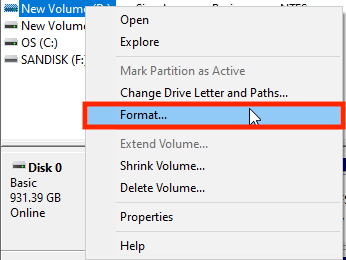
Step 3. The drive properties window allows you to specify the volume label, file system type, and allocation unit size, and click OK to apply the changes.
Step 4. Be aware that Disk Management will erase all data on the selected volume, so ensure there are no important files in the partition and back up any necessary data beforehand. Then, click OK to proceed.
To format a SSD partition, you can use the built-in disk management tool in Windows. Open the Disk Management tool, select the SSD partition you want to format, right-click on it, and select "Format". This will wipe all data on the drive and prepare it for reuse.
Format SSD With No Harm to It via Command Prompt - Difficult
Cmd.exe, also known as Command Prompt, is a command-line interpreter application available in most Windows operating systems.
Using the command line interface, users can troubleshoot various Windows problems, but it's typically more suitable for professional users or those with extensive computer experience. The process often requires inputting multiple commands, which can lead to issues like data loss, making it a riskier approach for formatting compared to other methods.
Step 1. To open Command Prompt, right-click on the Windows Start icon, select "Run", and type "cmd" in the text box, then click "OK".
Step 2. In the command line window, type diskpart and press Enter. This will start Diskpart.exe for you.
Step 3. Enter the following commands in the diskpart window, and press Enter after each entry.
- list disk
- select disk 2 (2 represents the disk number)
- list volume
- select volume 10 (10 represents the partition number)
- format fs=ntfs quick
- exit
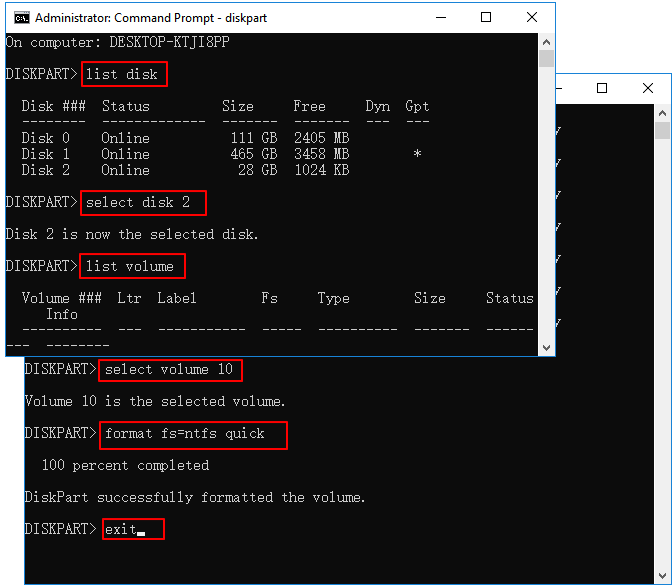
Here I format the partition as an NTFS file system, which can also be replaced with FAT32 if needed.
To format an SSD using the Command Prompt (CMD), follow these steps: Open the Command Prompt as an administrator, type `diskpart`, and press Enter. Then, type `list disk` and press Enter to display a list of available disks.
When Do We Need to Format an SSD
Formatting an SSD drive is a process of erasing all data on the drive, preparing it for new data or an operating system. It's usually necessary when you buy a new SSD, start a new project, or migrate the operating system to the SSD. This process allows you to start with a clean slate, free from any previous data or configurations.
1. The SSD drive is not formatted.
When you get a new SSD, it usually needs to be formatted to work properly, allowing you to write data to it. This is because SSDs are compatible with various systems like Windows, Mac, and Linux, but they require a specific file system, such as NTFS, HFS+, Ext3, or Ext4, to be compatible with your system. Formatting the SSD to the correct file system makes it usable with your operating system.
2. You wanna install Windows OS on the SSD.
To install an operating system on an SSD partition, you need to format the partition to a clean state, but make sure to back up your important data first.
3. You want to erase all data on the SSD for reuse.
Formatting an SSD can quickly erase all data on the disk, making it ready for reuse.
Formatting an SSD (solid-state drive) does not harm it, as long as you use a professional hard drive formatting tool. This is a common misconception, but the truth is that formatting an SSD is a safe and necessary process to prepare it for use.
Conclusion
Formatting an SSD on Windows 10 can be done in three ways, and I hope this article is helpful. If you're an inexperienced user or not comfortable with computers, using Qiling Disk Master is recommended for a hassle-free experience. However, if you're experienced, you can choose between using CMD or Disk Management, both of which are safe tools for formatting your SSD. Ultimately, select the method that's easiest and best for you.
Format SSD With No Harm to It FAQs
I'll be glad if you have got a suitable tool to format your SSD safely. However, if you haven't yet, read the following questions to achieve it.
1. Does formatting harm SSD?
Formatting an SSD erases all data on it, so back up your data before formatting.
2. How do you format an SSD on Windows 10/11?
To format an SSD on Windows 10/11, follow the instructions:
Step 1. Right-click the Windows icon, choose Disk Management, and launch it.
Step 2. To format an SSD partition in Disk Management, right-click the partition you want to format and select the Format option.
Step 3. Set the file system, allocation unit size, and volume label.
Step 4. Click format and wait for the process to complete.
3. What are the best format options for SSD?
Many built-For experienced users, tools like Hiren's BootCD or Parted Magic can help format an SSD. However, for users without much computing experience, Qiling Disk Master is a more suitable option.
Related Articles
- How to Check External Hard Drive Health on Windows 10/11 [Step-by-Step Guide]
- Download Partition Magic Server 2008 (R2) to Manage Server 2008 Disk Partition Safely
- Qiling Disk Master VS DiskgGenius: See What Are Differences and Which Is Better
- Low Disk Space Error on Windows 11, How Do I Fix? Your Guide Is Here
- SD Card Benchmark 2024 Tutorial with Full Step Guide
To troubleshoot issues with your SD card, use benchmark tools to check its performance. These tools can identify problems before they cause software or hardware issues, allowing you to address them early on. - How to Fix 'SD Card Is Blank or Has Unsupported File System' [100% Working Solutions]
If you cannot use your SD card, there may be something wrong with it. And this guide will offer you several ways to make the error 'SD card is blank or has unsupported file system' solved.
Products
Articles & Tutorials
- Data Recovery
- Data Backup
- File Recovery
- File Backup
- System Backup and Restore
- Disk and Partition Clone
- Technical articles
- Mobile articles
- Disk Master Help
- Windows Data Recovery Tutorials
- Windows Secure Delete Tutorials
- Windows Partition Management Tutorials
- Windows File Backup and Restore Tutorials
- Windows System Backup and Restore Tutorials
- Windows Disk Backup and Restore Tutorials
- Windows Clone Tutorials