Download Partition Magic Server 2008 (R2) to Manage Server 2008 Disk Partition Safely
Here on this page, we'll provide reliable Partition Magic Server software for Windows Server 2008 and 2008 R2 32/64 bit users to download and apply for easy and safe disk partition management.
Key Takeaways of Partition Magic Server 2008 (R2):
- 1. Reliable Partition Magic Server software can save you time on Windows Server 2008/2008 R2 machines by efficiently managing disk space and allocating it effectively.
- 2. To download reliable Partition Magic Server 2008 for Windows Server 2008 32/64 bit, follow the link here instantly.
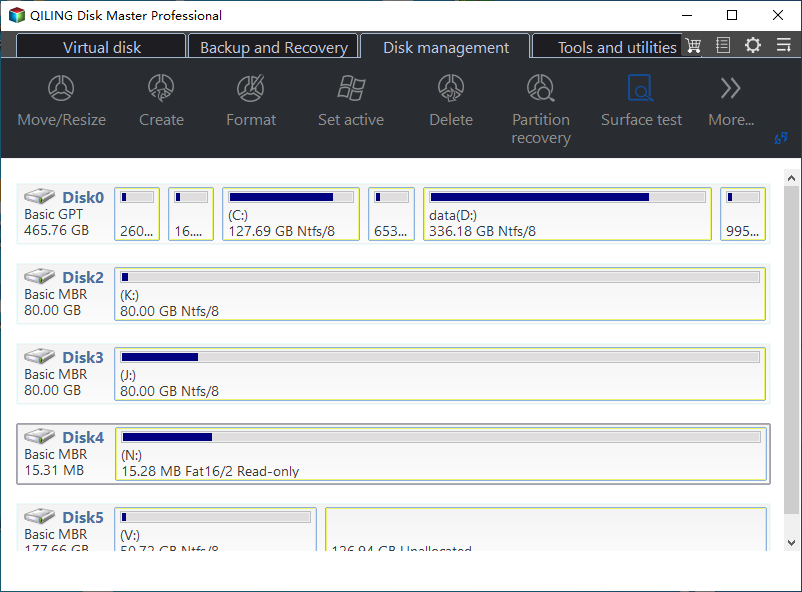
Why Need Partition Magic Tool for Windows Server 2008
A reliable partition magic tool is necessary for Windows Server 2008 and 2008 R2 users because it allows them to resize, move, merge, split, and delete partitions without losing data, which is crucial for server operations that require high availability and reliability. This tool helps users to manage disk space efficiently, resolve disk space issues, and ensure that their servers run smoothly and efficiently. By using the partition magic tool, users can avoid data loss and downtime, which can have significant consequences for businesses that rely on their servers for critical operations.
#1. Windows Server 2008 End of Life, While Disk Partitioning Demands Still Exist
Despite Microsoft ending support for Windows Server 2008 and Windows Server 2008 R2 on January 14th, 2020, many users worldwide continue to utilize these operating systems.
Windows Server 2008 still holds a 1.50% market share, with over 53,890 companies using it, making it essential to manage disk space and optimize device performance, despite its age.
#2. Windows Built-in Disk Management and Diskpart Has Limited Features
Most advanced Windows Server users are familiar with Disk Management and Diskpart, but these tools have limited features such as creating, extending, shrinking, formatting, and deleting volumes.
When converting disk types, such as MBR to GPT or GPT to MBR, you need to delete all existing partitions first. Additionally, when upgrading the Windows Server system disk, these tools do not offer disk clone or OS migration features.
#3. Partition Magic Server 2008 Can Fulfill All Disk Partitioning Tasks
Reliable partition magic server software can meet all types of disk partitioning needs on Windows Server 2008 and 2008 R2, providing a comprehensive solution for managing and optimizing disk partitions.
| Basic Disk Management | Advanced Disk Performance Optimization |
|---|---|
|
|
To get reliable partition magic server software, you can follow these steps: Download a reputable third-party partition manager software, such as Qiling Partition Master Server, which supports disk management tasks on Windows Server 2008 and Windows Server 2008 R2. This software can help you resize, merge, split, and wipe partitions, as well as migrate OS to SSD, all from a centralized interface. By using a reliable partition manager server software, you can ensure efficient and safe disk management for your Windows Server environment.
Free Download Partition Magic Server 2008 for Windows Server 2008 32/64 Bit
To determine if the current software is 'Magic' and suitable for your server systems, apply the following basic standard principles: ensure it is stable and reliable, has a simple and intuitive interface, is highly scalable and adaptable, provides robust security features, offers efficient and effective performance, has a flexible and modular design, and is compatible with various operating systems and hardware configurations.
- Regular Updated
- High Compatibility
- Powerful Tech Support
- Reasonable Price
- Safe and Secure
- Fulfill Your Needs
When selecting a partition magic Server software, the most crucial factor is whether it can save you time and energy. A good tool should be easy to use and efficiently execute tasks, rather than being overly complex and time-consuming. If it can't deliver on this promise, it's likely not the right choice for you.
Qiling Disk Master Enterprise is a tool that helps optimize server disk performance, offering a balance of ease of use and powerful functionality.
Qiling Disk Master Enterprise
Your trustworthy Windows Server disk manager.
- Extend System drive, combine/split partitions.
- Clone disk, migrate OS to HDD/SSD.
- Convert MBR to GPT, GPT to MBR, no data loss.
- 1-click adjust disk layout, create volumes at one time.
If you're using newer Windows Server systems and need a reliable Server partition manager, consider checking out the software options listed in the provided links.
Alongside the above-This tool offers a range of features, including basic and advanced features, as well as additional features for Windows Server 2008/2008 R2 users to better manage disk drives.
- 1-click to partition the new disk
- Merge non-adjacent partitions
- Extend Server system C drive with a second disk
- Test disk healthy state, read and write speed, etc.
Windows Server 2008 comes in 3 editions to cater to the needs of different types of users, including the Standard, Enterprise, and Datacenter editions.
- Server Edition - For Individual Server Users (1 key for 2 PCs/Servers)
- Unlimited Edition - For business owners (1 key for multiple PCs/Servers)
- Technician 1 key for unlimited PCs/Servers, commercial usage
Use Qiling Partition Magic Server Software on Windows Server 2008 to Manage Disk Drive
To manage disk drives on Windows Server 2008 or 2008 R2, you can apply Qiling Partition Magic Server software, which provides 3 tutorial guides to assist in safely partitioning, resizing, and managing Server 2008 disk space with ease.
#1. Partition Hard Disk Drive
The software allows for the simple partitioning of a new disk with 4 or more partitions with just one click, eliminating the need for manual configuration.
Step 1. To partition the disk using Open Qiling Disk Master, navigate to the Partition Manager section and click on "Partition this disk" from the New Disk Guide window that appears.
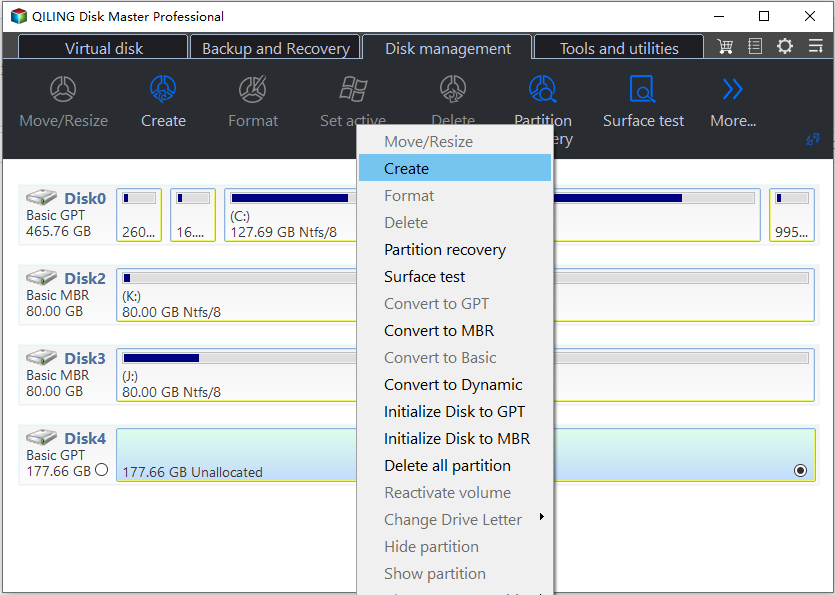
Step 2. Set the number of partitions you need to create, and set the partition style to your disk, which can be either Master Boot Record (MBR) or GUID Partition Table (GPT), depending on your system's requirements.
You can either choose the operating system you want to install, or accept the default setting offered by Qiling Disk Master. Once done, click "Proceed".
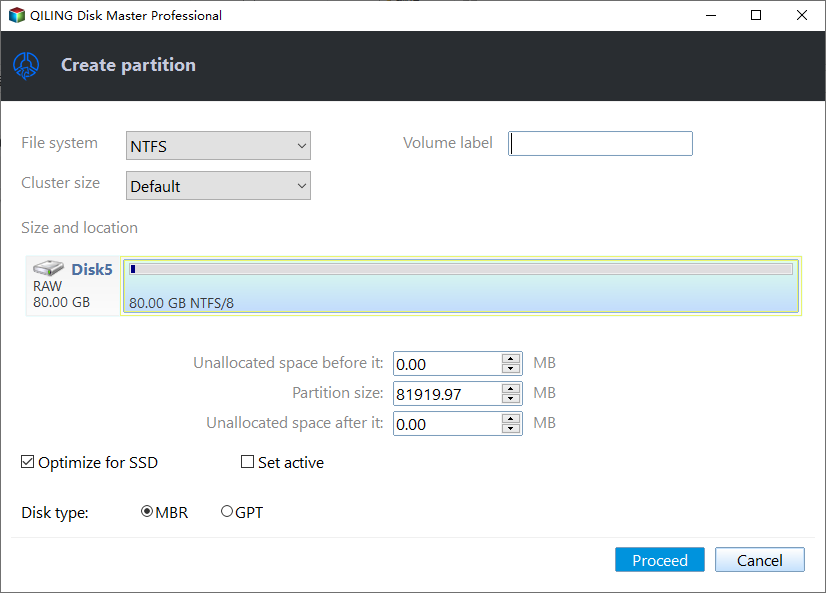
Step 3. To finalize the partitioning of the new HDD/SSD or external disk, click the "Proceed" button. This will finalize the partitioning process, and the disk will be ready for use.
#2. Extend C Drive
To fix a low disk space error, red bar in C drive, or C drive full issue, you can try deleting temporary files, uninstalling unused programs, and emptying the Recycle Bin. Additionally, you can remove system restore points, disable hibernation, and consider upgrading your storage capacity if the problem persists.
Option 1. Extend System C drive with unallocated space
- 1. Right-click on the System C: drive and select "Resize/Move".
- 2. To expand the C: drive, drag the system partition end into the unallocated space, effectively adding it to the C: drive.
- 3. You can proceed with the operations to extend the C drive by clicking the "Proceed" button. This will execute the necessary steps to increase the size of the C drive.
Option 2. Extend System C drive without unallocated space
- 1. Right-click a large partition with sufficient free space on the system disk, then select "Allocate Space".
- 2. Select the system drive and drag the end of the System C drive into the unallocated space at the Allocate Space From (*) To section.
- 3. To save the changes and extend the C drive, click "Proceed".
#3. Migrate Windows Server 2008 (R2) to New Disk
Transferring or moving a Windows Server 2008 system to a newer and faster hard drive or SSD disk can be a straightforward process.
Steps to migrate OS to HDD/SSD:
- Run Qiling Disk Master, and select Clone from the left menu.
- Check "Migrate OS" and click "Next".
- Choose the type of disk you want to install the operating system on, either a Solid State Drive (SSD) or a Hard Disk Drive (HDD), and click "Next".
- Be aware that the target disk's data and partitions will be completely erased. Please ensure that you've backed up any critical data beforehand. If you haven't done so, it's highly recommended to do it now to avoid any potential losses.
- Then click "Yes".
- Preview the layout of your target disk. Then click "Start" to start migrating your OS to a new disk.
- After completing the process, click "Reboot Now" or "Done" to either reboot the computer from the new disk immediately or confirm the completion of the setup process.
"Reboot Now" instantly applies the changes, whereas "Done" requires a manual restart later.

Note: When migrating your operating system to a new SSD or HDD, be aware that the process will delete existing partitions and data on the target disk if there's not enough unallocated space. To avoid losing important data, back it up to an external hard drive before proceeding.
After the migration, restart Server 2008, and set the Server computer to boot from the new disk in the BIOS settings.
Partition Magic Server 2008 Software Is Ready to Help. Get It to Make Disk Partitioning Easy
Many users are still utilizing Windows Server 2008 and Windows Server 2008 R2, despite Microsoft's support for these operating systems ending. To ensure a smooth experience on these servers, it's crucial to rely on reliable partition magic software with a robust support team to manage disk space effectively.
Get Qiling Partition Magic Server 2008 - Partition Master Enterprise to make disk partitioning easy and enjoyable with its help.
FAQs about Partition Magic Server 2008
Partition Magic Server 2008 is a server operating system that combines the features of Windows Server 2008 with the disk management capabilities of Partition Magic. It allows users to manage and manipulate disk partitions, including resizing, moving, and merging partitions, as well as creating and deleting partitions.
1. Is there partition magic alternative software for Windows Server 2008?
There are many disk partitioning tools and partition wizard software that can fully replace the outdated PartitionMagic, such as Qiling Disk Master Enterprise, which has 18+ years of experience and can assist in executing all types of disk management operations.
2. Resize partition and extend C drive on Windows Server 2008 R2?
To resize partitions and extend the C drive on Windows Server 2008 R2 using Disk Management, follow these steps:
- Open disk management, right-click on D drive, and select 'Shrink Volume.
- Select the volume size you want to shrink in D drive and click 'OK'.
- Right-click on C drive and select 'Extend Volume'.
- Add the shrunk size to the C drive, and click 'OK'.
3. Is there a Partition Magic Server 2003?
Windows Server 2003, similar to Windows Server 2008, is no longer supported by Microsoft, yet it still has a user base that requires partitioning and managing disk drives, a demand that persists.
There is a reliable partition magic Server 2003 that helps to simplify the process of managing disk drives on Server computers. You can get it by following a certain link.
Related Articles
- How to Run External Hard Drive Speed Test on Windows 10/11 [Step-by-Step Guide]
- How to Repair Windows 11 with Command Prompt| 2024🔥
- How to Add Space to C Drive to Increase C Drive Space
- Extend System Drive but Recovery Partition is in the Way Windows 11/10/8/7
- Diskpart: Delete Partition Force in Windows 11,10, 8, 7
You can use Diskpart to delete partition force when need to delete a hidden or system-protected partition on Windows 11, 10, 8, and 7. - Diskpart: Fix RAW Partition in Windows 10/8/7
This page focuses on how RAW drive comes and how to use Diskpart to fix RAW partition. If you want to fix RAW partition without formatting, please try Qiling Disk Master Standard.
Products
Articles & Tutorials
- Data Recovery
- Data Backup
- File Recovery
- File Backup
- System Backup and Restore
- Disk and Partition Clone
- Technical articles
- Mobile articles
- Disk Master Help
- Windows Data Recovery Tutorials
- Windows Secure Delete Tutorials
- Windows Partition Management Tutorials
- Windows File Backup and Restore Tutorials
- Windows System Backup and Restore Tutorials
- Windows Disk Backup and Restore Tutorials
- Windows Clone Tutorials