How to Repair Windows 11 with Command Prompt| 2024🔥
The latest Windows OS, Windows 11, has been troubled by errors, with one major issue being corruption. To address this, users can try repairing Windows 11 using the Command Prompt, which is a troubleshooting technique that can help resolve issues. Additionally, Qiling offers an alternative method to fix Windows 11 in its early stages, providing a backup plan for those who encounter problems with their operating system.
Can I Repair Windows 11 with Command Prompt?
Using Command Prompt (CMD) to repair Windows 11 can be a viable option, but it may not be the best choice for every user. CMD provides several options to check and fix errors, but there are also reasons why it may not be the ideal solution for such procedures.
- This option is complex and challenging for beginners to comprehend, making it inaccessible to those without computer knowledge, who would struggle to understand the techniques used to repair Windows 11 with Command Prompt.
- The command line technique has limited repairing capabilities, making it ineffective.
In cases where traditional disk management tools fall short, a more comprehensive solution like Qiling Disk Master Professional is required, offering a wide range of features to manage entire system operations.
Best Command Prompt Alternative to Repair Windows 11
Qiling Disk Master offers a better structure than Command Prompt and provides various repair features, making it a go-to option for many users.
- Check System Files: The system file checker looks for corrupted system files within corrupted disks and fixes them by applying a check disk.
- Check Hard Drive Health: Qiling Disk Master offers a Check Health feature that enables users to scan the health of their hard drives and monitor their temperature.
- Disk Surface Test: The disk surface test can also identify bad sectors within a drive, scanning and pinpointing the issue to help resolve it.
- Repair MBR Feature: The Rebuild MBR feature can fix Windows boot issues without requiring a full re-installation of the operating system. This approach is more efficient and preserves user data, making it a better option than re-installing Windows.
- Boot Repair Feature: This tool offers a comprehensive guide to resolve startup errors, including blue/black/green screen errors, helping to get your system up and running smoothly.

Qiling Disk Master offers user-friendly programs with clear interfaces, making it easy for even novice computer users to fix problems. The tool is designed to provide solutions to any issue you may encounter, making it a reliable resource for computer troubleshooting.
While Qiling Disk Master is the top choice for disk repair services, some users may still need to know how to repair Windows 11 using the Command Prompt. The following sections provide a step-by-step guide to help users execute this process.
How To Enter Windows 11 Command Prompt
If you're experiencing issues with corrupted Windows 11, you might have trouble accessing Command Prompt directly. However, we've got two simplified options to help you enter the Windows 11 Command Prompt:
Situation 1. If Windows 11 Starts Normally:
- Open CMD on your Windows 11, which is operating normally.
- Look for the "Search" bar and type in "Command Prompt."
- To launch the result that appeared, right-click and select "Run as administrator".
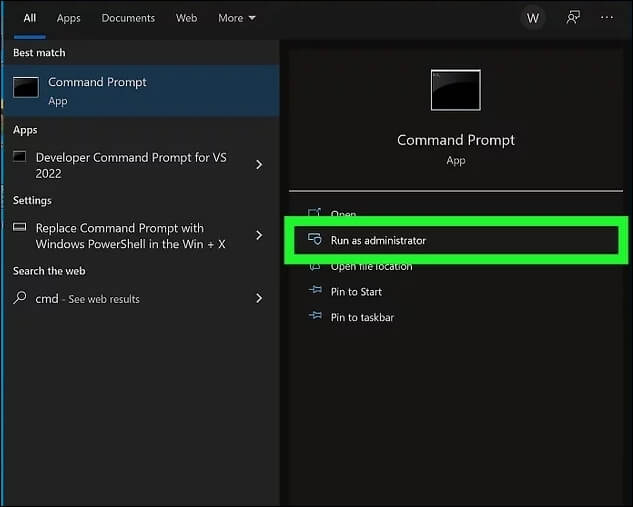
Situation 2. If Windows 11 Does Not Start Normally
Step 1. To access repair options for a Windows 11 that's not starting normally, create bootable Windows installation media. Boot your computer from this media, which will take you to a window for managing your Windows installation. From there, select the "Repair your computer" option at the bottom left.
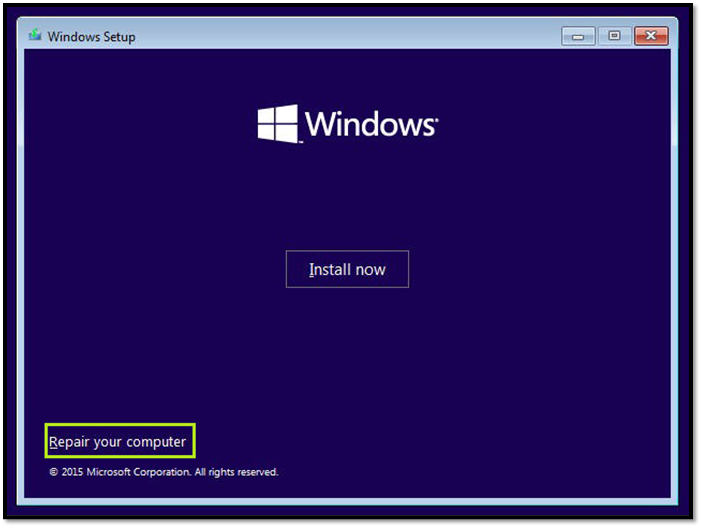
Step 2. To repair Windows, proceed to the "Troubleshoot" section for "Advanced options." Select "Command Prompt" in the available list to launch CMD, which will allow you to repair Windows.
To repair Windows 10, follow these steps: click on the Start button, then select Settings, followed by Update & Security, and then Troubleshoot. From there, you can choose from various options such as Reset this PC, Go back to an earlier build, and more. If you're experiencing issues, you can also try running the built-in Windows 10 troubleshooter or using the System File Checker tool to scan and replace corrupted system files.
Repair Windows 11 With Command Prompt
To repair Windows 11, you can use Command Prompt with various commands in different conditions. After learning how to launch Command Prompt, you can use it to troubleshoot and fix issues with your operating system. Some common commands include running the System File Checker (SFC) to scan and replace corrupted system files, running the DISM tool to repair the Windows image, and running the System Update Readiness Tool to resolve issues that prevent Windows updates from installing.
1. Run SFC
The SFC scan is a method that scans and fixes system issue files, deeply examining system files and searching for issues on the corrupted disk. To initiate a basic SFC scan, execute the command, which starts the process of identifying and resolving system problems.
- Command: sfc /scannow
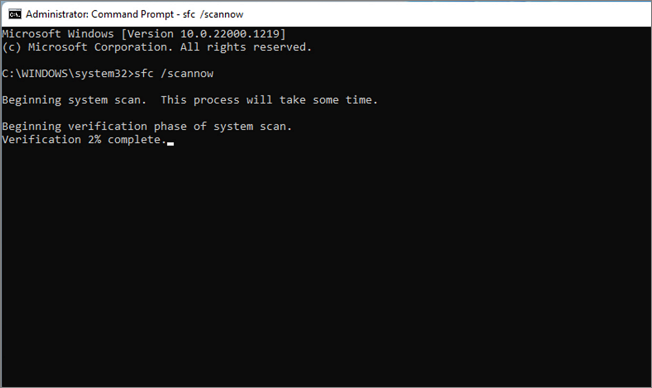
2. Use CHKDSK
The disk repairing facility, also referred to as CHKDSK, monitors the disk health of your Windows. It focuses on repairing hard disks and speeding up processes if they slow down. To repair the hard disks and eventually Windows 11, you can run the CHKDSK command in Windows. This process helps maintain the overall health and performance of your system.
- Command: chkdsk /f /r /x
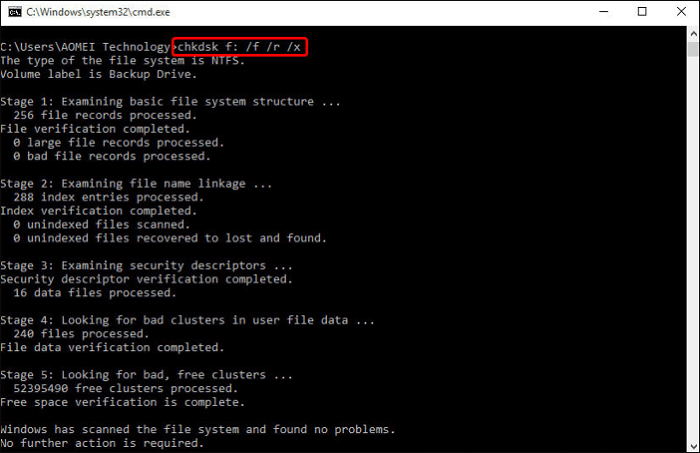
3. Run DISM
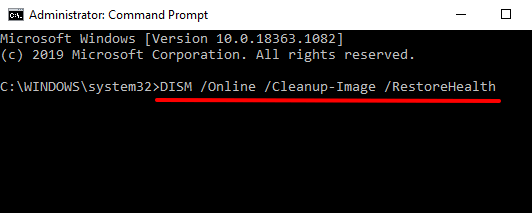
If you want to repair Windows 11 using the Command Prompt, you can use the DISM (Deployment Image Servicing and Management) command, which can help repair and prepare Windows images for restoring the disk's health. To do this, you can execute the following commands in the Command Prompt.
- CheckHealth Command: DISM /Online /Cleanup-Image /CheckHealth
- ScanHealth Command: DISM /Online /Cleanup-Image /ScanHealth
- RestoreHealth Command: DISM.exe /Online /Cleanup-image /RestoreHealth
4. Bootrec.exe
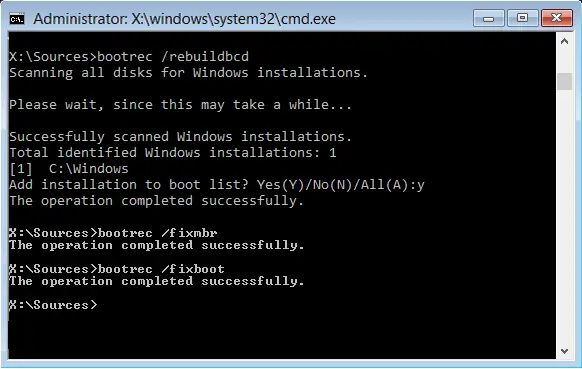
If your Windows 11 is experiencing booting issues, you can resolve the problem by using the bootrec.exe command. This tool performs an automatic scan of your device and rebuilds the BCD file, which can help repair Windows and get it booting normally again.
Commands:
- bootrec.exe
- BOOTREC /FIXMBR
- BOOTREC /FIXBOOT
- BOOTREC /RebuildBcd
5. Restore Windows 11 By Running rstrui.exe
To repair your Windows 11 computer using the rstui.exe command, you can follow these steps: First, open the Command Prompt as an administrator by searching for "cmd" in the Start menu, right-clicking on the result, and selecting "Run as administrator." Then, type "rstui.exe" and press Enter to launch the System Restore feature. Follow the prompts to select a restore point and confirm the restore operation.
- To access the System Restore feature, open the Command Prompt and type the "rstrui.exe" command to launch it.
- To restore Windows 10 to a previous state, you can follow these steps: Choose a restore point, select the one you want to restore to, and then follow the on-screen instructions to complete the process. This will revert your system to the state it was in at the chosen restore point, which may resolve any issues that were present at that time.
Conclusion
If you're facing issues with corrupted Windows 11 on your device, the remedies provided in this article can help. However, if you're a beginner with little knowledge of the Command Prompt, consider using Qiling Disk Master for easy repair, as the process can be practical but may require some technical expertise.
This service offers Windows 11 repair solutions through drive fault discovery and repair capabilities, making it easy to resolve various drive faults.
FAQs About Repair Windows 11 With Command Prompt
If you're having trouble understanding how to repair Windows 11 using the Command Prompt, consider the following questions to help address your concerns:
1. How to repair a PC using CMD?
To repair your PC using CMD, you can access the Command Prompt from the Advanced Options and execute various commands to fix issues.
Way 1: SFC Scan
- sfc /scannow
Way 2: DISM Commands
- DISM /Online /Cleanup-Image /CheckHealth
- DISM /Online /Cleanup-Image /ScanHealth
- DISM /Online /Cleanup-Image /RestoreHealth /Source:repairSource\install.wim
2. How do you repair the Windows 11 update using CMD?
If you encounter an issue after updating Windows 11, you can repair it using the methods and commands discussed in this article. To do so, access Command Prompt from the Advanced Options and run any of the commands.
3. Does Windows 11 have a repair tool?
Windows 11 offers various repair tools to resolve system issues, starting with Windows Startup Repair, followed by other basic troubleshooting options. Additionally, users can access the command-line level to repair their Windows 11 using various commands.
Related Articles
- Qiling Disk Master 16.0 Crack 2024 | Get Qiling Disk Master Crack License Key
- How to Format SSD for Xbox One? Check and Learn How-To [2024 Tutorial]
- How to Create A Partition Windows 11? [Solved]
- How to Transfer OS to New SSD? Beginners' Guide 2024
- What Size SSD Should I Buy to Make Spending Money Wisely
What size SSD should I buy? If you have the same question, refer to the post, and set your SSD to improve PC performance. - Professional Software to Partition Hard drive in Windows 7/8/10/11
This tutorial will introduce you the professional partitioning software to help you Partition/Create/Delete/Format/Resize hard drive before installing Windows.
Products
Articles & Tutorials
- Data Recovery
- Data Backup
- File Recovery
- File Backup
- System Backup and Restore
- Disk and Partition Clone
- Technical articles
- Mobile articles
- Disk Master Help
- Windows Data Recovery Tutorials
- Windows Secure Delete Tutorials
- Windows Partition Management Tutorials
- Windows File Backup and Restore Tutorials
- Windows System Backup and Restore Tutorials
- Windows Disk Backup and Restore Tutorials
- Windows Clone Tutorials