How to Format SSD for Xbox One? Check and Learn How-To [2024 Tutorial]
Key Takeaways of Formatting SSD for Xbox One:
- 1. On Xbox One, you can use an SSD as an internal or external disk for faster loading times and improved performance in games and apps.
- 2. To use an SSD on your Xbox One, you'll need to format the SSD for Xbox One in advance. This page is dedicated to guiding you through that process.
To get started with using an SSD for your Xbox One, you'll need to format it first. This process is relatively straightforward and can be completed in a few simple steps.
This tutorial guide also applies to formatting an SSD for other Xbox consoles, including the Xbox Series X, Xbox 360, and Xbox One X, in addition to the Xbox One.
What Format Does SSD Need to Be for Xbox One
When upgrading the Xbox One SSD, it's essential to format it correctly to ensure compatibility with the console. To format the SSD for Xbox One, you should set it to the FAT32 file system, which is the recommended format for external storage devices used with the Xbox One. This will allow the console to read and write data to the SSD, enabling you to use it as an external storage device for your games and other content.
The best file system format for Xbox One hard drives or external hard drives is exFAT. This is because exFAT is supported by Xbox One and allows for faster file transfer rates and larger file sizes compared to NTFS and FAT32.
The Xbox One uses different file system formats on its internal and external disk drives.
When planning to format and set up an SSD for Xbox One, confirm how you would plan to use the SSD on Xbox One. This will help you determine the correct file system and configuration for your needs.
- 1. If you plan to use an SSD as an internal drive for your Xbox One, format the SSD to the NTFS file system.
- 2. If you need to use an SSD as an external storage drive on Xbox One, set the SSD to exFAT for Xbox One.
How Long Does It Take to Format a SSD for Xbox One
Formatting a SSD for Xbox One can take anywhere from a few minutes to a few hours, depending on the amount of data on the disk. The process is relatively quick for small amounts of data, but can be longer for larger storage capacities. The time it takes to format a SSD for Xbox One is also influenced by the speed of the SSD and the performance of the console.
- For a brand new SSD disk, formatting typically takes around 30 seconds to 2 minutes, depending on the system and SSD specifications.
- Formatting a used SSD disk drive can take anywhere from 3 minutes to 30 minutes, depending on the drive's size and the system's specifications.
Formatting the SSD on a computer is faster and more direct than doing it on the Xbox One console system.
If the SSD formatting process takes longer than expected or gets stuck, it may be due to internal errors or formatting issues. In such cases, try the following guide for assistance.
How to Format SSD for Xbox One [2 Ways with How-To Guide]
If you plan to use an old SSD to extend Xbox One storage, be sure to back up your SSD data beforehand, as it will be formatted. Use a free SSD backup software to quickly and easily backup your data.
You can format your SSD for Xbox One on your own using two methods. For beginners, consider using a reliable disk formatter like Qiling Disk Master Free, which can guide you through the process. Alternatively, you can use this tool to format and set up your SSD ready for Xbox One.
Guide 1: Format SSD for Xbox One on Windows PC/Laptop
Qiling Disk Master Free is a free formatting solution that allows Xbox One and other gaming enthusiasts to easily format their SSD to exFAT or NTFS file systems with just a few clicks.
Here is how you can apply it to format the SSD for Xbox One:
Step 1. To format a hard drive partition, run Qiling Disk Master, right-click the partition you intend to format, and select the "Format" option from the context menu. This will initiate the formatting process.

Step 2. Set the partition label, file system, and cluster size for the new partition in the new window, and then format it.

Step 3. To start the formatting process, click the "Proceed" button. This will initiate the necessary steps to prepare the partition on your hard drive for use.

Step 4. Then you will see a warning window, click "Yes" in it to continue.
You can also use Qiling Disk Master to optimize SSD disk performance for gaming on Xbox One, or fix issues with an Xbox external hard drive not working, alongside SSD formatting.
- 4K alignment SSD
- Change SSD cluster size
- Check and fix file system errors on SSD
- To test and read the state of an SSD storage and find large files on it, you can use the built-in Windows tool called "Storage Sense" or a third-party tool like CrystalDiskInfo or HDTune. These tools can scan the SSD for errors, check its health, and identify large files consuming space.
- 1-click to wipe SSD, and reset it to its original state as fresh as new. This process securely erases all data on the SSD, rendering it completely blank and ready for reuse.
To install an SSD to your Xbox One gaming console, follow the guide here. After formatting, you can proceed with the installation process.
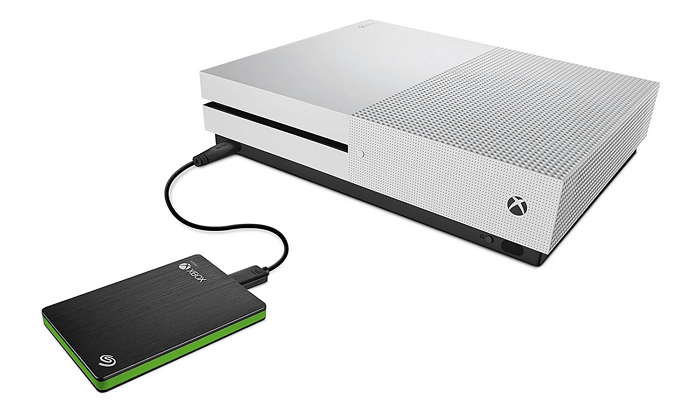
#1. To Use SSD as External Disk on Xbox One
- Open the Xbox One hard drive enclosure.
- Insert the SSD.
- Attach the USB 3.0 cable to the enclosure and then close it. The USB 3.
#2. To Add SSD to Xbox One as Internal Drive
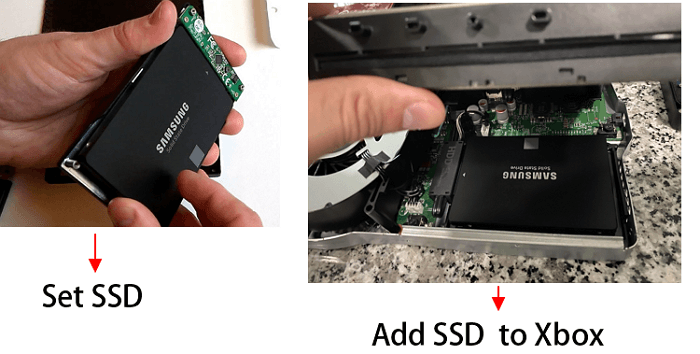
- Turn off Xbox One and open its console case.
- To replace the original hard drive with a new Solid-State Drive (SSD), you will need to physically swap the two drives in the computer. This typically involves removing the screws that hold the hard drive in place, gently pulling it out of its slot, and then installing the new SSD into the same slot.
- Install SSD to Xbox One as an internal disk.
- Turn on Xbox One.
You may also like the following:
Guide 2: Format SSD as External/Internal Disk on Xbox One Console
To format an SSD as an external or internal disk on Xbox One, you need to install or connect the SSD to your Xbox One, following the provided guide, and then format it using the console's built-in formatting tool.
Then, follow the steps here to format SSD for Xbox One with its gaming system settings:
Step 1. Reboot Xbox after installing or adding SSD to Xbox One.
Step 2. To format your external drive for games and apps, go to Settings, click on "System", select "External Drive", and then choose "Format for games & apps".
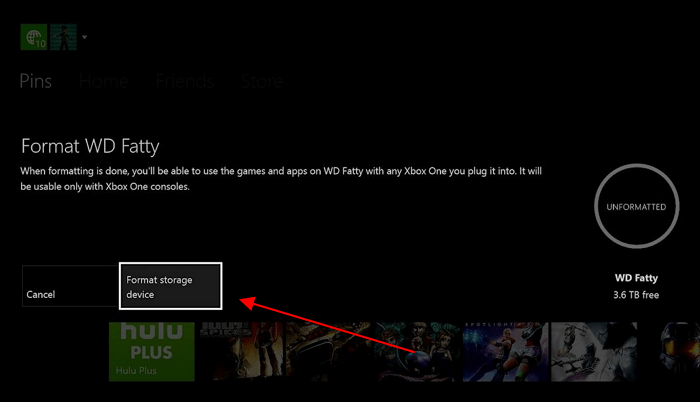
To format the SSD, click on the "Format" button on the Disk Management window, which will open a format pop-up window. Alternatively, you can click "Format storage device" on the pop-up window, which will guide you through the formatting process.
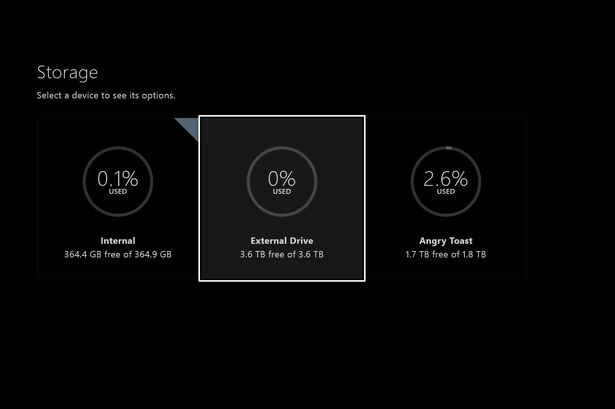
To use the SSD as an internal or external disk, go to Xbox One settings, where you can view and make use of the SSD as an internal or external disk.
Go to Settings > click "Storage", and view content.
You May Also Like: Xbox One Not Reading Disc
Conclusion: Formatting SSD for Xbox One Is Not Complex with Correct Formatting Solution
Formatting an SSD for Xbox One can be done in two ways, both of which are successful. For beginners, method 1, which involves using Qiling Disk Master to format the disk, is recommended as it is easier and faster, making it ideal for setting up a disk for gaming.
FAQs about Formatting SSD for Xbox One
If you have further questions about formatting disks for Xbox One, go and follow to find answers below.
1. How to format a hard drive for Xbox One on a laptop?
- Connect the hard drive to a laptop.
- Open Disk Management and right-click on the target disk, select "Format Volume..." from the context menu.
- Set a new file system format - NTFS to the disk.
- Click "OK" to confirm.
2. What format does my external hard drive need to be for Xbox One?
To use an external hard drive with your Xbox One, you'll need to format it as exFAT for external gaming storage, following a specific guide to ensure successful formatting.
3. How do I format a Seagate SSD for Xbox One?
- To connect the Seagate SSD to your Xbox One console as an external disk device, you will need to use a USB adapter. First, ensure that the Seagate SSD is properly connected to the USB adapter and that the adapter is securely connected to the Xbox One.
- Open Xbox One console and go to Settings.
- Go to System, click "Storage" and select "External Drive".
- Select "Format for games & apps".
Related Articles
- How to Change Dynamic Disk to Basic Disk Safely
- How to Add Space to C Drive to Increase C Drive Space
- Partition Manager Windows 11 Free Download in 2024 🏆
- How to Format DVD RW/CD & How to Erase CD in Windows 10/11
- How to Resize Virtual Hard Disk in 2026 [Efficient & Safe Solutions]
This article provides a step-by-step guide on how to resize virtual hard disks using four professional tools. The tools listed below can help you resize your virtual hard disk with ease. - 6 Ways to Samsung 970 EVO Plus Slow Write Speed
The Samsung 970 EVO Plus may experience slow write speeds due to several reasons, and this article will help identify the cause and provide 6 effective solutions to fix the issue.
Products
Articles & Tutorials
- Data Recovery
- Data Backup
- File Recovery
- File Backup
- System Backup and Restore
- Disk and Partition Clone
- Technical articles
- Mobile articles
- Disk Master Help
- Windows Data Recovery Tutorials
- Windows Secure Delete Tutorials
- Windows Partition Management Tutorials
- Windows File Backup and Restore Tutorials
- Windows System Backup and Restore Tutorials
- Windows Disk Backup and Restore Tutorials
- Windows Clone Tutorials